
Home > Use Insights for Microsoft 365 > Risk Analysis > View Permissions
Download this articleView Permissions
The View permissions page of a Microsoft 365 object and Power BI object are different.
View Permissions of a Microsoft 365 Object
On the View permissions page, you can view the relative URL of the object for which you are viewing permissions above the table. You can modify the relative URL in the text box and select the object URL for which you want to View permissions from the suggestion list. You can also click the Detailed records link on the top navigation to go back to the Detailed records page.
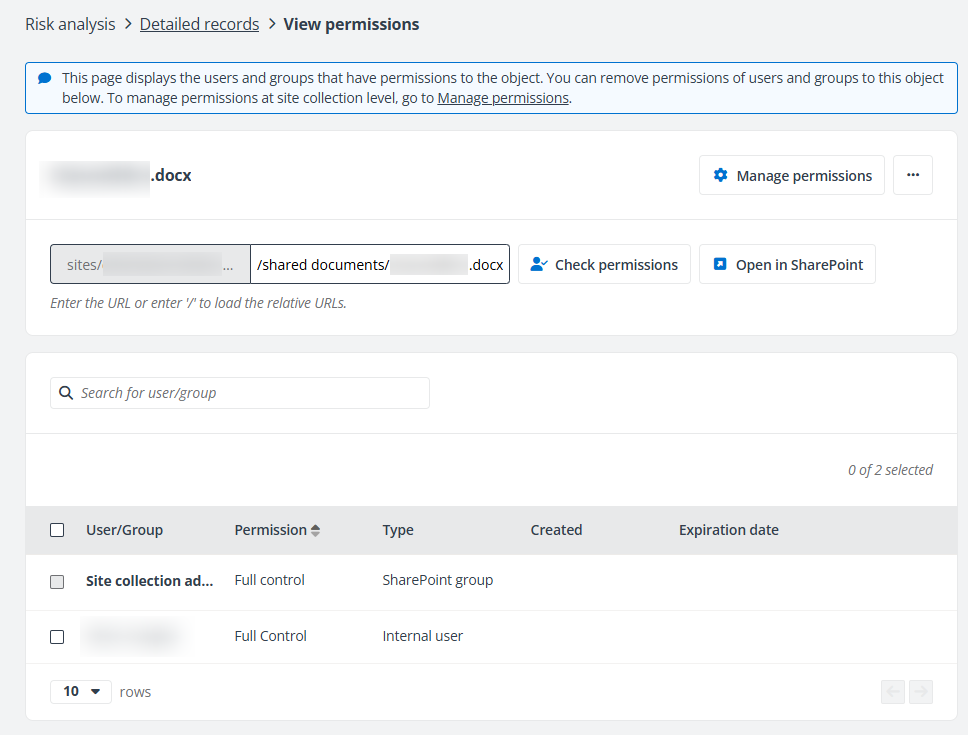
The users and groups who have permissions to the object are listed in the table and sorted by Permission in ascending order.
-
User/Group – The user or group that has permissions to the object, or the shared link to the object. Click the group name, and the View group members window appears listing the group members in the table. You can click the photo of the user or group in the table to view additional metadata. You can also click a group name to view all members in it.
-
Permission – The permission to the object the user/group has.
-
Type – The type of the user or group.
-
Created – If the object is shared via link, the created time will be displayed.
-
Expiration date – If the object is shared via link, the expiration date of the link will be displayed here.
You can edit the user/group permissions to the object by clicking the ellipsis button to the right of a user/group row and clicking Edit permissions. In the Edit permissions window, select the permissions that you want to grant to the user/group, and click Save to update the user/group permissions to the object.
Select one or more users and/or groups and click Remove permissions to remove the user/group permissions to the object. The confirmation window appears, listing the target object and the users and/or groups for which the permissions to the object you are about to remove. Click Remove to remove the permissions, or click Cancel to close the window without removing the permissions. To remove the user/group permissions, you can also click the ellipsis button in front of a user/group and click Remove permissions.
This action is not available for the Site collection administrators group.
To manage permissions at the site collection level, click the Manage permissions link in the message or click Manage permissions on the upper-right corner of the page to access the Manage Permissions page.
Click Refresh from the ellipsis drop-down list in the upper-right corner of page to refresh the users and groups listed in the table.
Click Check permissions, and the Check permissions window appears on the right pane.
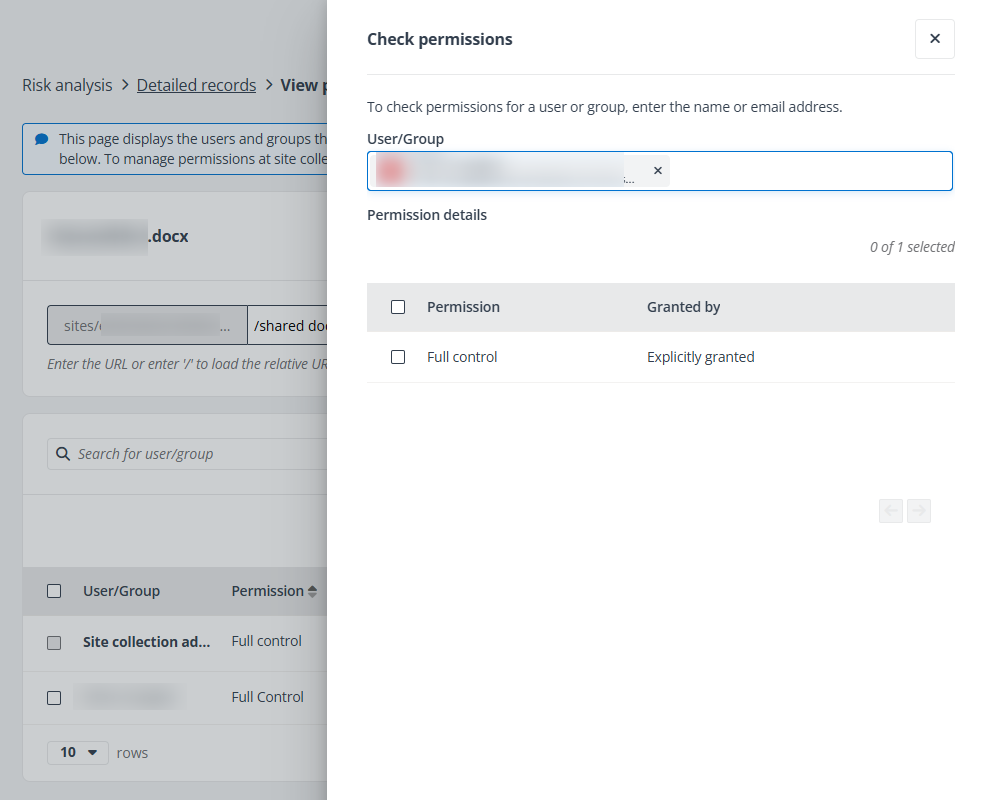
Enter the name or email address of the user or group in the text box and select the user/group from the suggestion list. The permission details of the user or group to the object are displayed below.
Select one or multiple permissions and click Remove permissions to remove the selected permissions from the object.
If the permission is inherited from a group, the group permission to the object will be removed. If the permission is shared via link, the link will be deleted.
Click Open in SharePoint to open the object in SharePoint.
For the site collection that has the permission history setting enabled, the Compare permissions action is available. Click Compare permissions to access the Compare Permissions page.
If an object has unique permissions, the following actions are available.
-
Click Inherit permissions to inherit permissions from the parent node. The unique permissions of the object will be removed.
-
Click View permission differences to access the View permission differences window. The users, groups, and links of which permissions to the parent and current object are different are listed in the table. You can click Inherit permissions after checking the permissions differences to inherit permissions from the parent node.
If an object inherits permissions from its parent node, the following actions are available.
-
Click Break inheritance to break inheritance from the parent node and create unique permissions.
-
Click Go to parent permissions to directly view permissions of the parent node.
View Permissions of a Power BI Object
On the View permissions page, you can view the object name for which you are viewing permissions above the table. You can click the Detailed records link on the top navigation to go back to the Detailed records page.
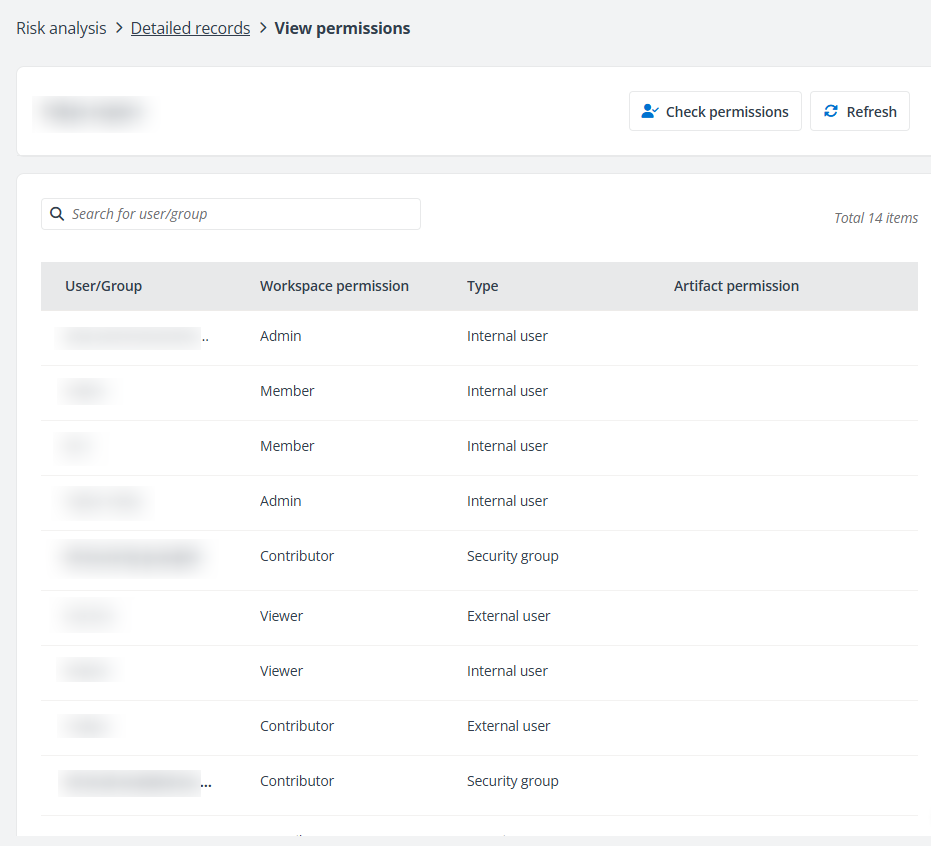
The users and groups who have permissions to the object are listed in the table.
-
User/Group – The user or group that has permissions to the object, or the shared organization link to the object.
-
Workspace permission – The permission to the workspace the user/group has.
-
Type – The type of the user or group.
-
Artifact permission – The permission to the artifact the user/group has.
Click Refresh above the table to refresh the users and groups listed in the table.
Click Check permissions, and the Check permissions window appears on the right pane.
Enter the name or email address of the user or group in the text box and select the user/group from the suggestion list. The permission details of the user or group to the object are displayed below.
Manage Permissions
The Manage permissions page displays all SharePoint groups that are granted permissions to the site collection or the content under it in the SharePoint group tab, and displays all users and groups, except SharePoint groups, that are granted permissions to the site collection or the content under it in the All people tab.
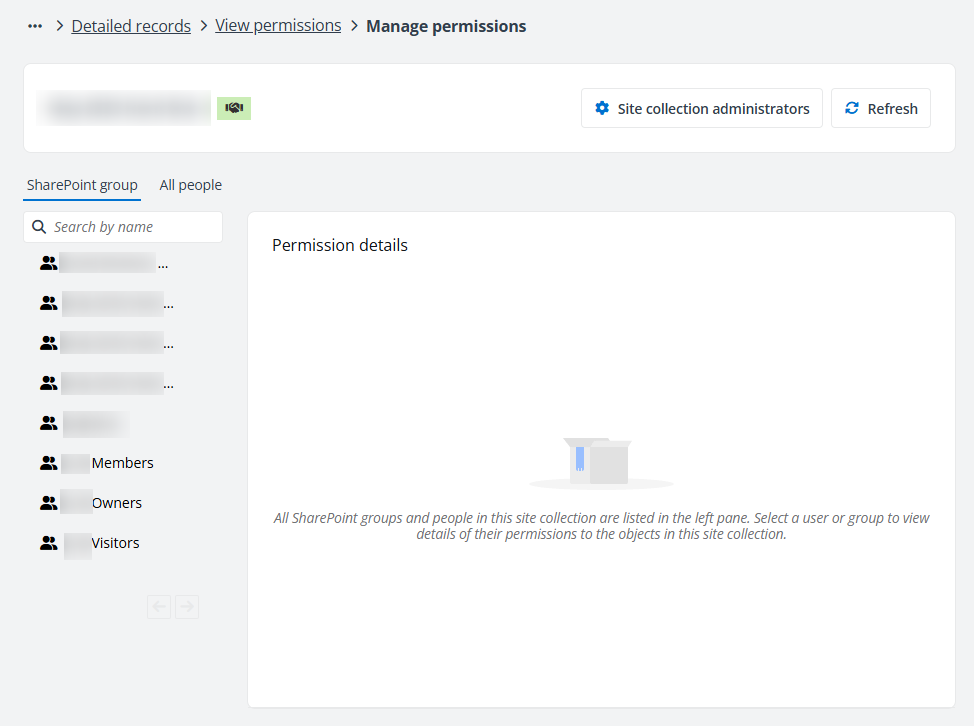
Click Site collection administrator in the upper-right corner, and the Site collection administrators window appears.
The following actions are available on the Site collection administrators window:
-
Remove – Select one or multiple users and/or groups and click Remove above the table to remove the permissions of the selected users and/or groups as the site collection administrators to the site collection, and the corresponding permissions to the content under it will be removed together.
-
Add user – Click Add user, and the Add user window appears on the right of the page. Enter the name or email address of the user that you want to add to the site collection administrators group in the User text box and select the user from the suggestion list. Click Add, the user will be added to the site collection administrators group of the site collection.
-
Refresh – Click Refresh above the table to refresh the users and/or groups listed in the table.
If permission history is enabled for the site collection, the Member change history tab is available in the window. All member changes’ activities are listed in the table. You can click an activity link to view the corresponding activity details. You can also select a record and click Revert to revert the change.
Click Refresh in the upper-right corner to refresh the data displayed on the page.
Under the Permission details tab, all objects to which the currently selected user or group has permissions are listed in the table.
-
View permissions – This option allows you to access the View permissions page of the object.
-
View activities – This option allows you to access the View Activities page of the object.
When you select a group on the left pane, the Group members tab will appear. Under the Group members tab, all members of the group are listed in the table. Click the Remove button to remove the member from the group.
If permission history is enabled for the site collection, the Permission history tab is available and all permission changes of the group will be listed in the table. You can click an activity link to view the corresponding activity details. You can also select a record and click Revert to revert the permission change.
The first permission change record cannot be reverted since the original permission cannot be retrieved before the permission history is enabled.
Compare Permissions
Select a start time and click Compare to compare permissions of the object between the selected time and the current time. The default time range of permission comparison is the last 7 days.
-
In the Permission changes tab, the permission changes during the time range are listed in the table. Click the activity of a permission change record to view details of the activity.
-
In the Permissions without change tab, the permissions that have no changed in the time range are listed in the table.