
Home > Use Insights for Microsoft 365 > Risk Analysis > View Detailed Information
Download this articleView Detailed Information
View Detailed Information of Site Collections
On the Detailed information page, you can view the name of the Team / site collection / OneDrive / Microsoft 365 Group on the top. This page is made up of several tabs: Permissions, Activities, Statistics, and Details. Clicking Compare permissions/Manage permissions on the upper-right corner of the page to access the Compare Permissions/Manage Permissions page directly.
-
Permissions – You can view the permission-related information, including the number of groups that contain Everyone, the number of external users who have permissions to the site collection, the number of large groups, the number of orphaned users, and the number of groups with external users. By default, all users and groups under the site collection are listed in the table below. You can click a tile to view the corresponding users and groups.
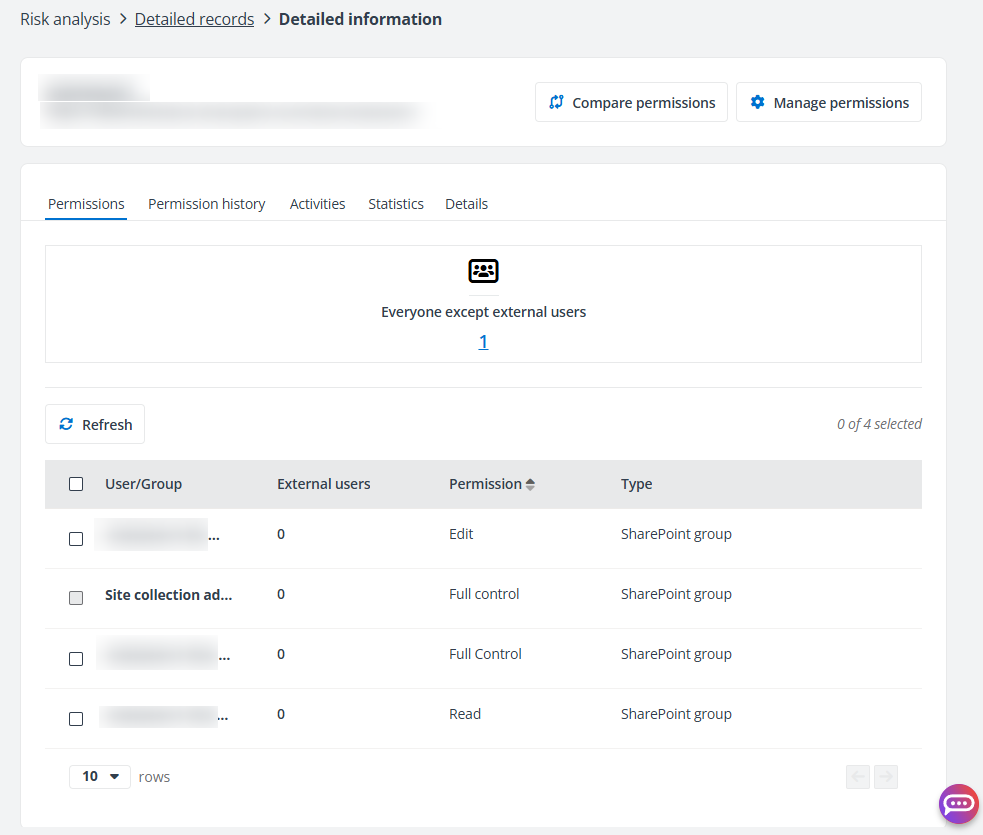
You can view the name of the user or group, the number of external users, the permission this user or group has to the site collection, and the type of the user or group in the table. Groups in the table are clickable. Click a group name, and the View group members window appears where you can view the member list on the right pane.
-
Remove permissions – You can remove the user/group permissions to the site collection by selecting a user or group, and clicking Remove permissions. Alternatively, you can click the ellipsis button in front of a user/group and click Remove permissions.
To manage permissions at the site collection level, click the Manage permissions link in the message to access the Manage Permissions page.
-
Refresh – Click Refresh to refresh the users and groups displayed in the table.
-
Edit permissions – Click the ellipsis button to the end of a user/group row and click Edit permissions. In the Edit permissions window, select the permissions that you want to grant to the user/group, and click Save to update the user/group permissions to the site collection.
-
-
Permission history – This tab appears only when permission history setting is enabled for the site collection. All permission changes of the site collection are listed in the table. You can click an activity link to view the corresponding activity details. You can also select a record and click Revert to revert the permission change.
NOTEIf the first permission change record is Remove permission, it cannot be reverted since the removed permission cannot be retrieved before the permission history is enabled.
-
Activities – All activities within the Team site / site collection / OneDrive / Microsoft 365 Group are displayed. Deselect the Show all activities within this site collection option to only show the activities of the site collection. You can click Export to export the displayed activities or click Refresh to refresh the activities displayed in the table.
-
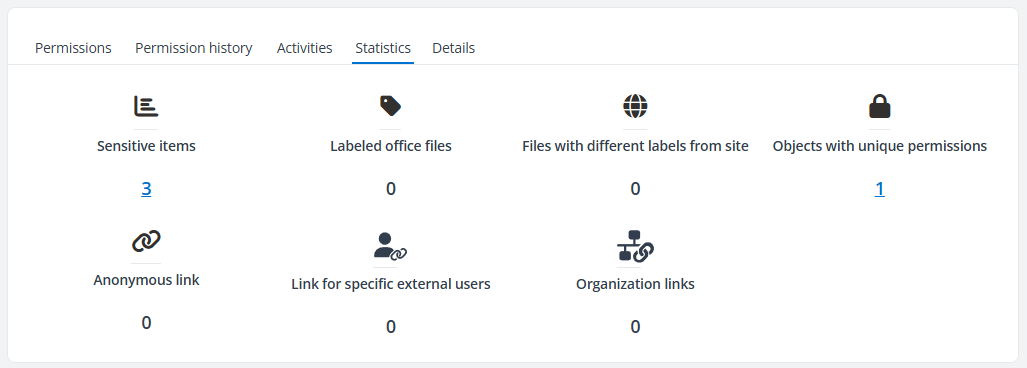
Statistics – You can view the number of sensitive items, office files with sensitivity labels, files of which the labels are different from that of their sites, objects with unique permissions, objects shared via anyone links, objects shared with specific people and they are external users, and objects shared with people in the organization. Clicking the number link under each statistic allows you to access the corresponding page with detailed objects displayed.
-
Details – The basic information of the Team site / site collection / OneDrive / Microsoft 365 Group is displayed, including Created time, Created by, Object type, Site collection URL, Sensitivity label, External sharing, and Site status. You can copy the site collection URL by clicking the Copy icon. In the Risk information section, the risk level, exposure level and exposure rule, and sensitivity level of the site collection are displayed. You can also view the data types that the site collection matches if the site collection is sensitive, and the sensitivity label that is applied to the site collection in Microsoft 365.
View Detailed Information of Workspaces
On the Detailed information page, you can view the name of the workspace on the top. This page is made up of several tabs: Permissions, Activities, Statistics, and Details.
-
Permissions – You can view the permission-related information, including the number of external users who have permissions to the workspace and the number of groups with external users. By default, all users and groups that have permission to the workspace are listed in the table below. You can click a tile to view the corresponding users and groups.
You can view the name of the user or group, the number of external users, the permissions this user or group has to the workspace, and the type of user or group in the table.
-
Activities – All activities within the workspace are displayed. Deselect the Show all activities within this workspace option to only show the activities of the workspace. You can click Export to export the displayed activities or click Refresh to refresh the activities displayed in the table.
-
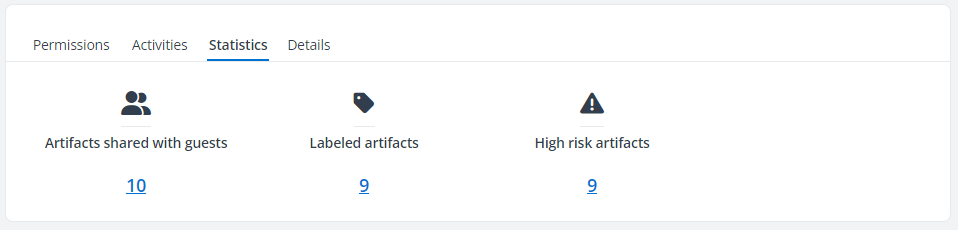
Statistics – You can view the number of artifacts that are shared with guests, artifacts with sensitivity labels, and artifacts whose risk level is high. Clicking the number link under each statistic allows you to access the corresponding page with detailed objects displayed.
-
Details – The basic information and risk information of the workspace is displayed. You can copy the workspace URL by clicking the Copy icon.
View Detailed Information of Items/Files/Folders/Lists/Libraries/Sites
On the Detailed information page of an item/file/folder/list/library/site, there are three tabs. Clicking Manage permissions on the upper-right corner of the page to access the Manage Permissions page directly.
-
Permissions – You can view the permission-related information, including the number of groups that contain Everyone, the number of external users who have permissions to the item/file/folder/list/library/site, the number of large groups, the number of orphaned users, the number of groups with external users, and the number of sharing links. By default, all users and groups that have access to the item/file/folder/list/library/site are listed in the table below. You can click a tile to view the corresponding users and groups.
You can view the name of the user or group, the number of external users, the permission this user or group has to the site collection, and the type of user or group in the table. Groups in the table are clickable. Click a group name, and the View group members window appears where you can view the member list on the right pane.
-
Edit permissions – You can edit the user/group permissions to the item/file by clicking the ellipsis button in front of a user/group and clicking Edit permissions. In the Edit permissions window, select the permissions that you want to grant to the user/group, and click Save to update the user/group permissions to the item/file.
-
Remove permissions – Selecting a user/group in the table and clicking Remove permissions allows you to remove the permissions of the user/group to the item/file. Alternatively, you can click the ellipsis button in front of a user/group and click Remove permissions.
-
Refresh – Click Refresh to refresh the users and groups displayed in the table.
-
Activities – All activities within the item/file/folder/list/library/site are displayed. You can click Export to export the displayed activities or click Refresh to refresh the activities displayed in the table.
-
Details – The basic information of the item/file/folder/list/library/site is displayed under Basic information. You can click the Copy button to copy the URL of the object.
Under Risk information, the risk level, exposure level and exposure rule, sensitivity level, sensitivity label, and matched data type, trainable classifier, as well as retention label of the object are displayed.
You can click the pencil button to apply a sensitivity label to the file or remove the applied sensitivity label from the file.
NOTEThis action is only available for the following file types: .doc, .xls, .ppt, .docx, .xlsx, and .pptx.
NOTETo apply sensitivity labels with encryption, Content.SuperUser and Content.Writer permissions are required. Make sure you use the AvePoint Insights for Microsoft365 app created by AvePoint Online Services, or use a custom Azure app and grant these permissions to the app. For more information, refer to Use a Custom Azure App.
View Detailed Information of Artifacts
On the Detailed information page of an artifact, there are three tabs.
-
Permissions – You can view the permission-related information, including the numbers of external users and large groups that have permissions to the artifact. By default, all users and groups that have access to the artifact are listed in the table below. You can click a tile to view the corresponding users and groups.
You can view the name of the user or group, the number of external users, the permissions this user or group has to the workspace and artifact, and the type of user or group in the table.
-
Activities – All activities within the artifact are displayed. You can click Export to export the displayed activities or click Refresh to refresh the activities displayed in the table.
-
Details – The basic information of the artifact is displayed under Basic information. You can click the Copy button to copy the URL of the workspace where the artifact is located.
Under Risk information, the risk level, exposure level, exposure rule, sensitivity level, and sensitivity label of the artifact are displayed.
View Detailed Information of Copilot Studio Agents
On the Detailed information page of a Copilot Studio agent, there are four tabs.
-
In the Knowledge tab, you can view details of your agent’s knowledge sources. Knowledge sources work together with generative answers and allow your agents to provide relevant information and insights for users. Agents can use enterprise data from Power Platform, Dynamics 365 data, websites, and external systems.
Click Refresh to view the latest knowledge source. For SharePoint sites, you can click the URL to view objects under it, together with risk level, sensitivity level, sensitivity label, creator, and created time.
-
In the Availability tab, you can view details of the users and groups who have access to this agent, along with their type, role, and email addresses. Click Refresh to view the latest user and group list.
-
In the Activities tab, all activities related to the agent are listed. To view the latest activities, click Refresh above the table. Click the link in the More information column to view the Copilot activity details.
-
In the Accessed sensitive files tab, the sensitive files accessed by the agent are listed in the table. You can view the sensitivity level, sensitivity label, and the time when the agent last accessed the file. Click Refresh to view the latest accessed files.
-
In the Details tab, you can view details about the agent.
View Detailed Information of SharePoint Agents
On the Detailed information page of a SharePoint agent, there are four tabs.
-
In the Availability tab, you can view details of the users and groups who have access to this agent, along with their permissions and email addresses. Click the name of a group to view group members in the right pane. Click Refresh to view the latest user and group list.
-
In the Activities tab, all activities related to the agent are listed. To view the latest activities, click Refresh above the table. Click the link in the More information column to view the activity details.
-
In the Accessed sensitive files tab, the sensitive files accessed by the agent are listed in the table. You can view the sensitivity level, sensitivity label, and the time when the agent last accessed the file. Click Refresh to view the latest accessed files.
-
In the Details tab, you can view details about the agent.
View Detailed Information of Microsoft Foundry Agents
On the Detailed information page of a Microsoft Foundry agent, there are three tabs.
-
In the Knowledge tab, you can view details of your agent’s knowledge sources. Click Refresh to view the latest knowledge source.
-
In the Availability tab, you can view the users and groups that have access to this agent. Click the name of a group to view group members in the right pane. Click Refresh to view the latest user and group list.
-
In the Details tab, you can view details about the agent.
View Detailed Information of Microsoft 365 Agents
On the Detailed information page of a Microsoft 365 agent, there are two tabs.
-
In the Activities tab, all activities related to the agent are listed. To view the latest activities, click Refresh above the table. Click the link in the More information column to view the activity details.
-
In the Details tab, you can view details about the agent.