
Home > Administration > Configure General Settings
Download this articleConfigure General Settings
In Administration > General settings, the Tenant Owner and Services Administrators can refer to the following sections to configure settings.
Culture Settings
Refer to the instructions below to select your preferred date format and email language.
-
Navigate to Administration > General settings > Culture settings.
-
The Culture settings pane appears on the right of the page. Refer to the information below to configure the date format and display language:
-
Select a date format – Select an option from the drop-down list. The selected date format will be displayed in the AvePoint Online Services environment and notification emails.
-
Select an email language – By default, the display language is set according to the country or region you’ve selected while signing up for AvePoint Online Services. You can select a language preference from English, Japanese, German, French, and Korean.
The following table lists the default email language mappings.
Language Country/Region Japanese Japan French Benin French Burundi French Central African Republic French Chad French Comoros French Democratic Republic of the Congo French Djibouti French Equatorial Guinea French France French French Guiana French French Polynesia French Gabon French Guernsey French Guinea French Haiti French Ivory Coast French Madagascar French Mali French Mauritania French Monaco French Niger French Republic of the Congo French Senegal French Togo German Austria German Germany Korean Korea
-
For the countries or regions that are not listed in the table, the display language has been mapped to English.
- Click Save.
Logo Customization
If you want to apply a custom logo, refer to the instructions below:
Currently, the custom logo can only be applied to ReCenter (for Microsoft 365) and Insights. For additional information on the places where the custom logo will be displayed,refer to Change the Logo of the ReCenter Portal in ReCenter user guide and Visibility Settings in Insights user guide.
-
Navigate to Administration > General settings > Logo customization.
-
In the Logo customization pane, turn on the Customize logo toggle, and then click Upload to upload a custom logo.
NOTEYou can upload a logo in the file type of JPG, BMP, PNG, or SVG. The maximum limit of file size is 800 KB, and the recommended dimensions are 180 pixels (width) * 48 pixels (height).
-
Click Save.
Terminology Mappings
If you want to configure mappings to map default terms to custom terms, refer to the instructions below:
Currently, the terminology mappings can only be applied to ReCenter (for Microsoft 365). For additional information on the places where the default terms will be mapped to custom terms, see the Configure Terminology Mappings for ReCenter. Note that some mappings may not take effect due to limitations, you can Invite Support when you encounter mapping issues.
-
Navigate to Administration > General settings > Terminology mappings.
-
In the Terminology mappings pane, click Edit, and then follow the instructions below to configure mappings:
-
To add a mapping, follow the steps below:
-
Click Add mapping. The Add mapping sub pane appears.
-
In the Add mapping sub pane, enter a default term in the Default textbox, enter a custom term in the Custom textbox, and then click Add to add a mapping.
NOTEThe mapping is case-sensitive. The value entered in the Default textbox must be the same as the default term in the service environment. Otherwise, the mapping will not take effect.
-
If you want to add multiple mappings, repeat the above step i and step ii.
-
-
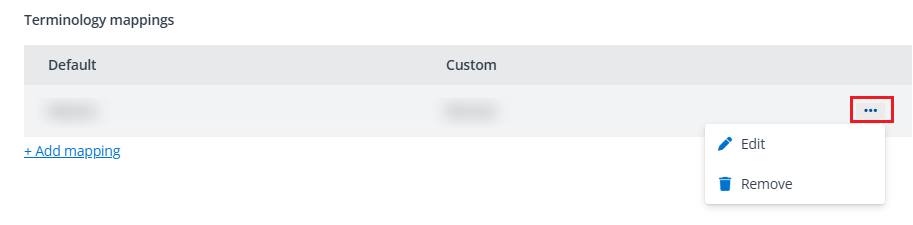
To edit or remove a mapping, click the more options button on the right of the mapping, and then click Edit or Remove from the drop-down menu.
-
-
Click Save.
Email Settings
In Administration > General settings > Email settings, you can customize which email sender will be used to send AvePoint notification emails to a Microsoft 365 tenant.
This function supports changing email sender for AvePoint Online Services, EnPower, Policies for Microsoft 365, rakumo for Microsoft 365, and Insights. Before you change the email sender for a Microsoft 365 tenant, ensure that the tenant has configured an app profile for one of the following apps:
-
Microsoft Entra ID app
-
Custom app with the Mail.Send Microsoft Graph API permission
For additional information on configuring app profiles, refer to Manage App Profiles for Microsoft Tenants.
To change the email sender settings, refer to the instructions below:
-
Navigate to Administration > General settings, and then click Email settings.
-
Email sender – Select one of the following options:
-
The default email address – For details on the default email addresses, refer to Email Sender Information of AvePoint Cloud Services.
-
Microsoft 365 account – If you select this option, you can add multiple Microsoft 365 accounts or shared mailboxes as email senders.
Follow the steps below to add Microsoft 365 accounts:
-
Click Add. The Add pane appears on the right of the page.
-
Select an option from the Tenant drop-down list.
-
In the Microsoft 365 account field, enter the username of a Microsoft 365 account or shared mailbox, and then select the desired option from the suggestion list. The specified Microsoft 365 account must have an Exchange license.
-
Click Send a test email to send a test email to validate the specified email sender.
-
Click Add at the bottom of the Add pane.
-
If you want to add multiple accounts, repeat the steps above. To delete an account, click the Delete button.
NOTEConsidering that Microsoft limits the number of email messages sent from one account per day, you can add multiple accounts, and we will use any of them as the email sender in a random order.
-
-
-
Click Save to update the email settings.
Email Sender Information of AvePoint Cloud Services
The table below lists the sender information of AvePoint cloud services. AvePoint recommends that your organizations add related email senders to the safe senders list to avoid blocking notification emails.
| Service | Sender | Note |
|---|---|---|
| AvePoint Online Services | DoNotReply@mail.avepoint.com | You can customize the email sender. Refer to Configure General Settings > Email settings section for details. |
| AvePoint Online Services | AOS_Team@avepointonlineservices.com | You can customize the email sender. Refer to Configure General Settings > Email settings section for details. |
| Cense | NewAdmin_Team@avepointonlineservices.com | |
| Cloud Backup for Dynamics 365 | CloudBackup_Team@avepointonlineservices.com | |
| Cloud Backup for Microsoft 365 | CloudBackup_Team@avepointonlineservices.com | |
| Cloud Backup for Google Workspace | Backup_GW@avepointonlineservices.com | |
| Cloud Backup for IaaS + PaaS | AzureBackup_Team@avepointonlineservices.com | |
| Cloud Backup for Salesforce | DBSF_Team@avepointonlineservices.com | |
| Cloud Management | DAO_Team@avepointonlineservices.com | |
| Classic DocAve Backup | DAO_Team@avepointonlineservices.com | |
| Opus | opus_team@avepointonlineservices.com | You can customize the email sender of AvePoint Opus. Refer to the Configure General Settings section in Opus user guide for details. |
| Insights | Insights_Team@avepointonlineservices.com | You can customize the email sender. Refer to Configure General Settings > Email settings section for details. |
| Policies for Microsoft 365 | Policies_Team@avepointonlineservices.com | You can customize the email sender. Refer to Configure General Settings > Email settings section for details. |
| Cloud Governance | noreply@avepointonlineservices.com | You can customize the email sender of Cloud Governance. Refer to the Configure Email Settings section in Cloud Governance Administrator Guide for details. |
| EnPower | noreply@avepointonlineservices.com | You can customize the email sender. Refer to Configure General Settings > Email settings section for details. |
| Fly | noreply@avepointonlineservices.com | |
| Confide | noreply@avepointonlineservices.com |
Integration with Microsoft Azure Event Hubs
If you want to build an integration between a hub in Microsoft Azure Event Hubs and the audit records from specific cloud services in AvePoint, refer to the instructions below:
With the integration, the audit records will be synced to the event hub once per hour. Real-time sync is not yet supported.
-
Navigate to Administration > General settings > Integration with Microsoft Azure Event Hubs.
-
In the Integration with Microsoft Azure Event Hubs pane appearing on the right, turn on the toggle, and configure the following fields:
-
Event hub name – Enter the name of an event hub.
-
Event hub connection string – Enter the connection string of the event hub.
-
Specific services – Select one or more services from the drop-down list. The available options are listed below:
-
AvePoint Online Services
-
Cloud Backup for Dynamics 365
-
Cloud Backup for Google Workspace
-
Cloud Backup for Microsoft 365
-
Cloud Backup for Salesforce®
-
Cloud Governance
-
Cloud Management services (includes Cloud Management and Classic DocAve Backup services)
-
Confide
-
EnPower
-
Insights
-
Policies for Microsoft 365
-
Opus
-
-
Data format – The default option is CEF (Common Event Format). You can change the data format to JSON if necessary.
-
-
Click Save.
For more information, you can refer to the Microsoft documents: Create an event hub and Get a connection string. Note that the connection string must have at least the Send permission.
Identity provider
To enable sign-in with Okta, you need to create a new identity provider profile for new Okta applications before adding Okta users or groups.
To create an identity provider, complete the following steps:
-
Navigate to Administration > General settings > Identity provider.
-
Click Create.
-
In the Create identity provider profile panel, complete the following configurations:
-
Profile name – Enter the identity provider profile name.
-
Identity provider type – Select the identity provider type.
-
Okta domain – Enter the Okta domain.
-
User domain – Enter the user domain. You can click Add to add multiple user domains.
NOTE-
Each user domain can only be added to one AvePoint Online Services tenant.
-
Updating or deleting the identity provider user domain may prevent users from signing in. Ensure that all related users are deleted in User Management before proceeding.
-
-
Login authentication – Configure the required information of the application for login authentication. For detailed instructions on how to create the application, refer to Connect applications for Okta.
- Client ID – Enter the client ID copied from Okta.
- Private key – Enter the private key copied from Okta.
-
API service integration – Configure the required information of the application for API service integration. For detailed instructions on how to create the application, refer to Connect applications for Okta.
- Client ID – Enter the client ID copied from Okta.
- Private key – Enter the private key copied from Okta.
-
-
Once completed, click Save.