
Home > App Management > Manage Connections for SaaS Applications > Connect an Application for Jira/Jira Admin Settings/Jira Service Management
Download this articleConnect an Application for Jira/Jira Admin Settings/Jira Service Management
To connect an application for Jira, complete the following configurations.
To allow external users to call an app API, API token access must be enabled. If you are using an external account, make sure API token access is enabled before creating an application connection in AvePoint Online Services. For detailed steps, refer to Allow API token access for external users.
Step 1: Create an API token in Jira
Follow the steps below to create an API token:
-
Sign in to Jira.
-
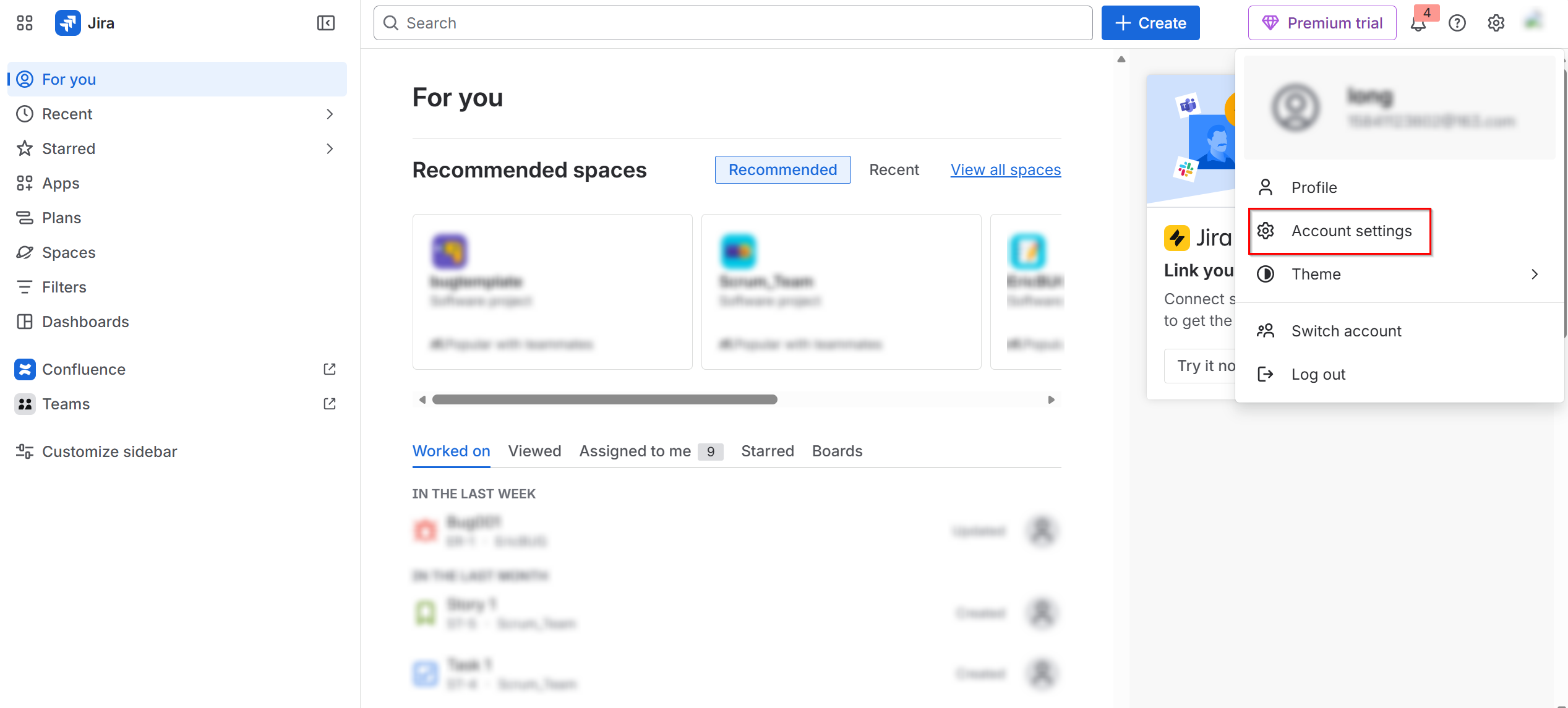
Click your profile picture in the upper right corner and select Account settings.
-
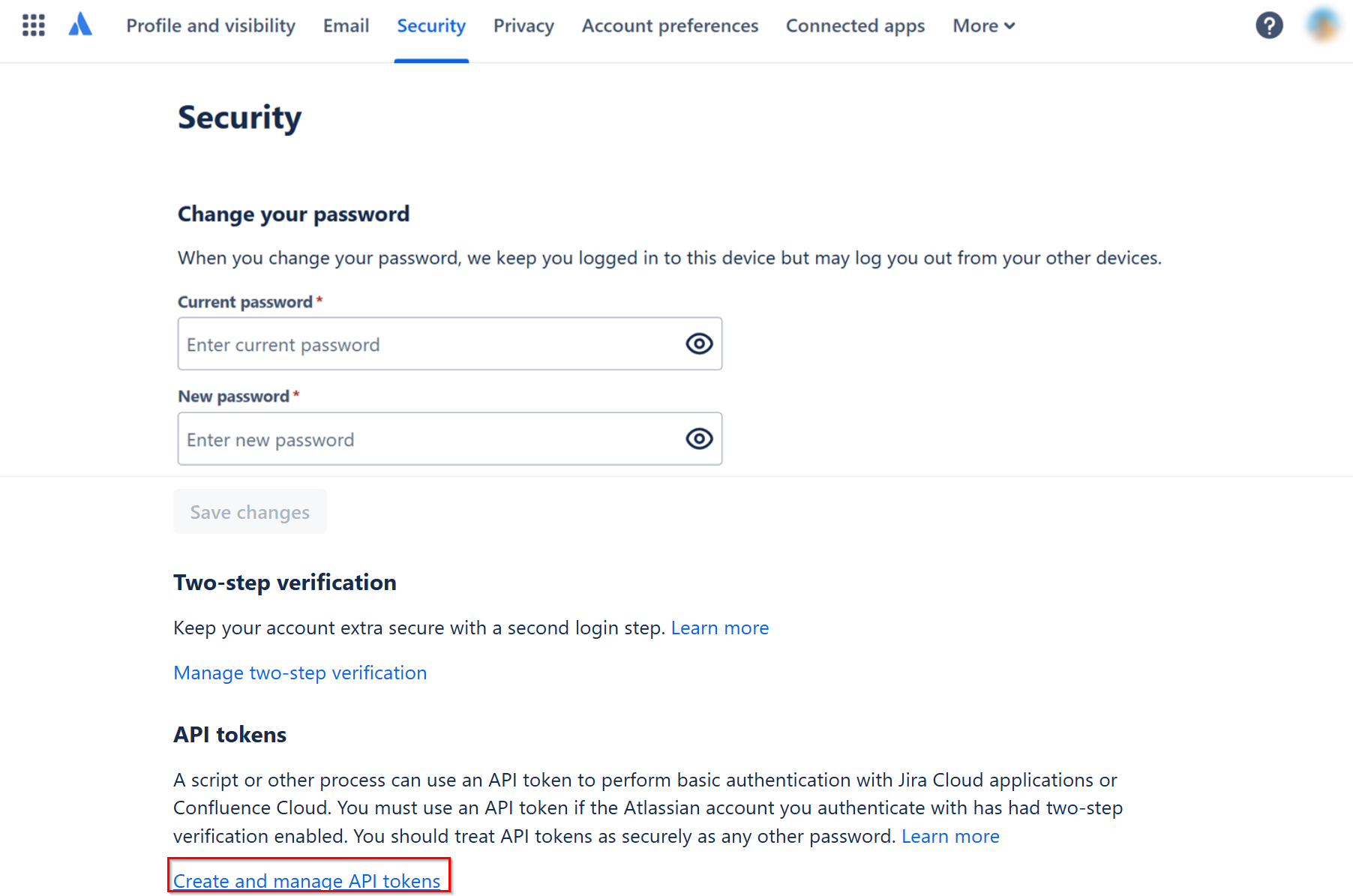
Navigate to the Security tab and click Create and manage API tokens link in the API tokens section.
-
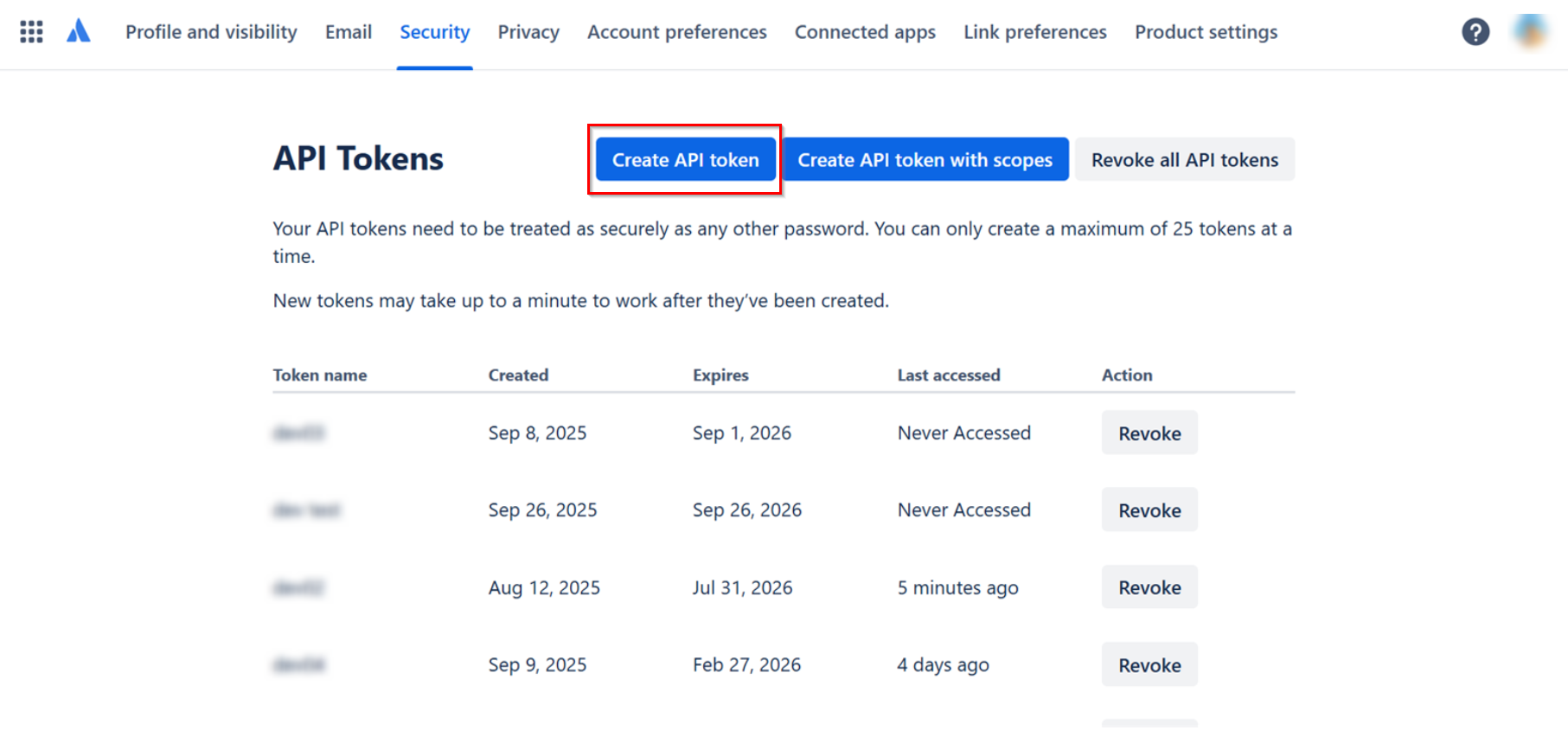
Click Create API token.
-
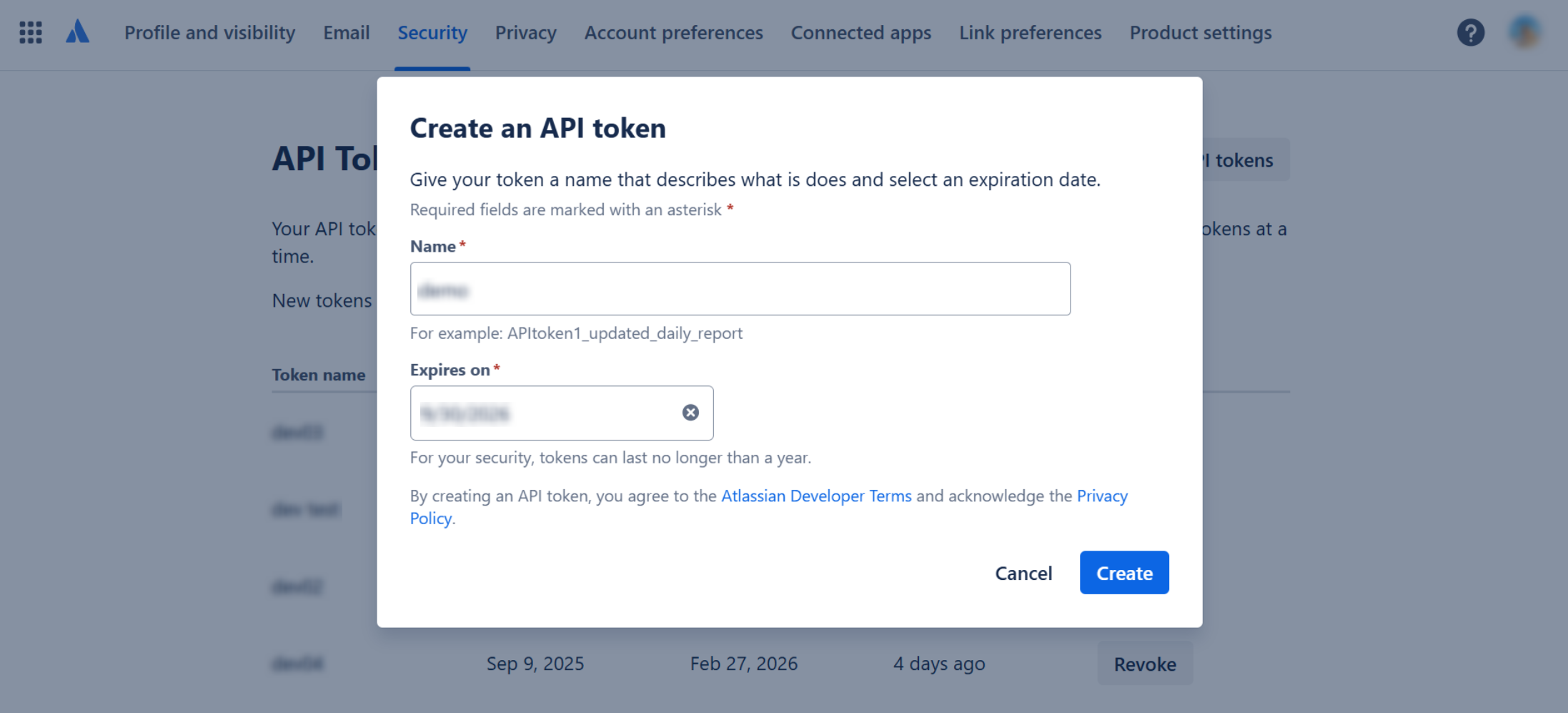
In the Create an API token window, enter a token name, configure the expiration date and click Create.
 NOTE
NOTEIf the API token is expired, the backup jobs of Atlassian admin, Jira and Confluence for Jira Service Management will fail. Cloud Backup for SaaS Applications will send email notifications to alert users of upcoming API token expiration and when backup jobs fail due to API token expiration.
-
After the API token is created, click Copy in the in the Copy your API token window. Then, paste and securely store it in a safe location.
If you are using an external user, please refer to Block user API token access for details.
Step 2: Get the host URL
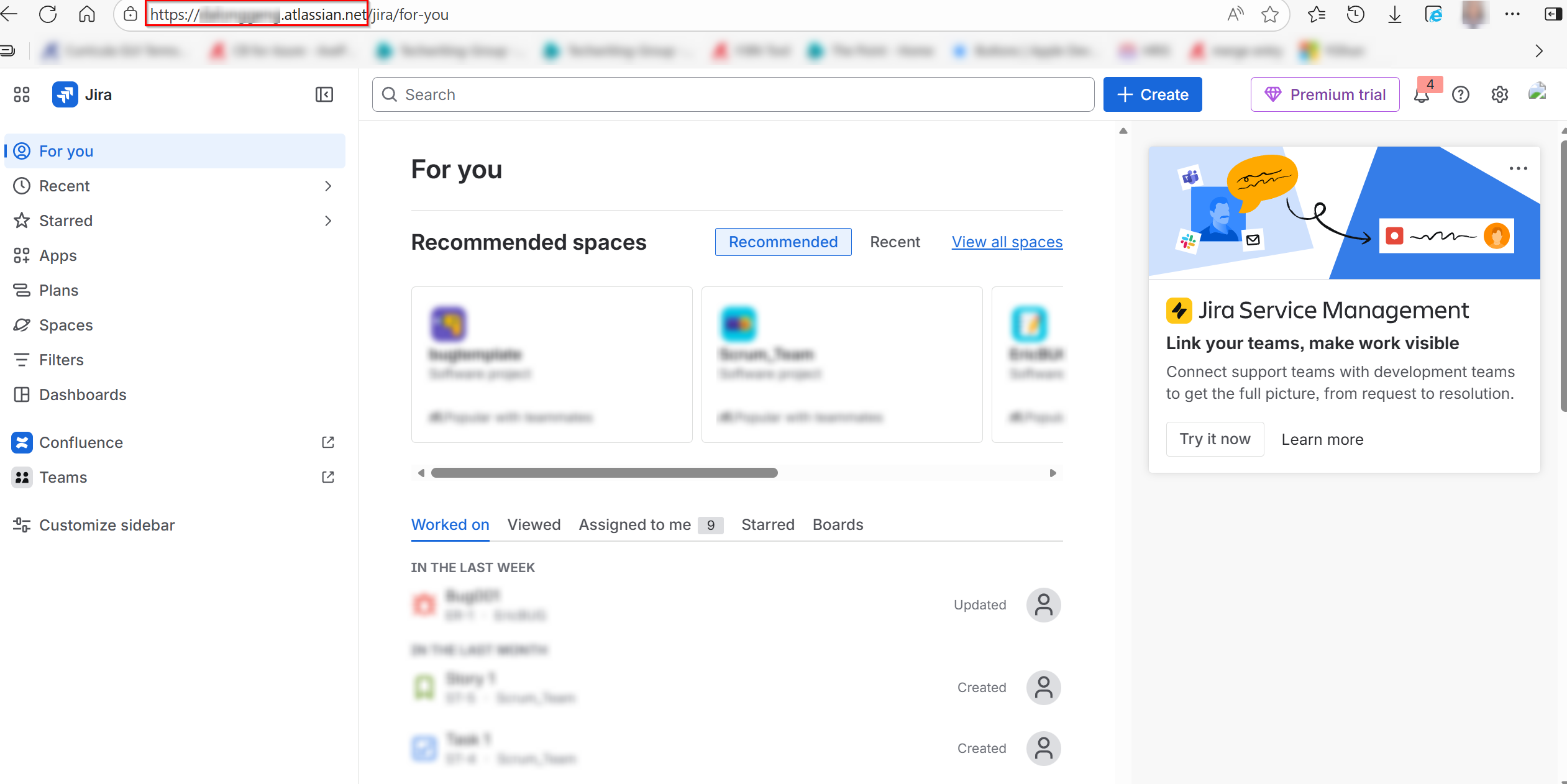
Copy the Host URL from the Jira website URL: https://your-sub-domain.atlassian.net.
Step 3: Grant permissions to your account
Your account must have necessary permissions to perform Jira backup and restore operations. For details on how to grant permissions, refer to the following instructions.
Grant Global Permissions
Global permissions can only be assigned to groups. Ensure the user you wish to include in the app connection belongs to at least one group with the required permissions.
Follow the steps below to grant global permissions:
-
Sign in to Jira.
-
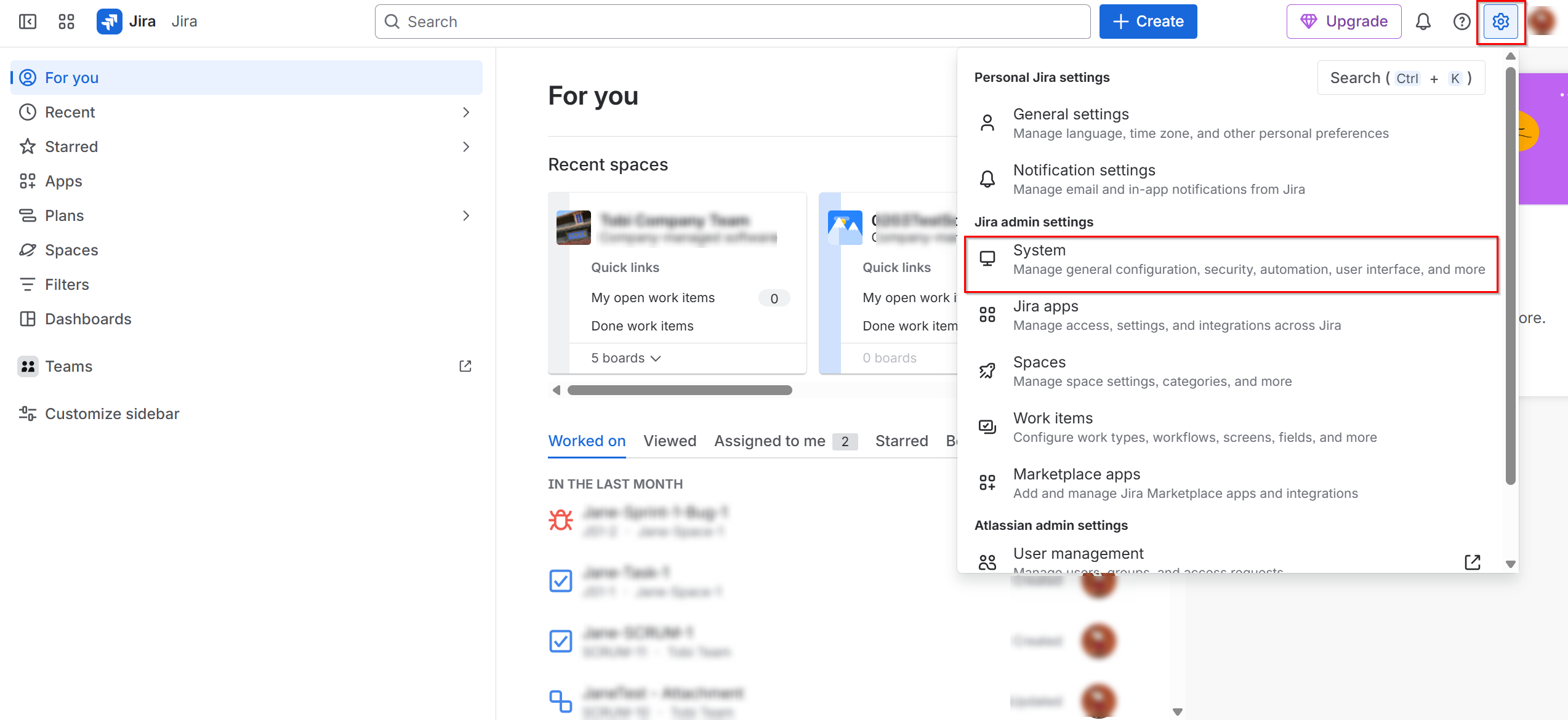
Click the Settings button and select System.
-
On the System page, click Global permissions on the left navigation pane.
-
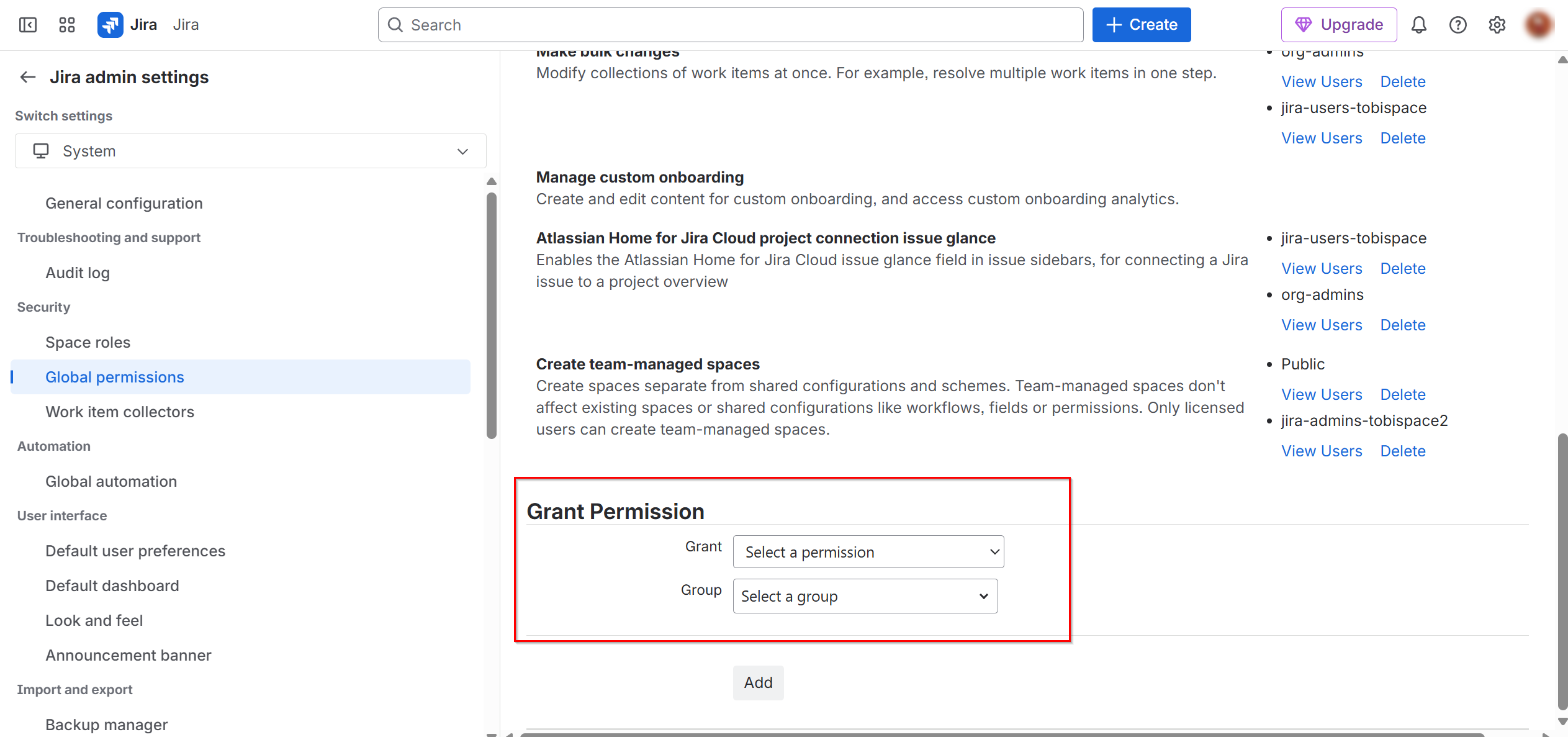
In the Grant Permission field, select the required permissions and groups to assign.
-
Permissions required for backup
Permission Why You Need Administer Jira Scan all projects. Back up projects, project field configuration schemes, work type schemes, work type screen schemes, priority schemes, notification schemes, permission schemes, and workflow schemes. Browse users and groups Scan all projects and back up project avatars. -
Permissions required for restore
Permission Why You Need Administer Jira Restore projects, project field configuration schemes, work type schemes, work type screen schemes, priority schemes, notification schemes, permission schemes, and workflow schemes. Browse users and groups Check users and groups whether exist. Share dashboards and filters Restore boards. Create team-managed spaces Restore projects.
-
Grant Project Permissions
Follow the steps below to grant project permissions:
Since there are multiple ways to grant permissions within a permission scheme, simply ensure that the user you wish to include in the app connection has been properly granted with required permissions. The method we provide is for reference only.
-
Sign in to Jira.
-
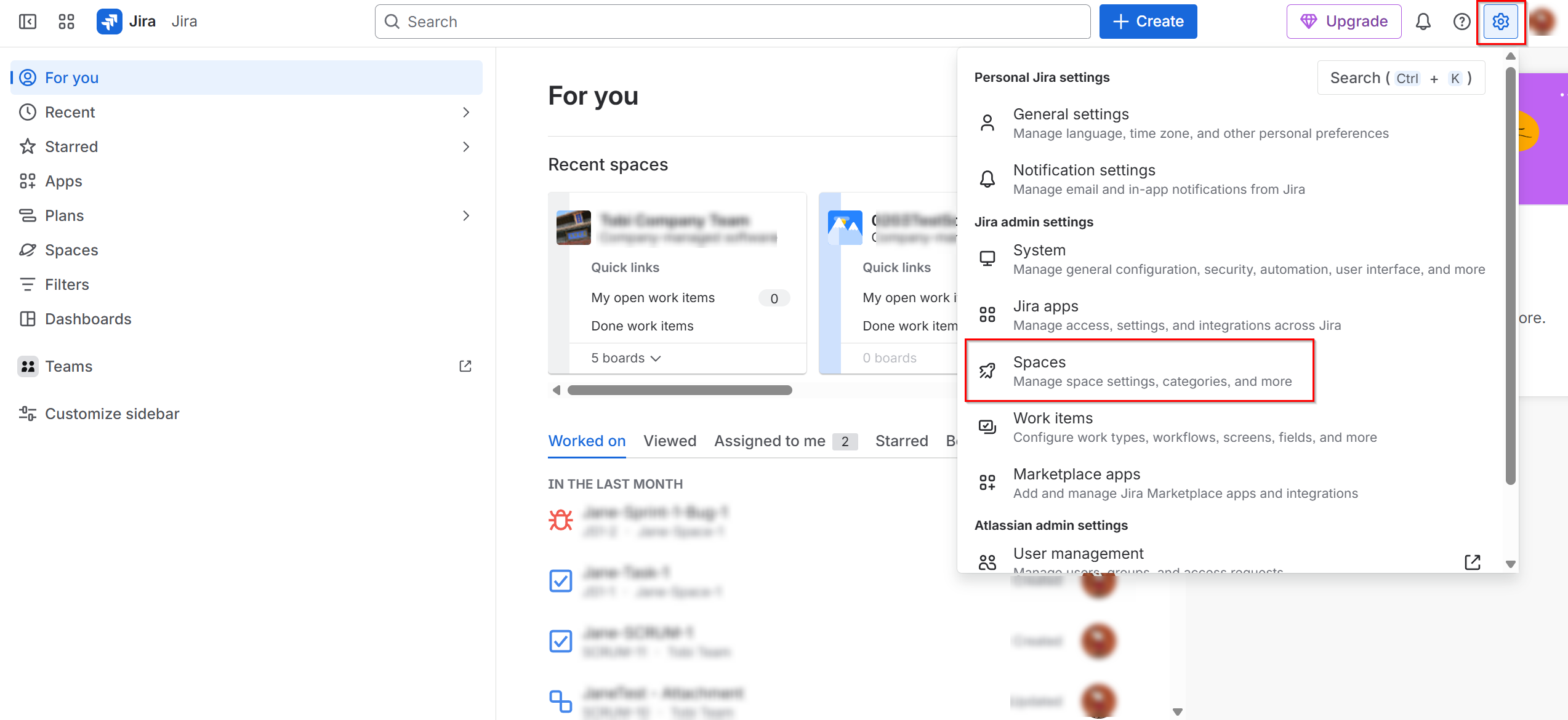
Click the Settings button and select Spaces.
-
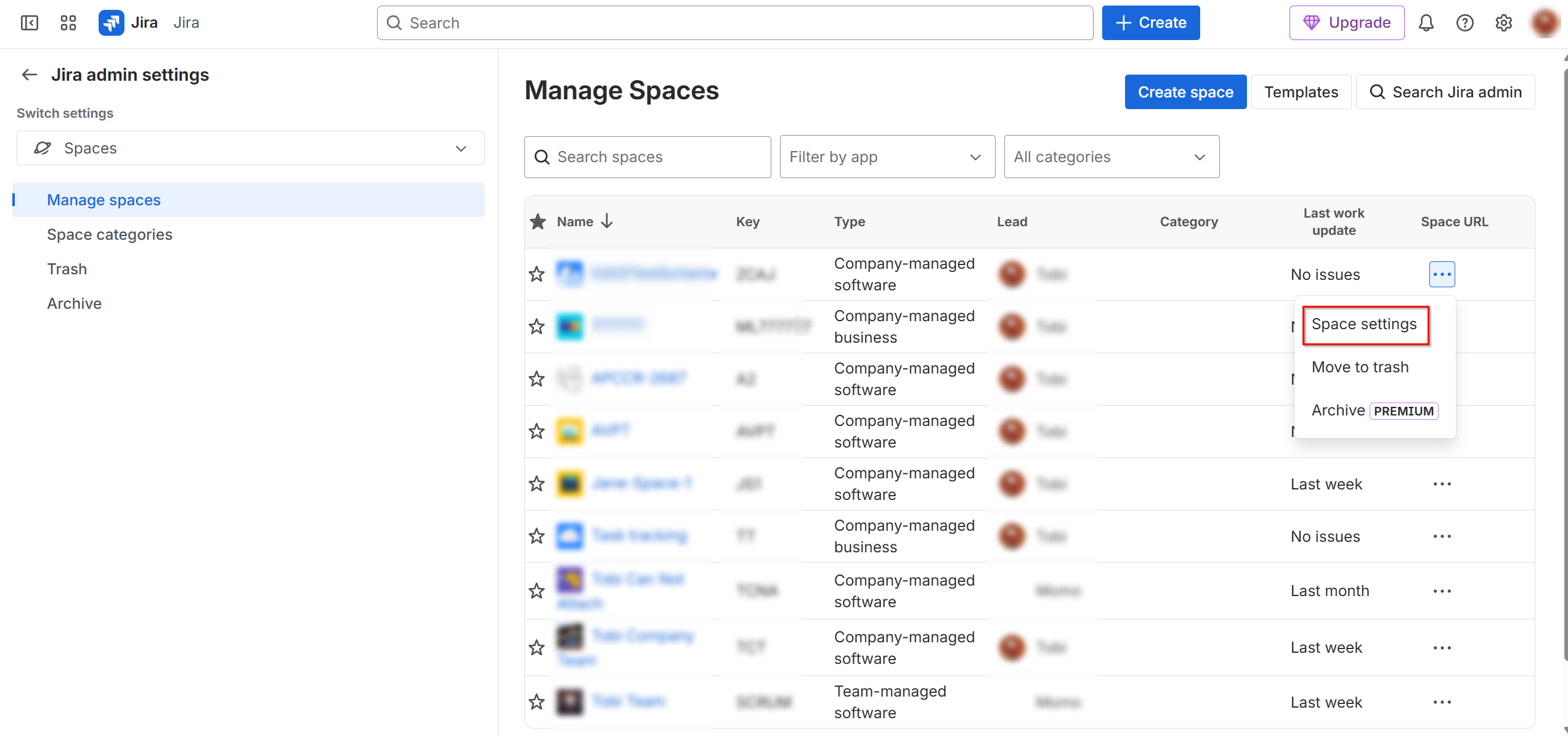
On the Manage Spaces page, locate your space, click the More actions button, and click Space settings.
-
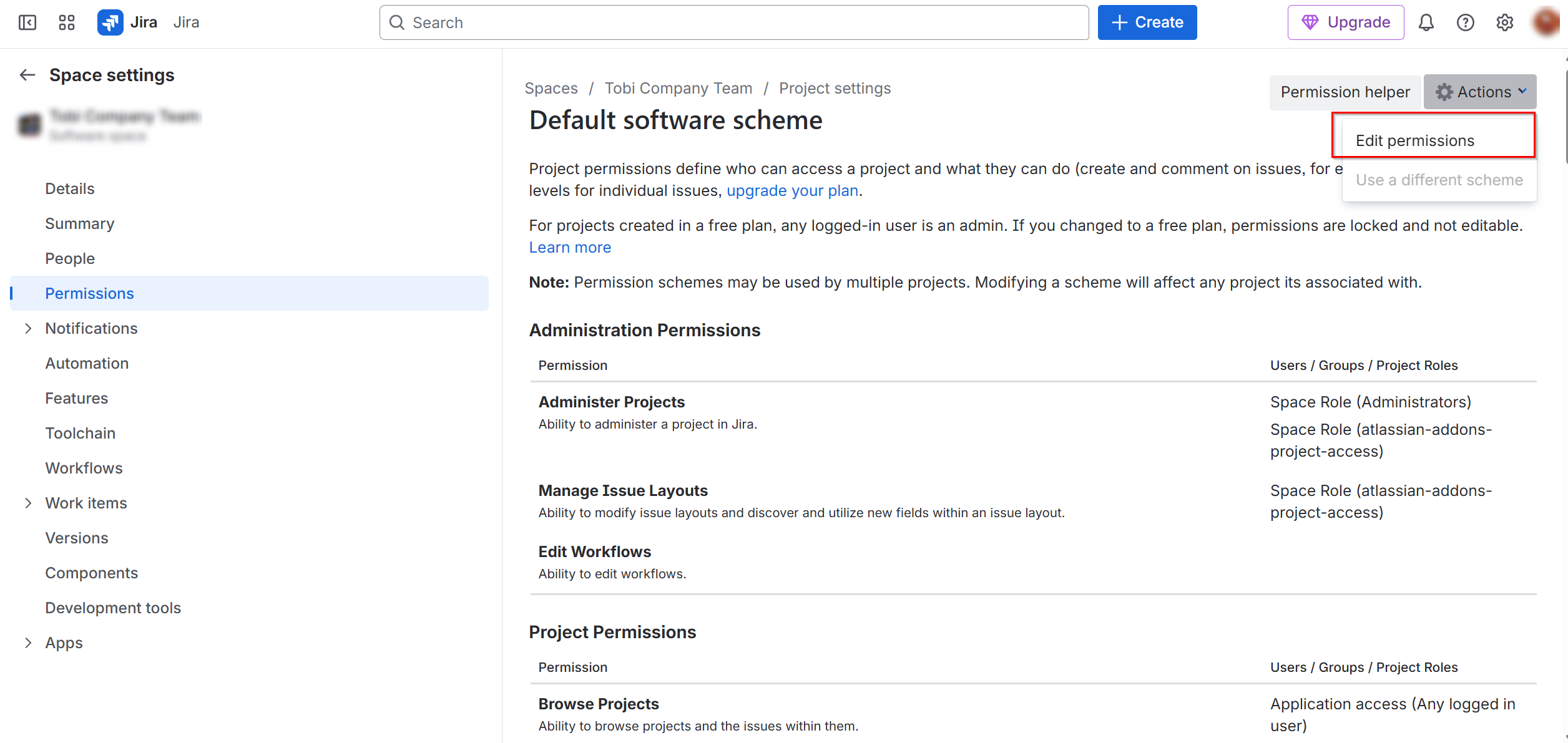
On the Space settings page, click Permissions on the left navigation pane.
-
Click Actions and select Edit permissions.
-
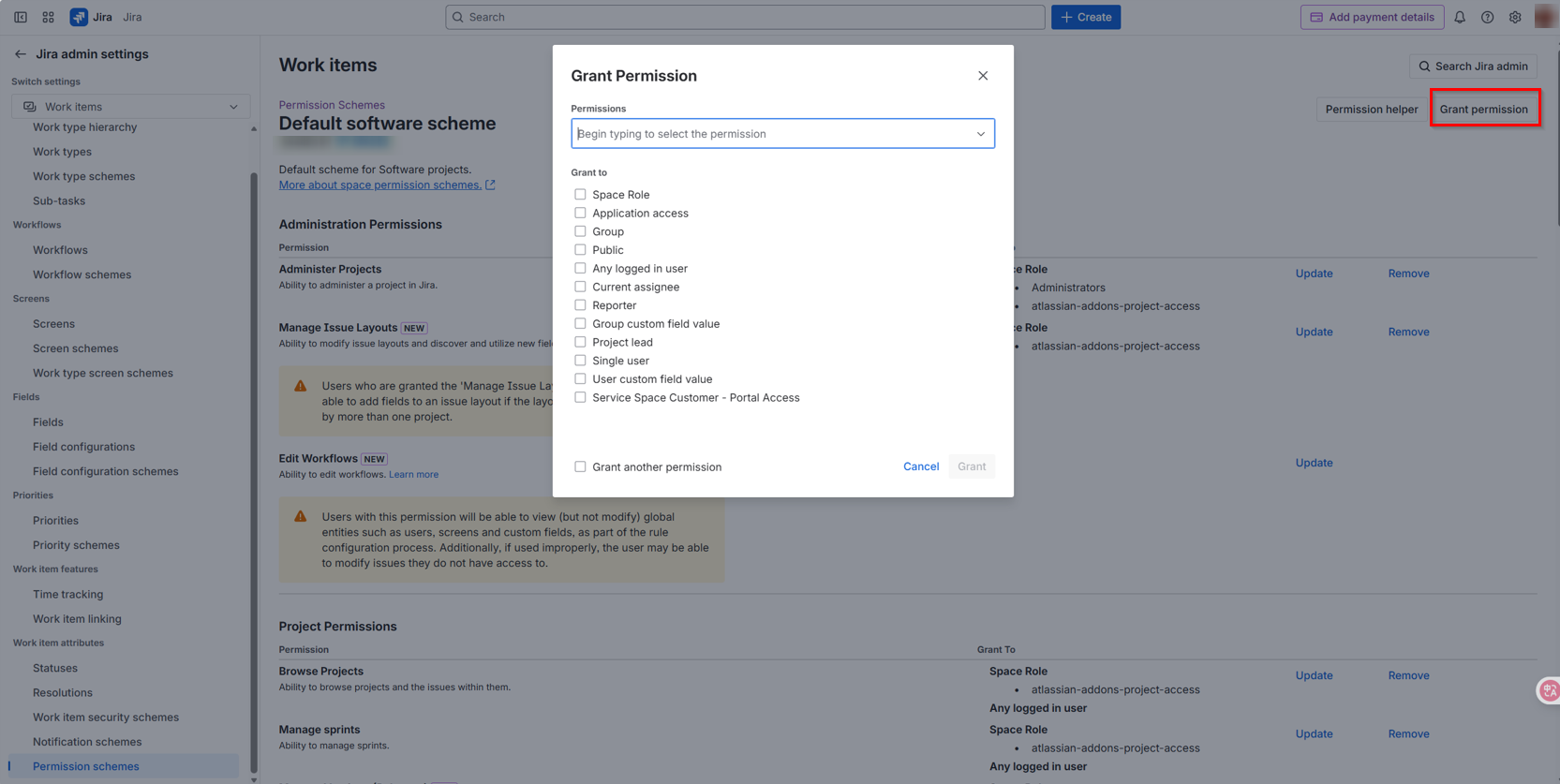
Click Grant permissions to assign permissions as needed.
-
Permissions required for backup
Permission Why You Need Administer Projects Back up projects, notification schemes, permission schemes, and components. Browse Projects Back up projects, boards, sprints, issues, and attachments. Manage Sprints Back up sprints. -
Permissions required for restore
Permission Why You Need Administer Projects Restore projects, work type schemes, project avatars, notification schemes, components, and project roles. Browse Projects Restore boards and emails. Manage Sprints Restore sprints. Assign Issues Restore issue assignees. Create Issues Restore issues. Edit Issues Restore issues. Link Issues Restore issue links. Modify Reporter Restore issue reporters. Resolve Issues Restore issue fix versions. Schedule Issues Restore issue due dates. Transition Issues Restore issue statuses. Manage Watchers Restore issue watchers. Add Comments Restore issue comments. Create Attachments Restore attachments. Work on Issues Restore issue work logs.
-
Step 4: Create an application connection in AvePoint Online Services
Follow the steps below to create an application connection in AvePoint Online Services:
-
In AvePoint Online Services, navigate to Management > App management > Application connection, and then click Create on the action bar.
-
In the Create application connection panel, complete the following settings:
-
Profile name – Enter a name for your connection profile.
-
Description – Enter a description for the connection for future reference. This field is optional.
-
Select application – Select Jira from the drop-down list.
-
Host URL – Enter the URL copied from Jira: https://your-sub-domain.atlassian.net.
-
User email – Enter the email address associated with your Jira account. Make sure your account has been granted the required permissions mentioned in Step 3.
-
API token – Enter the API token copied from Jira.
-
API token expiration date – Specify the expiration date for the API token.
-
-
Click Save.
Once you have created the connection profile, it will appear on the Management > App management > Application connection tab. Your application will now be connected. If needed, you can select a connection profile to Edit or Delete it.
Allow API token access for external users
To allow user API token access:
-
Go to Atlassian Administration. Select your organization if you have more than one.
-
Select Security > User security > External users.
-
Choose API token access for external users.
-
Select Allow.
-
Click Update to save your changes.