
Home > App Management > Manage Connections for SaaS Applications > Connect an Application for Bitbucket
Download this articleConnect an Application for Bitbucket
To connect an application for Bitbucket, complete the following configurations.
Step 1: Get the required information in Bitbucket
Follow the steps below to get the required information for creating an application connection:
-
Sign in to Bitbucket with an account that can manage the target workspace. You must be a workspace administrator, or have permission to manage workspace settings and OAuth consumers.
-
In Bitbucket, select the relevant workspace, and then navigate to Setting > Workspace settings > Apps and features > OAuth consumers.
-
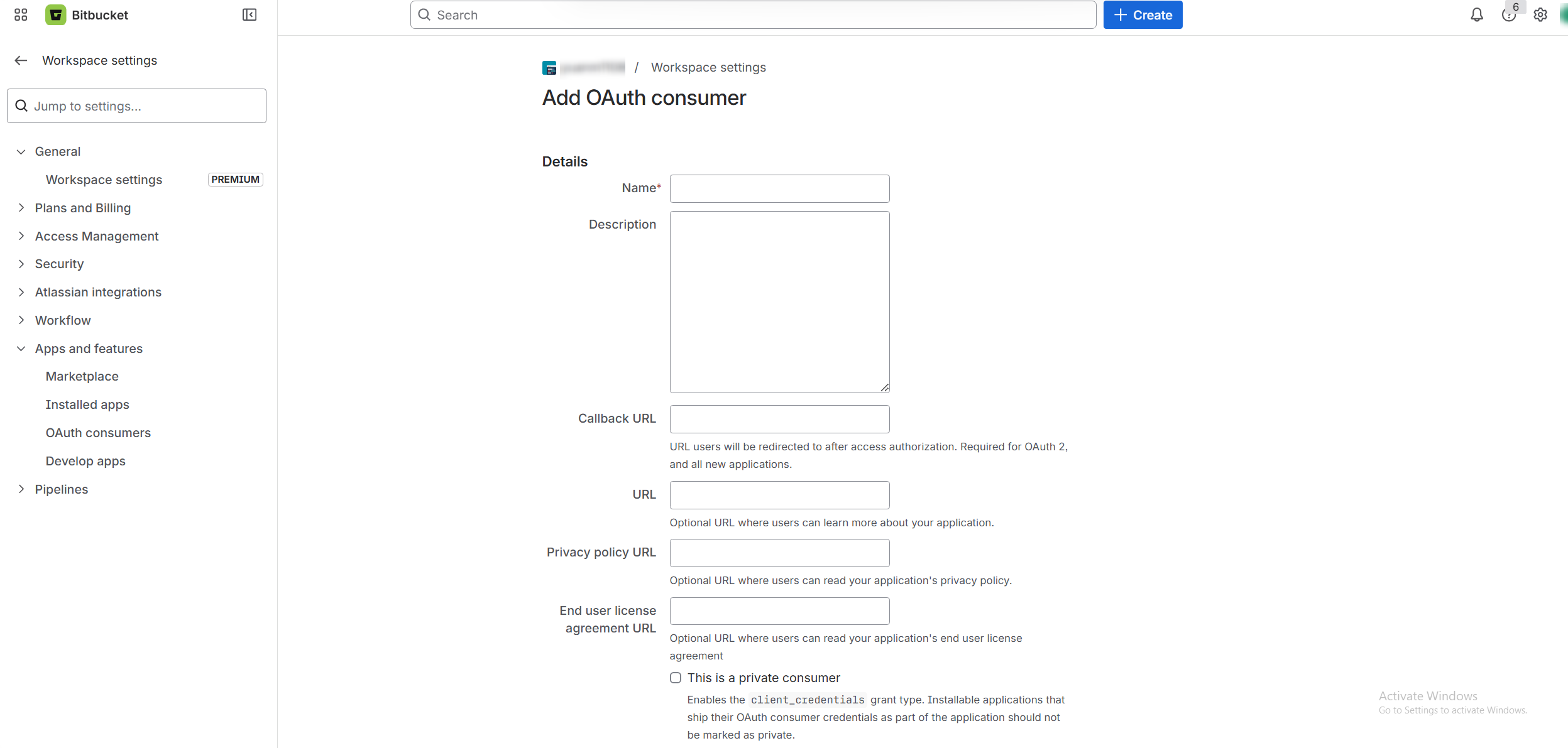
Click Add consumer and create a new OAuth consumer. The following permissions are required for the new OAuth consumer:
-
Account - Read
-
Pull requests - Read
-
Projects - Write, Admin
-
Repositories - Write , Admin
-
Webhooks - Read and write
-
-
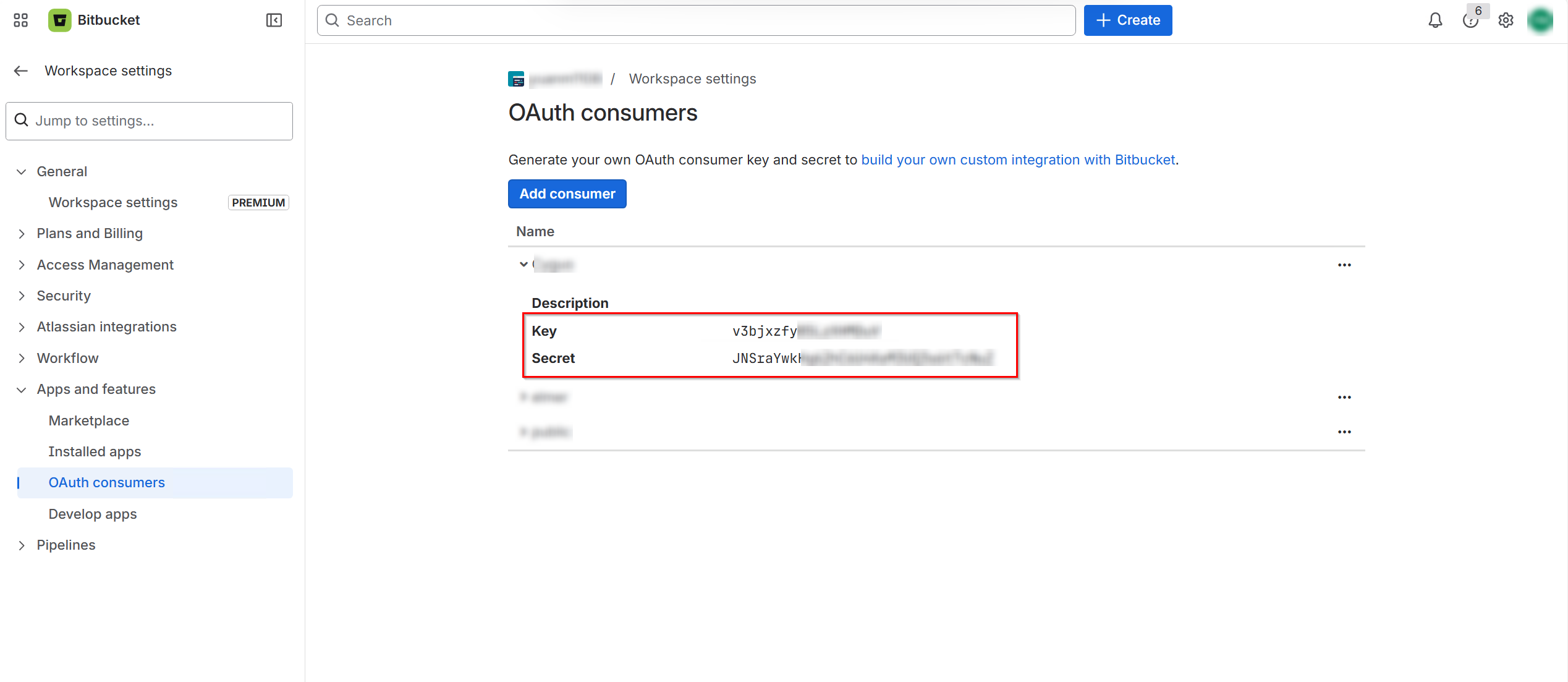
After the OAuth consumer is created, copy the generated Key and Secret values. The Key is displayed in the OAuth consumer details. The Secret may only be shown when the consumer is created, so copy and store it securely before leaving the page.
Step 2: Create an application connection in AvePoint Online Services
Follow the steps below to create an application connection in AvePoint Online Services:
-
In AvePoint Online Services, navigate to Management > App management > Application connection, and then click Create on the action bar.
-
In the Create application connection panel, complete the following settings:
-
Profile name – Enter a name for your connection profile.
-
Description – Enter a description for the connection for future reference. This field is optional.
-
Select application – Select Bitbucket from the drop-down list.
-
Key – Enter the key copied from Bitbucket.
-
Secret – Enter the secret copied from Bitbucket.
-
-
Click Save.
Once you have created the connection profile, it will appear on the Management > App management > Application connection tab. Your application will now be connected. If needed, you can select a connection profile to Edit or Delete it.