
Home > App Management > Manage Connections for SaaS Applications > Connect an Application for Okta
Download this articleConnect an Application for Okta
To connect an application for Okta, complete the following configurations.
Step 1: Get the required information in Okta
Follow the steps below to get the required information for creating an application connection:
-
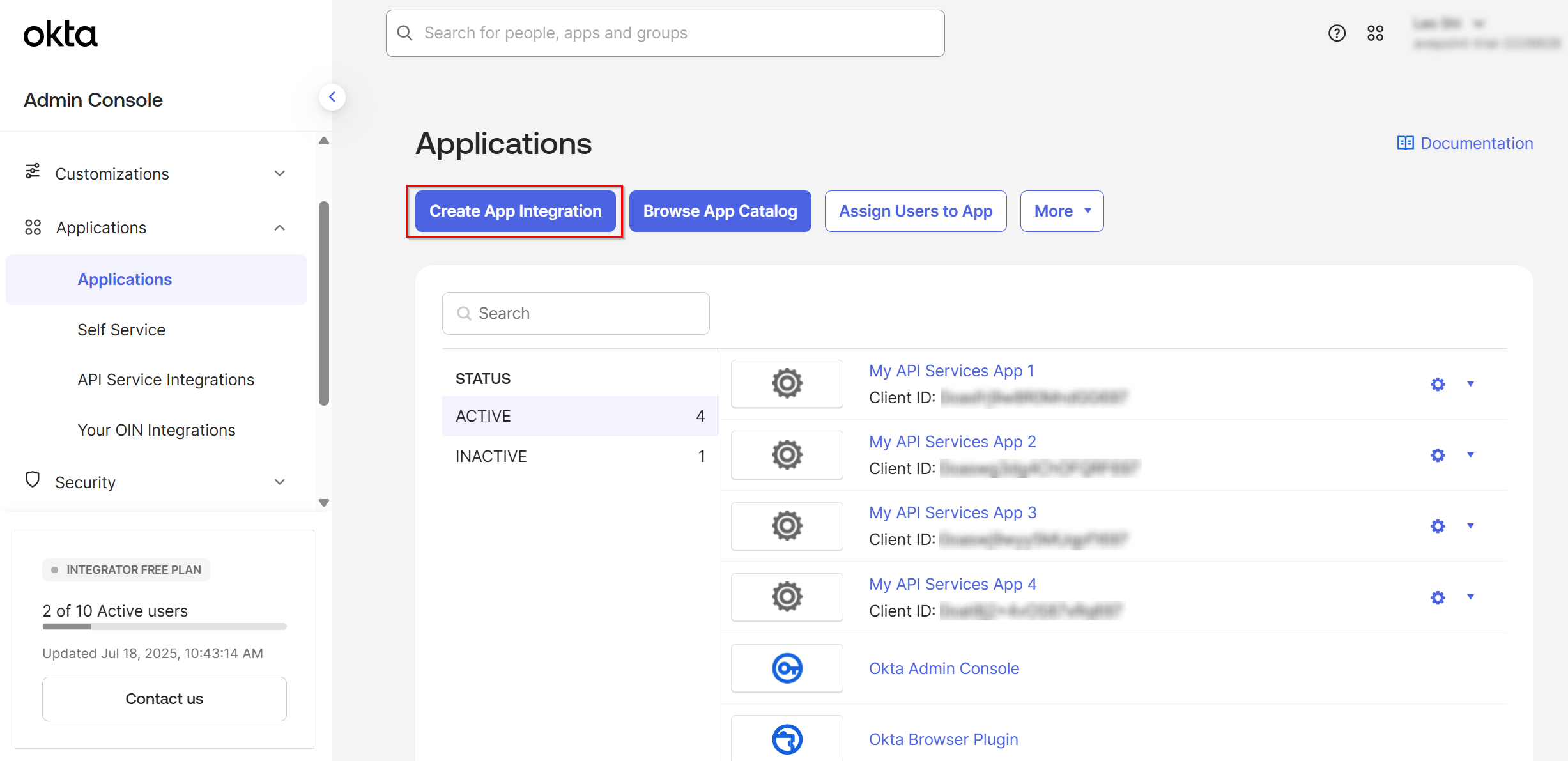
Sign in to Okta and navigate to Applications > Applications.
-
In the Applications page, click Create App Integration.
-
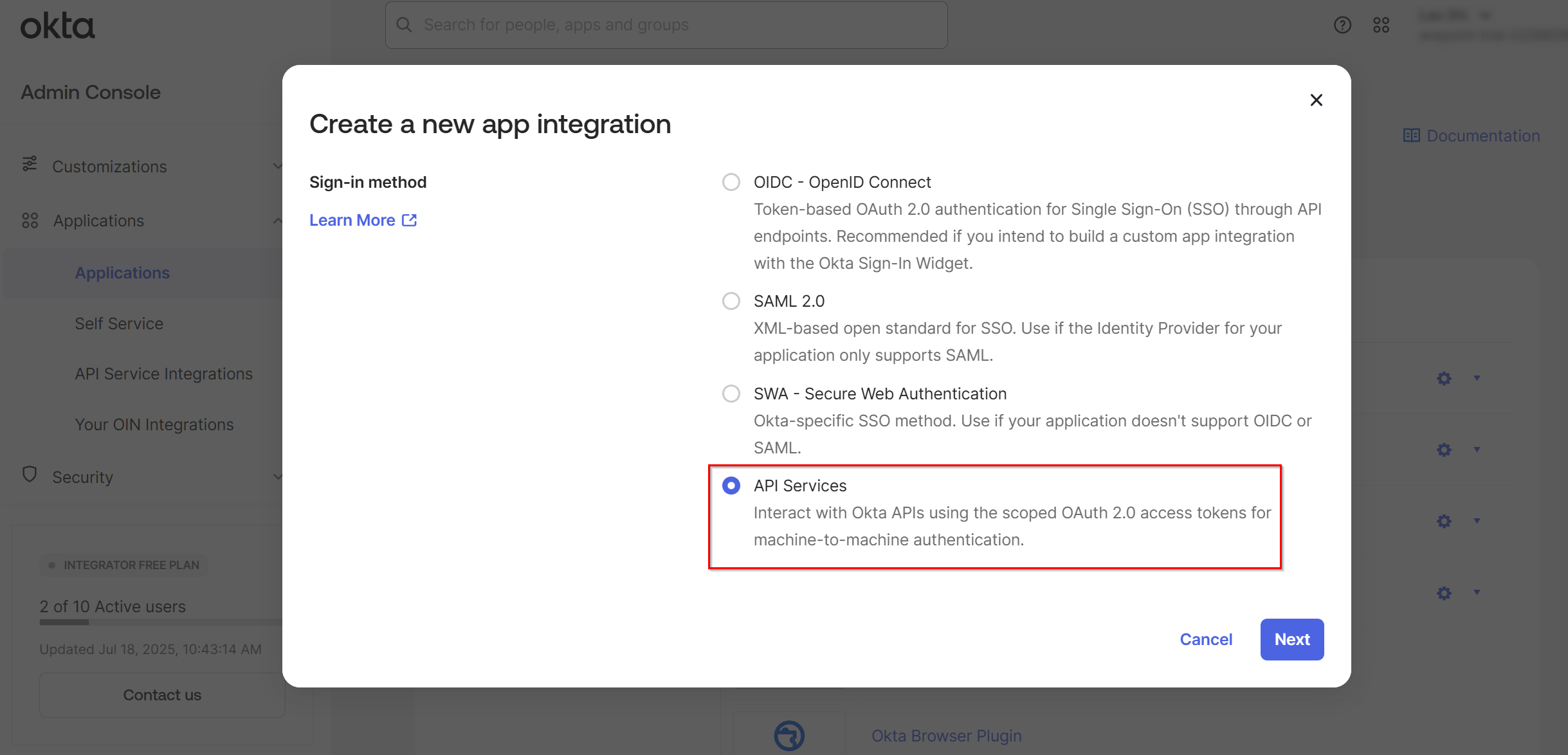
In the Create a new app integration window, select API Services and click Next.
-
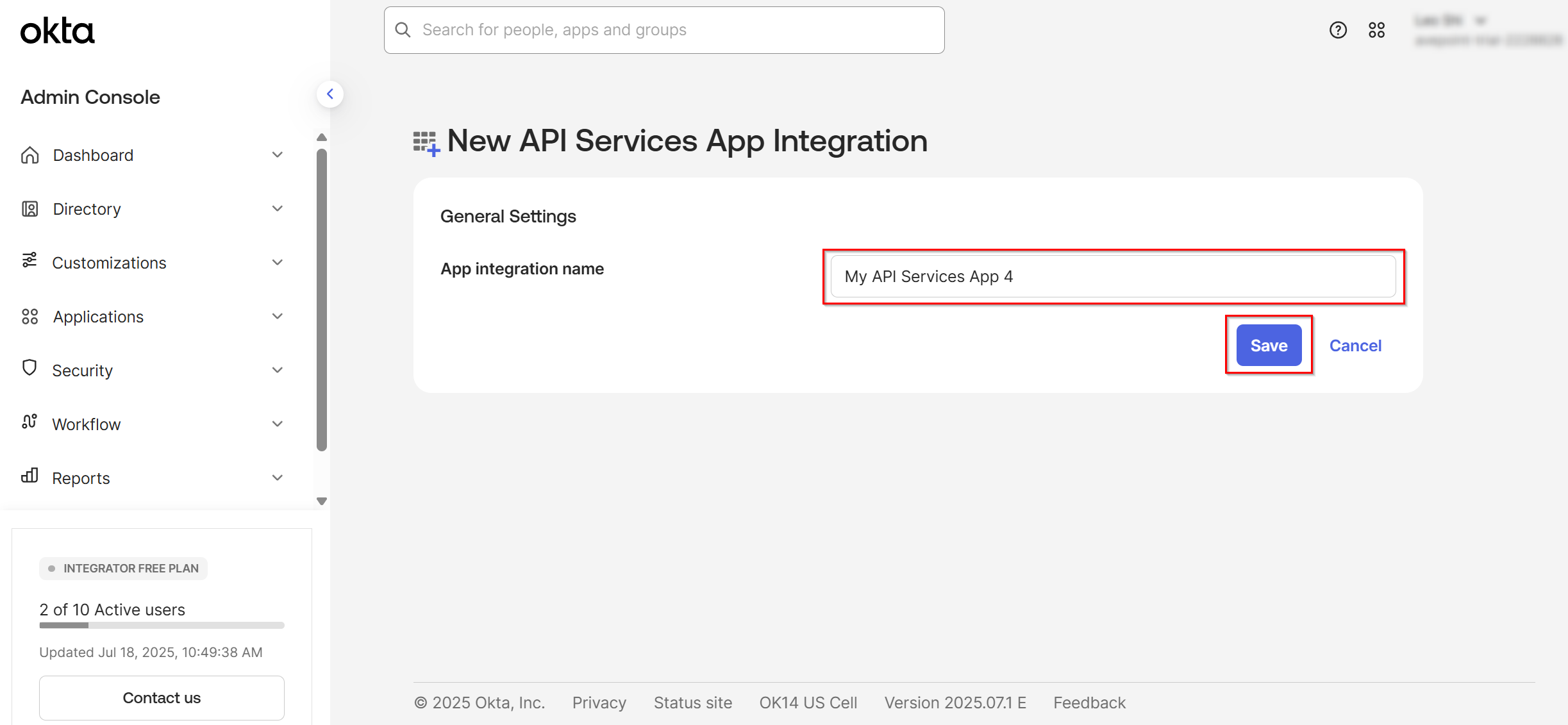
Enter a name for your App integration and click Save.
-
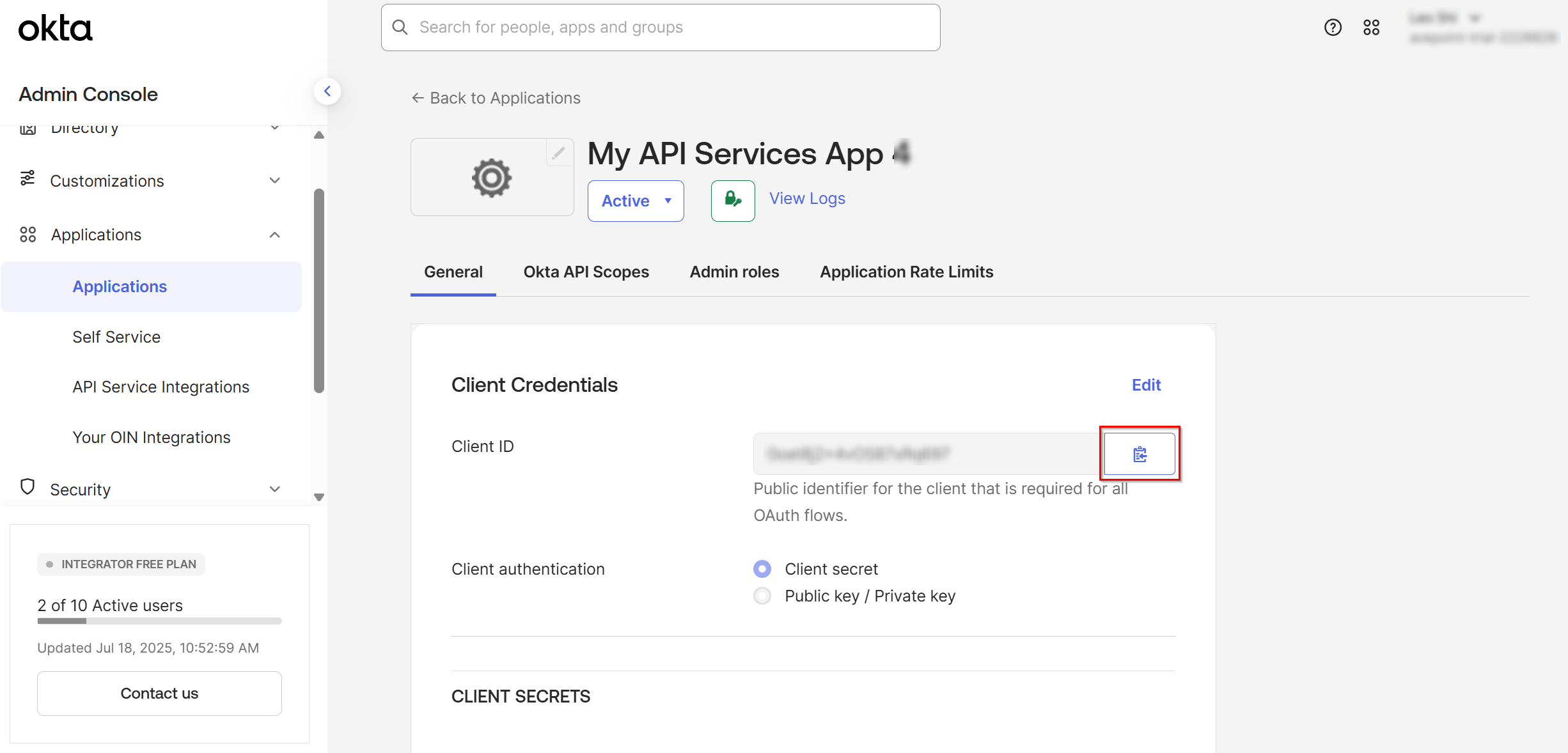
After saving the app, you will be directed to the service app details page. In General tab > Client Credentials section, click the Copy to clipboard button to copy the client ID and paste it into a safe location.
-
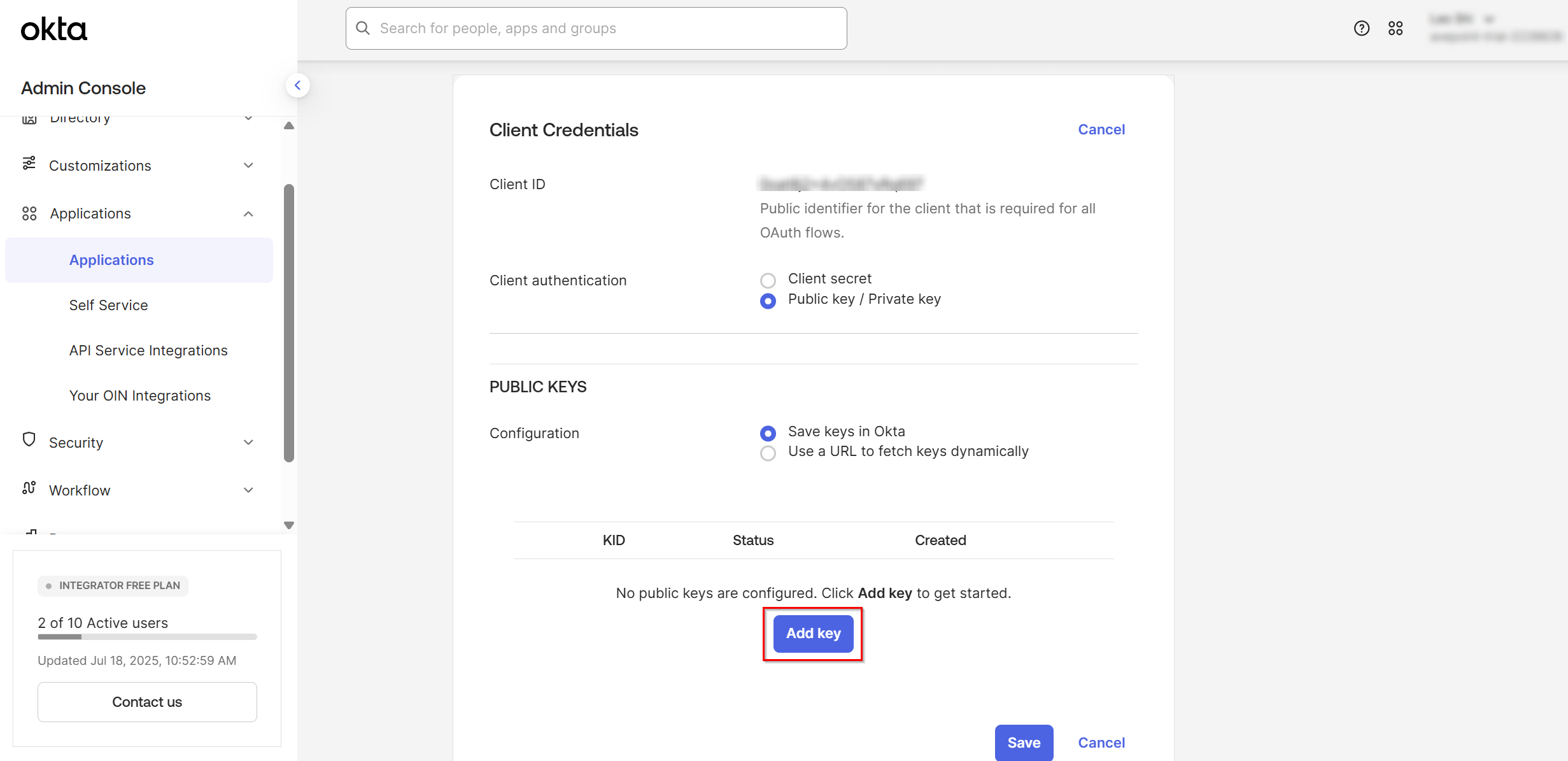
Click Edit in the Client Credentials section and select Public key / Private key as the client authentication method.
-
Click Add key in the PUBLIC KEYS section.
-
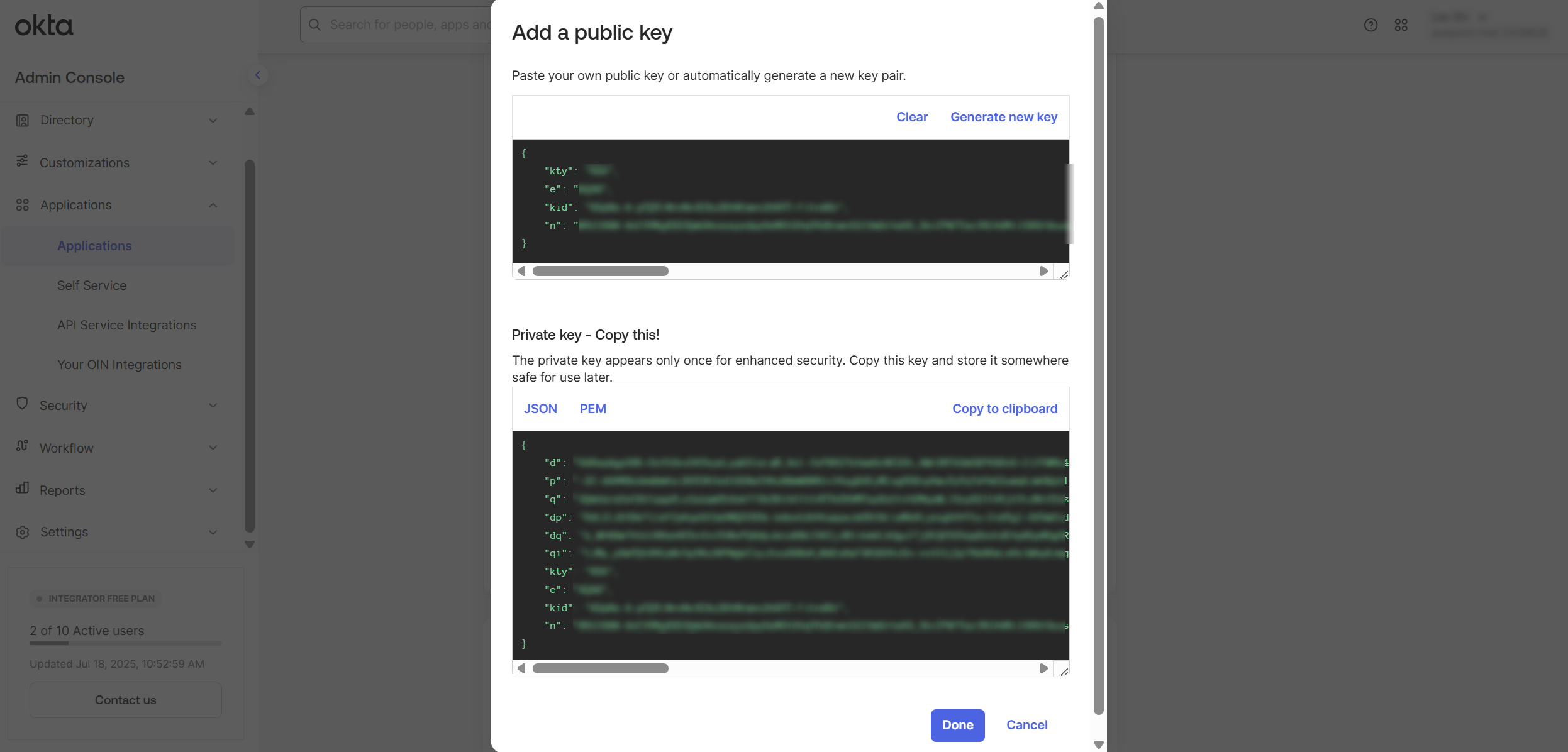
In the Add a public key window, click Generate new key to generate a new public key and then click Copy to clipboard to copy the private key.
NOTEThe private key is available in both JSON and PEM formats. You may copy either one as needed. Selecting the PEM format may produce an unusable private key. It is recommended to try multiple times or use the JSON format instead.
-
When you finish generating the public key and copying the private key, click Done.
-
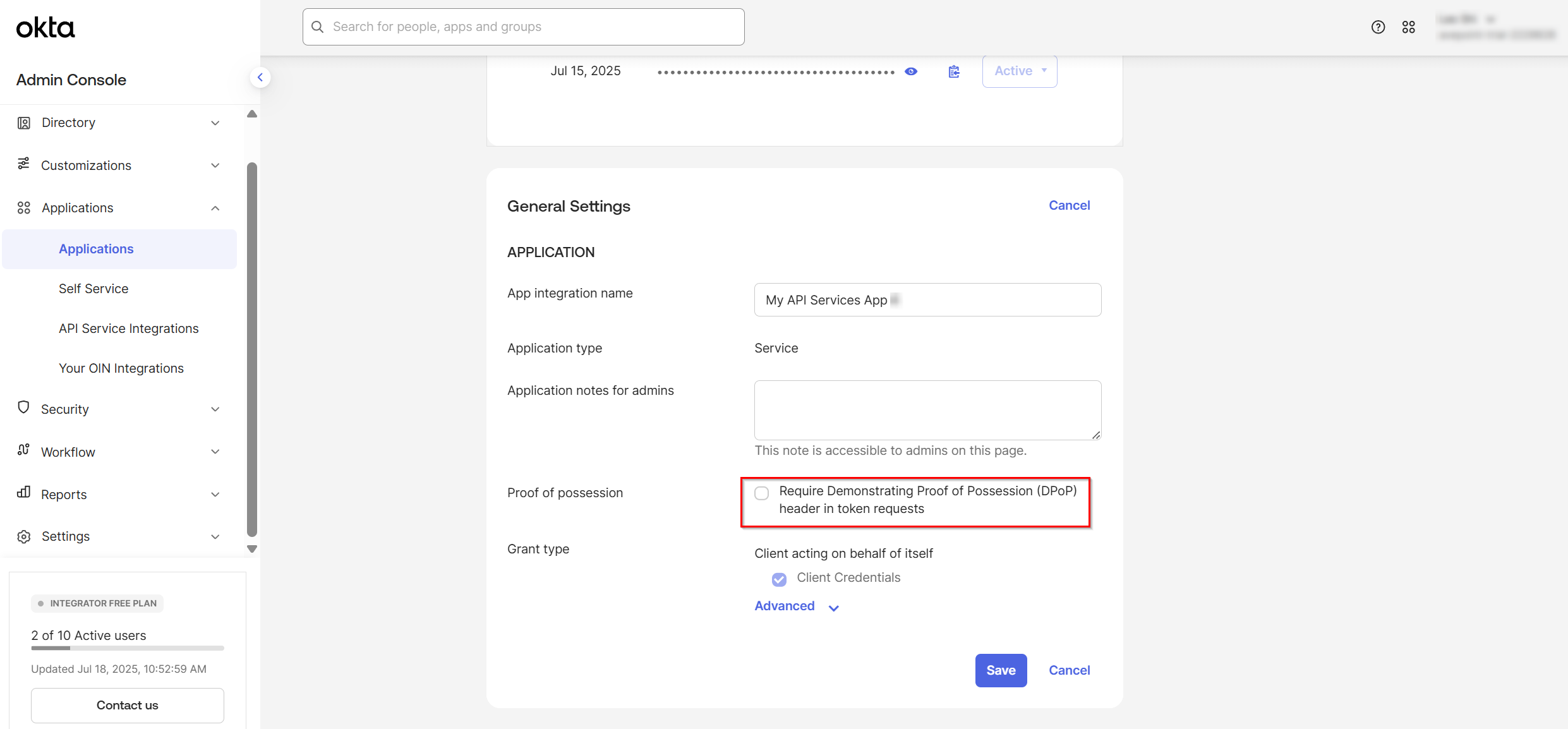
Under the General Settings section, click Edit, deselect the Require Demonstrating Proof of Possession (DPoP) header in token requests option in the Proof of possession field and click Save.
-
Navigate to the Okta API Scopes tab and grant the following permissions to your service app.
-
okta.apps.manage
-
okta.apps.read
-
okta.authorizationServers.manage
-
okta.authorizationServers.read
-
okta.behaviors.manage
-
okta.behaviors.read
-
okta.devices.manage
-
okta.devices.read
-
okta.groups.manage
-
okta.groups.read
-
okta.idps.manage
-
okta.idps.read
-
okta.networkZones.manage
-
okta.networkZones.read
-
okta.orgs.manage
-
okta.orgs.read
-
okta.policies.manage
-
okta.policies.read
-
okta.roles.manage
-
okta.roles.read
-
okta.schemas.manage
-
okta.schemas.read
-
okta.users.manage
-
okta.users.read
-
okta.userTypes.manage
-
okta.userTypes.read
-
okta.brands.manage
-
okta.brands.read
-
okta.domains.manage
-
okta.domains.read
-
okta.emailDomains.manage
-
okta.emailDomains.read
-
okta.rateLimits.manage
-
okta.rateLimits.read
-
okta.appGrants.manage
-
okta.appGrants.read
-
-
Navigate to the Admin roles tab and make sure the Super Administrator role is granted to the app.
NOTEThe Super Administrator role is required to enable backups for all Okta objects supported by Cloud Backup for SaaS Applications. All other administrative roles, including custom roles, have certain limitations when backing up specific objects.
Step 2: Create an application connection in AvePoint Online Services
Follow the steps below to create an application connection in AvePoint Online Services:
-
In AvePoint Online Services, navigate to Management > App management > Application connection, and then click Create on the action bar.
-
In the Create application connection panel, complete the following settings:
-
Profile name – Enter a name for your connection profile.
-
Description – Enter a description for the connection for future reference. This field is optional.
-
Select application – Select Okta from the drop-down list.
-
Okta domain – Enter your Okta domain: https://{domain}.
-
Client ID – Enter the client ID copied from Okta.
-
Private key – Enter the private key copied from Okta.
-
-
Click Save.
Once you have created the connection profile, it will appear on the Management > App management > Application connection tab. Your application will now be connected. If needed, you can select a connection profile to Edit or Delete it.