
Home > Tenant Management > Connect Tenants
Download this articleConnect Tenants
To use AvePoint services to manage a tenant in the Microsoft/Google/Salesforce/Amazon platform, the Tenant Owner or Service Administrators must connect the tenant to AvePoint Online Services first.
Fundamentally, one cloud platform tenant can only be connected to a single AOS tenant. If it is necessary to connect a single tenant to separate AOS tenants, see How to Connect One Tenant to Separate AOS Tenants?
Connect Your Microsoft Tenant
To use AvePoint services to manage a tenant in the Microsoft platform, the Tenant Owner or Service Administrators must connect the tenant to AvePoint Online Services first.
Connecting a Microsoft 365 tenant will create an app in the environment of the tenant. To connect the tenant, a Microsoft 365 Global Administrator, Privileged Role Administrator, or an administrator covered by a supported custom consent grant policy must grant consent to the tenant registration app. For more information about the required admin consent, refer to Why is Admin Consent Required to Use the AvePoint Apps?. For detailed instructions on how to configure the custom consent grant policy, refer to the Configure Custom Consent Grant Policy section.
If you want to connect a tenant which will be used to enable backup for Azure AD B2C in Cloud Backup for IaaS + PaaS, the user consenting to this app must belong to the domain of this tenant, and cannot be an external user.
To connect a tenant, refer to the instructions below:
-
Navigate to Management > Tenant management and click Connect tenant, or click Quick start on the left navigation pane.
-
The Connect tenant pane appears on the right of the page. Based on the type of tenant that you want to connect, select the Microsoft platform. In the following scenarios, you also need to provide additional information:
-
Azure environment version – In the AvePoint Online Services production environment for U.S. Government Public Sector, refer to the information below to select a version when you connect a Microsoft 365 tenant:
-
Commercial Microsoft 365 – Select this version if your Microsoft login URL ends with .com.
-
Microsoft 365 U.S. Government – Select this version only if your original onmicrosoft domain ends with .us, not just your custom domain. Most GCC High and DoD organizations should use this option.
-
-
-
Click Connect.
-
When you connect a Microsoft tenant, the sign in page appears in a new tab. Sign in with an account which meets the requirements mentioned above.
-
Connecting a Microsoft 365 tenant will create the AvePoint Online Services Tenant Registration for Microsoft365 app in the tenant’s Microsoft Entra ID. The table below lists the permissions required by the AvePoint Online Services Tenant Registration for Microsoft365 app.
API Permission (description) Type Purpose Microsoft Graph Domain.Read.All
(Read domains)Application Retrieve your Microsoft 365 domain information. Microsoft Graph GroupMember.Read.All
(Read all group memberships)Application Add Microsoft 365 Groups into AOS, and support signing into AOS with Microsoft 365 accounts. Microsoft Graph LicenseAssignment.Read.All
(Read all license assignments)Application Calculate user seats assigned in your Microsoft 365 tenant. Microsoft Graph RoleManagement.Read.Directory
(Read all directory RBAC settings)Application Read the role-based access control (RBAC) settings for your company's directory, without a signed-in user. This includes reading directory role templates, directory roles and memberships. Microsoft Graph User.Read
(Sign in and read user profile)Delegated Support signing into AvePoint Online Services with Microsoft 365 accounts. Microsoft Graph User.Read.All
(Read all users’ full profiles)Application Add Microsoft 365 users into AOS, and support signing into AOS with Microsoft 365 accounts. NOTEYou do not need any permissions or Microsoft licenses other than those listed in this guide.
-
Once your tenant is successfully connected to AvePoint Online Services, a message prompt will be displayed.
-
Once a Microsoft 365 tenant has been successfully connected to AvePoint Online Services, go to view details of the tenant and edit the SharePoint Online admin center URL value if it is incorrect.
Configure Custom Consent Grant Policy
Complete the following steps to create a custom permission grant policy, bind it to a custom Entra ID directory role, and assign that role to target users or groups.
-
Connect to Microsoft Graph with required scopes.
This command requests the permissions needed to create permission grant policies and custom directory roles.
NOTEA Global Administrator or Privileged Role Administrator role is required to run this command.
-
Create a custom app consent policy.
This command set creates a new permission grant policy that will be referenced by the custom role.
NOTEDo not modify the value of
$policyId. It must remainavepoint-app-onboarding. -
Configure policy include conditions for the target app.
This command limits delegated permission grants to the specified client application ID.
Replace the
<tenant management application ID>with the Application ID displayed in Management > Tenant Management > Tenant details. -
Define and create a custom directory role bound to the policy.
This command set creates a role that can only perform actions matching the custom permission grant policy.
NOTE- The
allowedResourceActionsvalue must bemicrosoft.directory/servicePrincipals/managePermissionGrantsForAll.$policyId. - Replace the
<tenant management application ID>with the tenant management application ID displayed in Management > Tenant management > Tenant details.
- The
-
Assign the custom role to a user or security group.
Replace the
<user object id>with the object ID of the target user or Tier 2/3 security group.
Connect Your Google Tenant
Watch the Video
In this video, we provide a quick, step-by-step tutorial on how to set up Google tenant connection in the AvePoint Confidence Platform.
Set Up Google Tenant Connection
To use AvePoint services to manage a tenant in the Google Cloud Platform, the Tenant Owner or Service Administrators must connect the tenant to AvePoint Online Services first.
To connect a Google tenant, ensure the AvePoint Tenant Management app has been installed. Note that the AvePoint Tenant Management app can only be accessed via the Google Workspace Marketplace link on the Connect tenant page in AvePoint Online Services (navigate to Management > Tenant management or Quick start > Connect tenant).
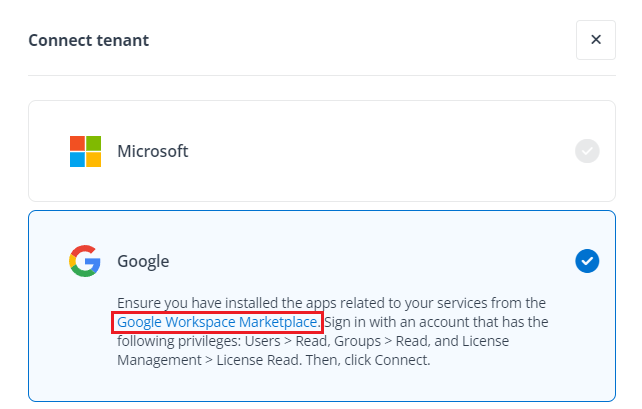
Connecting a Google tenant requires an account with the Users > Read, Groups > Read, and License Management > License Read privileges in the same tenant.
To connect a tenant, refer to the instructions below:
-
Navigate to Management > Tenant management and click Connect tenant, or click Quick start on the left navigation pane.
-
The Connect tenant pane appears on the right of the page. Based on the type of tenant that you want to connect, select the Google platform.
-
Click Connect.
-
When you connect a Google tenant, the sign in page appears in a new tab. Sign in with an account which meets the requirements mentioned above.
-
The following permissions requested by AvePoint Online Services should be accepted when you install the AvePoint Tenant Management app. Note that the AvePoint Tenant Management app can only be accessed via the Google Workspace Marketplace link on the Connect tenant page in AvePoint Online Services > Tenant management.
Scope Permission Purpose https://www.googleapis.com/auth/admin.directory.domain.readonly Read domain information Retrieve organization's Google domain information. https://www.googleapis.com/auth/apps.licensing Read Google license information Collect user seats. https://www.googleapis.com/auth/admin.directory.user.readonly Read Google users Invite Google users for login. https://www.googleapis.com/auth/admin.directory.group.readonly Read Google groups Invite Google groups for login. -
Once your tenant is successfully connected to AvePoint Online Services, a message prompt will be displayed.
Connect Your Salesforce Tenant
To use AvePoint services to manage a tenant in the Salesforce platform, the Tenant Owner or Service Administrators must connect the tenant to AvePoint Online Services first.
Connecting a Salesforce tenant will create an app in the tenant’s Salesforce environment, which requires a Salesforce account with the System Administrator profile in the same tenant or another profile which includes the permissions for the System Administrator profile in the same tenant.
Salesforce has published an announcement to restrict the use of uninstalled connected apps from early September 2025. This will not affect your organization if there are no apps to be created/reconnected. However, for organizations who need to create a new tenant app or reconnect a tenant app, you must either install the tenant app in your Salesforce environment, or ensure that the user consenting to the tenant app has the following required permissions:
-
If API Access Control is enabled, only the “Use Any API Client permission” gives access to use uninstalled apps.
-
If API Access Control isn’t enabled, trusted users can use uninstalled apps if they have the “Approve Uninstalled Connected Apps” permission.
To connect a tenant, refer to the instructions below:
-
Navigate to Management > Tenant management and click Connect tenant, or click Quick start on the left navigation pane.
-
The Connect tenant pane appears on the right of the page. Based on the type of tenant that you want to connect, select the Salesforce platform.
-
In the Salesforce environment section, select the Salesforce or Salesforce sandbox environment when you connect a Salesforce tenant.
-
Click Connect. Connecting a Salesforce tenant will create AvePoint Online Services Tenant Registration app in the tenant’s Salesforce environment. The table below lists the scope parameter values required by the app:
Value Description Access the identity URL service Allows access to the identity URL service. Manage user data via APIs Allows access to the current, logged-in user’s account using APIs. Perform requests at any time Allows a refresh token to be returned when the requesting client is eligible to receive one. The purposes of using these scope parameter values are listed below:
-
Support signing into AvePoint Online Services with Salesforce accounts.
-
Retrieve your Salesforce tenant information and calculate user seats.
-
Add Salesforce users into AOS, and support signing into AOS with Salesforce accounts.
-
-
Once your tenant is successfully connected to AvePoint Online Services, a message prompt will be displayed.
Connect Your Amazon Tenant
To use AvePoint services to manage a tenant in the Amazon platform, the Tenant Owner or Service Administrators must connect the tenant to AvePoint Online Services first.
Connecting an Amazon tenant will create policies and an IAM role in the AWS environment of the tenant, which requires an IAM user with at least the following required permissions:
-
iam:CreatePolicy
-
iam:GetRole
-
iam:UpdateAssumeRolePolicy
-
iam:ListPolicyVersions
-
iam:ListAccountAliases
-
iam:CreateRole
-
iam:AttachRolePolicy
-
iam:UpdateRole
-
iam:CreatePolicyVersion
-
iam:\DeletePolicyVersion
-
iam:GetAccountSummary
-
iam:SetDefaultPolicyVersion
To connect a tenant, refer to the instructions below:
-
Navigate to Management > Tenant management and click Connect tenant, or click Quick start on the left navigation pane.
-
The Connect tenant pane appears on the right of the page. Based on the type of tenant that you want to connect, select the Amazon platform.
-
In the Amazon section, enter Access key ID and Secret access key to specify an IAM user, which will only be used to configure an IAM role and required policies in your AWS environment. For more details on managing your access key ID and secret access key, refer to this AWS article.
-
Click Connect. When you connect an Amazon tenant, AvePoint Online Services will check if your entered access key ID and secret access key are available.
-
Connecting an Amazon tenant will create an IAM role named AWSTenantAdminRole in the tenant’s AWS environment. Below are the API permissions which will be added to the IAM role:
API Description iam:ListAccountAliases Lists the account alias associated with the AWS account. iam:GetAccountSummary Retrieves information about IAM entity usage and IAM quotas in the AWS account. -
Once your tenant is successfully connected to AvePoint Online Services, a message prompt will be displayed.