
Home > App Management > Manage Connections for SaaS Applications > Connect an Application for Box
Download this articleConnect an Application for Box
To connect an application for Box, complete the following configurations.
Step 1: Prepare an App in Box
Follow the steps below to create an app in Box:
-
Sign in to Box Developer Console using your credentials.
-
On the Platform Apps page, click New App to create an app.
-
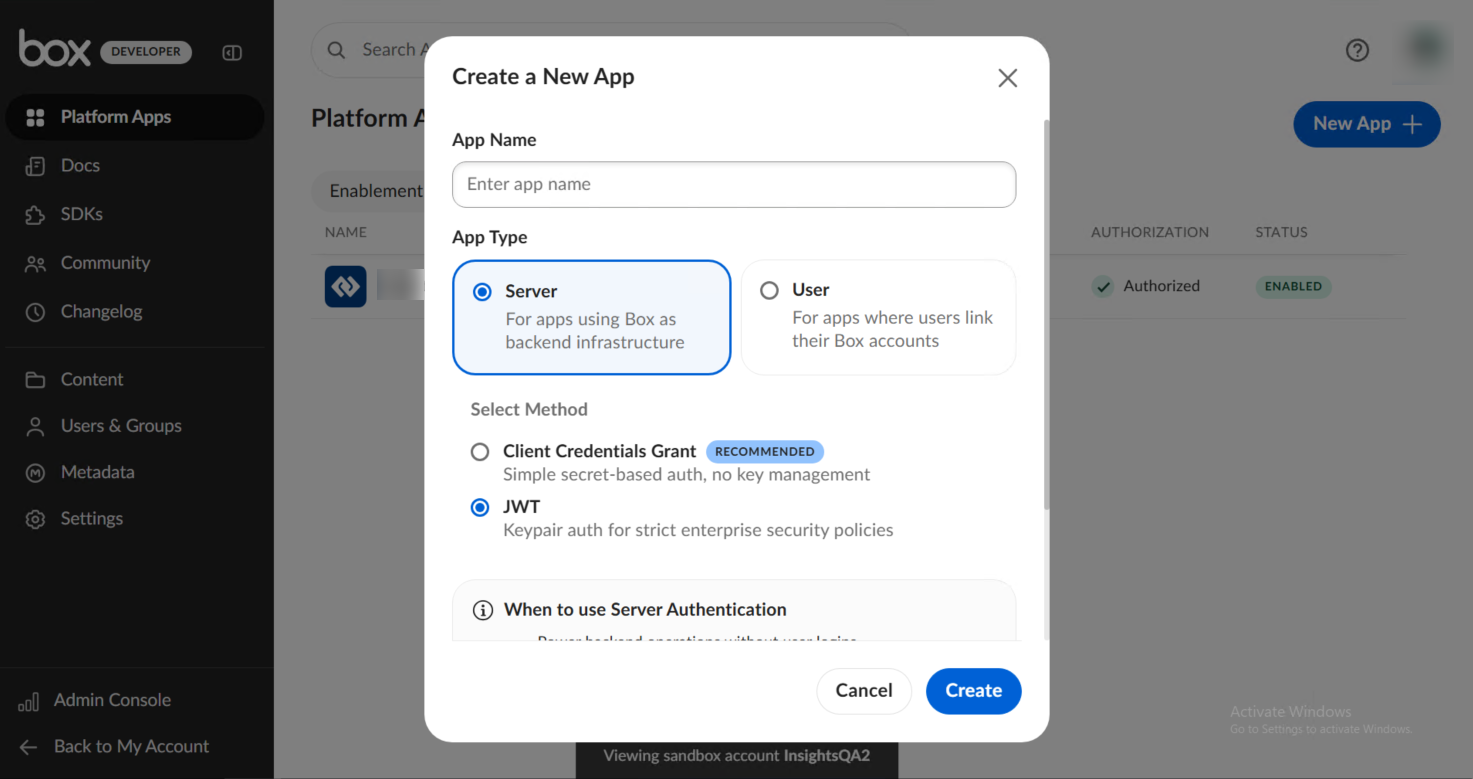
Enter the name of the app that you want to create, and select Server in App Type and JWT in Select Method.
-
Click Create. After you create an App, you will access the application settings page automatically.
-
In the Configuration tab, click Generate Keypair in the Authentication Method section. You'll receive the verification code in your email.
-
Enter the verification code and click Submit. The Config.JSON file is displayed under JWT.
-
Click the Download JSON button to download the file. This file will be used later in application connection profile creation.
-
In the App Access Level section, select App + Enterprise Access.
-
In the Application Scopes section, select all options in Content Actions, Administrative Actions, and Developer Actions.
-
In the Additional Configuration section, select Make API calls using the as-user header and Generate user access tokens.
-
Click Save in the upper-right corner to save your settings.
-
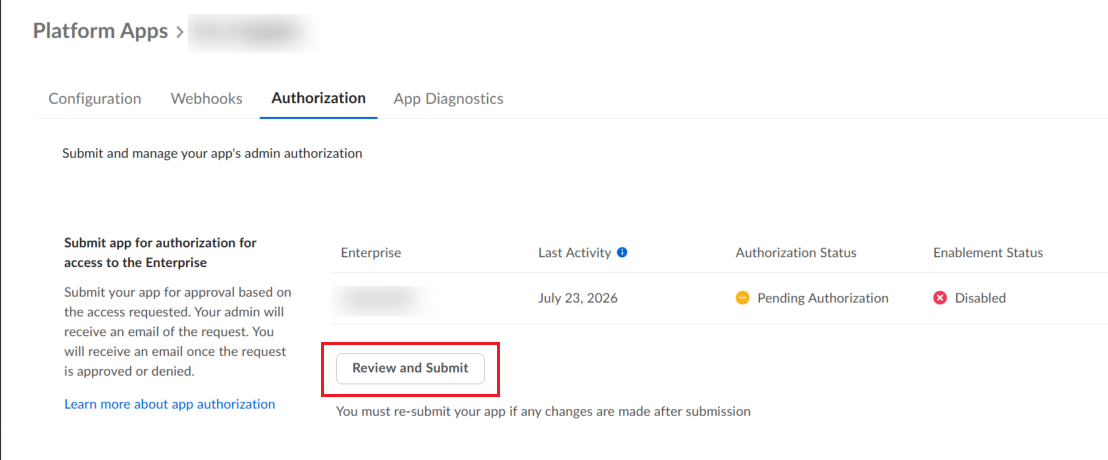
Switch to the Authorization tab, and click Review and Submit. Select Submit app within this enterprise (your enterprise name), enter the app description, and click Submit.
-
Click Admin Console in the left navigation to return to the Admin Console page. If your account is not an admin account, you need to log in with an admin account.
-
Click Platform on the left navigation. In the Platform Apps tab, find the app you created and click Review to the right of the app row.
-
Click Authorize in the Review app authorization window. The app is now authorized to access the enterprise.
Step 2: Create an application connection in AvePoint Online Services
Follow the steps below to create an application connection in AvePoint Online Services:
-
In AvePoint Online Services, navigate to Management > App management > Application connection, and then click Create on the action bar.
-
In the Create application connection panel, complete the following settings:
-
Profile name – Enter a name for your connection profile.
-
Description – Enter a description for the connection for future reference. This field is optional.
-
Select application – Select Box from the drop-down list.
-
Select service - Select a service from the drop-down list.
-
Authentication type - Select Server from the drop-down list.
-
JSON file (.json) - Click Browse to upload the JSON file of the app.
-
-
Click Save.
Once you have created the connection profile, it will appear on the Management > App management > Application connection tab. Your application will now be connected. If needed, you can select a connection profile to edit or delete it.