
Home > App Management > Manage Connections for SaaS Applications > Connect an Application for GitHub
Download this articleConnect an Application for GitHub
Cloud Backup for SaaS Applications supports GitHub.com exclusively. Please note that GitHub Enterprise Cloud (GHEC), GitHub Enterprise Server (GHES), and GitHub Air-Gapped Environment (AE) are not supported at the moment.
To connect an application for GitHub, complete the following configurations.
Step 1: Get the required information in GitHub
Follow the steps below to get the required information for creating an application connection:
-
Sig in to GitHub.
-
Click your personal profile picture on the top-right corner and click Settings.
-
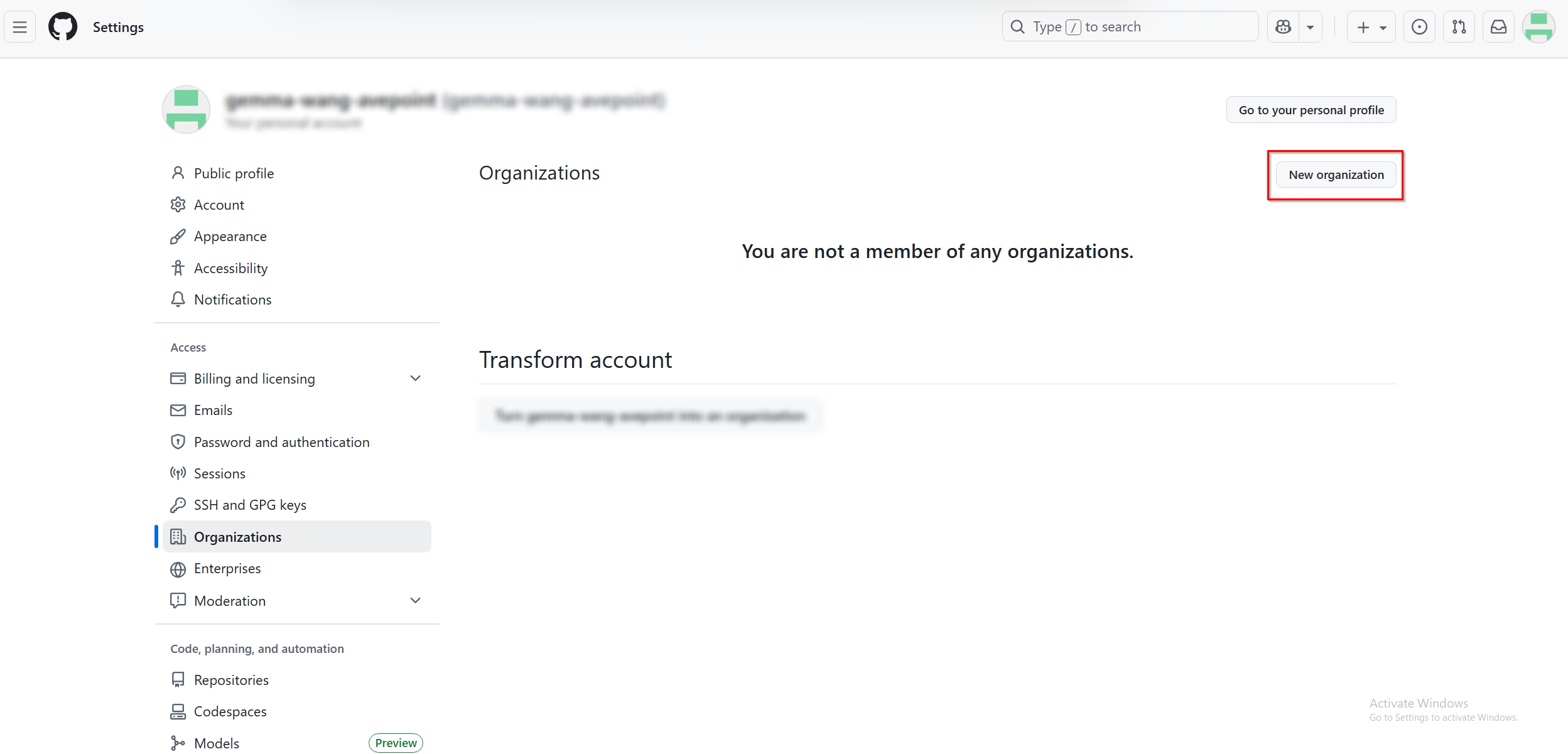
On the Settings page, click Access > Organizations on the left navigation pane.
-
Click New organization.
-
Choose a plan and set up your organization.
-
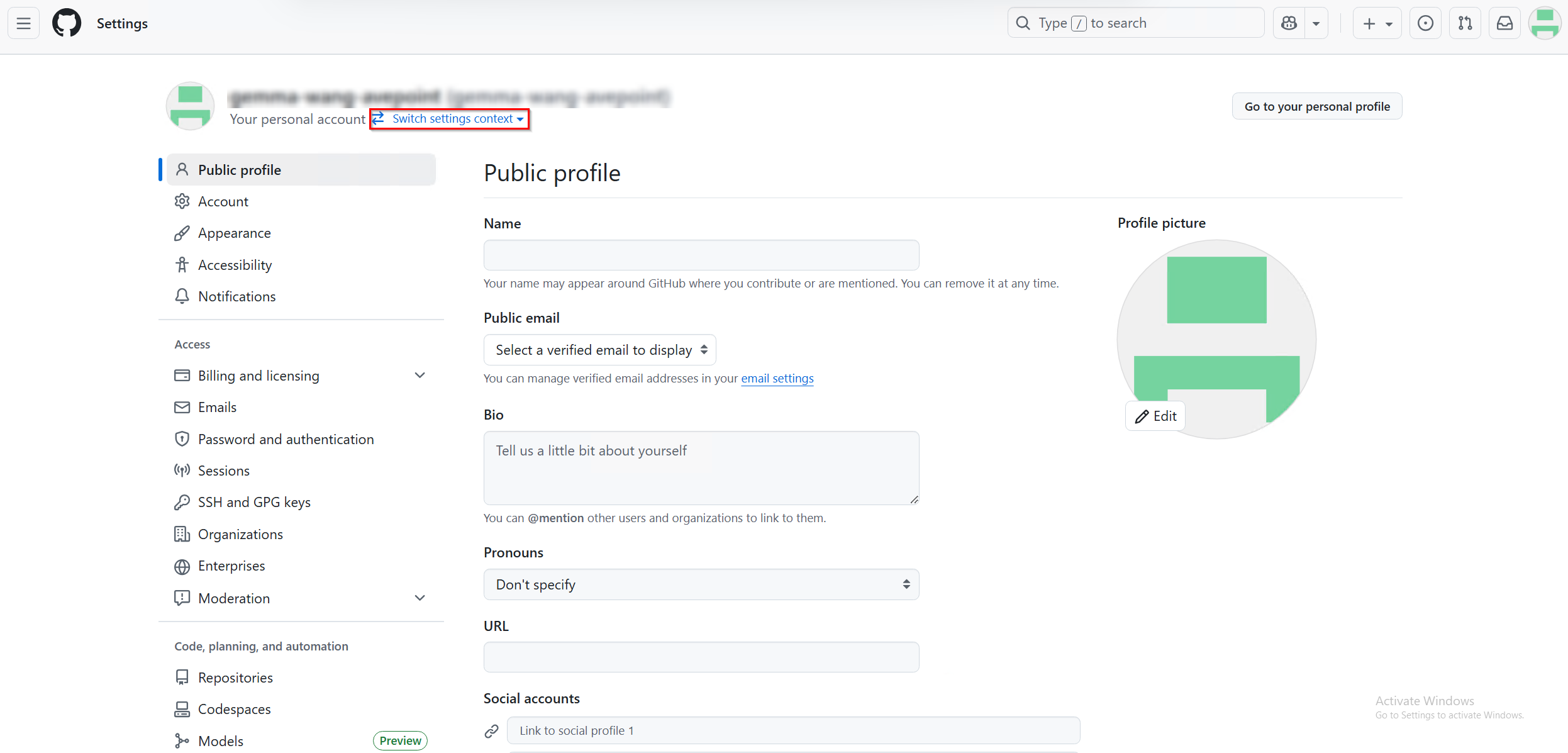
After creating the organization, go back to the Settings page. Click Switch setting context and select the organization you created.
-
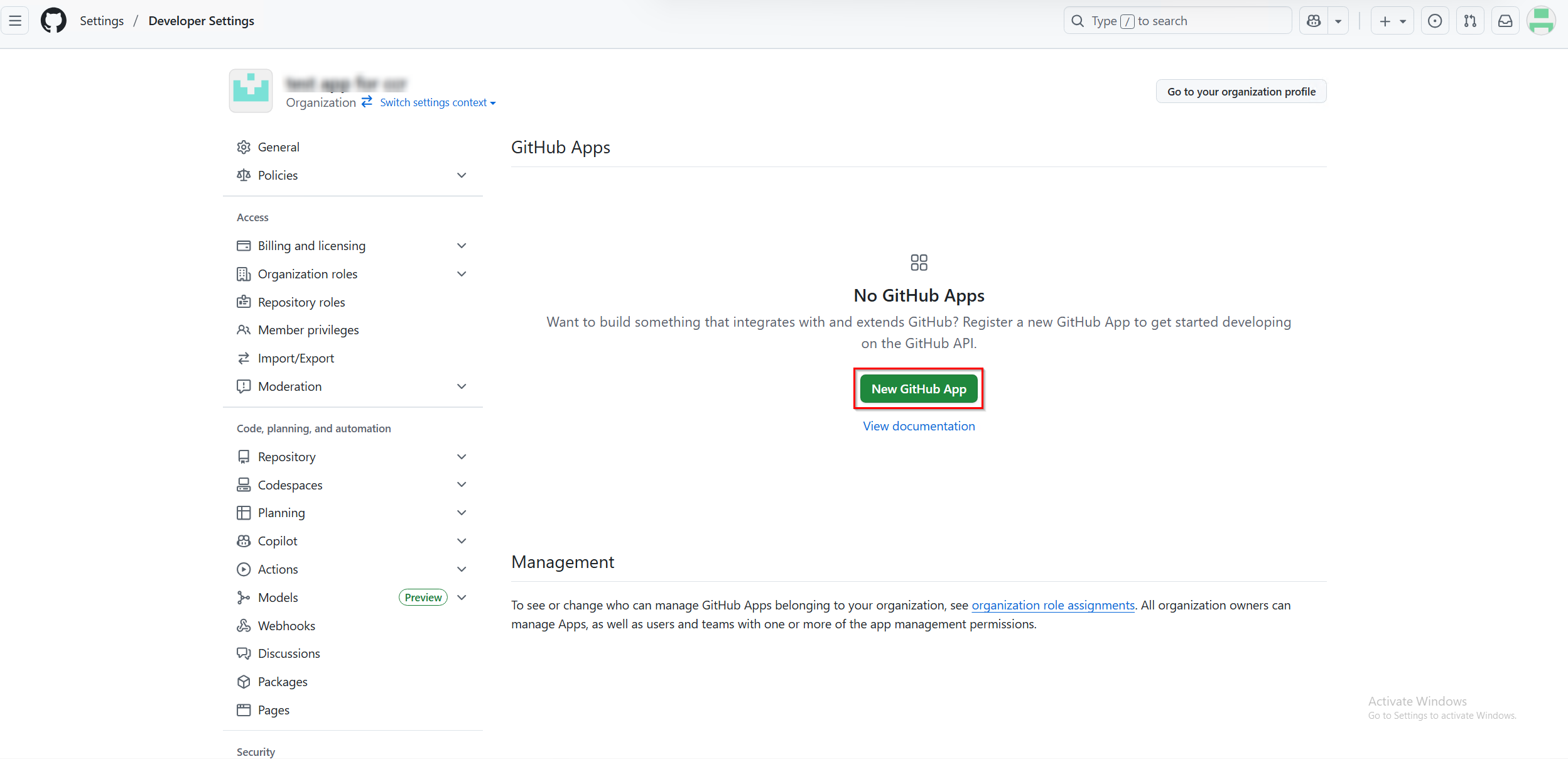
After switching to the organization, click Developer settings > GitHub Apps on the left navigation pane.
-
In the GitHub Apps page, click New GitHub App.
-
Complete the required information to create a new GitHub app. For detailed steps, refer to About creating GitHub Apps.
Note the following:
-
Homepage URL – Enter the following URL: https://aos.sharepointguild.com.
-
Callback URL – Enter the following URL: https://aos.sharepointguild.com. Then, select the following options:
-
Expire user authorization tokens
-
Request user authorization (OAuth) during installation
-
Enable Device Flow
-
-
Permissions – The following permissions are required when configuring the Permissions section.
-
Repository permissions
-
Administration: Read and write
-
Commit statuses: Read and write
-
Contents: Read and write
-
Custom properties: Read and write
-
Issues: Read and write
-
Projects: Read and write
-
Pull requests: Read and write
-
Workflows: Read and write
-
-
Organization permissions
-
Administration: Read and write
-
Blocking users: Read and write
-
Issue Fields: Read and write
-
Members: Read and write
-
Secrets: Read only
-
Issue types: Read and write
-
-
-
Where can this GitHub App be installed? – Select Only on this account for this section.
-
-
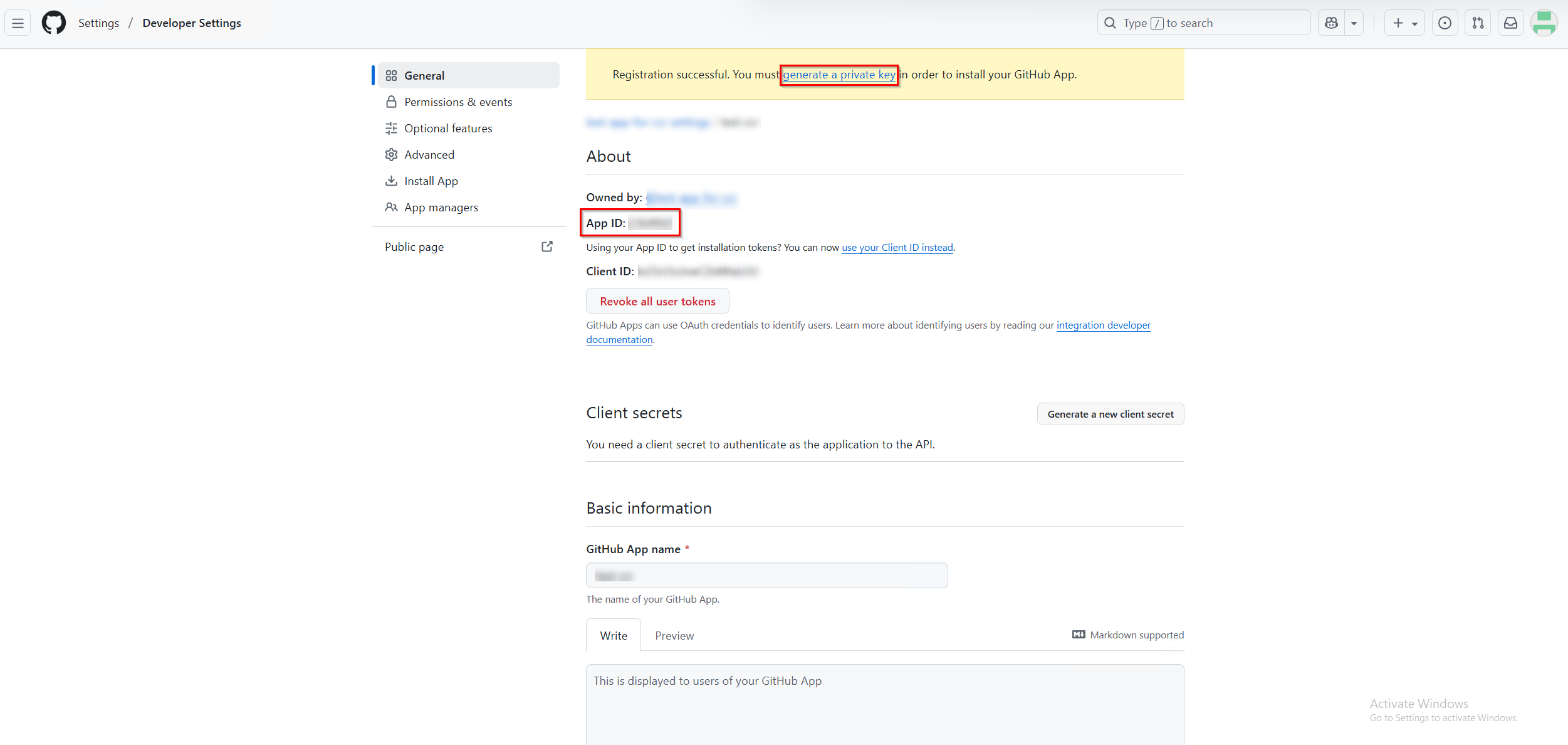
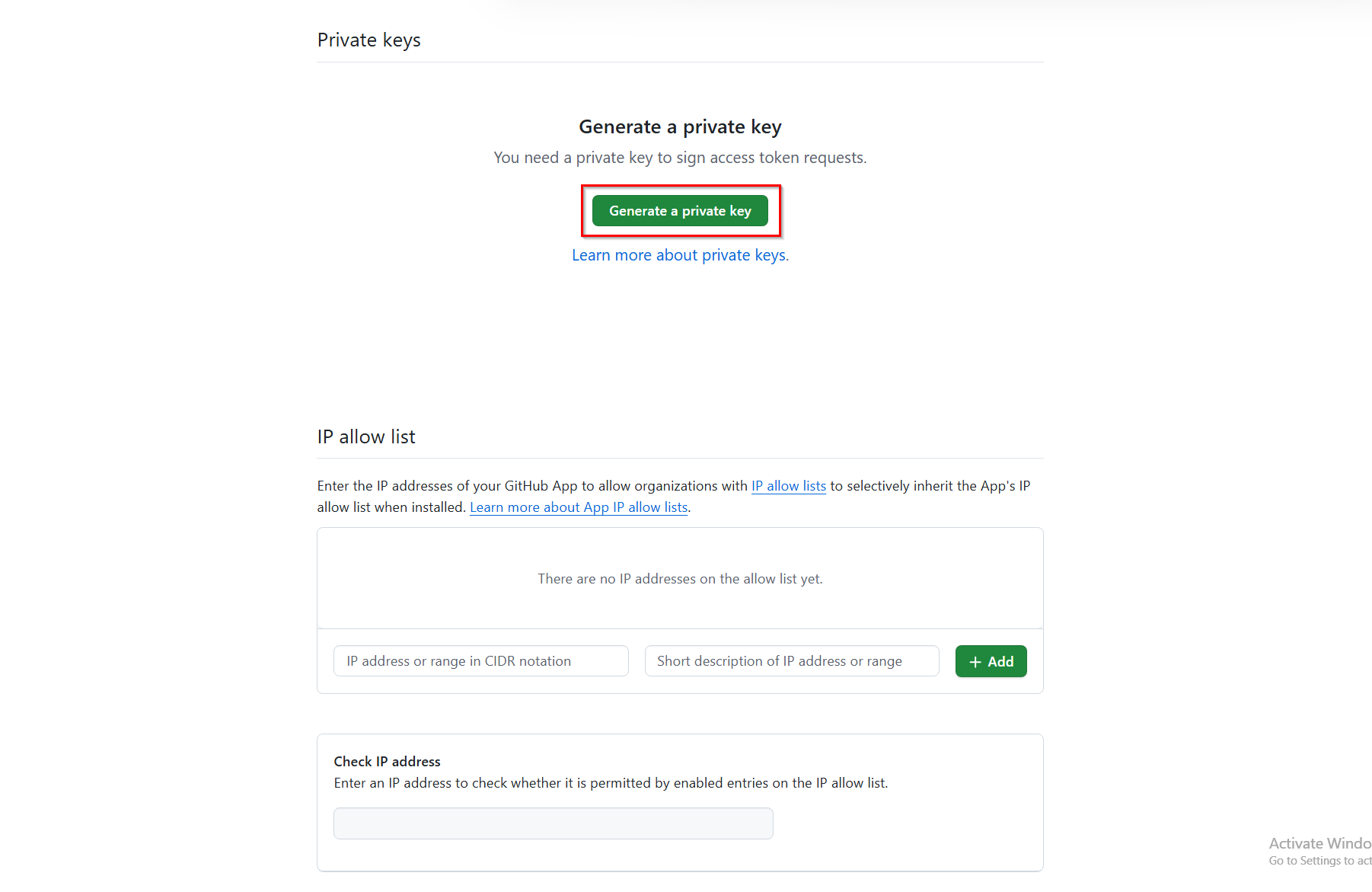
Upon successfully creating the GitHub app, you will be directed to the app's details page. Copy the App ID and paste it into a safe location. You can then click the generate a private key link in the top banner, which will take you to the Private keys section, or simply scroll down to that section directly.
-
In the Private keys section, click Generate a private key and then save the downloaded private key file.
-
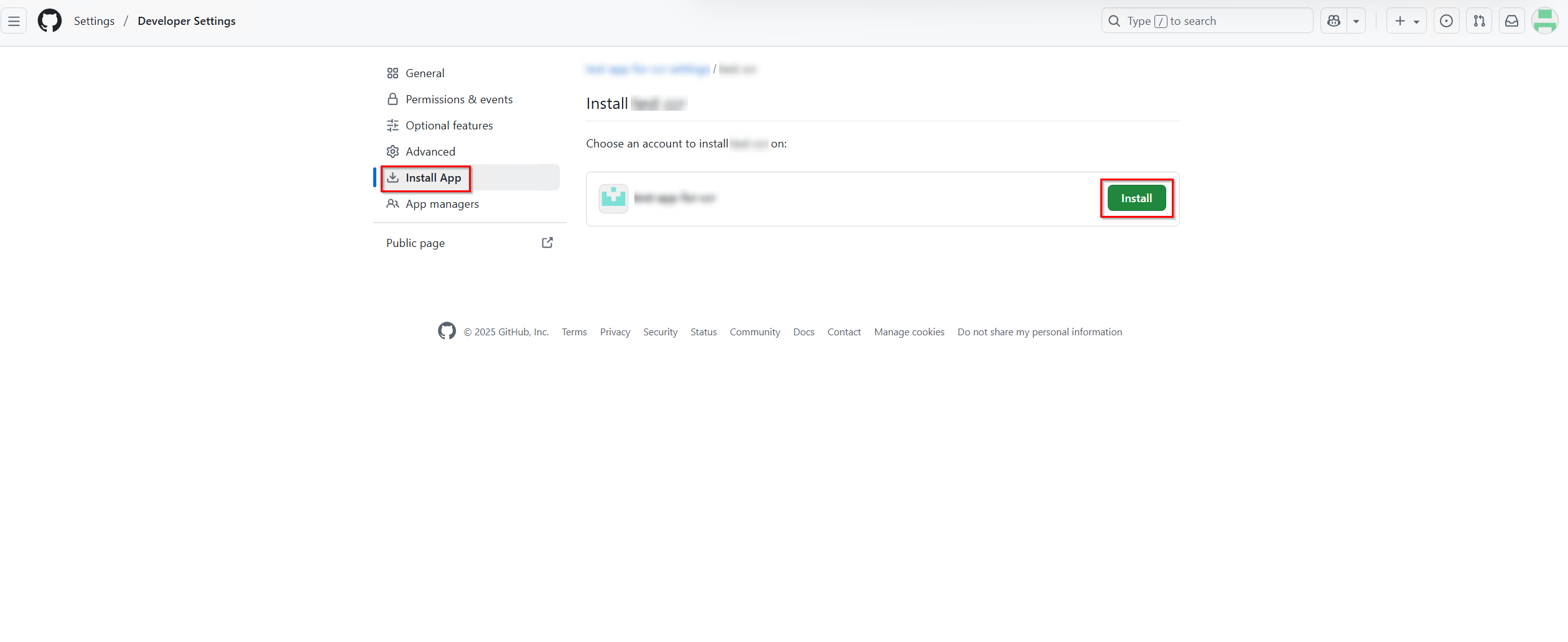
Click Install App on the left navigation pane and then click Install to install the app.
-
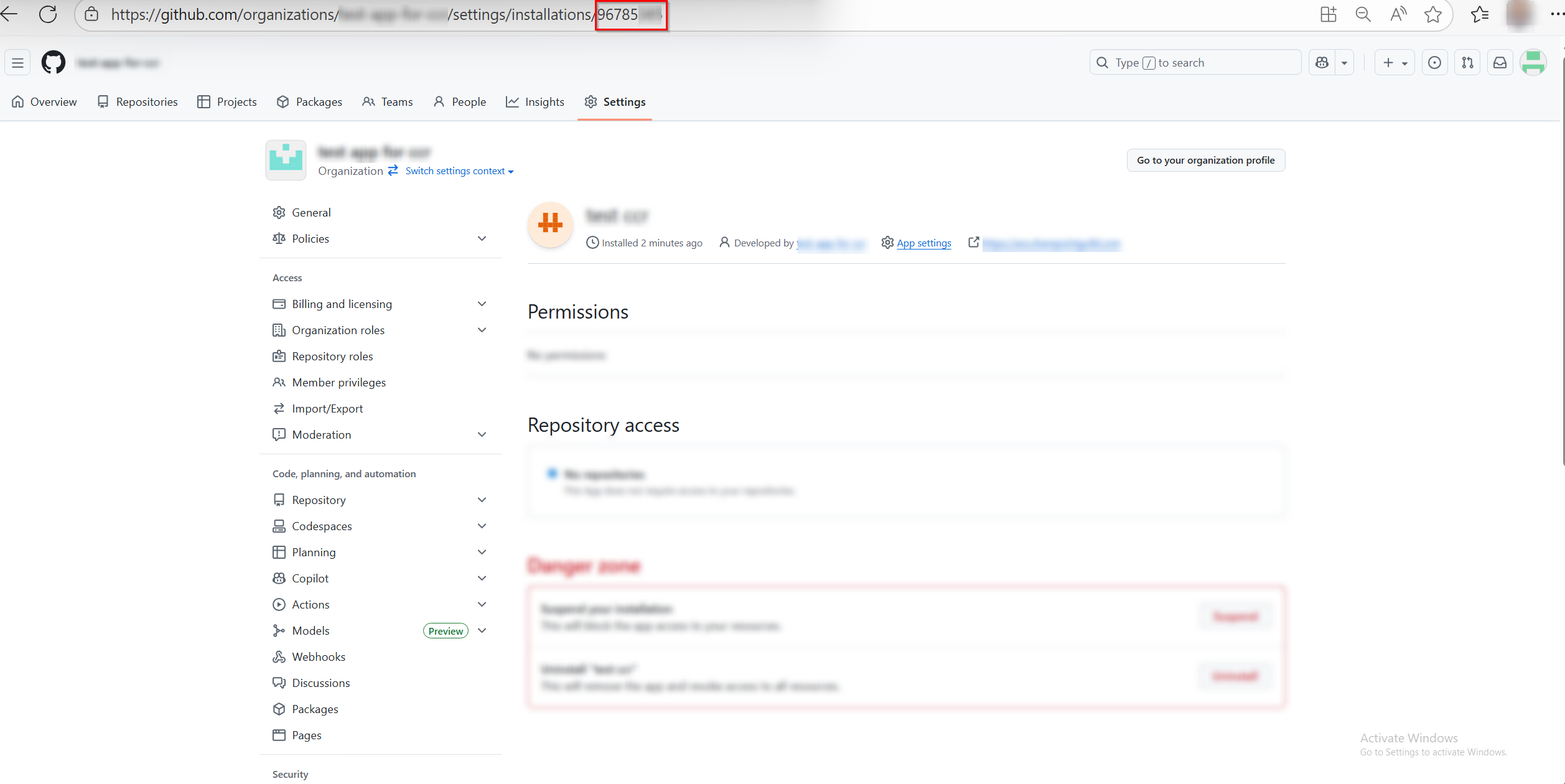
After installation, navigate to Settings > Third-party Access > GitHub Apps page. Copy the numeric portion of this page's URL as the install ID.
Step 2: Create an application connection in AvePoint Online Services
Follow the steps below to create an application connection in AvePoint Online Services:
-
In AvePoint Online Services, navigate to Management > App management > Application connection, and then click Create on the action bar.
-
In the Create application connection panel, complete the following settings:
-
Profile name – Enter a name for your connection profile.
-
Description – Enter a description for the connection for future reference. This field is optional.
-
Select application – Select GitHub from the drop-down list.
-
App ID – Copy the App ID copied from GitHub.
-
Install ID – Copy the install ID copied from GitHub.
-
Private key – Copy the private key downloaded from GitHub.
-
-
Click Save.
Once you have created the connection profile, it will appear on the Management > App management > Application connection tab. Your application will now be connected. If needed, you can select a connection profile to Edit or Delete it.