
Home > App Management > Manage Connections for SaaS Applications > Connect an Application for Confluence
Download this articleConnect an Application for Confluence
To connect an application for Confluence, complete the following configurations.
Step 1: Create an API token in Confluence
Follow the steps below to create an API token:
-
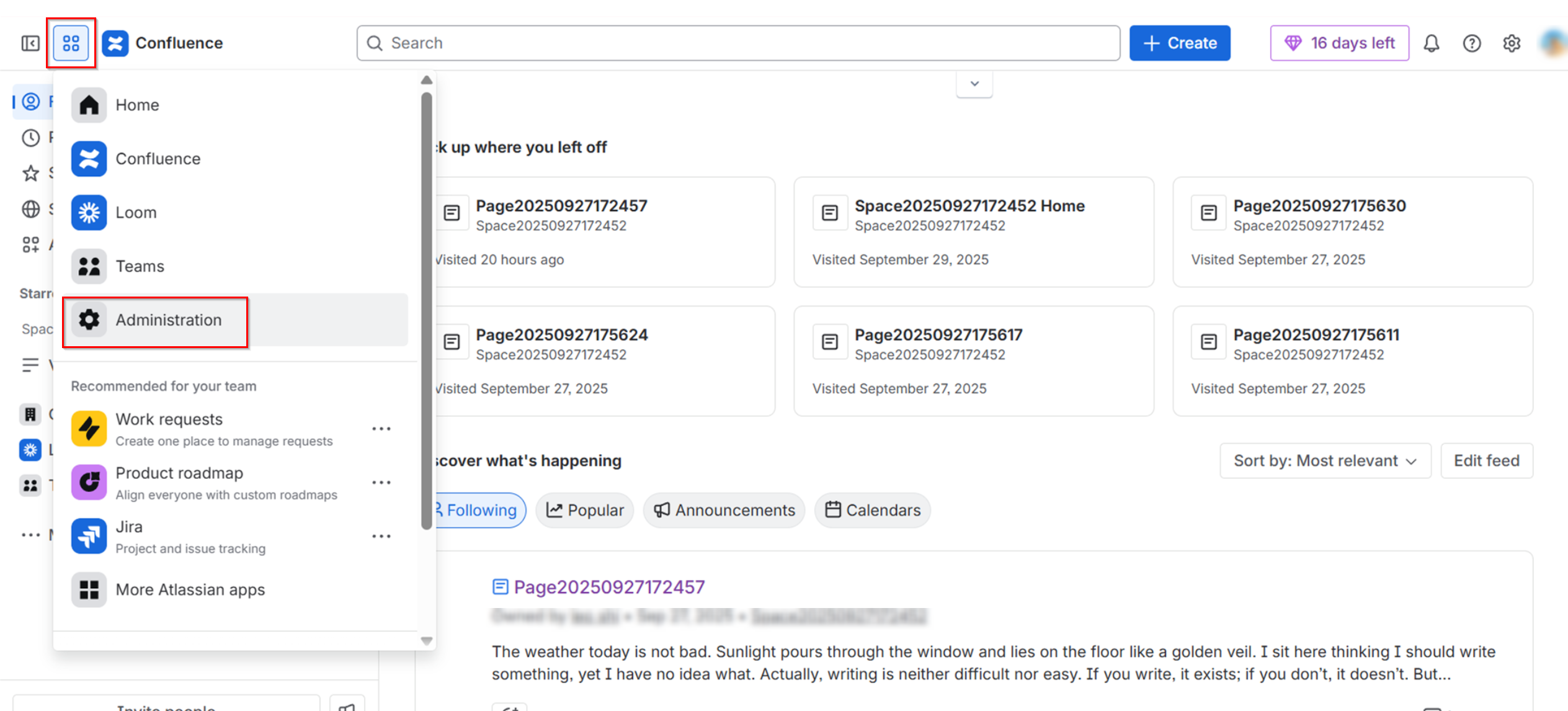
Sign in to Confluence, navigate to Administration via the App launcher.
-
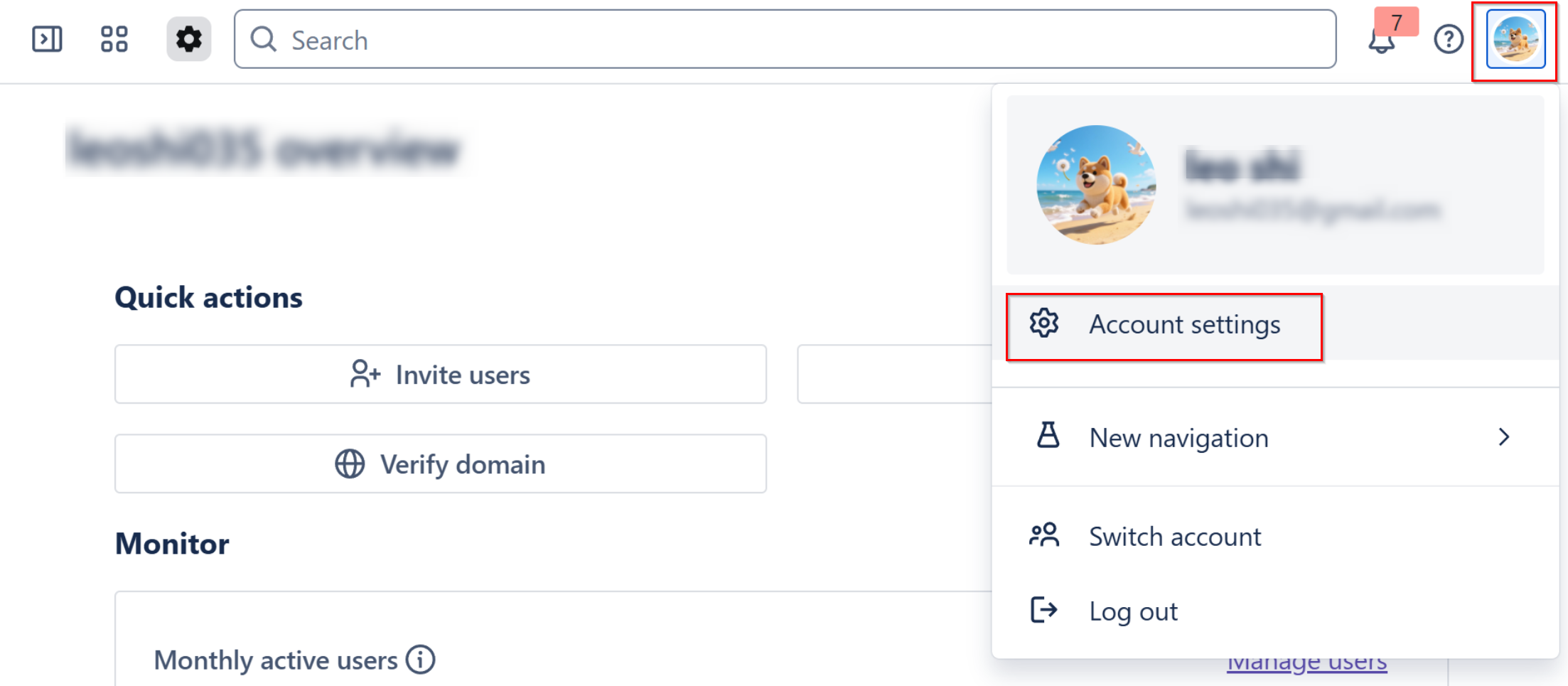
On the Administration page, click your profile picture in the upper right corner and select Account settings.
-
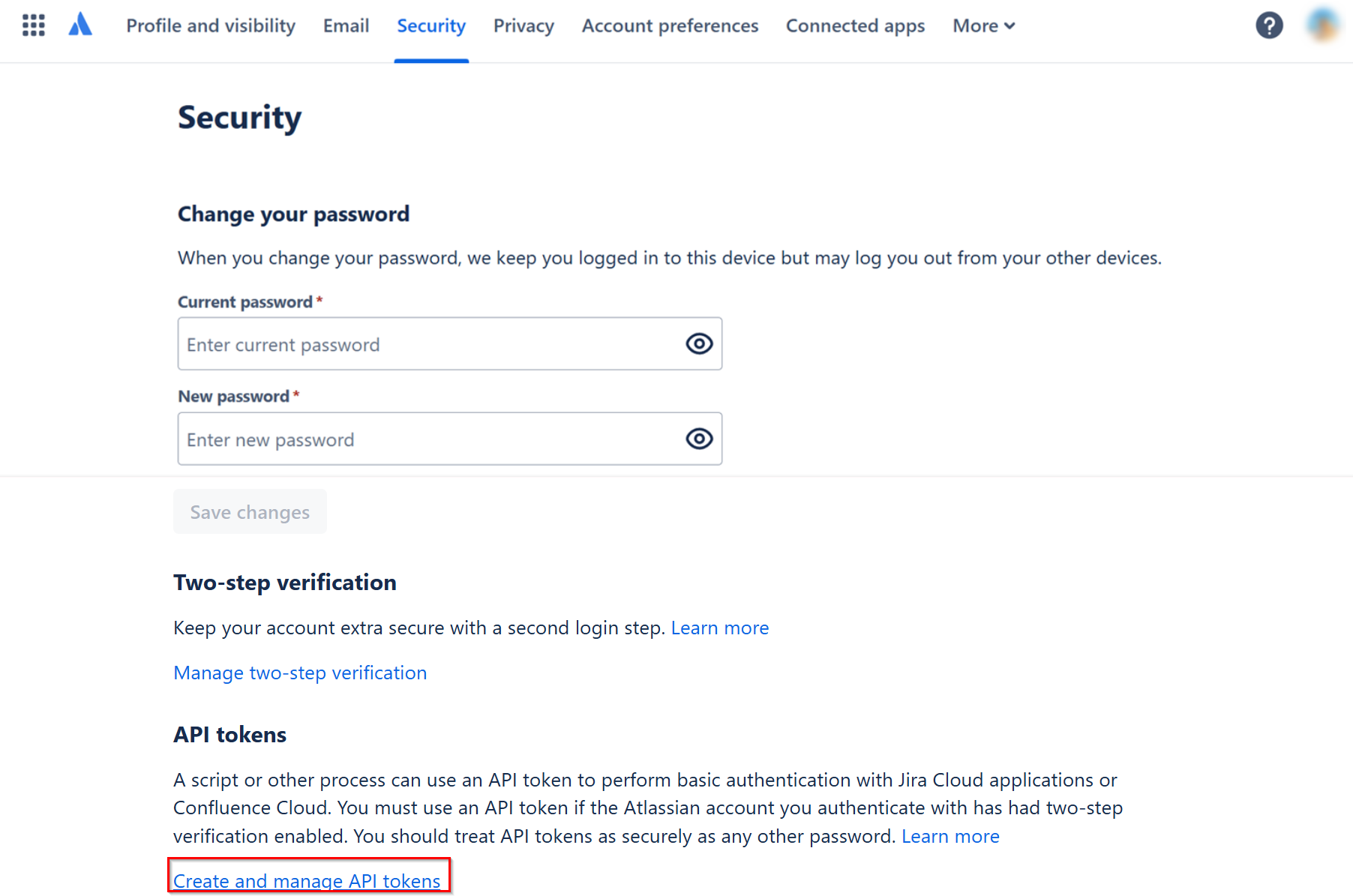
Navigate to the Security tab and click Create and manage API tokens link in the API tokens section.
-
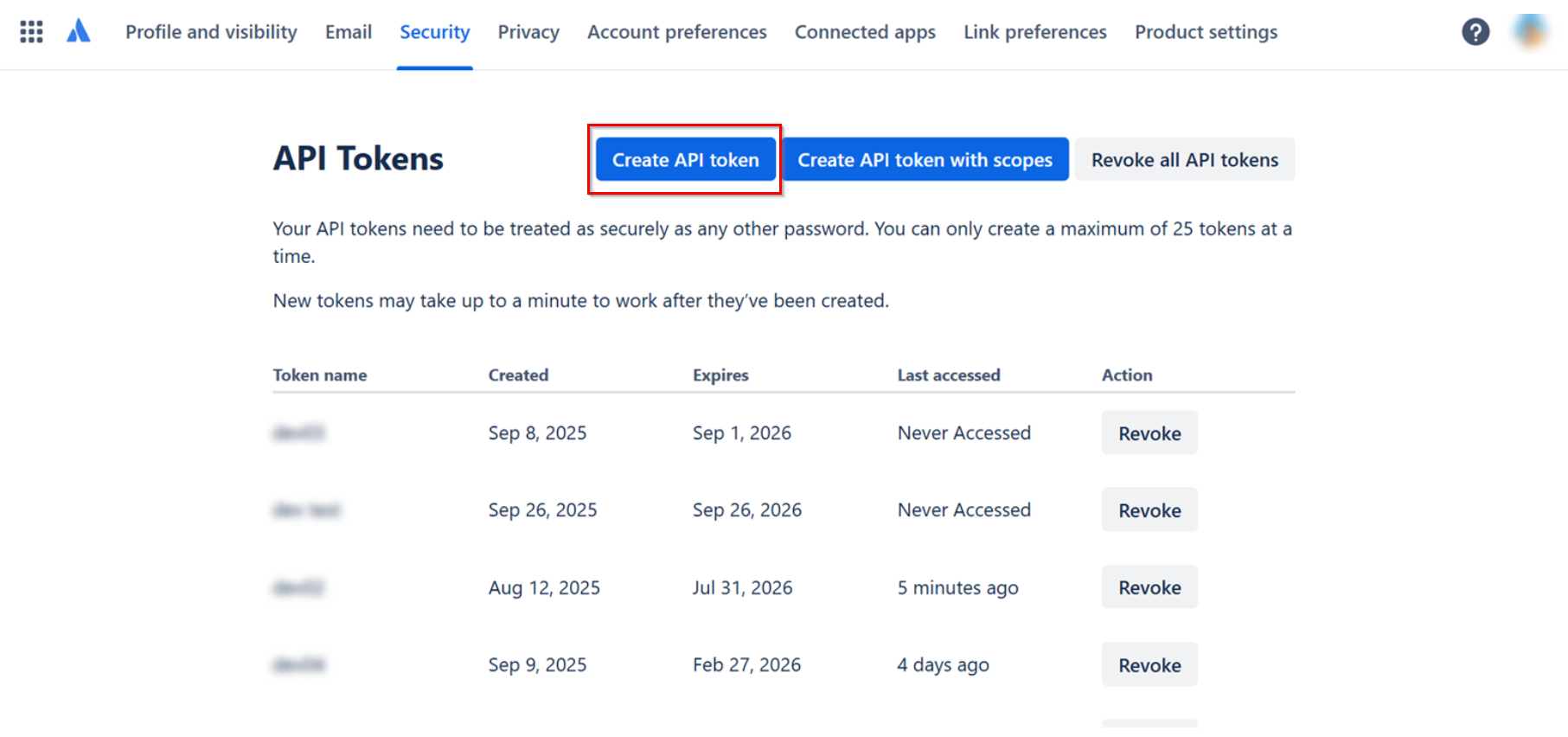
Click Create API token.
-
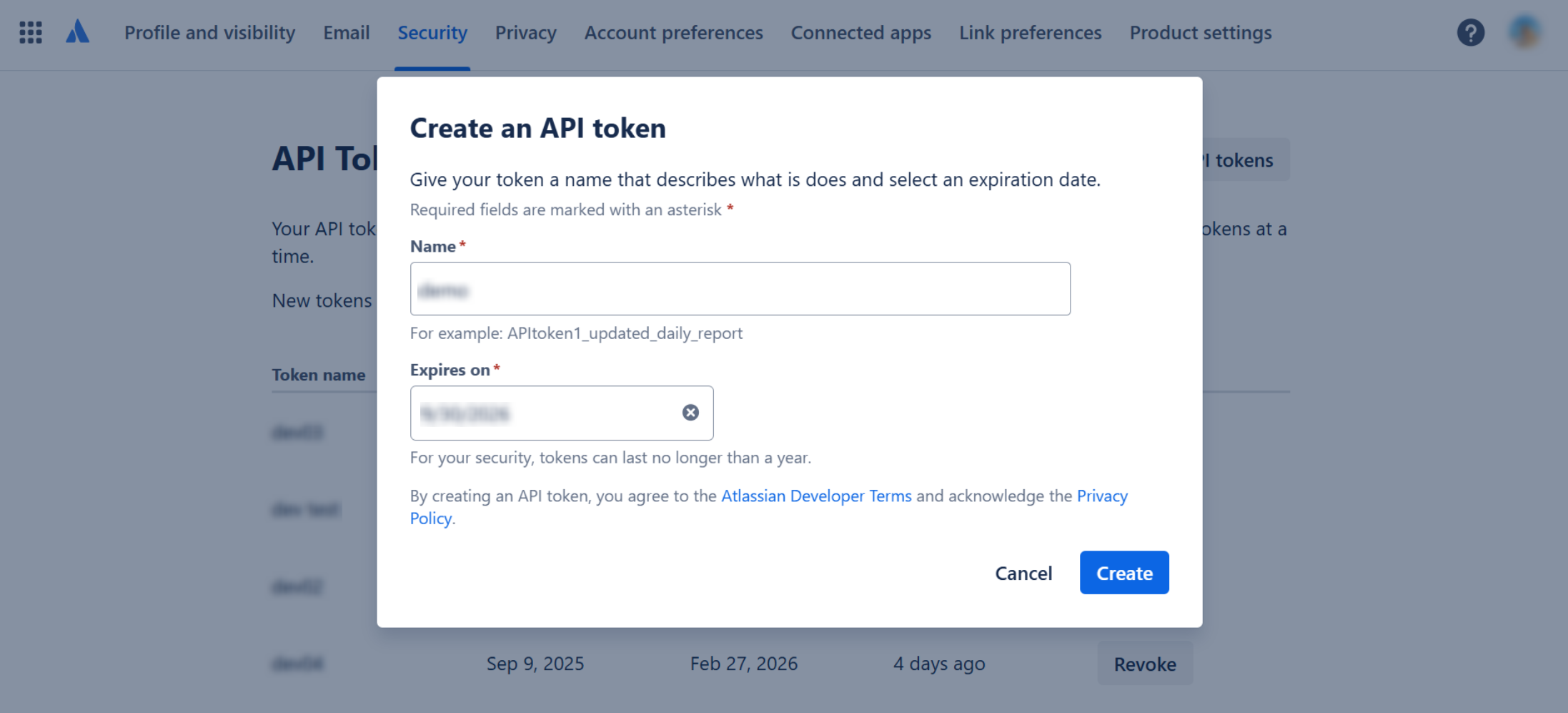
In the Create an API token window, enter a token name, configure the expiration date and click Create.
-
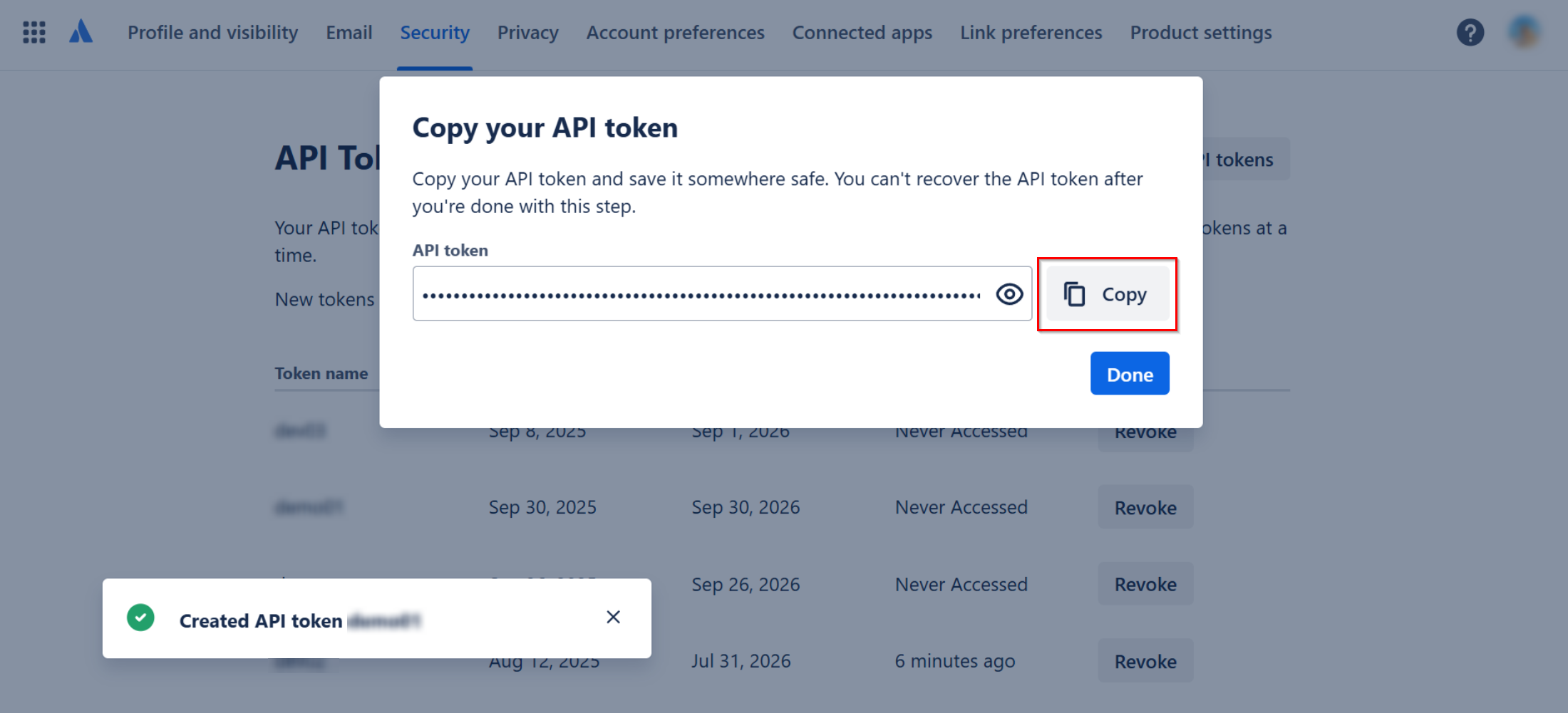
After the API token is created, click Copy in the in the Copy your API token window. Then, paste and securely store it in a safe location.
Step 2: Get the Host URL
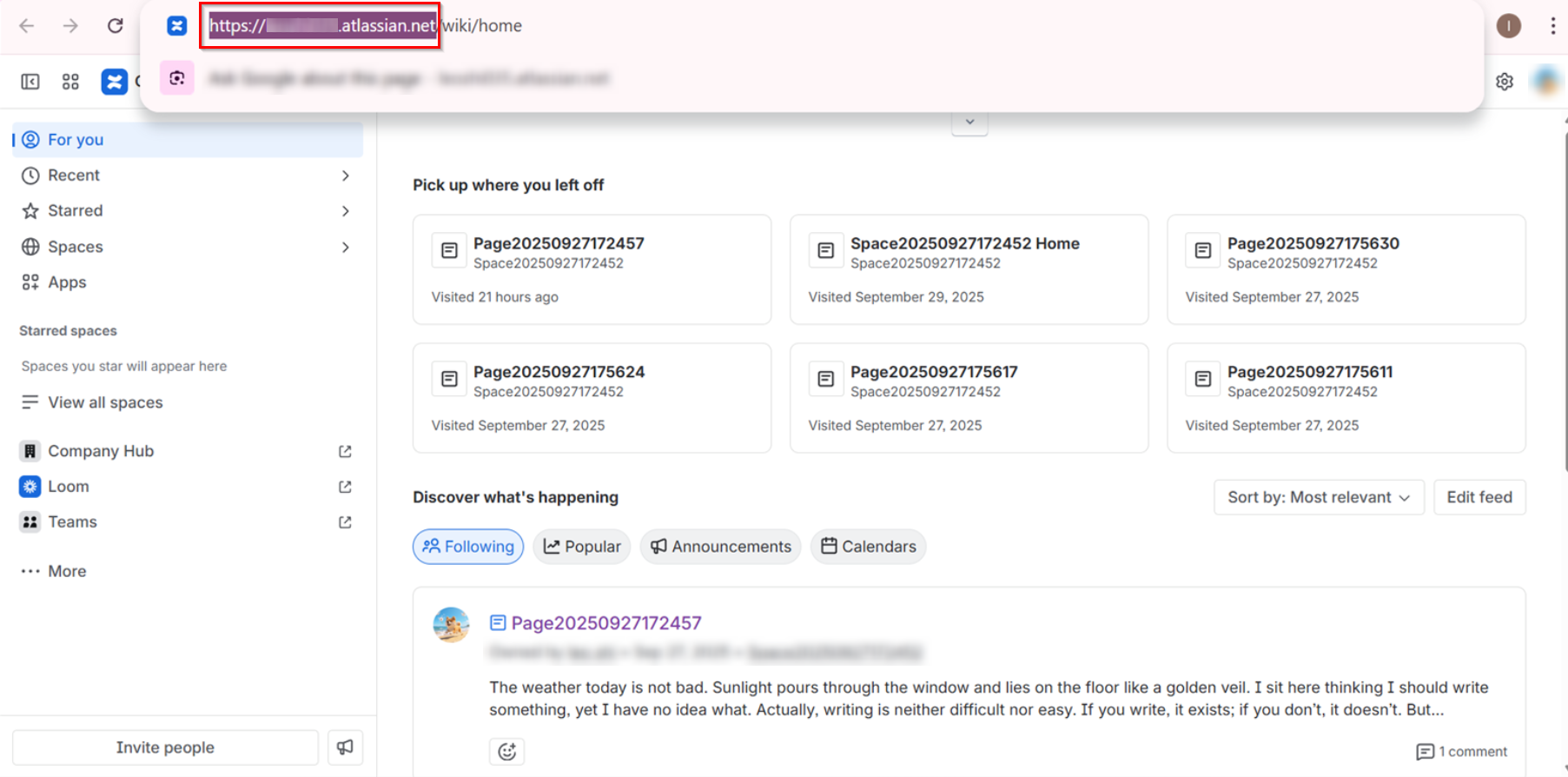
Copy the Host URL from the Confluence website URL: https://your-sub-domain.atlassian.net.
Step 3: Create an application connection in AvePoint Online Services
Follow the steps below to create an application connection in AvePoint Online Services:
-
In AvePoint Online Services, navigate to Management > App management > Application connection, and then click Create on the action bar.
-
In the Create application connection panel, complete the following settings:
-
Profile name – Enter a name for your connection profile.
-
Description – Enter a description for the connection for future reference. This field is optional.
-
Select application – Select Confluence from the drop-down list.
-
Host URL – Enter the URL copied from Confluence: https://your-sub-domain.atlassian.net.
-
User email – Enter the email address associated with your Confluence account.
NOTEIf you are using a member-level account, ensure the account is added to the org-admins group.
-
API token – Enter the API token copied from Confluence.
-
API token expiration date – Specify the expiration date for the API token.
-
-
Click Save.
Once you have created the connection profile, it will appear on the Management > App management > Application connection tab. Your application will now be connected. If needed, you can select a connection profile to Edit or Delete it.