
Manage App Profiles for Microsoft Tenants
AvePoint cloud services can connect to your environments in the Microsoft platform via app profiles for the related apps/roles in your environments.
To help you decide whether to use AvePoint's default apps or your tenant’s custom apps, the API Permissions Required by Default AvePoint Apps for Microsoft Tenants and API Permissions Required by Custom Microsoft Azure Apps sections are for your reference. Note the following:
-
For AvePoint’s default apps, it is recommended that you configure an independent app for each of the services that you are using.
-
If you are using multiple services in the AvePoint Online Services platform, you can also choose the method to configure an app for multiple services with all the required API permissions. For the apps that can be used for multiple services, refer to Classic Apps for Multiple Services.
-
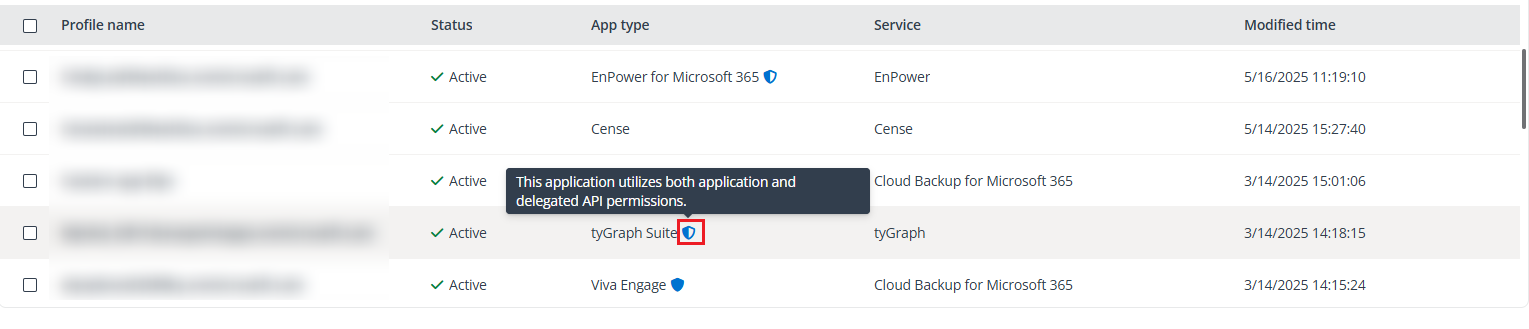
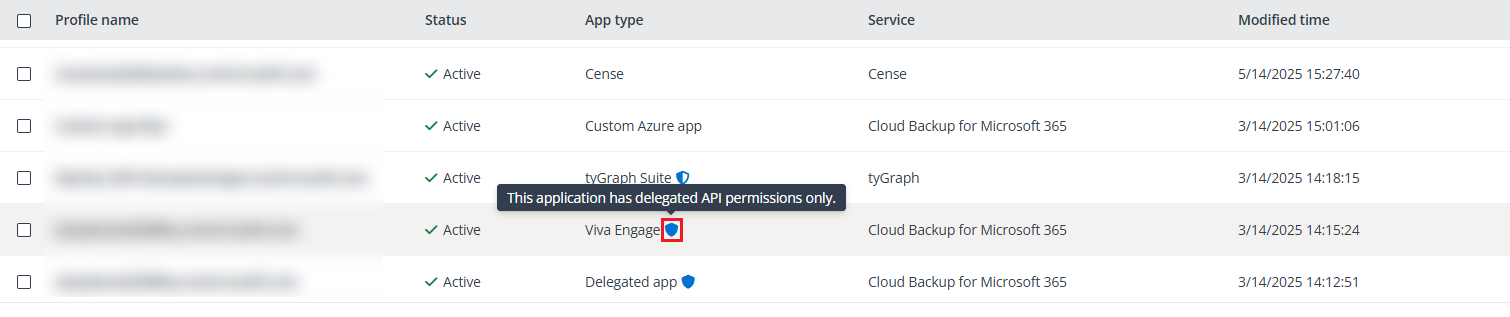
On the App management, Consent to apps, and App profile details pages, the related AvePoint default apps are marked with the icons as below:
-
Apps that utilize both application and delegated API permissions are marked with the hybrid icon.
-
Apps that have delegated API permissions only are marked with the purebred icon.
Refer to the table below for the scenarios when apps with delegated API permissions become Invalid and require re-authorization.
-
| App profile type | Password reset | Deleted, blocked, or disabled in Microsoft Entra ID | Removal of Global Administrator role | Removal of Microsoft 365 licenses |
|---|---|---|---|---|
| Application API permissions only | Active | Active | Active | Active |
| Application API permissions and Delegated API permissions | Invalid | Invalid | Active | Invalid |
| Delegated API permissions only | Invalid | Invalid | Active | Invalid |
-
Active and Invalid in the table above refers to app profiles’ statuses in App management. Invalid app profiles require re-authorization. Re-authorizing apps with delegated API permissions needs a Microsoft 365 Global Administrator account or a user account with specific permissions. For details, refer to Re-authorize App Profiles for Microsoft Tenants.
-
If your organization has extremely limited required permissions and decides to use custom apps, refer to the Configure Custom Azure App Profiles section for additional details.
-
AvePoint Online Services will securely store the consent token of users for applications in Microsoft Entra ID that utilize delegated API permissions.
NOTEFor the non-interactive user sign-in in Microsoft Entra, the IP address is always pointing to the original client IP when the application is using the delegated token. For more information, refer to this Microsoft article.
-
If multi-factor authentication (MFA) is enabled on a Microsoft 365 account, this account can still be used to consent to app profiles. For apps with delegated permissions, the related app profiles need to be re-authorized if MFA is enabled on the consenting users’ Microsoft 365 accounts after they have given consent to the app profiles. For additional details, refer to the Re-authorize App Profiles for Microsoft Tenants section.
The Tenant Owner and Service Administrators can navigate to Management > App management to manage app profiles via the following actions:
-
To create an app profile, click Create. On the Create app profile page, select a tenant, select services, select a setup method (modern mode, classic mode, or custom mode), and then consent to apps. After an app profile is created, the related app will be created in the environment. For details on creating an app profile for a default service app, refer to Configure Default AvePoint App Profiles for Microsoft Tenants. For details on creating an app profile for custom Azure apps, refer to Configure Custom Azure App Profiles.
NOTEBefore you create an app profile, you must ensure that the tenant has been connected to AvePoint Online Services. For more details on connecting tenants, refer to Connect Tenants.
-
To edit the name and description of an app profile or change the services for which an app profile can be used, select the app profile and click Edit. On the Edit app profile page, edit the name or description, select services which will be supported by the app profile, and click Save.
-
Re-authorize app profiles for Microsoft tenants. For detailed scenarios and instructions on reauthorizing app profiles, refer to Re-authorize App Profiles for Microsoft Tenants.
-
To view details of an app profile, click the link in the Profile name column. The App profile detail page appears on the right of the page. When you view the details of an app profile, you can edit or re-authorize the app profile.
-
Before you delete an app profile, ensure it is no longer needed. To delete one or multiple app profiles, select the app profiles, click Delete, and click Confirm in the confirmation window.
-
To manage columns in the table on the App management page, click Column on the upper-right corner of the page, select desired options, and click Apply.
-
To find app profiles of specific tenants, services, or statuses, click Filter on the upper-right corner, select desired options in the Tenant, Service, and Status sections, and then click Apply.
Configure Service Principal
Before creating a service app or a custom Azure app with the PowerPages.Websites.Read and PowerPages.Websites.Write API permissions for Power Platform, make sure that you have configured service principal in your tenant.
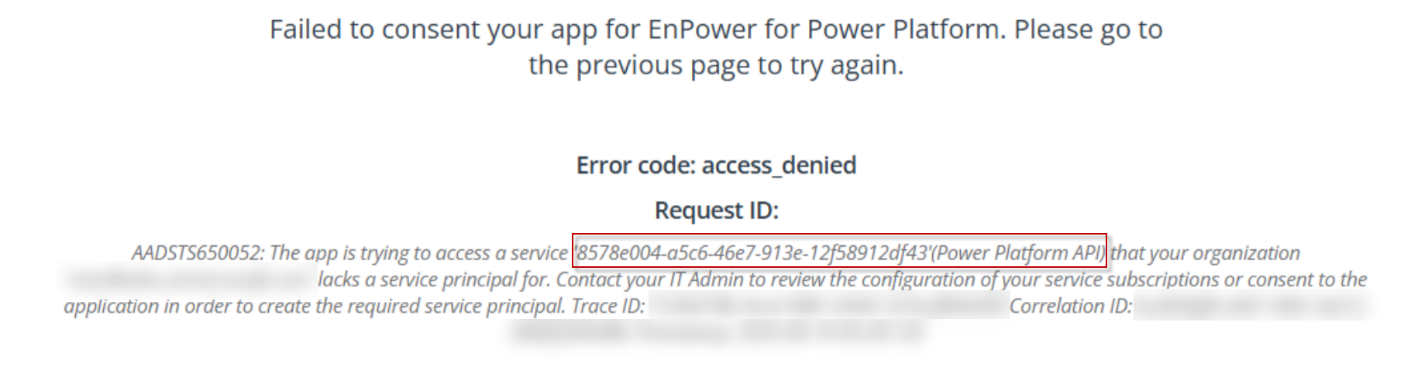
The following scenarios can occur when your tenant does not have the required service principal:
-
When creating a service app for Power Platform in AvePoint Online Services, the error message below appears.
-
When granting API permissions to your custom Azure app, the following API permissions cannot be found under the Power Platform API:
-
PowerPages.Websites.Read
-
PowerPages.Websites.Write
-
To enable the service app consent and API permission assignment, ensure that you have a service principal in your tenant.
To create a service principal, make sure you have the Global Administrator role and run the PowerShell commands provided below:
-
#Install the Microsoft Graph PowerShell SDK module
-
Connect-MgGraph
After running the commands successfully, you will be able to continue with the service app consenting or API permission assignment.