
Home > Auto Discovery > Job Monitor
Download this articleJob Monitor
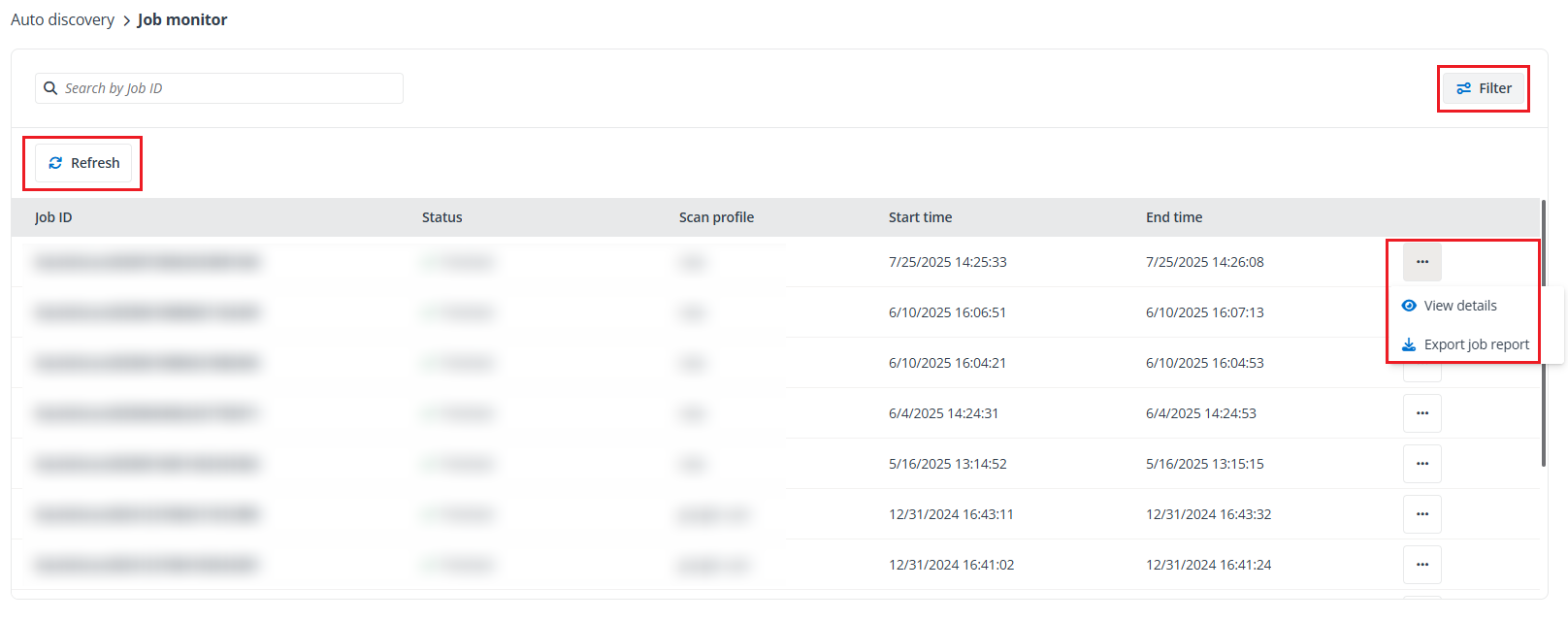
In Auto discovery > Job monitor, you can do the following:
-
Refresh – Click Refresh to refresh jobs displayed on the Job monitor page.
-
Filter – Set a filter to view job results by referring to the instructions below:
-
Click Filter on the upper-right corner of the page. The Filter pane appears on the right of the page.
-
In the Filter pane, configure conditions for the Scan profile or Status criteria.
-
Click Apply.
-
-
Stop – If you want to stop a scan job at the In progress status, click the actions button of the job, and then click Stop from the drop-down menu. Note that Batch import in progress jobs cannot be stopped.
-
View details – To view details of a job, you can click the job ID, or you can click the actions button of the job and click View details from the drop-down menu.
For the scan jobs performed after the August 2024 release, when you view details of jobs at the Finished / Finished with exception status, you can have an overview of the objects’ scan results from the Number of objects table. You can also click Export job report on the upper-right corner of the page to download the job report.
-
Export job report – To download job report of a job with the Finished / Finished with exception status, click the actions button of the job, and then click Export job report from the drop-down menu. In the Export job report window, select options from the following to define the scope of the objects’ results that you want to cover in the exported job report:
NOTEDue to limitations in Excel: Excel specifications and limits - Microsoft Support, you may see an issue attempting to export job details in excess of 1 million objects. We strongly suggest limiting the scope of these reports to just failed objects.
-
All – Select/deselect this checkbox to include/exclude all statuses below.
-
Exception – The objects that were not scanned into containers due to minor errors.
-
Keep – The objects were kept in their original containers.
-
Newly added – The objects that were newly added to containers via this job.
-
Out of policy – The objects whose properties didn’t match the rules of their current containers.
-
Removed (for scan jobs only) – The objects that were deleted from the source or were unsupported data types.
-
Skipped (for scan jobs only) – The objects that were filtered out by the scan rules configured on containers.
-
Need to remove – The objects need to be manually removed from their containers.
-
Partially added (for Microsoft 365 Groups only) – Not all data of the objects were scanned into the containers.
Then, click Export to export the job report.
-