
Home > App Management > Manage Connections for SaaS Applications > Connect an Application for monday.com
Download this articleConnect an Application for monday.com
To connect an application for monday.com, complete the following configurations.
Step 1: Get the required information in monday.com
Follow the steps below to get the required information for creating an application connection:
The user who performs the following actions must have the Administrator role.
-
Sign in to monday.com.
-
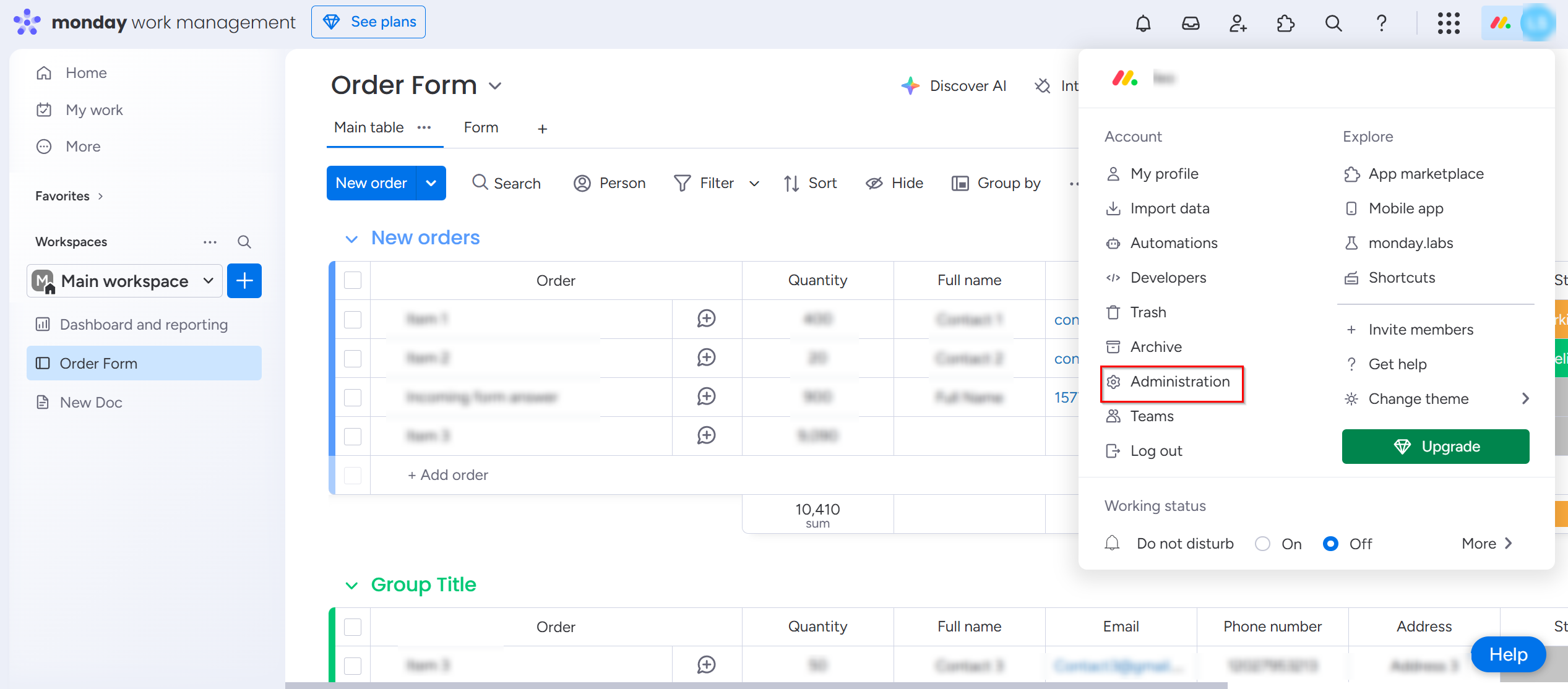
Click your profile picture and click Administration.
-
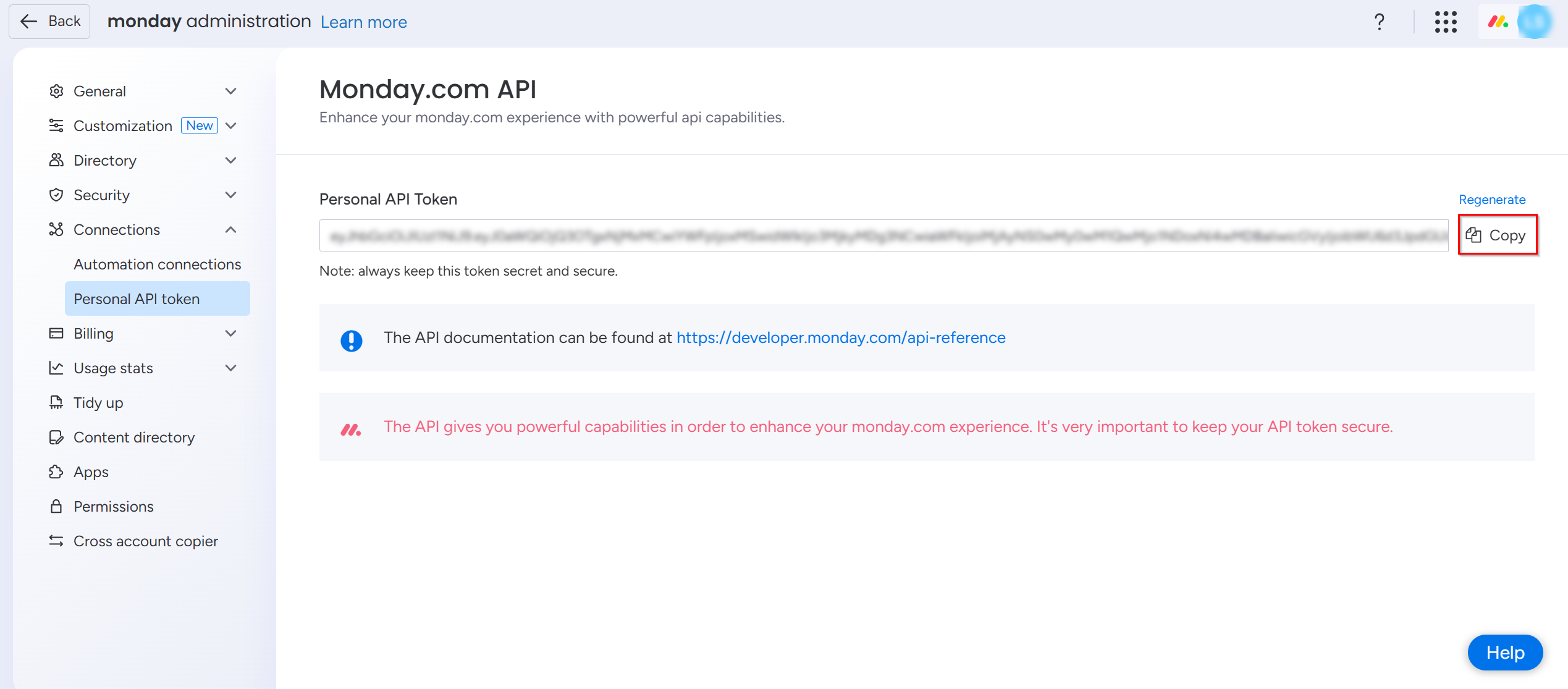
Click Personal API token under Connections section on the navigation pane
-
Click Copy to copy the Personal API Token and paste it into a safe location.
Step 2: Create an application connection in AvePoint Online Services
Follow the steps below to create an application connection in AvePoint Online Services:
-
In AvePoint Online Services, navigate to Management > App management > Application connection, and then click Create on the action bar.
-
In the Create application connection panel, complete the following settings:
-
Profile name – Enter a name for your connection profile.
-
Description – Enter a description for the connection for future reference. This field is optional.
-
Select application – Select monday.com from the drop-down list.
-
User email and access token – Enter the email address and API token copied from monday.com. Click Add to add multiple email addresses and API tokens. Alternatively, click Bulk import to import user emails and access tokens in bulk. For details, see Import user emails and access tokens.
You can click Only show items with errors to view and update the invalid email addresses and API tokens.
-
-
Click Save.
Once you have created the connection profile, it will appear on the Management > App management > Application connection tab. Your application will now be connected. If needed, you can select a connection profile to Edit or Delete it.
Import user emails and access tokens
Follow the steps below to import user emails and access tokens:
-
Click Bulk import in the User email and access token section.
-
In the Bulk import panel, click Download template link to download the template.
-
Open the downloaded template and update the information as needed.
-
Once you have updated the template, click Upload to upload it.
-
In the Conflict resolution section, select how you would like to handle conflicts:
-
Append - Add newly uploaded mappings without removing existing ones.
-
Overwrite - Existing mappings will be replaced with the uploaded mappings.
-
-
Click Import to import user emails and access tokens.