
Home > アプリ管理 > SaaS アプリケーションの接続の管理 > monday.com のアプリケーションへの接続
この記事をダウンロードmonday.com のアプリケーションへの接続
monday.com のアプリケーションに接続するには、以下の構成を完了してください。
ステップ 1: monday.com の必要な情報の取得
アプリケーション接続を作成するための必要な情報を取得するには、以下の説明を参照してください。
以下のアクションを実行するユーザーは、グローバル管理者ロールを持っている必要があります。
-
monday.com にサインインします。
-
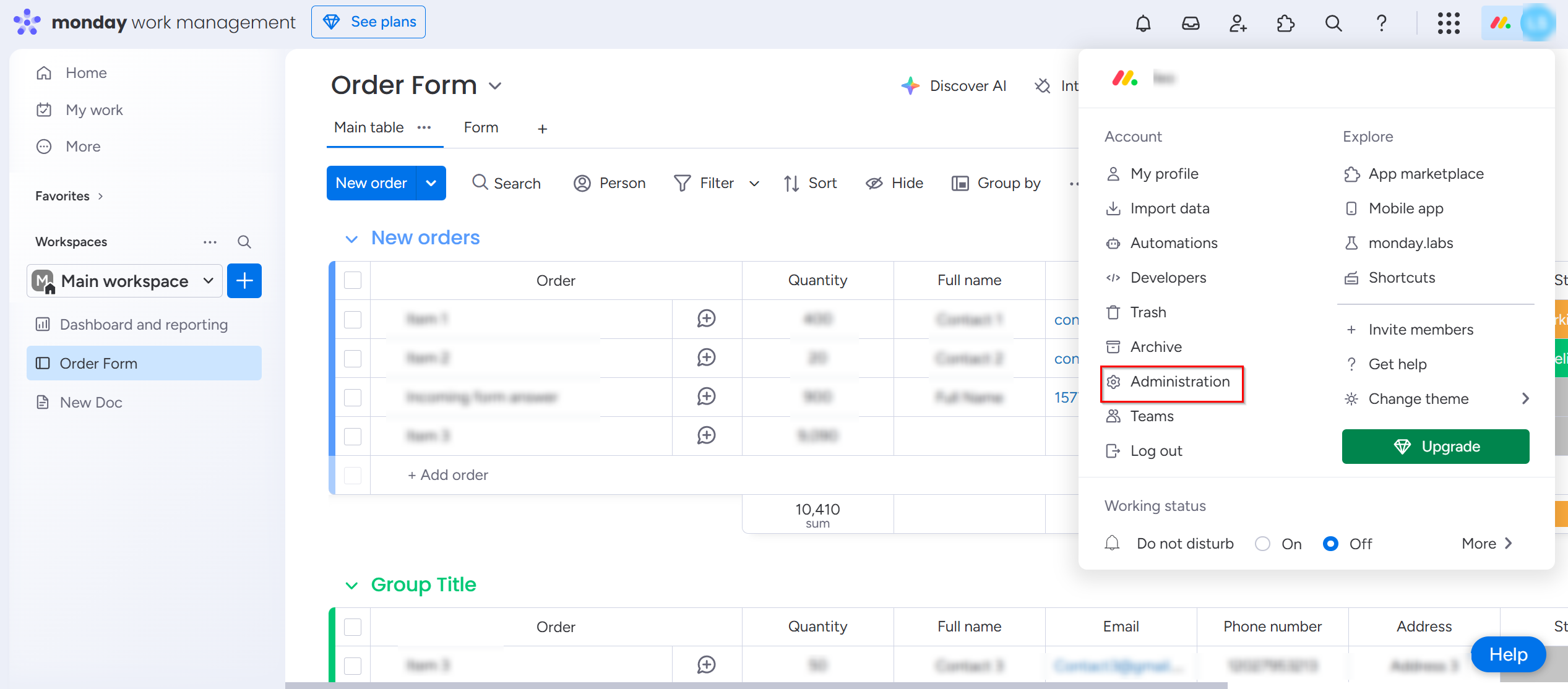
プロファイル写真をクリックして、管理者 を選択します。
-
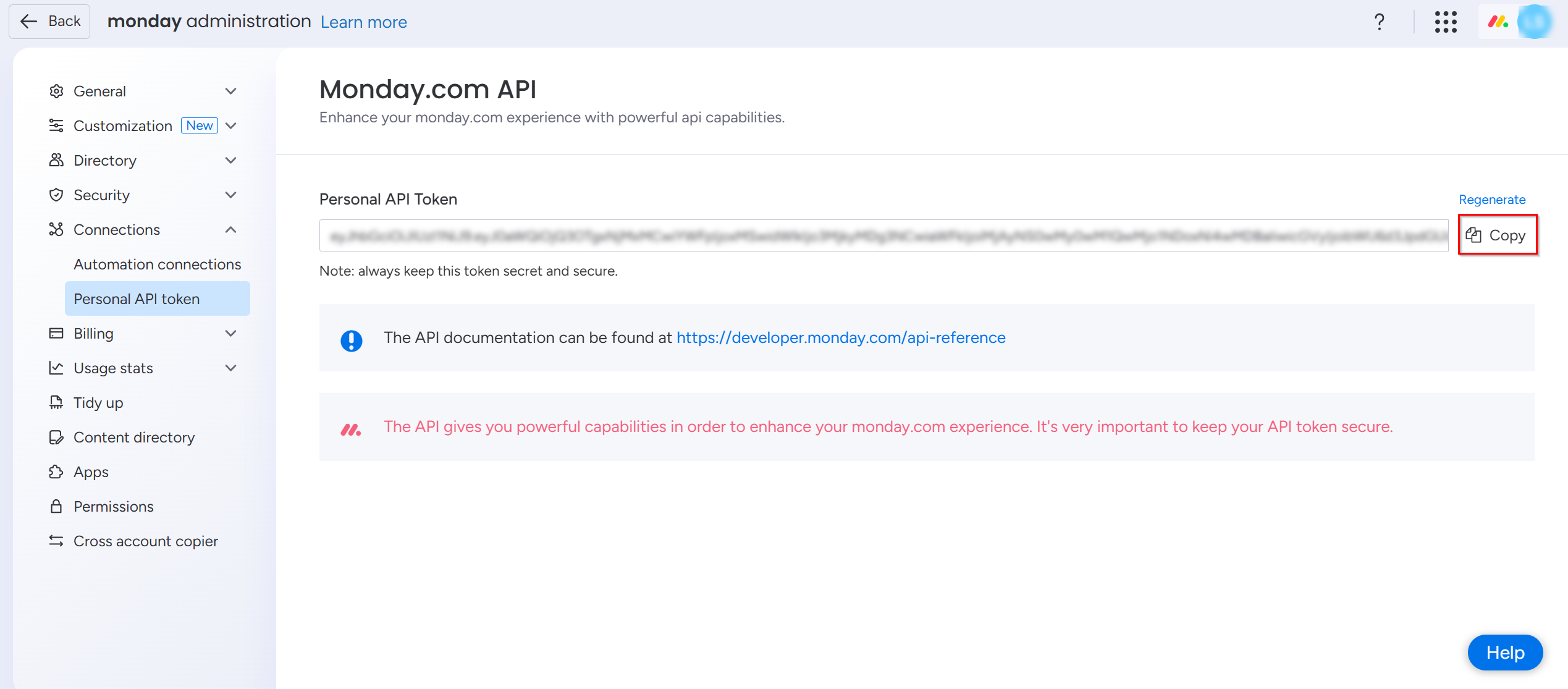
左側ナビゲーションの 接続 セクションで、パーソナル API トークン に移動します。
-
[コピー] をクリックし、パーソナル API トークンを安全な場所にコピーします。
ステップ 2: AvePoint Online Services でのアプリケーション接続の作成
AvePoint Online Services でアプリケーション接続を作成するには、以下の手順に従ってください。
-
AvePoint Online Services で、構成 > 管理 > アプリ管理 > アプリケーション接続 に移動して、アクション バーで [作成] をクリックします。
-
アプリケーション接続の作成 パネルで、以下の設定を完了します。
-
プロファイル名 – 接続プロファイルの名前を入力します。
-
説明 – 必要に応じて接続の説明を入力します。このフィールドは必須ではありません。
-
アプリケーションの選択 – ドロップダウン リストから monday.com を選択します。
-
ユーザー メールおよびアクセス トークン – メール アドレスおよび monday.com からコピーした API トークンを入力します。[追加] をクリックし、複数のメール アドレスおよび API トークンを追加することができます。また、[一括インポート] をクリックして、ユーザー メールおよびアクセス トークンを一括でインポートします。詳細については、ユーザー メールとアクセス トークンのインポート を参照してください。
-
-
[保存] をクリックします。
作成された接続プロファイルは、管理 > アプリ管理 > アプリケーション接続 タブで表示されます。アプリケーションが接続されるようになります。必要に応じて、接続プロファイルを選択して、編集 または 削除 することができます。
ユーザー メールとアクセス トークンのインポート
ユーザー メールとアクセス トークンをインポートするには、以下の説明を参照してください。
-
ユーザー メールとアクセス トークン セクションで [一括インポート] をクリックします。
-
一括インポート パネルで、[テンプレートのダウンロード] リンクをクリックしてテンプレートをダウンロードします。
-
ダウンロードしたテンプレートを開いて、必要に応じて情報を更新します。
-
[アップロード] をクリックして、更新したテンプレートをアップロードします。
-
競合解決 セクションで、競合を処理する方法を選択します。
-
追加する – 既存のマッピングを削除せずに、新しくアップロードされたマッピングを追加します。
-
上書きする – 既存のマッピングは、アップロードされたマッピングで置き換えられます。
-
-
[インポート] をクリックして、ユーザー メールとアクセス トークンをインポートします。