Home > Service Account > Manage Google Cloud Service Account Profiles
この記事をダウンロードOrganizations with a working subscription to the Cloud Backup for IaaS +PaaS service can manage Google Cloud service account profiles.
To manage Google Cloud service account profiles, navigate to Management > Service account > Google Cloud service account. You can perform the following actions:
Create – Click Create. Then, refer to Create a Google Cloud Service Account Profile for details.
Edit – Select a service account profile and click Edit on the ribbon.
When you edit a service account profile, you can enter a new value for Private key and click Validate. Once the new private key has been validated, the Project ID drop-down list will display IDs matched with this private key, and you can select one or more items from the Project ID drop-down list. For additional details about editing fields for a profile, refer to Create a Google Cloud Service Account Profile.
Delete – Select one or more service account profiles and click Delete. A pop-up window appears asking for your confirmation. Click Confirm to confirm your deletion.
To create a Google Cloud service account profile, navigate to Management > Service account > Google Cloud service account, click Create under the Google Cloud service account tab, and then configure the following settings:
Profile name – Enter a name for the service account profile.
Select service – Select your desired services from the drop-down list.
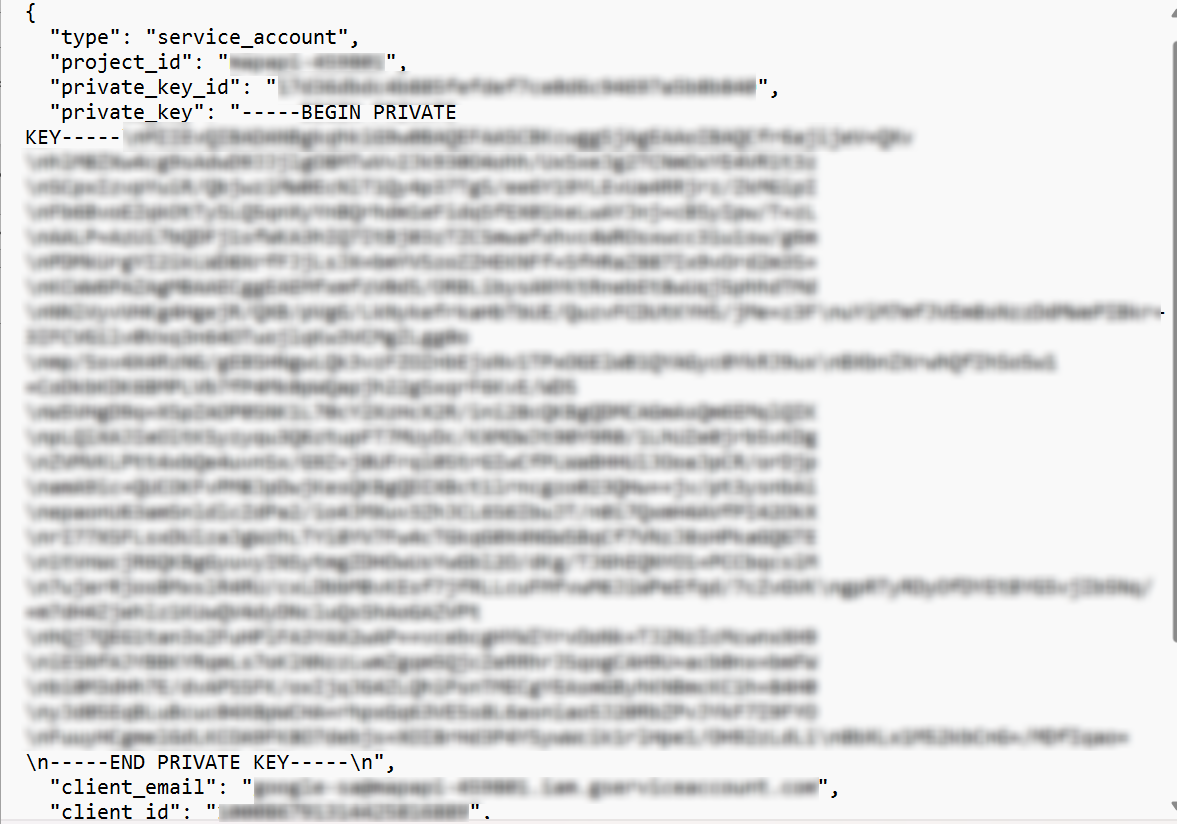
Service account email – Enter the client email that is included in the JSON file downloaded from the Google Cloud Platform when you create keys for the service account.
Authentication method – Select an authentication method.
Service account impersonation – Select to authenticate by impersonating a service account with delegated access. To use this method, you must first configure your Google Cloud Platform organization policy. For details, refer to the Service Account Impersonation section.
Private key – Enter the private key that is included in the JSON file downloaded from the Google Cloud Platform when you create keys for the service account. Click the Validate button to validate the private key.
For the Private key value, refer to the Private Key section.
Project ID – Once a private key has been validated, the Project ID drop-down list will display IDs matched with this private key, and you can select one or more items from the Project ID drop-down list.
Click Save.
If you select Service account impersonation as the authentication method, you need to follow the instructions below to configure your Google Cloud Platform organization policy and grant access to the service account you want to impersonate.
Go to Google Cloud IAM.
Click Organization Policies.
Locate and click the policy with ID iam.allowedPolicyMemberDomains.
On the Policy details page, click Manage policy.

Under Applies to, select Override parent's policy.
Click Add a rule and complete the following configurations:
Policy values – Select custom.
Policy type – Select Allow.
Custom values – Enter the AvePoint’s Customer ID C028l9fyx.
Click Done.
To enforce the policy, click Set policy.
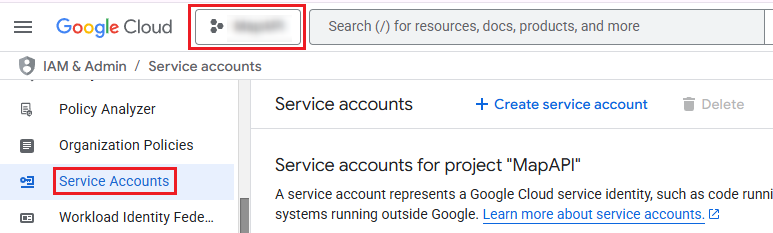
In the Google Cloud IAM, click Service Accounts and select the project where your service account has been created.

Click your service account, and then click the Principals with access tab.
Click Grant access.

In the Grant access panel, complete the following configurations:
Add principals - Enter the email address of the service account.
Assign role - Click Add another role, and then select Service Account Token Creator role.
Click Save.
For the Service account email and Private key values, refer to the instructions below to create the service account key and download the JSON file.
Go to Google Cloud IAM.
Click Service Accounts and select the project where your service account has been created.

Click your service account, and then click the Keys tab.
Click Add key, and then click Create new key from the drop-down menu.

Select the JSON key type and click Create.
Open the downloaded file. Find the Project key and Client email values.