
Home > アプリ管理 > SaaS アプリケーションの接続の管理 > Jira / Jira 管理者設定用のアプリケーションへの接続
この記事をダウンロードJira / Jira 管理者設定用のアプリケーションへの接続
Jira 用のアプリケーションに接続するには、以下の構成を完了してください。
アプリ API の呼び出しを外部ユーザーに許可するには、API トークン アクセスを有効にする必要があります。外部アカウントを使用している場合、AvePoint Online Services でアプリケーション接続を作成する前に、API トークンへのアクセスが有効になっていることを確認してください。詳細については、外部ユーザーへの API トークン アクセスの許可 を参照してください。
ステップ 1: Jira 用の API トークンの作成
API トークンを作成するには、以下の説明に参照してください。
-
Jira にサインインします。
-
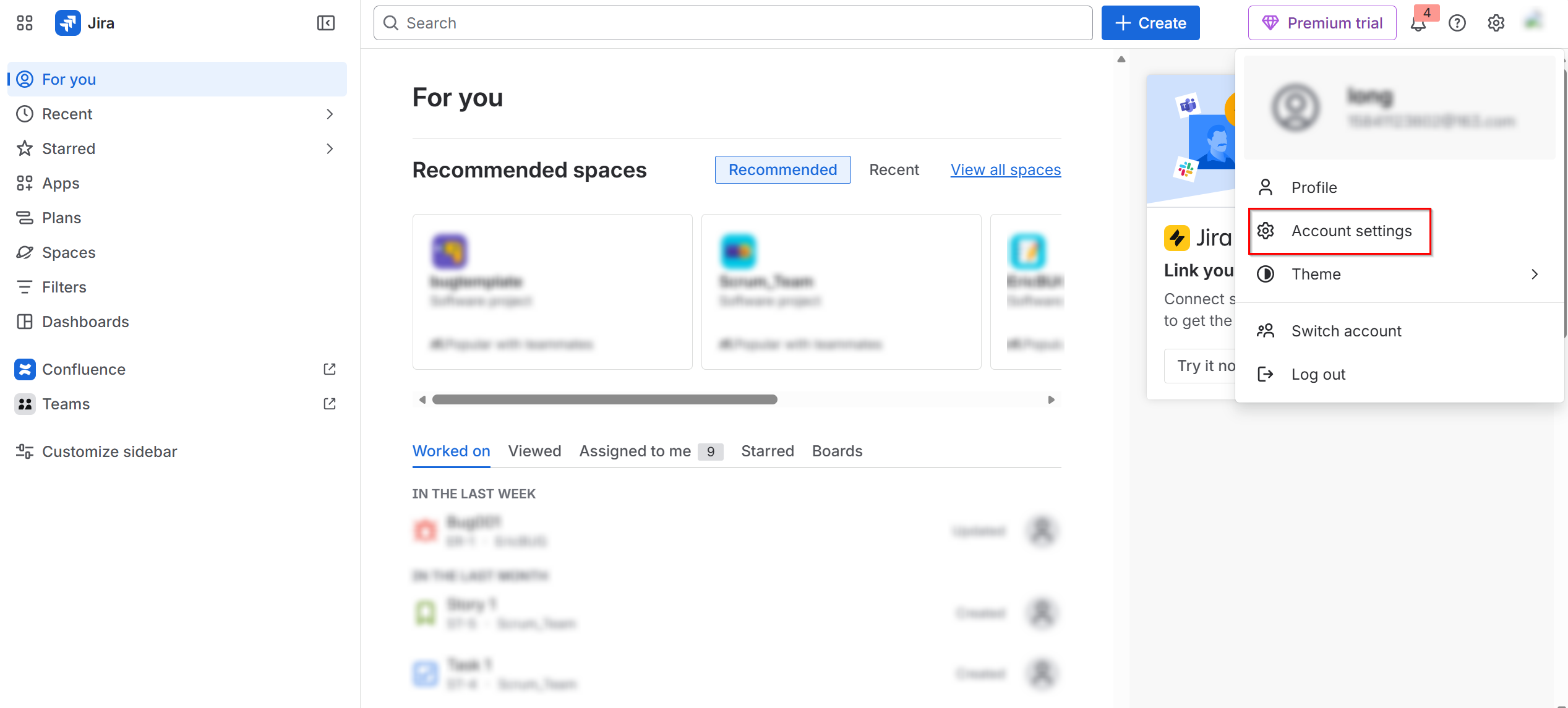
右上でプロファイル写真をクリックし、アカウント設定 を選択します。
-
セキュリティ タブに移動して、API トークン セクションで [API トークンの作成と管理] をクリックします。
![[API トークンの作成と管理] のクリック](/en/configuration-and-deployment/app-management/manage-connections-for-saas-applications/images/image107.png "[API トークンの作成と管理] のクリック")
-
[API トークンを作成] をクリックします。
![[API トークンを作成] のクリック](/en/configuration-and-deployment/app-management/manage-connections-for-saas-applications/images/image108.png "[API トークンを作成] のクリック")
-
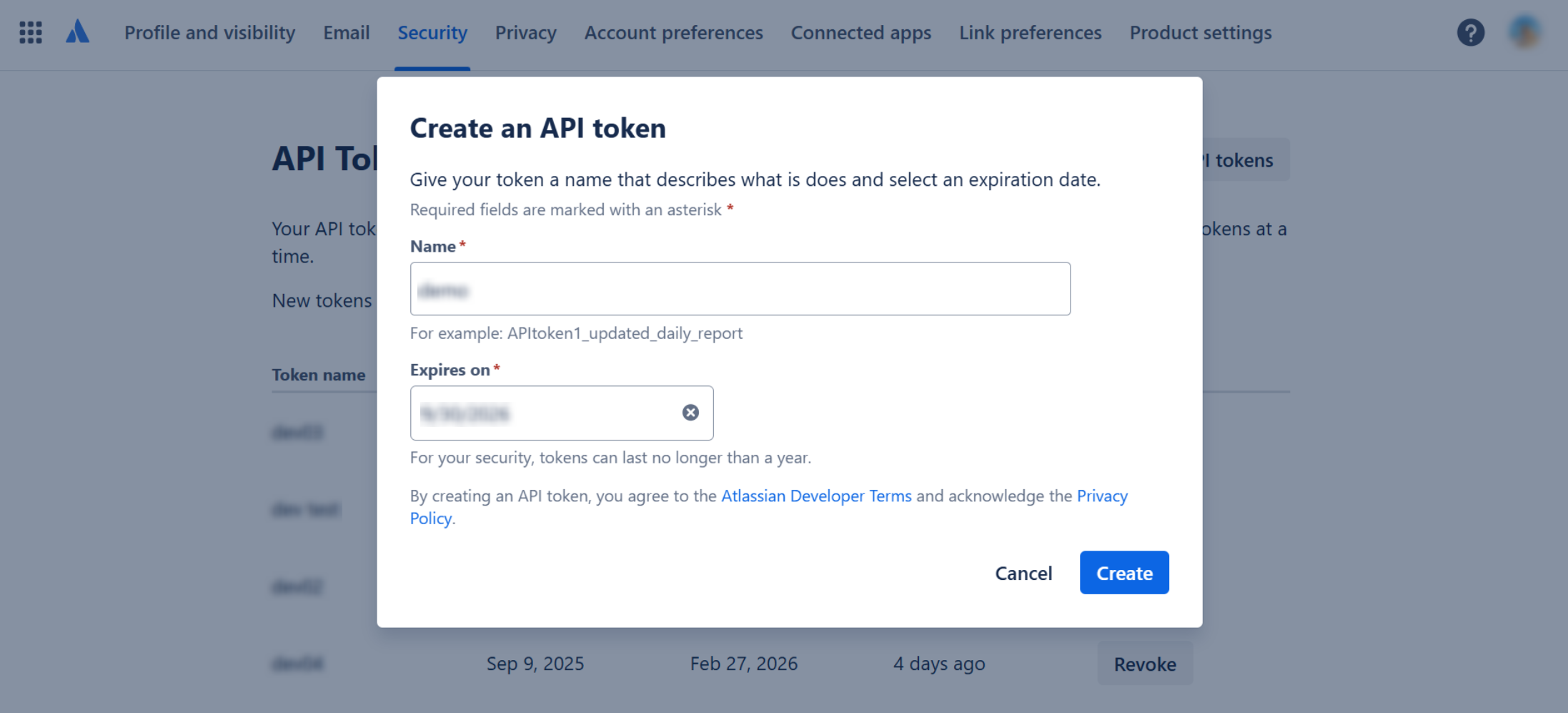
API トークンを作成 ウィンドウで、トークン名を入力し、有効期間を構成して、[作成] をクリックします。
-
API トークンが作成された後、API トークンをコピーする ウィンドウで [コピー] をクリックします。その後、安全な場所に貼り付けて保存します。
ステップ 2: ホスト URL の取得
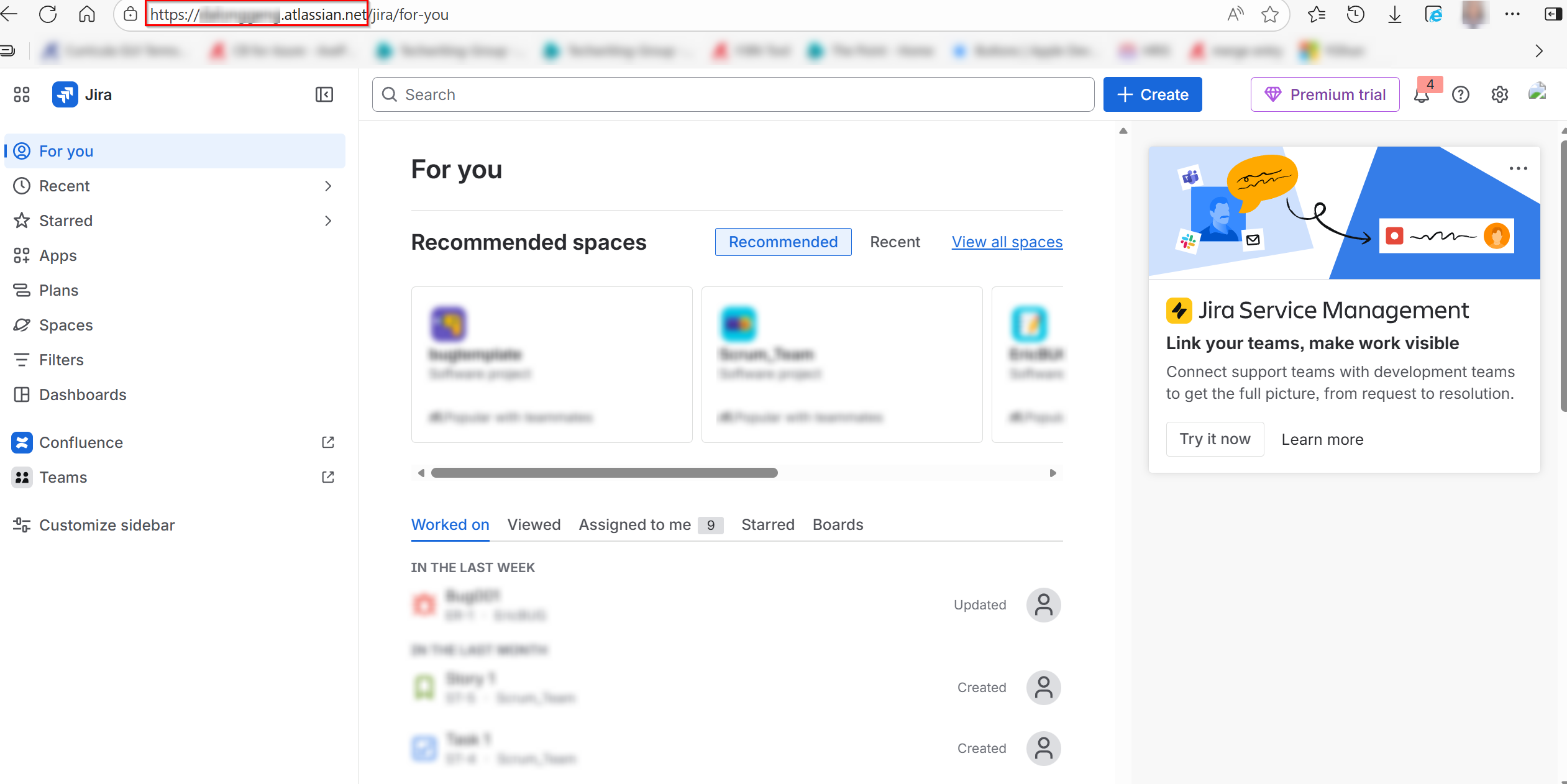
Jira Web サイト URL (https://your-sub-domain.atlassian.net) からホスト URL をコピーします。
ステップ 3: アカウントへの権限の付与
アカウントは、Jira のバックアップおよびリストア オプションを実行するための十分な権限を持つ必要があります。権限の付与方法については、以下の説明を参照してください。
グローバル権限の付与
グローバル権限はグループにのみ割り当てることができます。アプリ接続に含まれるユーザーは、1 件以上の必要な権限が付与されているグループに所属していることを確認してください。
グローバル権限の付与方法については、以下の説明を参照してください。
-
Jira にサインインします。
-
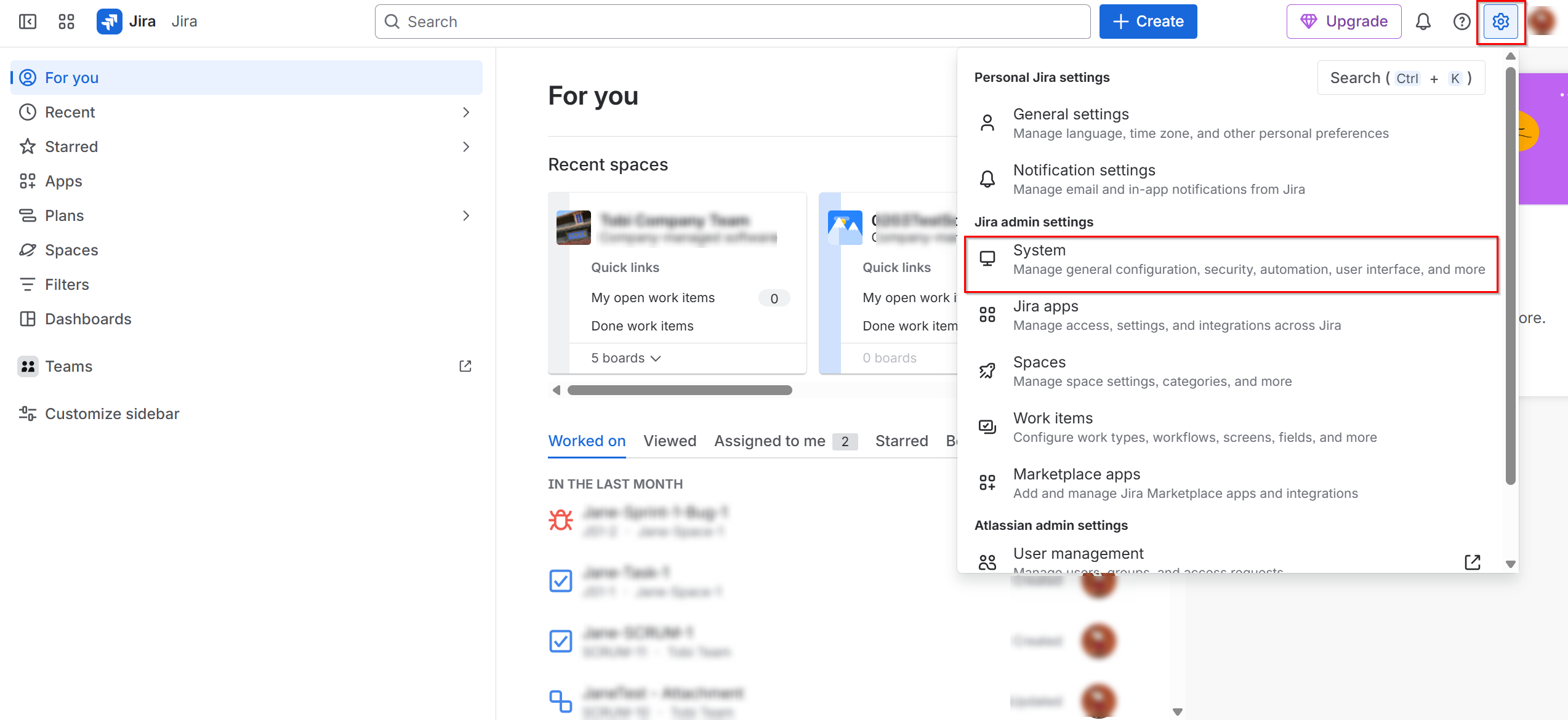
設定ボタンをクリックして、システム を選択します。
-
システム ページで、左側ナビゲーションで [グローバル権限] をクリックします。
-
権限を付与 フィールドで、必要な権限およびグループを選択して権限を割り当てます。
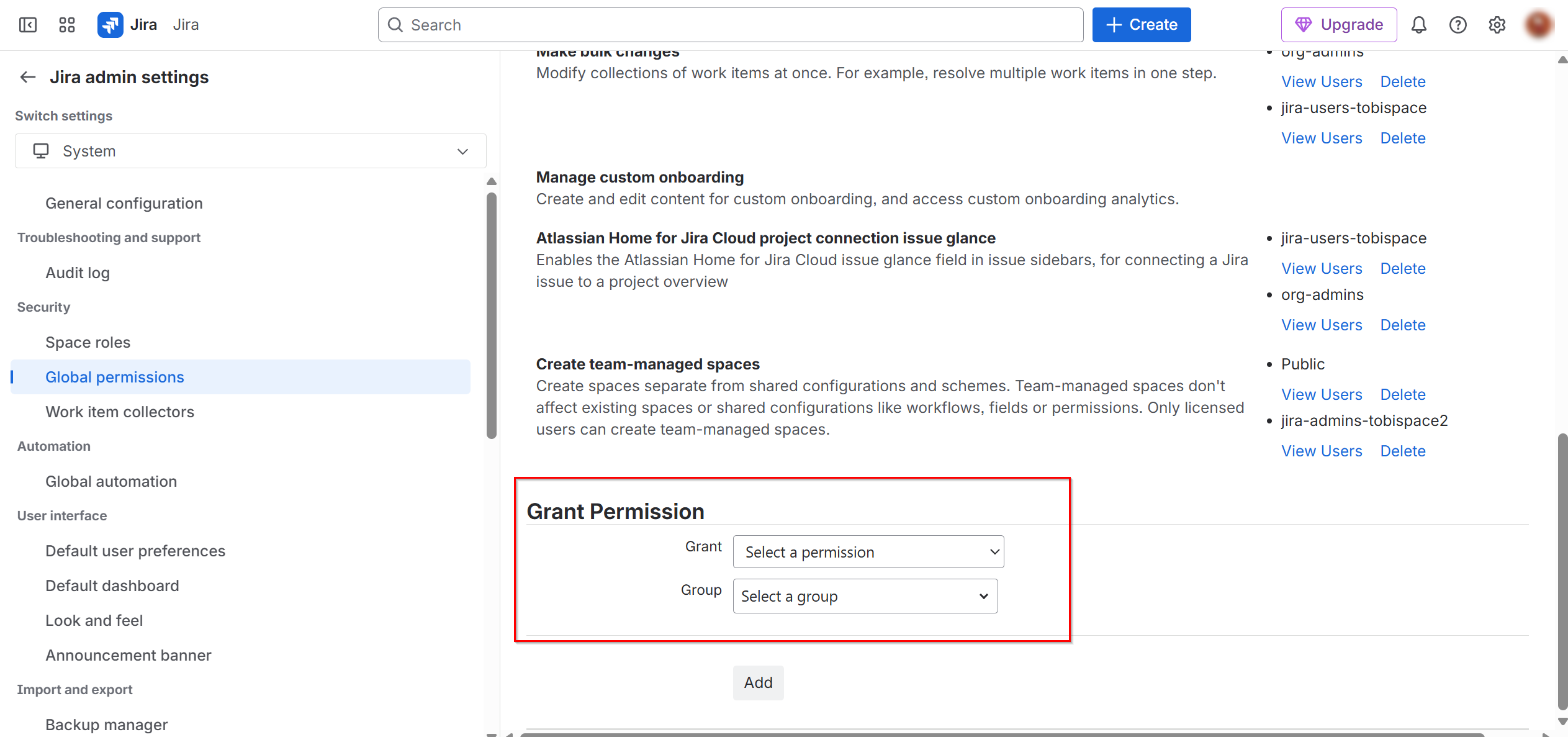
-
バックアップに必要な権限
権限 必要となる原因 Jira を管理 すべてのプロジェクトをスキャンします。プロジェクト、プロジェクト フィールド構成スキーム、作業タイプ スキーム、作業タイプ画面スキーム、優先度スキーム、通知スキーム、権限スキーム、ワークフロー スキームをバックアップします。 ユーザーおよびグループを参照 すべてのプロジェクトをスキャンして、プロジェクト アバターをバックアップします。 -
リストアに必要な権限
権限 必要となる原因 Jira を管理 プロジェクト、プロジェクト フィールド構成スキーム、作業タイプ スキーム、作業タイプ画面スキーム、優先度スキーム、通知スキーム、権限スキーム、ワークフロー スキームをリストアします。 ユーザーおよびグループを参照 ユーザーおよびグループが存在するかどうかを確認します。 ダッシュボードとフィルターを共有 ボードをリストアします。 チーム管理対象プロジェクトを作成 プロジェクトをリストアします。
-
プロジェクト権限の付与
プロジェクト権限の付与方法については、以下の説明を参照してください。
権限スキーム内では権限を付与する方法が複数存在するため、アプリの接続に含めるユーザーに対して、必要な権限が適切に付与されていることを確認してください。当社が提供する方法は、参考としてご利用ください。
-
Jira にサインインします。
-
設定ボタンをクリックして、スペース を選択します。
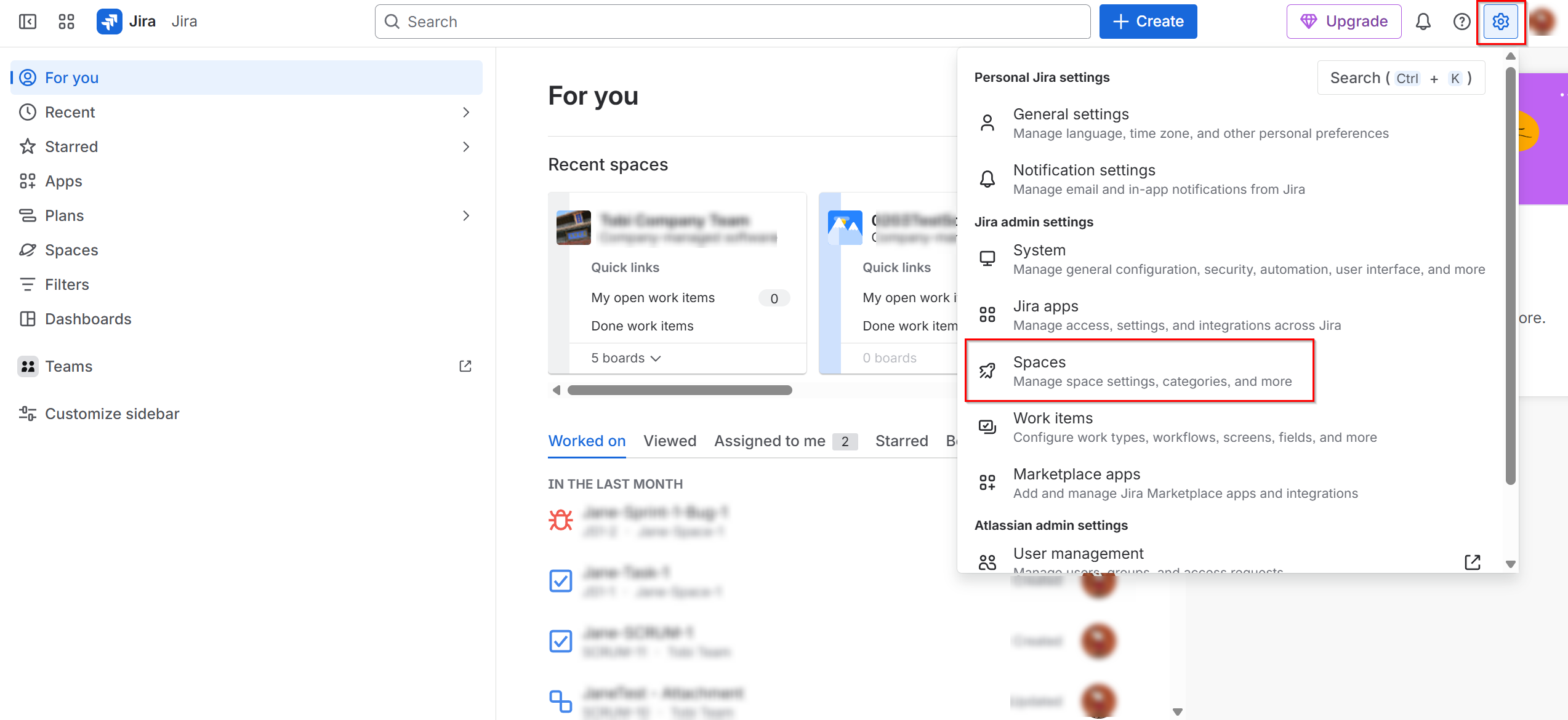
-
スペースを管理する ページで、その他のアクション ボタンをクリックして、スペース設定 を選択します。
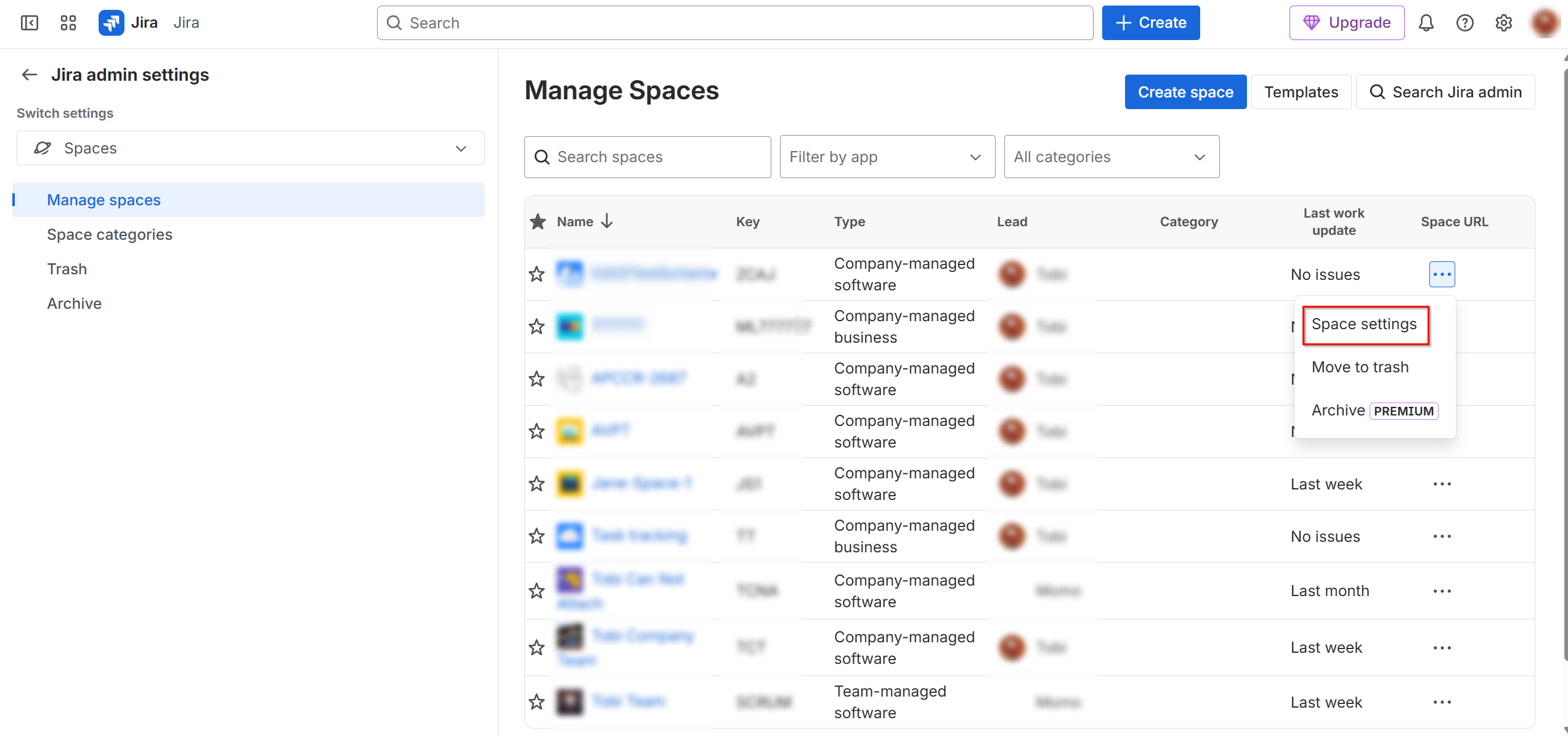
-
スペース設定 ページで、左側ナビゲーションで [権限] をクリックします。
-
[アクション] をクリックして、権限を編集 を選択します。
![[権限を編集] のクリック](/en/configuration-and-deployment/app-management/manage-connections-for-saas-applications/images/image115.png "[権限を編集] のクリック")
-
必要に応じて、[権限を付与] をクリックして、権限を割り当てます。
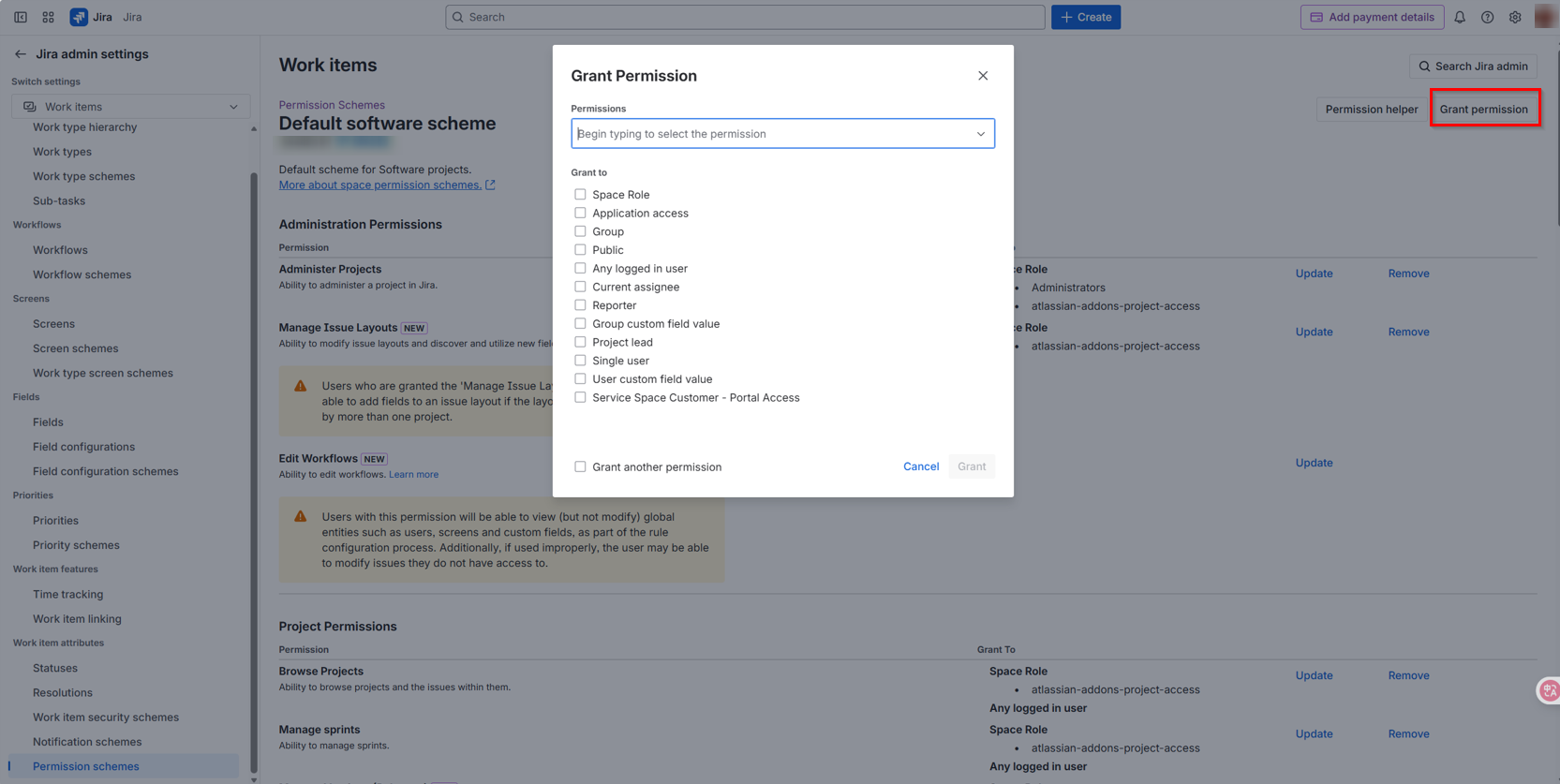
-
バックアップに必要な権限
アクセス許可 必要となる原因 プロジェクトの管理 プロジェクト、通知スキーム、権限スキーム、コンポーネントをバックアップします。 プロジェクトの参照 プロジェクト、ボード、スプリント、問題、課題、添付ファイルをバックアップします。 スプリントの管理 スプリントをバックアップします。 -
リストアに必要な権限
アクセス許可 必要となる原因 プロジェクトの管理 プロジェクト、作業タイプ スキーム、プロジェクト アバター、通知スキーム、コンポーネント、プロジェクト ロールをリストアします。 プロジェクトの参照 ボードおよびメールをリストアします。 スプリントの管理 スプリントをリストアします。 課題の割り当て 課題の割り当て先をリストアします。 課題の作成 課題をリストアします。 課題の編集 課題をリストアします。 課題のリンク 課題のリンクをリストアします。 報告者の修正 課題の報告者をリストアします。 課題を解決する 課題の修正バージョンをリストアします。 課題のスケジュール作成 課題の期限をリストアします。 課題のトランジション 課題のステータスをリストアします。 ウォッチャーの管理 課題のウォッチャーをリストアします。 コメントの追加 課題のコメントをリストアします。 添付ファイルの作成 添付ファイルをリストアします。 課題の作業ログ 課題の作業ログをリストアします。
-
ステップ 4: AvePoint Online Services でのアプリケーション接続の作成
AvePoint Online Services でアプリケーション接続を作成するには、以下の手順に従ってください。
-
AvePoint Online Services で、構成 > 管理 > アプリ管理 > アプリケーション接続 に移動して、アクション バーで [作成] をクリックします。
-
アプリケーション接続の作成 パネルで、以下の設定を完了します。
-
プロファイル名 – 接続プロファイルの名前を入力します。
-
説明 – 必要に応じて接続の説明を入力します。このフィールドは必須ではありません。
-
アプリケーションの選択 – ドロップダウン リストから Jira を選択します。
-
ホスト URL – Jira からコピーされた URL を入力します: https://your-sub-domain.atlassian.net
-
ユーザー メール – Jira アカウントに関連付けられているメール アドレスをを入力します。アカウントには、ステップ 3 でメンションした必要な権限が付与されていることを確認してください。
-
API トークン – Jira からコピーされた API トークンを入力します。
-
トークンの有効期限 – API トークンの有効期限を指定します。
-
-
[保存] をクリックします。
作成された接続プロファイルは、管理 > アプリ管理 > アプリケーション接続 タブで表示されます。アプリケーションが接続されるようになります。必要に応じて、接続プロファイルを選択して、編集 または 削除 することができます。
外部ユーザーへの API トークン アクセスの許可
ユーザー API トークン アクセスを許可するには、以下の設定を完了してください。
-
Atlassian Administration に移動します。複数の組織が存在する場合、組織を選択します。
-
セキュリティ > ユーザー セキュリティ > 外部ユーザー を選択します。
-
外部ユーザーの API トークン アクセス を選択します。
-
[許可] を選択します。
-
[更新] をクリックして変更を保存します。