
Home > FAQs
Download this articleFAQs
Refer to the frequently asked questions and answers in the following categories: consent to apps, app profile and service account profile, Microsoft 365 tenants with multi-geo capabilities, and auto discovery.
How to Connect One Tenant to Separate AOS Tenants?
Fundamentally, one cloud platform tenant can only be connected to a single AOS tenant. If it is necessary to connect a single tenant (e.g. Microsoft 365 tenant) to multiple separate AOS tenants, the following information must be collected and submitted to Product Support as a request:
-
The tenant owner name of AOS Tenant #1 that you want to connect
-
The tenant owner name of AOS Tenant #2 that you want to connect
-
The tenant ID of the tenant that needs to be connected to multiple AOS tenants
What If Your Tenant Does Not Allow Users to Consent to Apps?
If your Microsoft 365 tenant does not allow users to consent to apps on their behalf, Microsoft 365 users who are added as AvePoint Online Services users cannot sign in to AvePoint Online Services with their Microsoft 365 login IDs. Microsoft will display the Need admin approval page to them.
Follow the steps below to give consent to the app:
-
Click the corresponding consent link for your data center and then provide your Microsoft 365 global administrator credentials.
Sign in With Commercial Production Environment U.S. Government Production Environment 21Vianet FedRamp Cloud Microsoft 365 account Go to Consent app Go to Consent app Go to Consent app GCC: Go to Consent app Microsoft 365 U.S. Government account / Go to Consent app / GCCH: Go to Consent app -
Once the consent is finished, you will be redirected to AvePoint Online Services Interface. Sign in to AOS if your global administrator has been invited into AOS.
NOTEIf your global administrator has not been invited, you may see the Join AvePoint Online Services page. You can ignore this page since you have finished obtaining your consent.
Why is Admin Consent Required to Use the AvePoint Apps?
According to Microsoft’s standard Azure app consent process, when adding an app to your Microsoft 365 environment, consent is required by your Microsoft 365 Global Administrator or Privileged Role Administrator since the Administrator must review the permissions required by the apps. For more information about admin consent, refer to the Microsoft technical article: Who has permission to add applications to my Microsoft Entra instance?
All organizations must use the required Administrator account to consent to apps in AvePoint Online Services. In AvePoint Online Services, it is not allowed to directly add an app consented via the Azure-approval-flow. Otherwise, there is a risk that individuals with lower privileges may bypass the authorization and create applications in the AvePoint Online Services environment without proper oversight.
Note the following:
-
The Engage Administrator (Yammer Administrator) can also consent to the AvePoint services’ apps for Viva Engage.
-
The Global Administrator, Privileged Role Administrator, or Engage Administrator (Yammer Administrator) account is not stored by AvePoint cloud services. The consent process is managed by Microsoft, so your username and password are never shared with AvePoint during the consent process.
-
Admin consent does not grant admin privileges to the AvePoint apps. For more details on the permissions required by apps and the instructions for creating app profiles, refer to the Manage App Profiles for Microsoft Tenants section.
What is the Difference between App Profile and Service Account Profile for Microsoft Tenants?
Auto discovery requires an authentication method, either using a service account profile or an app profile. The app profile authentication method is recommended in most cases, and auto discovery scan profiles use the app profile authentication method as the preferred option. By using the app profile authentication method, the app token will be used to back up or manage data, and the credentials of the Administrator account will not be stored by AvePoint Online Services.
However, the service account authentication is required by some services. For more information, refer to Will the App Profile Method Meet Your Data Management Requirements? If you configure a service account profile, the credentials of the account within the profile will be used to scan and manage Microsoft 365 objects. For details on configuring service account profiles, refer to Manage Microsoft Service Account Profiles.
Will the App Profile Method Meet Your Data Management Requirements?
To back up or manage your Microsoft 365 data in services for Microsoft 365, you must first use AvePoint Online Services Auto discovery to scan or add Microsoft 365 objects. Auto discovery can use the app profile and service account authentication (obsolete) methods to scan objects.
For organizations that have configured Auto discovery scan profiles with the service account authentication, if these scan profiles are modified after the June 2023 release, the service account authentication methods will be absent from scan profiles. If you want to continue using the service account authentication method for Auto discovery scan jobs, you must not update your Auto discovery scan profiles.
The app profile authentication method is the default option, as the easiest way to work with your environment is by registering an app profile. This ensures that all jobs that run in your environment are tagged as AvePoint activities, and we do not need to store any service accounts or passwords. When you use the app profile authentication method to scan objects, the app token within the app profile will be used to back up or manage data, and the credentials of the Administrator account will not be stored by AvePoint Online Services — only your Administrator’s consent is recorded, and this consent can be monitored in your Microsoft Entra and can be revoked at any time from your environment.
While we do suggest you use the app profile method, there are specific instances when this method is not recommended. Refer to the information in the links below to help you determine if using the app profile method will satisfy your data management requirements.
- AvePoint Cloud Backup for Microsoft 365: It is recommended that you configure app profiles for managing backup data in Cloud Backup for Microsoft 365 for the best performance. When the app profile authentication method in a scan profile cannot meet your data management requirements, you can apply a service account profile to the scan profile as an additional method. For additional details, refer to the Cloud Backup for Microsoft 365 user guide > App Profile Authentication section.
-
AvePoint Cloud Governance: Create App Profiles or Microsoft 365 Service Account Profiles
-
AvePoint Cloud Management
-
Classic DocAve Backup
Transition from Exchange Web Services to Microsoft Graph – Required Permission Update
Microsoft is retiring Exchange Web Services (EWS) for Exchange Online and moving all integrations to Microsoft Graph. As part of this transition, AvePoint Online Services requires new Microsoft Graph permissions and re-authorization of apps to ensure uninterrupted service for affected products.
Starting March 31, 2026, Microsoft updated the behavior of the EWSEnabled tenant-wide switch in Exchange Online. EWS is now allowed only when both the organization-level and user-level EWSEnabled flags are true. If EWS is disabled at either level, please enable it at both levels to use EWS. For details, refer to the announcement.
This page explains what is changing, who is impacted, and what actions administrators must take. It is intended to provide a single, centralized explanation that can be referenced by multiple AOS products.
Products Affected by This Change:
The following AOS products are part of the EWS-to-Graph transition and rely on the same permission update and re-authorization flow:
- Cloud Backup for Microsoft 365: The classic Microsoft 365 app, Cloud Backup for Microsoft 365(All permissions)/(Exchange permissions) app, or the custom Azure app you are using for the data protection of Exchange Online.
-
Fly: The Fly default app, the source and destination custom apps for Exchange Online to Exchange Online migrations, or the destination custom apps for Gmail migrations.
-
AvePoint Opus: The classic or modern mode app, or a custom Azure app with delegated permissions.
Why This Change Is Required
Microsoft has announced the retirement of EWS for Exchange Online, with accelerated timelines for certain license types and full deprecation planned for October 2026. Microsoft Graph is the designated replacement API, offering modern authentication and granular permissions.
To prepare for this transition, AvePoint has been updating its applications to include new Microsoft Graph permission scopes. These permissions must be consented to in advance to avoid disruption when Graph-based code paths are enabled.
What Administrators Need to Do
Re-authorize the AOS Application
Administrators must re-authorize the existing app profile in Azure AD (Microsoft Entra ID) to grant the newly required Microsoft Graph permissions.
-
This action does not immediately change product behavior.
-
It ensures the tenant is ready for upcoming Graph-based updates.
-
A Global Administrator role is required to complete consent.
If you are using a custom app instead of the default AvePoint app, update your custom Azure app API permissions according to the lists below and re-authorize access ahead of time:
- Cloud Backup for Microsoft 365: Refer to the App Profile Authentication page in Cloud Backup for Microsoft 365 User Guide to check for the updates.
-
Fly:
-
Fly default app: Fly App Profile Permissions
-
Exchange Online to Exchange Online Migrations:
-
Source Exchange Online custom app: Migration to Exchange Online
-
Destination Exchange Online custom app: Permissions for Destination Exchange Online
-
-
Exchange Online to Gmail Migrations:
-
Source Exchange Online custom Azure app: Migration to Gmail
-
Source Exchange Online custom delegated app: Custom Delegated App Profile Permissions when Migrating to Gmail.
-
-
Exchange On-Premises Migrations:
- Destination Exchange Online custom app: Permissions for Destination Exchange Online
-
Gmail Migrations:
- Destination Exchange Online custom app: Permissions for Destination Exchange Online
-
-
AvePoint Opus: Refer to the What’s New in this Release page or the Permissions for App Profile Authentication for Microsoft 365 section in the AvePoint Opus User Guide to review Custom Azure App permissions.
When the Changes Take Effect
AvePoint is rolling out the transition in phases:
-
Preparation phase: New Graph permissions introduced and re-authorization required (February release).
-
Targeted transition: Graph used for specific mailbox license types (June release).
-
Final integration: Graph used for all remaining mailbox types ahead of Microsoft’s final EWS retirement (August release).
What Should I Do If I Want to Change Classic Mode Apps to Modern Mode Apps in the AOS New UI?
If your tenant has classic mode apps and wants to switch to the modern mode apps, you can refer to the instructions below to complete the transition.
-
Go to App management and follow the steps below to create app profiles:
-
Click Create on the App management page.
-
Select services which will use this app profile.
-
Select the Modern mode.
-
Consent to the apps under the services based on your scenario. Then, click Finish after you finish creating app profiles.
NOTEIn Cloud Backup for Microsoft 365, if your tenant only manages Exchange or SharePoint objects, you can choose to only consent to the related Exchange/SharePoint app.
-
-
In Auto discovery, scan profiles use app profiles for scanning in the following priority (from high to low): Modern mode > Classic mode > Custom mode. If your tenant has scan profiles which are kept from the AOS classic UI and use classic mode apps, these scan profiles can still be used for daily scanning. After you edit one of these scan profiles, AOS will regard the operation as applying modern mode apps for the scan profile. Thus, you can edit a scan profile and save it (even though there is no change in the scan profile) to replace classic mode apps with modern mode apps.
NOTEIn Cloud Backup for Microsoft 365, the backup jobs use app profiles in the following priority (from high to low): Modern mode > Classic mode > Custom mode. As the backup jobs in Cloud Backup for Microsoft 365 can directly use modern apps and the priority is the same as the priority of scan profiles in AOS, no extra action is needed for the backup jobs after the app transition.
-
If all scan jobs and service jobs such as backup jobs run successfully, you can delete the classic mode apps.
NOTEIn AOS > Auto discovery > Job monitor, you can view the Authentication information in the latest scan job details to check if the modern mode apps have been used for scanning.
Does AvePoint Online Services Support Microsoft 365 Tenants with Multi-Geo Capabilities?
With Microsoft 365 Multi-Geo, your organization can expand its Microsoft 365 presence to multiple geographic regions and/or countries within your existing tenant. You can provision and store data at rest in the geo locations that you've chosen to meet data residency requirements, and at the same time, unlock your global rollout of modern productivity experiences to your workforce.
If your Microsoft 365 tenant has Multi-Geo capabilities, you can pair your multi-geo tenant with a similar subscription for AvePoint Cloud Backup for Microsoft 365.
While you can use a standard AvePoint Cloud Backup for a Microsoft 365 subscription to support a multi-geo Microsoft 365 tenant with no changes, all data will be protected and stored centrally in a single AvePoint Online Services tenant. To take advantage of our global network, you will need to purchase a subscription from AvePoint to leverage our multi-geo infrastructure described below.
Since your tenant will be supported by AvePoint Online Services data centers around the world, we want to make sure that you are familiar with which data centers will be supporting you.
Start by going to Administration > Data center mappings to configure mappings between the geo locations in your Microsoft 365 tenant and the data centers supported in AvePoint Online Services. For more information, refer to Manage Data Center Mappings (Cloud Backup for Microsoft 365).
The saved mappings cannot be changed, and they will be used to create boundaries between different geo locations in your environment.
Next, in Auto discovery, you‘ll want to ensure you’re using the filters provided in the advanced scan mode to separate mailboxes, OneDrives, sites, and other Microsoft 365 content by their preferred data locations. We’ll use these boundaries to help distribute the management for each of these containers around the world. For more information, refer to Auto Discovery for Microsoft 365.
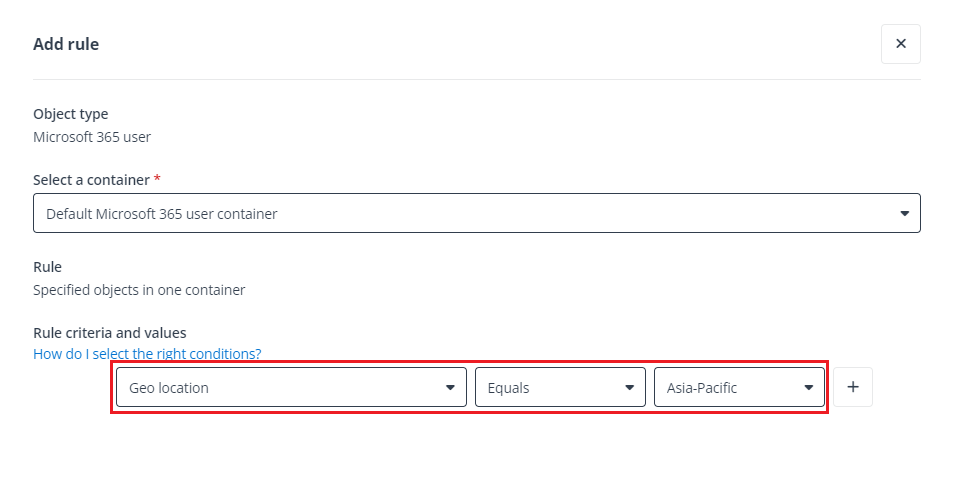
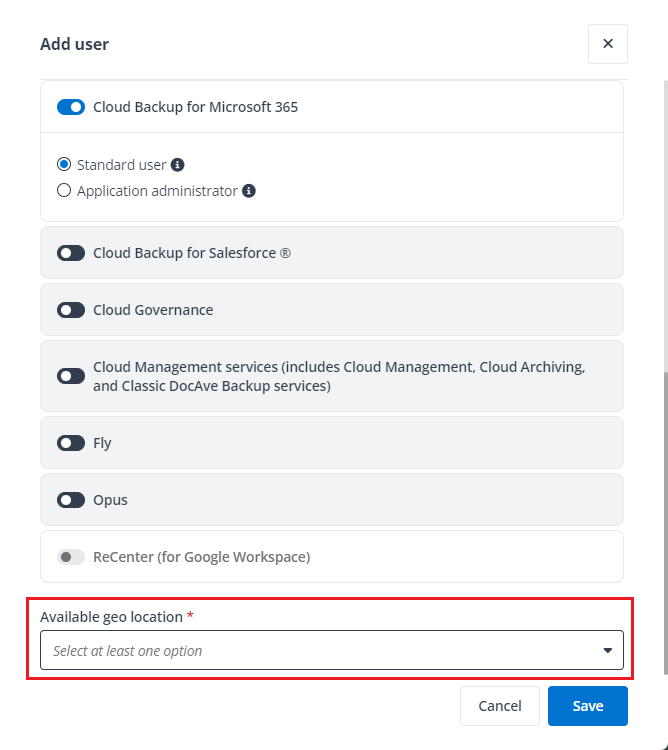
Finally, you can create separate administrators for each geo location using our delegated administration in User management, which maintains segregation among geo locations. For more information, refer to User Management.
What is Throttling in Microsoft 365 Environments?
In Microsoft 365 environments, throttling may be automatically applied to ensure service stability and prevent excessive requests from negatively impacting the system.
-
Throttling thresholds are determined and enforced by Microsoft. AvePoint has no control over when or how throttling is triggered.
-
When throttling occurs, certain operations (e.g., backup or migration) may experience temporary slowdowns. However, there is no impact on user-facing environments or data integrity. This mechanism is part of Microsoft’s commitment to maintaining a reliable cloud service. AvePoint products are designed to operate in compliance with these controls.
What Should I Do If I Want to Terminate Services for Microsoft 365 Tenants?
Once your subscription has expired, all information related to the expired subscription will be preserved for about 15 days before they are permanently deleted from AvePoint Online Services. (You can check subscription agreements for details. Organizations may have a different timing depending on their specific contracts with AvePoint). If you want to terminate an Enterprise subscription, no further action is required in AvePoint Online Services and following the instructions below will ensure you a clean and orphan-free environment in your Microsoft 365 tenant.
Remove AvePoint Applications from Your Microsoft Entra Applications
If you have configured app profiles in App management, you can refer to the instructions below to remove the consented applications from your Microsoft Entra environment:
-
Go to Microsoft Entra admin center (or Microsoft Azure portal).
-
Navigate to Identity > Applications > Enterprise applications (or Microsoft Entra ID > Enterprise applications).
-
Enter the keyword AvePoint to search for applications by application name.
-
Click the application that you want to remove.
-
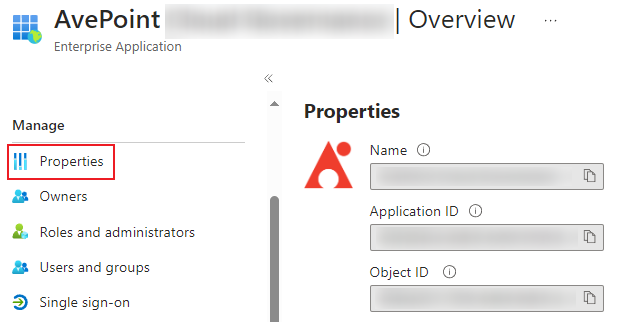
Click Properties in the Manage section on the left menu.
-
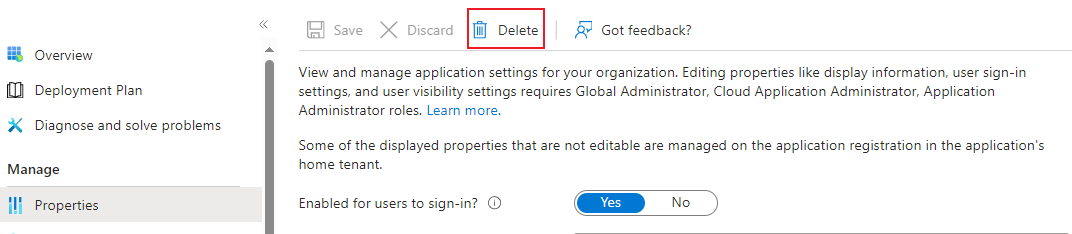
Click Delete on the top menu.
-
In the confirmation window, click Yes to confirm your action.
Remove Reserved IP Addresses from Your Microsoft Entra Access Policies
If you have configured Conditional Access policies to add the reserved IP addresses downloaded from AvePoint Online Services, you can refer to the instructions below to remove reserved IP addresses from your policies:
-
Log in to Microsoft Entra admin center (or Microsoft Azure portal).
-
Navigate to Protection (or Microsoft Entra ID > Security) > Conditional Access.
-
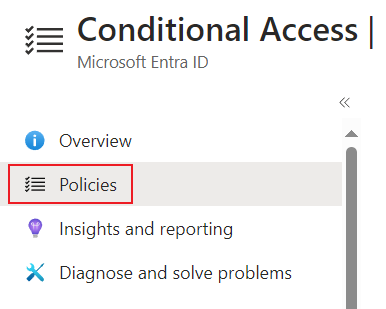
Click Policies.
-
Find the policy related to AvePoint.
-
Edit the policy to remove the reserved IP addresses related to the cloud services that you want to terminate.
Remove the Key Used in AvePoint Online Services
If you have configured a custom encryption profile in Encryption management, you can refer to the instructions below to remove the key:
-
In the Microsoft Azure portal, enter Key vaults in the search box on the top, and then select the first result to access the Key vaults page.
-
On the Key vaults page, click Keys in Settings.
-
Find the key used in AvePoint Online Services and click the key.
-
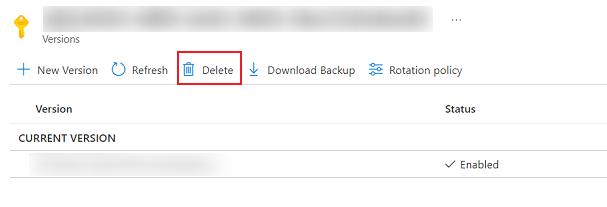
Click Delete on the top menu.
Remove Hybrid Agents
If you have installed the hybrid agent on a machine to manage on-premises objects, you can refer to the instructions below to remove it:
-
Find the Hybrid Agent Management installed on the machine.
-
Run the Setup file as administrator.
-
Select Uninstall to start the removal process.