Home > Auto Discovery > Scan Profiles > Additional Operations after You Enable the Auto-Grant System Administrator Role Option
Download this articleAdditional Operations after You Enable the Auto-Grant System Administrator Role Option
Refer to the instructions in this section to complete additional operations, after you enable the Auto-grant system administrator role to all your Power Platform environments option in a scan profile for any of the following object types: Power App, Power Automate, Solution, Power Pages, and Copilot Studio.
Grant Required Permission
Follow the steps below to grant required permission to related app:
-
Navigate to Management > App management.
-
Select the app for which you want to grant special permission, and then click Re-authorize. The related apps are listed below:
-
EnPower for Power Platform
-
Fly for Power Platform
-
Insights for Power Platform
-
Cloud Governance for Power Platform
-
Custom Azure app with delegated permissions
-
Delegated app
- AgentPulse
-
-
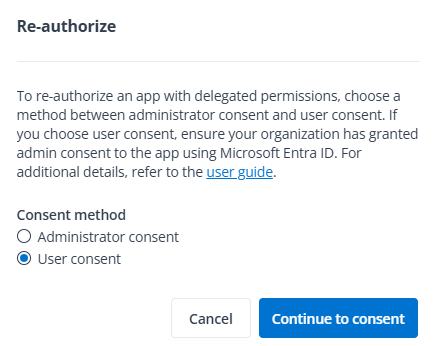
In the pop-up window, select the User consent option and click Continue to consent.
NOTEThe consent user must have the permission to consent to the app.
-
To include the required permission (https://api.powerplatform.com/UserManagement.Users.Apply) in the scope, modify the URL of the Microsoft account sign in page. The completed scope should be
scope=openid%20profile%20offline_access%20https://api.powerplatform.com/UserManagement.Users.Apply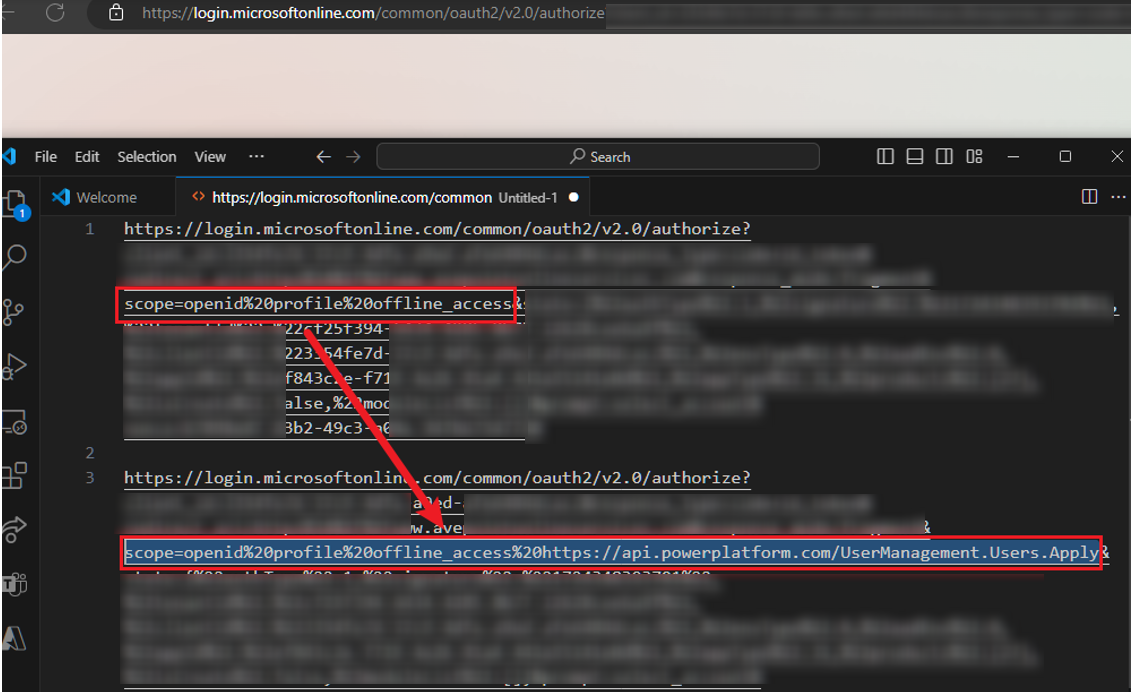
-
Provide your username and password to complete the user consent process.
-
If you cannot consent to the app, refer to the following methods based on your scenario:
-
If user consent is blocked by your tenant settings, the related notification will appear. Contact a Microsoft 365 Global Administrator for help and follow instructions in the following Approval Required or Need Admin Approval section.
-
If you encounter the following error message, refer to instructions in this Microsoft article Step 2. Configure API permissions to manually create the Power Platform API service principal.
AADSTS650052: The app is trying to access a service '8578e004-a5c6-46e7-913e-12f58912df43' (Power Platform API) that your organization 'domain.com' lacks a service principal for. Contact your IT admin to review the configuration of your service subscriptions or consent to the application in order to create the required service principal.
After you resolve issues above, follow instructions from step 1 to step 5 to grant required permission to related app.
-
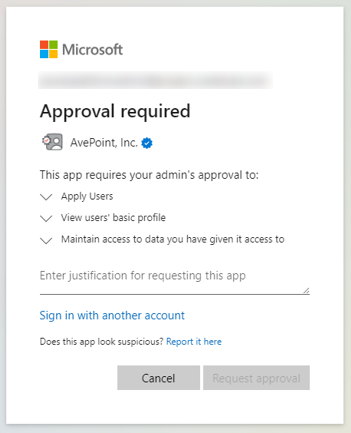
Approval Required
If you receive the Approval required message like below, provide a justification and click Request approval to send an email to the global admin.
The global admin can follow the instructions below to review permissions and consent to the app.
-
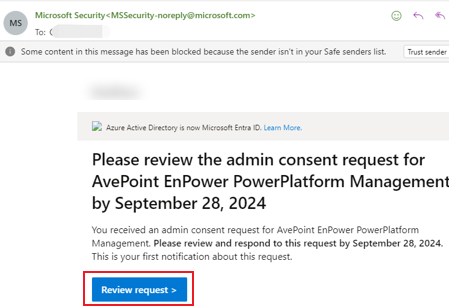
If you have received the email that notifies you to review the admin request, click the Review request link to review the consent request.
-
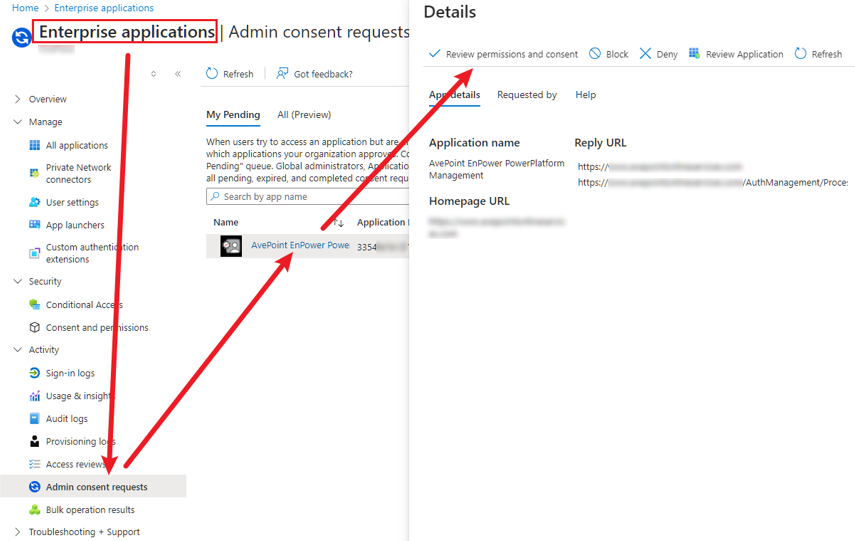
If you haven’t received the notification email, navigate to Microsoft Entra ID > Enterprise applications > Admin consent requests > My pending to review the consent request.
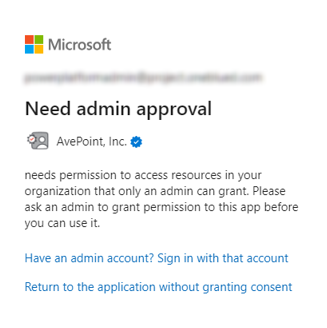
Need Admin Approval
If you receive the Need admin approval message like below, your global admin needs to access the following URL to review permissions and consent to the app.
https://login.microsoftonline.com/[tenant_id]/v2.0/adminConsent?client_id=[client_id]&scope=openid%20profile%20offline_access%20https://api.powerplatform.com/UserManagement.Users.Apply** **&redirect_uri=https://portal.azure.com/TokenAuthorize
Note that the [tenant_id] and [client_id] components need to be replaced with the information of your Microsoft 365 tenant.