
Home > App Management > Manage Connections for SaaS Applications > Connect an Application for Atlassian Admin
Download this articleConnect an Application for Atlassian Admin
To connect an application for Atlassian Admin, complete the following configurations.
Step 1: Get the required information in Atlassian Admin
Follow the steps below to get the required information for creating an application connection:
-
Sign in to Atlassian Admin.
-
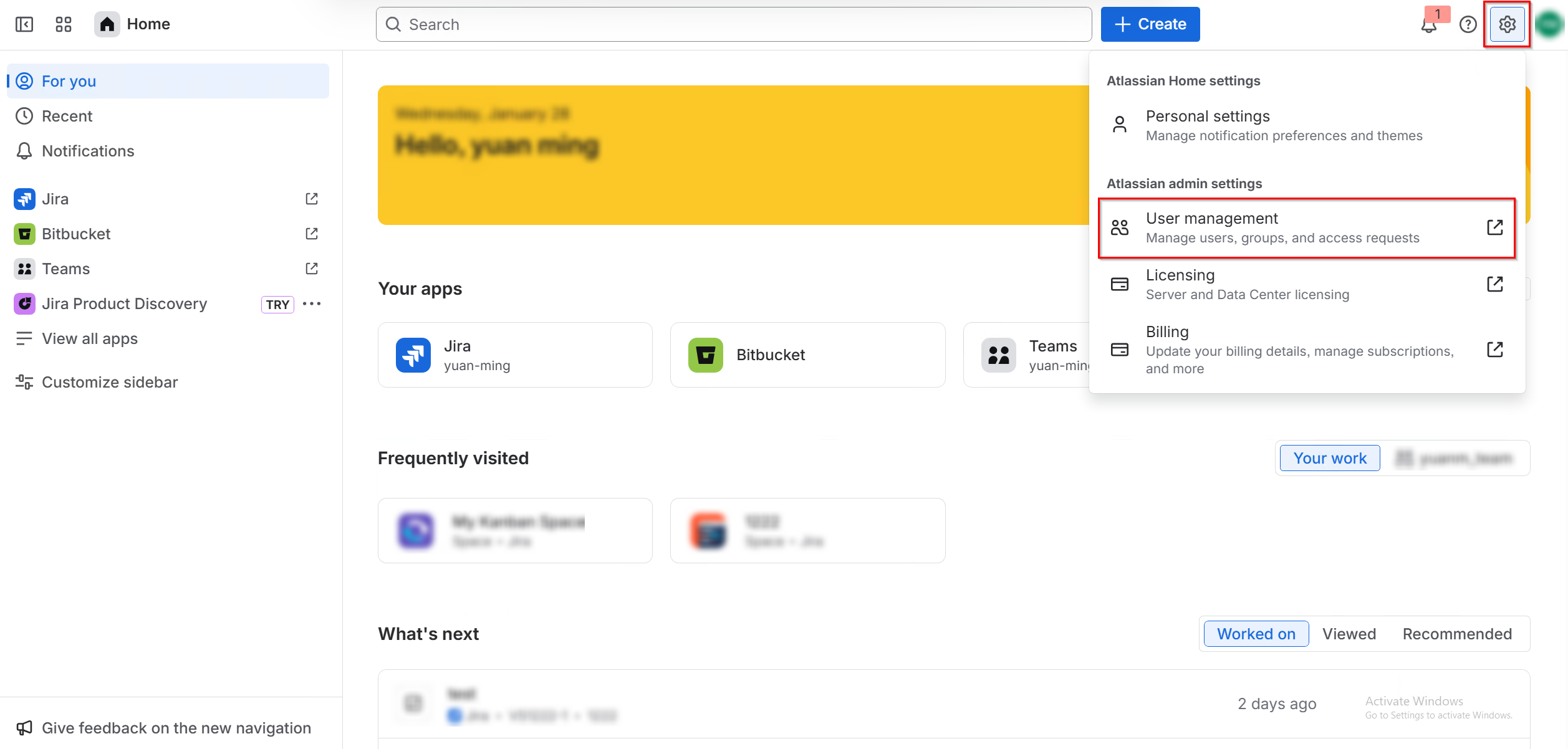
Click the Settings button on the top-right corner and the click User management.
-
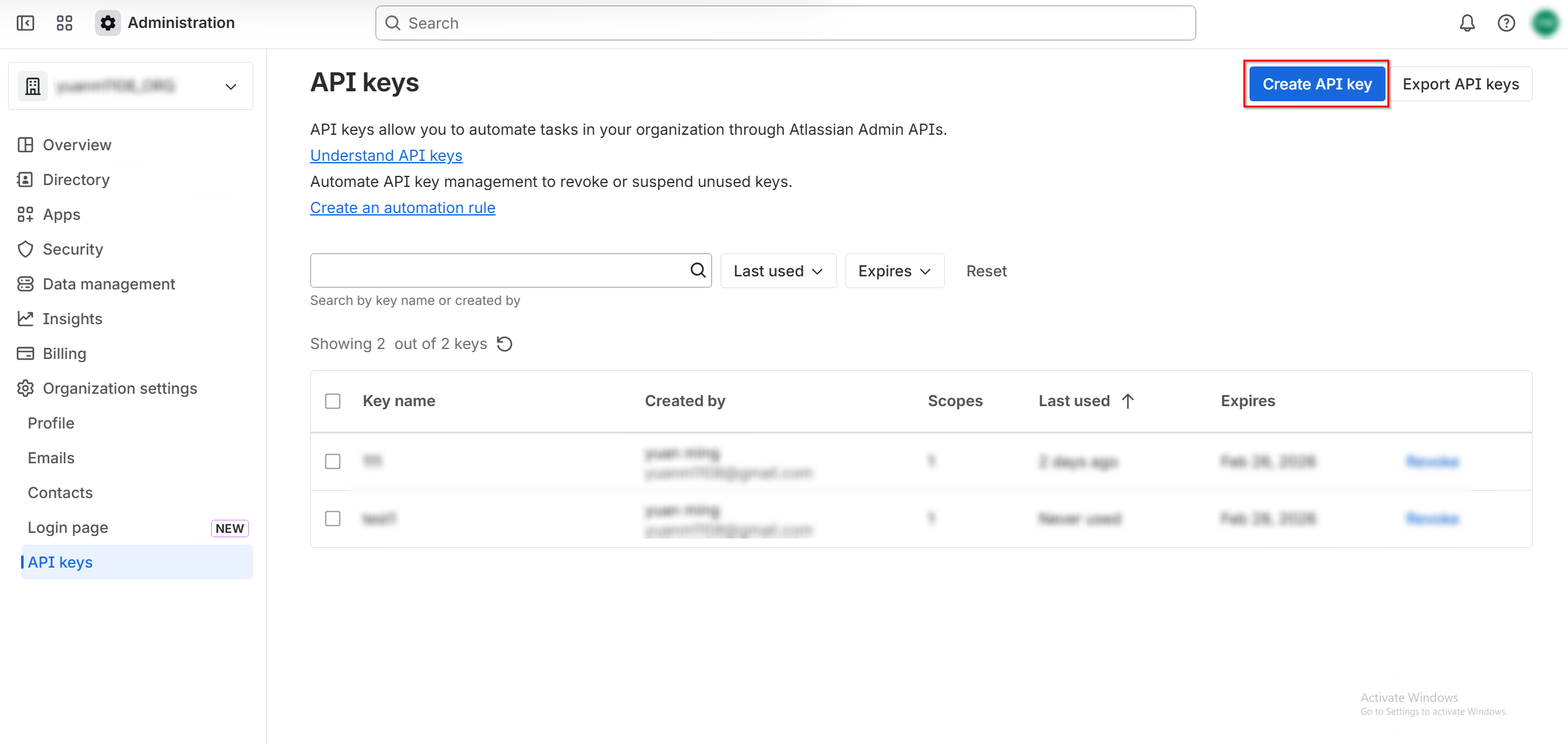
Navigate to Organization settings > API keys.
-
On the API Keys page, click Create API key.
-
In the Before you begin step, select API key without scopes and click Next.
-
In the Name API key step, enter a key name, configure the expiration date, and click Next.

-
Review your API key and click Create API key.
-
After the API key is created, click the Copy button to copy your Organization ID and API key.
Step 2: Create an application connection in AvePoint Online Services
Follow the steps below to create an application connection in AvePoint Online Services:
-
In AvePoint Online Services, navigate to Management > App management > Application connection, and then click Create on the action bar.
-
In the Create application connection panel, complete the following settings:
-
Profile name – Enter a name for your connection profile.
-
Description – Enter a description for the connection for future reference. This field is optional.
-
Select application – Select Atlassian Admin from the drop-down list.
-
Organization ID – Enter the organization ID copied from Atlassian Admin.
-
API token – Enter the API token copied from Atlassian Admin.
-
API token expiration date – Specify the expiration date for the API token.
-
-
Click Save.
Once you have created the connection profile, it will appear on the Management > App management > Application connection tab. Your application will now be connected. If needed, you can select a connection profile to Edit or Delete it.