
Home > Get Started > Configure Microsoft 365 Data > Configure Terminology Mappings for ReCenter
Download this articleConfigure Terminology Mappings for ReCenter
You can now configure terminology mappings to map the default terms to the custom terms for ReCenter. All terms that match or contain the specified source term (case-sensitive) will be replaced.
Example mapping:
| Default | Custom |
|---|---|
| your administrator | IT@company.com |
Resulting changes:
All terms containing your administrator will be updated in ReCenter. For example:
| Original Term | Updated Term |
|---|---|
| Sorry, you are accessing ReCenter from an untrusted IP address. Please contact your administrator for help. | Sorry, you are accessing ReCenter from an untrusted IP address. Please contact IT@company.com for help. |
| Self-service recovery of content has been disabled by your administrator. Please contact your administrator for help. | Self-service recovery of content has been disabled by IT@company.com. Please contact IT@company.com for help. |
| This Group may not be protected. Contact your administrator to check if this Group is included in your backups. | This Group may not be protected. Contact IT@company.com to check if this Group is included in your backups. |
To configure terminology mappings, refer to Terminology mappings for additional details.
Below are the special cases of terminology mappings configuration in ReCenter:
-
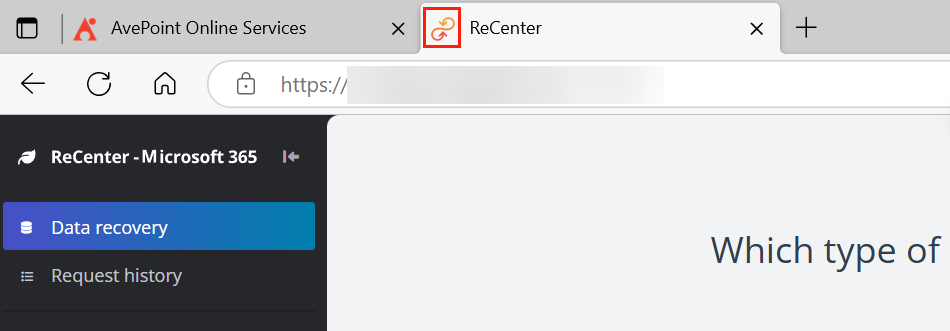
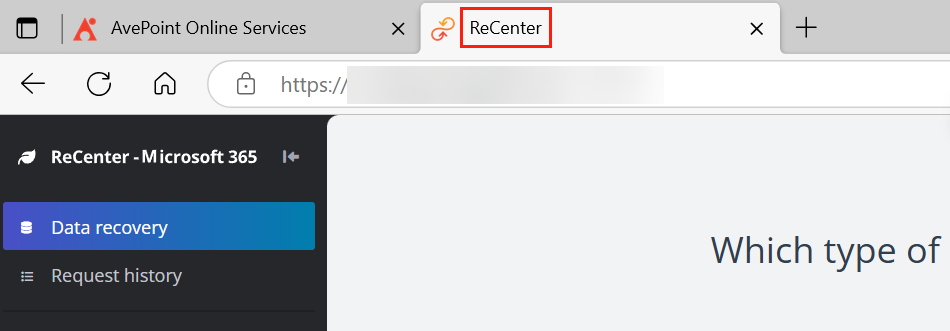
The product name ReCenter on the tab of a browser cannot be replaced.
-
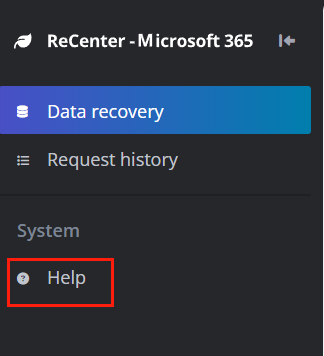
For links in the ReCenter portal, only the Help link to the ReCenter User Guide can be changed to a custom link. To change the user guide link, enter the default link in the Default textbox, and then enter your desired custom guide link in the Custom textbox.
-
If your organization uses AvePoint Opus and wants to customize the page that recovers an archived file via a stub link, note the following:
-
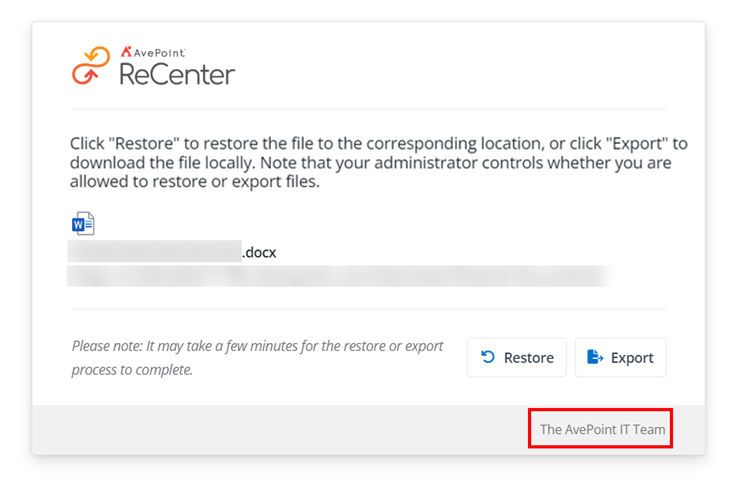
To map the default footer to a custom footer, enter recenter-stubfile-footer in the Default textbox and enter a custom footer in the Custom textbox.
-
To customize the message on the page, enter the default message in the Default textbox, and then enter your custom message in the Custom textbox. Below is the default message content:
Click "Restore" to restore the file to the corresponding location, or click "Export" to download the file locally. Note that your administrator controls whether you are allowed to restore or export files.
-