
Home > Use ReCenter for Microsoft 365 > Recover Your Microsoft 365 Data > Exchange Online
Download this articleExchange Online
Go to the ReCenter portal, and follow the steps below to recover the backup data of Exchange Online:
In Cloud Backup for Microsoft 365, the administrator can configure the End-user restore settings to control whether mailbox principal users are allowed to preview, restore or export Exchange Online backup data in ReCenter. The administrator can also control whether to allow end‑user restoration of Shared Mailbox data in ReCenter.
-
Click the Exchange Online tile.
-
Configure the following depending on whether you want to restore your own data or your departed employee’s data:
-
Restore your data – Select whether you want to find the backup data of a User mailbox or a Shared mailbox.
NOTE-
You can now restore and export in-place archive mailbox backup data for your own mailbox.
-
Administrators can control whether to allow shared mailbox owners and members to operate Exchange Online data in ReCenter.
-
-
Restore your departed employee's data – Click the My employee tab in the upper-right corner.
NOTEAdministrators can control whether managers are allowed to restore employee OneDrive and Exchange Online data in ReCenter by configuring the End-user restore settings in Cloud Backup for Microsoft 365.
-
-
If you restore data from your user mailbox or restore your departed employee’s data, you can choose between Search mode or Tree mode to find the data to restore. If you restore data from your shared mailbox, only Search mode is available.
-
Search mode – Use the properties to search for backup data of Exchange Online items. Refer to the steps below
-
Search for backup data based on what you restore:
-
Your user mailbox – If you want to search for backup data by their subjects, enter keywords in the search box.
-
Your shared mailbox – In the Shared mailbox field, manually enter a shared mailbox email address or select one from the auto‑loaded list. To search backup data by subject, enter keywords in the search box.
-
Your departed employee's data – Click the Employee field to first select the employee. If you want to search the backup data by subject, enter keywords in the search box.
If you want to narrow your search by additional conditions, click Advanced to expand the search panel and configure the following conditions:
-
Subject – Enter keywords of a subject.
-
Folder name or location – Enter keywords of a folder name, or enter a folder location (example: folder name\subfolder name).
-
Sent from – Enter keywords of the sender’s display name or email address.
-
Sent to – Enter keywords of the receiver’s display name or email address.
-
Date sent (from) / Date sent (to) – Specify a time range.
-
Turn on/off the switch to define whether to Search exclusively for mail items that contain attachments.
Click Search to search for the backup data. If you want to reset the search conditions, click Reset.
-
-
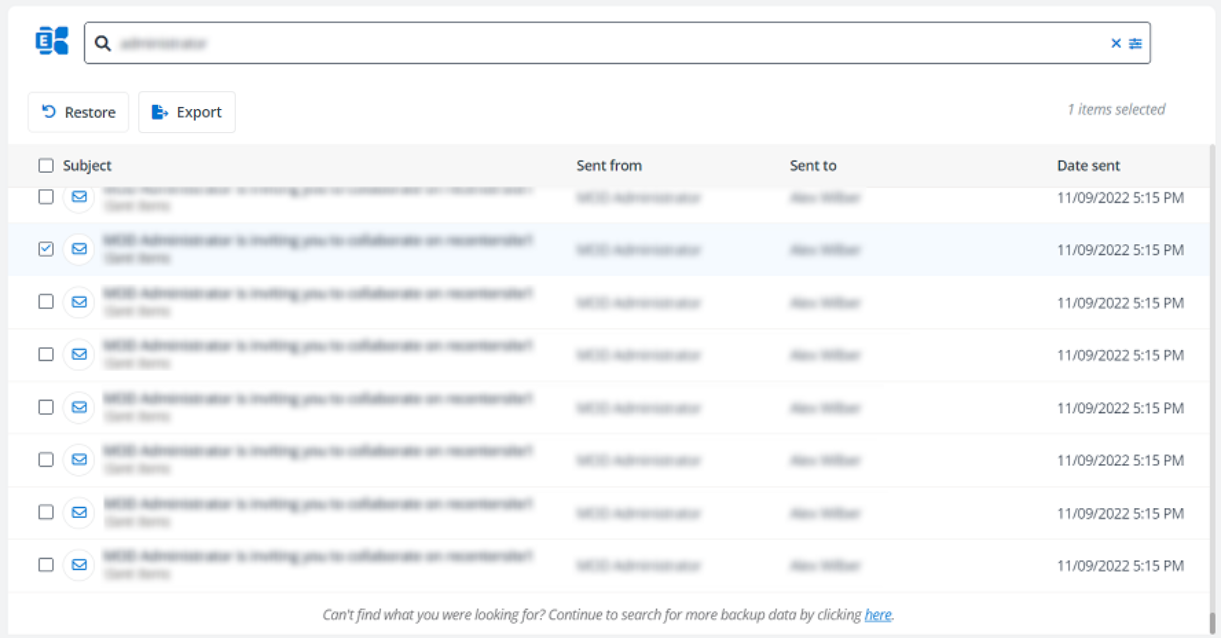
The search results are listed in the table below. A maximum of 2000 search results can be displayed.

You can do the following:
-
For the items with the Email icon, you can click their subjects to open the preview window and have a preview of the email content. In the preview window, use the buttons located in the upper-right corner to restore, download, or print for the email. When downloading the email, set a password. This password will be required to open the downloaded email.
By default, the Generate public link button is not available in the preview window. Administrators can enable this option by navigating to the End-user restore settings in Cloud Backup for Microsoft. When generating a public link, set both an expiration date and a password to ensure security.
NOTEThe Preview feature supports backup data stored on locations of the following storage types: Cool tier on the Microsoft Azure Blob Storage (AvePoint default storage or your own storage), Amazon S3 and Amazon S3-Compatible, Dropbox, IBM Spectrum Protect - S3, and IBM Cloud Object Storage.
Emails that have sensitivity labels with encrypted data or contain archived data cannot be previewed.
-
By default, the items listed in the search results table are the latest backup data. If your desired items are not in the table and there is a message indicating that you can search for more backup data, click here in the message at the bottom of the table.
-
If you want to modify the search conditions, click the Advanced search button to expand the advanced search panel and configure the search conditions. You can click the Cancel button to clear the current search conditions.
-
-
-
Tree mode – Browse and find the backup data of Exchange Online items in your own or your employee’s User mailbox or In-place archive mailbox. The Tree mode can load all folders on the tree. The folders that were previously backed up but later deleted from Microsoft 365 are also included in the Tree mode. Refer to the steps below:
-
Click Try using the tree mode to switch to the Tree mode. To restore data from your employee, select the employee first.
-
If you or your employee have backup data for the In-place archive mailbox, select either User mailbox or In-place archive mailbox first, then navigate the tree structure.
-
On the left side of the page, click your or your employee’s user mailbox or in-place archive mailbox to show the folders in Exchange Online backup data from the latest recovery point. Selecting a folder from the list will show its contents in the table on the right, along with any sub-folders.
-
In the search box, you can enter keywords and search for backup data in the current folder by their subjects. If you want to narrow your search by additional conditions, click the Advanced icon to expand the search panel and configure the following conditions:
-
Subject – Enter keywords of a subject.
-
Sent from – Enter keywords of the sender’s display name or email address.
-
Sent to – Enter keywords of the receiver’s display name or email address.
-
Date sent (from) / Date sent (to) – Specify a time range.
-
Turn on/off the switch to define whether to Search exclusively for mail items that contain attachments.
Click Search to search for the backup data. If you want to reset the search conditions, click Reset. The search results are listed on the right side of the page. Note that the search conditions you configure will automatically apply to the folder you select.
-
-
-
-
To select one or multiple items to be restored/exported, select the checkboxes next to the items. If you want to select all items, select the top checkbox next to Subject in the table.
-
Configure the action based on whether you are restoring your own data or your departed employee's data:
-
Restore your data – Click Restore to restore the selected items to their original locations, or click Export to export and download the selected items to a local path.
-
Restore your departed employee's data – Click Restore to my mailbox and select a destination location to restore the items to your mailbox, or click Export to export and download the selected items to a local path.
-
-
Once the restore/export job starts, you can go to Request history to view the progress of the job. In Request history, you can also view simple job reports and download exported data. For more details, refer to View Request History and Download Exported Data.