
Home > Use ReCenter for Google Workspace > Recover Your Google Workspace Data
Download this articleRecover Your Google Workspace Data
ReCenter provides the following ways to recover your lost data:
-
Restore backup data to its original location or another location.
-
Export and download backup data.
Refer to the following sections to recover your data.
Gmail
Click My backup data on the left navigation, and then click Gmail from the drop-down menu. The Gmail page appears.
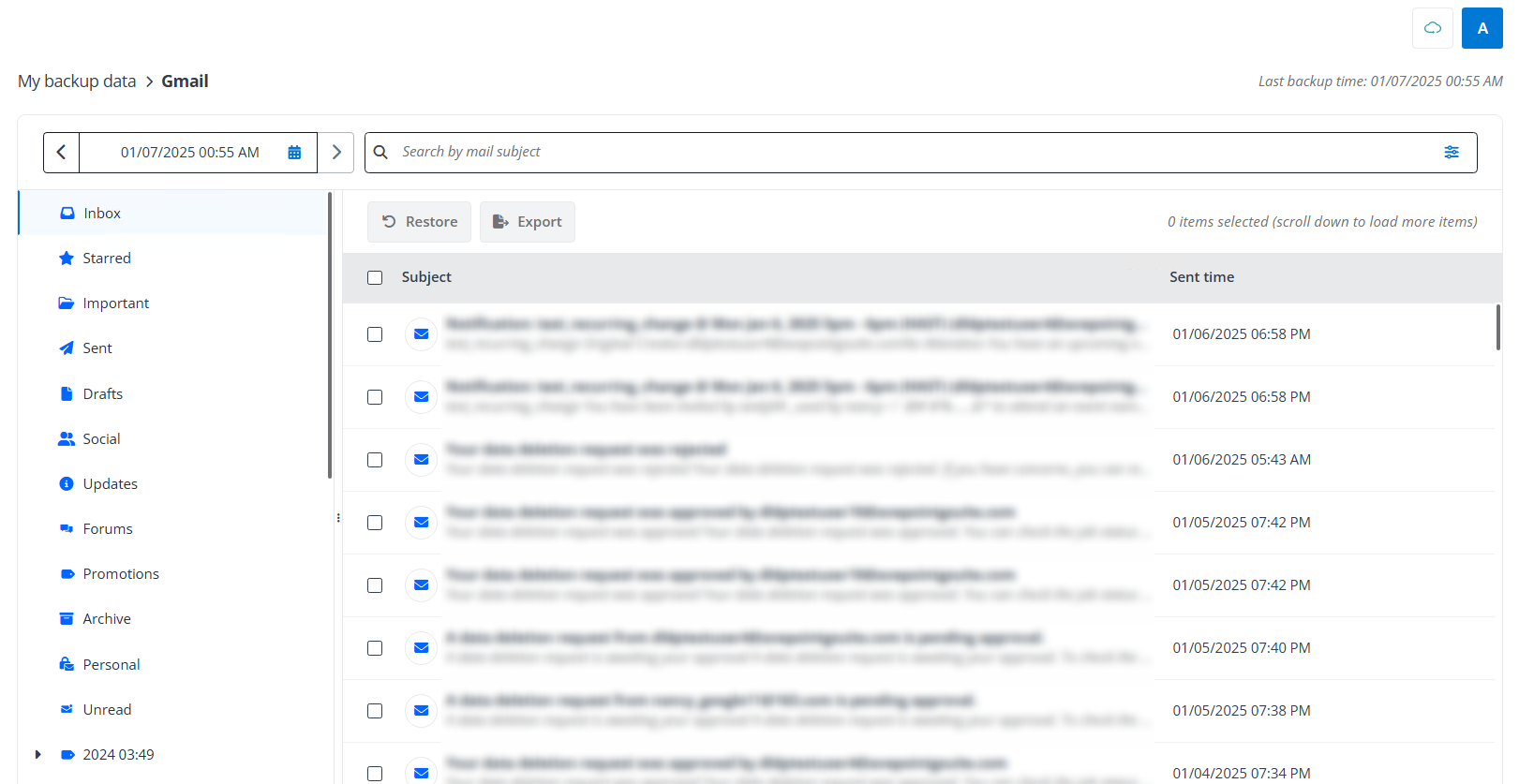
On the upper-right corner of the Gmail page, the Last backup time is displayed. To select backup data of the emails or labels that you want to recover, refer to the steps below.
-
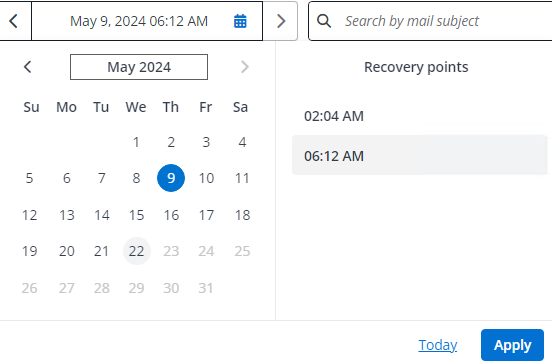
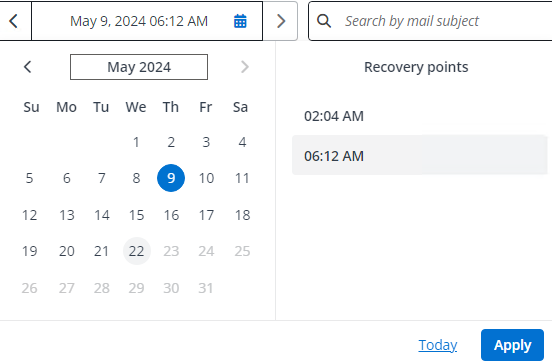
Select a recovery point which is the backup time of the items to be recovered. The default recovery point is the last backup time. If you want to select a recovery point, click the calendar button, select a date and select a recovery point, and then click Apply.
-
Find emails or labels via the following methods.
-
Based on the selected recovery point, the labels in your Gmail are listed on the left of the page. When you select a label from the list, the table on the right will list emails in the selected label.
-
In the search box, enter keywords of mail subjects and click the Search button to search emails. If you want to search labels or search emails with additional conditions, click the Filters button to expand the filter panel and refer to the steps below.
-
In the Level filter, select Mail or Label based on the level of the items you want to recover.
-
Configure search conditions based on the selected level.
-
Label – Enter keywords in the Label name field.
-
Mail – Configure the following conditions: Subject, Label name, Date sent, Sent from, Sent to, and Sent cc.
If you want to reset the search conditions, click Reset.
-
-
Click Search.
-
-
-
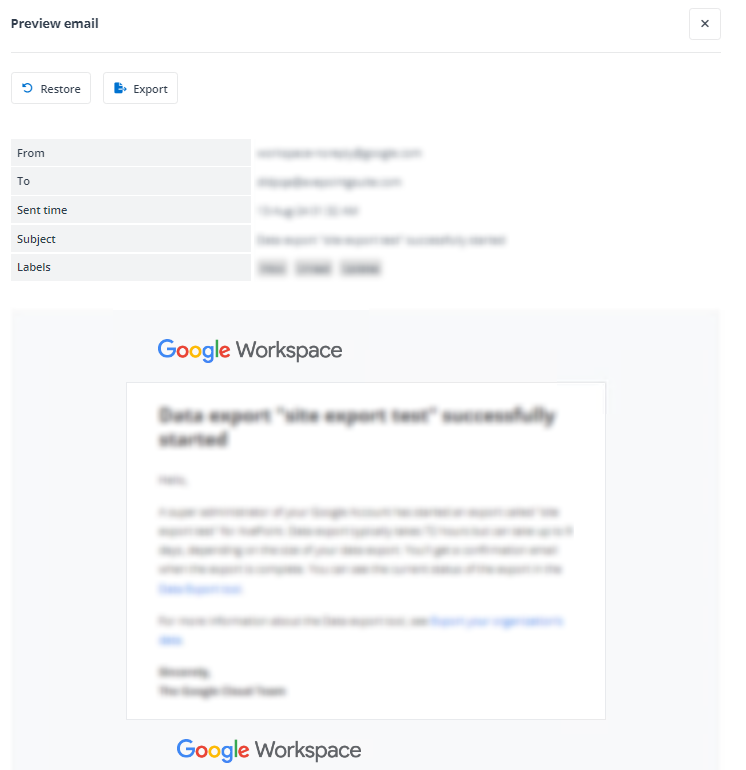
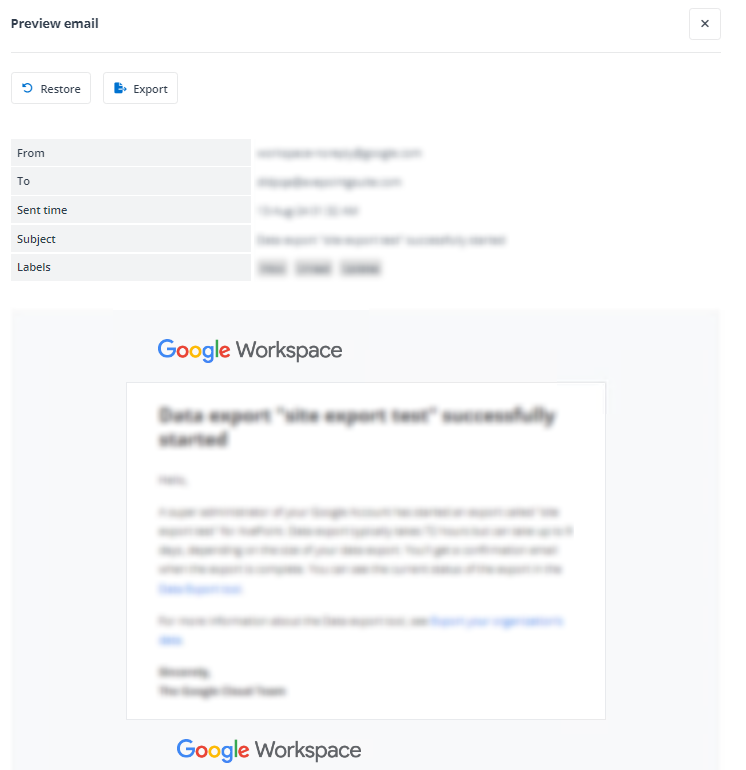
The search results table lists the emails that are contained in the selected labels or filtered by the search conditions. If you want to see the preview of an email before you restore or export the backup data, click the mail subject to open the Preview email pane on the right of the page. At the top of the pane, you can click Restore or Export.
-
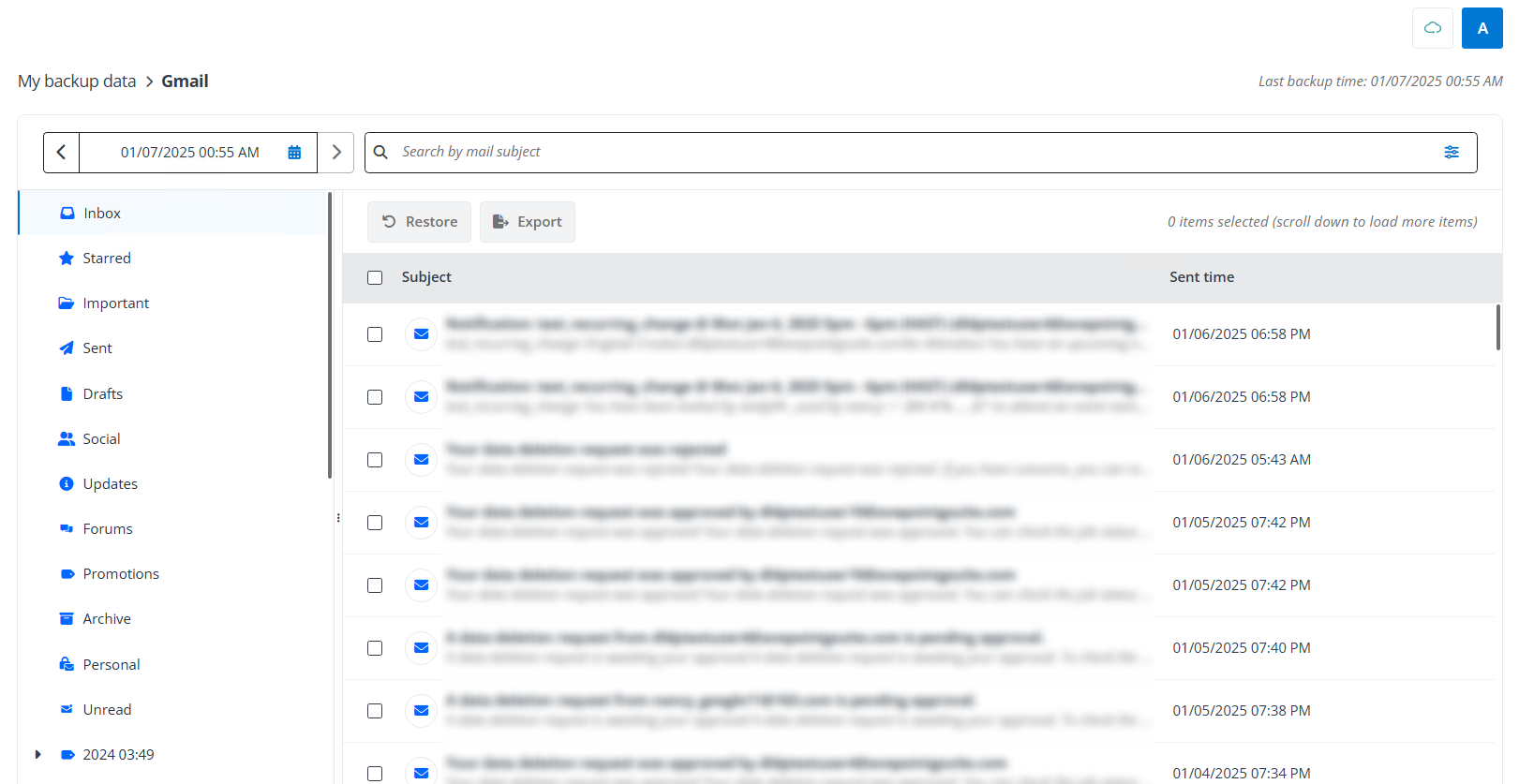
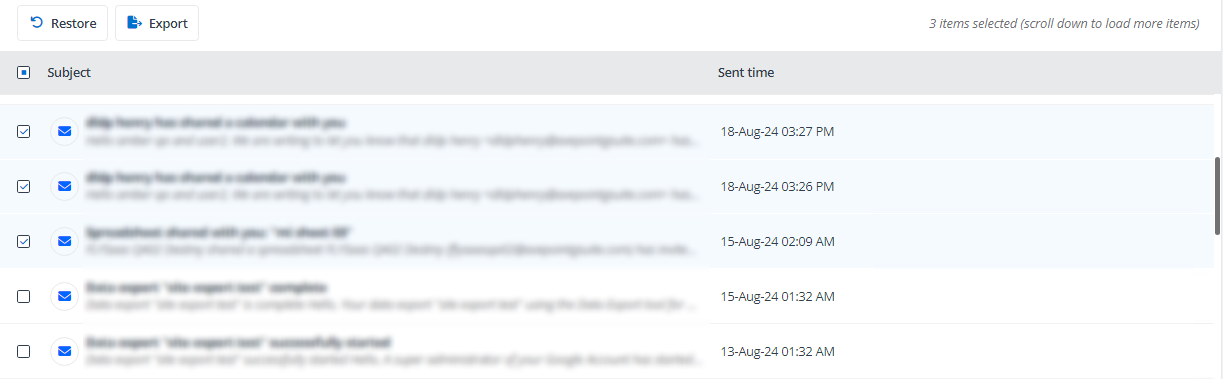
To recover items, select checkboxes next to labels or emails, and then click Restore or Export above the table.
-
Configure settings for the restore or export.
-
In the Restore Gmail pane, follow the steps below.
-
Choose an option from the following to restore the data. You can click the information button to view additional option details.
-
Restore the data to a new label
-
Overwrite existing content
-
Skip any data that already exists to avoid duplicates
-
-
If you choose Restore the data to a new label, you can customize the label name in the destination. To view more information about the label name, click the information button.
-
In the Description field, you can enter comments for the restore job.
-
Click Next to view the restore summary.
-
Click Restore to start the restore job. If you want to go back to edit restore settings, click Back.
-
-
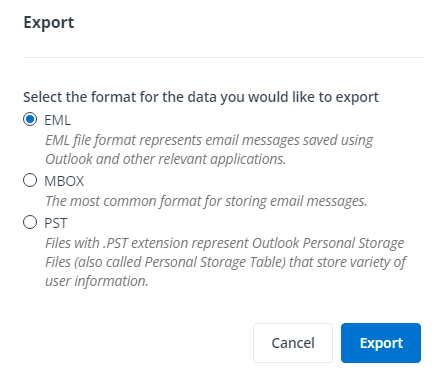
In the Export window, follow the steps below.
-
Choose a format from EML, MBOX, and PST.
-
Click Export to start the export job.
-
After the export job is completed, to access the exported data, refer to Download Export Job Data.
-
-
Calendar
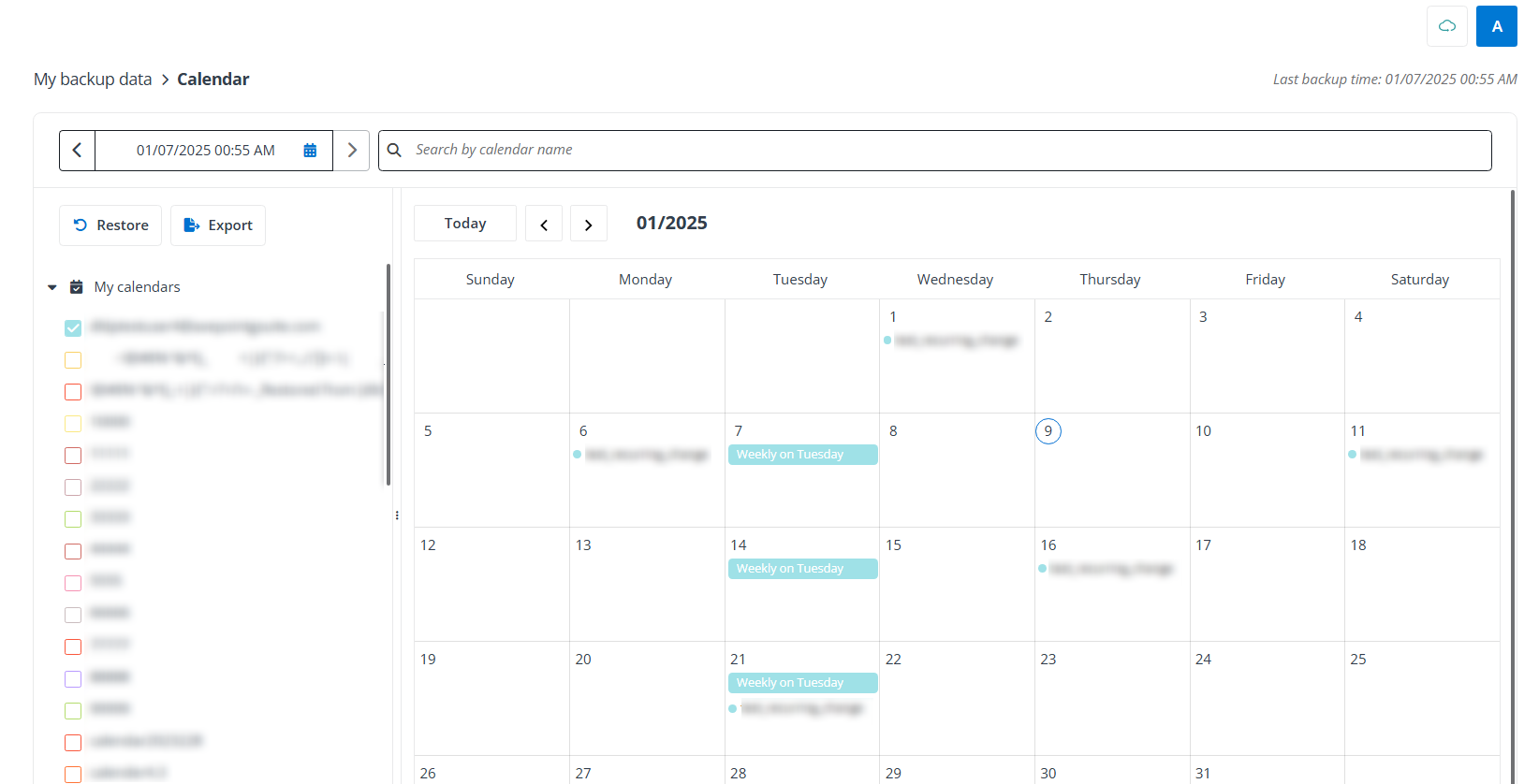
Click My backup data on the left navigation, and then click Calendar from the drop-down menu. The Calendar page appears.
On the upper-right corner of the Calendar page, the Last backup time is displayed. To select backup data of the calendars that you want to recover, refer to the steps below.
-
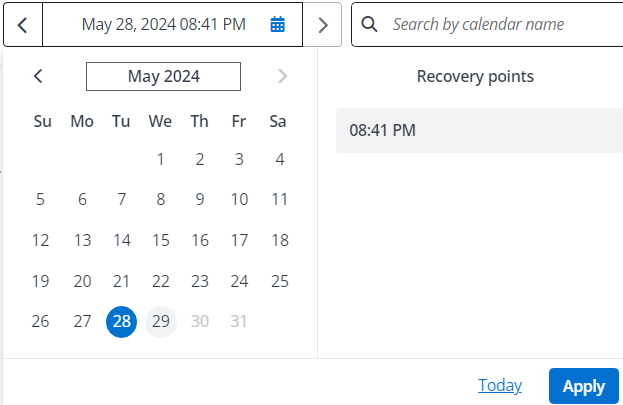
Select a recovery point which is the backup time of the items to be recovered. The default recovery point is the last backup time. If you want to select a recovery point, click the calendar button, select a date and a recovery point, and then click Apply.
-
In the search box, enter keywords of calendar names and click the Search button to search calendars. The search results will be displayed in the My calendars list.
-
On the left of the page, the My calendars list displays calendars that meet the selected recovery point and the search condition. When you select checkboxes next to calendars in the My calendars list, the calendar on the right of the page will display a preview of events in the selected calendars.
-
To recover the selected calendars, click Restore or Export above the My calendars list.
-
Configure settings for the restore or export.
-
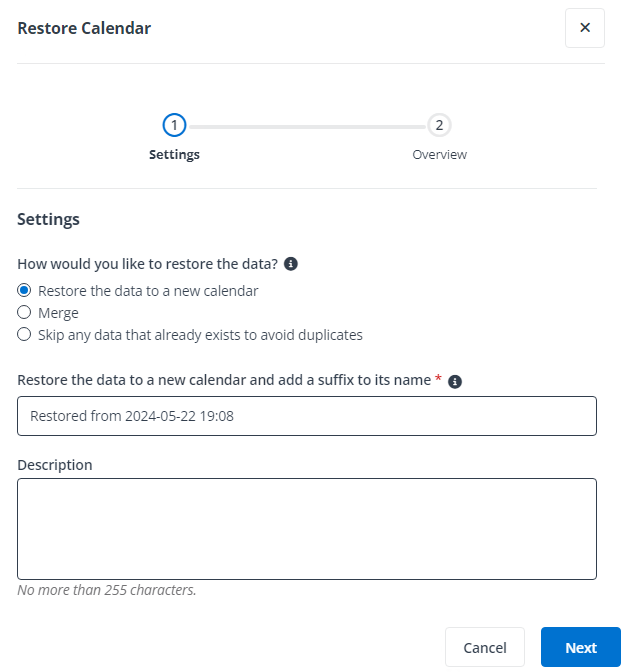
In the Restore Calendar pane, follow the steps below.
-
Choose an option from the following to restore the data. You can click the information button to view additional option details.
-
Restore the data to a new calendar
-
Merge
-
Skip any data that already exists to avoid duplicates
-
-
If you choose Restore the data to a new calendar, you can customize the suffix to be added to the calendar name in the destination. To view more information of the calendar name, click the information button.
-
In the Description field, you can enter comments for the restore job.
-
Click Next to view the restore summary.
-
Click Restore to start the restore job. If you want to go back to edit restore settings, click Back.
-
-
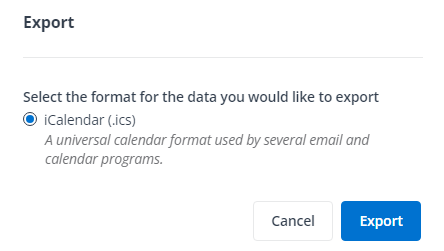
In the Export window, click Export to start the export job. After the export job is completed, to access the exported data, refer to Download Export Job Data.
-
Contacts
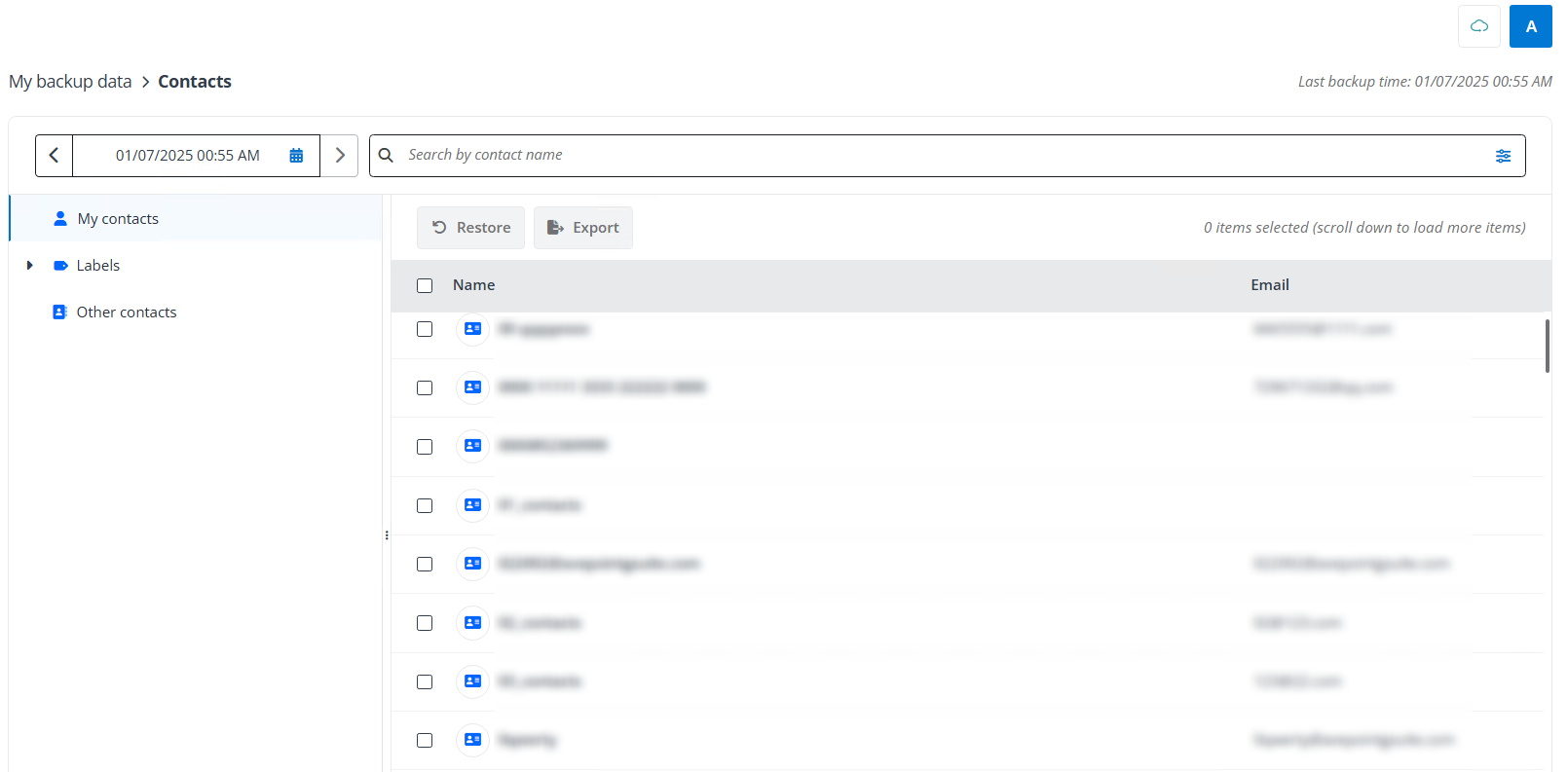
Click My backup data on the left navigation, and then click Contacts from the drop-down menu. The Contacts page appears.
On the upper-right corner of the Contacts page, the Last backup time is displayed. To select backup data of the contacts or labels that you want to recover, refer to the steps below.
-
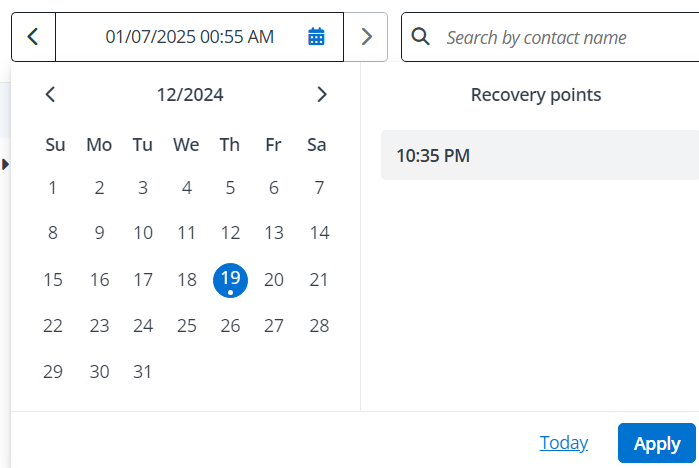
Select a recovery point which is the backup time of the items to be recovered. The default recovery point is the last backup time. If you want to select a recovery point, click the calendar button, select a date and select a recovery point, and then click Apply.
-
Find contacts or labels via the following methods:
-
Based on the selected recovery point, the labels in your Contacts are listed on the left of the page. When you select a label from the list, the table on the right will list contacts in the selected label.
-
In the search box, enter keywords of contact names and click the Search button to search contacts. If you want to search labels or search contacts with additional conditions, click the Filters button to expand the filter panel and refer to the steps below.
-
In the Level filter, select Contact or Label based on the level of the items you want to recover.
-
Configure search conditions based on the selected level.
-
Label – Enter keywords in the Label name field.
-
Contact – Configure the following conditions: Label name, Contact name, and Email.
If you want to reset the search conditions, click Reset.
-
-
Click Search.
-
-
-
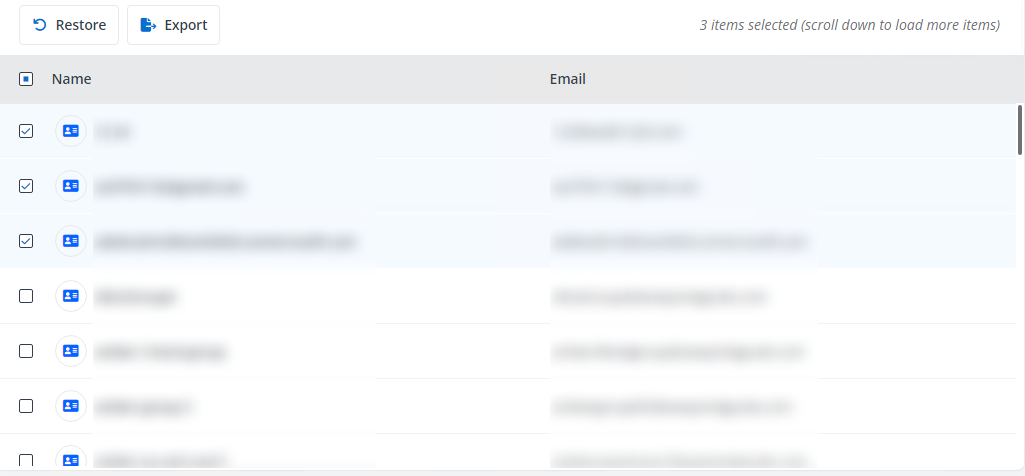
In the table which lists the search results or contacts contained in the selected labels, select checkboxes next to labels or contacts that you want to recover, and then click Restore or Export above the table.
-
Configure settings for the restore or export.
-
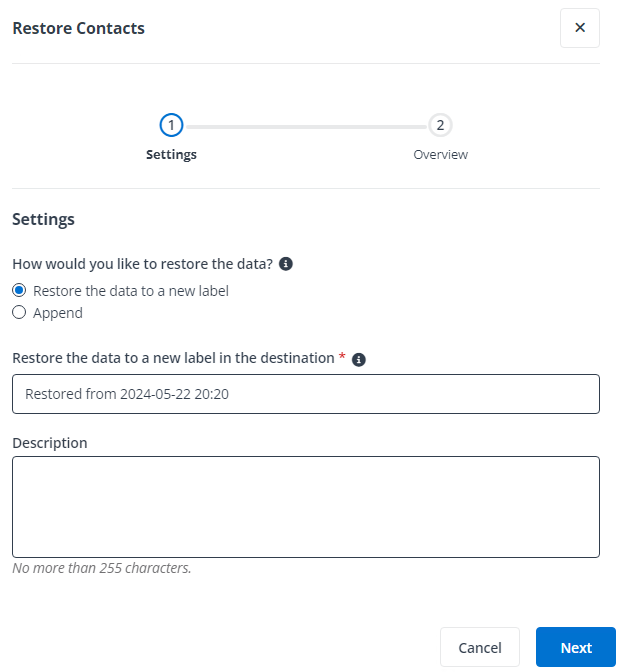
In the Restore Contacts pane, follow the steps below:
-
Choose an option from the following to restore the data. You can click the information button to view additional option details.
-
Restore the data to a new label
-
Append
-
-
If you choose Restore the data to a new label, you can customize the following:
-
The suffix to be added to the label name in the destination when you restore labels.
-
The name of the label in the destination when you restore contacts.
To view more information on the label name or suffix, click the information button.
-
-
In the Description field, you can enter comments for the restore job.
-
Click Next to view the restore summary.
-
Click Restore to start the restore job. If you want to go back to edit restore settings, click Back.
-
-
In the Export window, follow the steps below:
-
Choose a format from Outlook CSV, Google CSV, and vCard (.vcf file).
-
Click Export to start the export job.
-
After the export job is completed, to access the exported data, refer to Download Export Job Data.
-
-
Drive
Click My backup data on the left navigation, and then click Drive from the drop-down menu. The Drive page appears.
On the upper-right corner of the Drive page, the Last backup time is displayed. To select backup data of the files or folders that you want to recover, refer to the steps below.
-
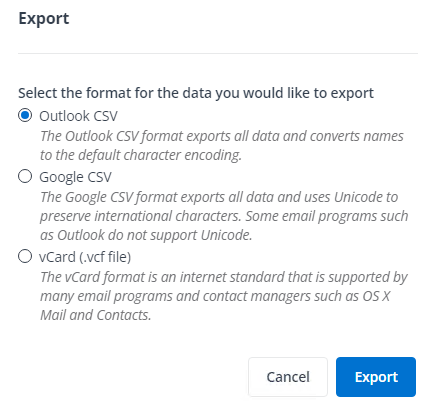
Select a recovery point which is the backup time of the items to be recovered. The default recovery point is the last backup time. If you want to select a recovery point, click the calendar button, select a date and select a recovery point, and then click Apply.
-
Find files or folders via the following methods:
-
Based on the selected recovery point, the folders in your Drive are listed on the left of the page. When you select a folder from the list, the table on the right will list sub folders and files in the selected folder.
-
In the search box, enter keywords of file names and click the Search button to search files in My Drive (includes Trash). If you want to search files/folders with additional conditions or search files/folders in Shared with me, click the Filters button to expand the filter panel and refer to the steps below:
-
In the Scope filter, select My Drive (includes Trash) or Shared with me based on the scope where you want to search items.
-
Select File or Folder based on the level of the items you want to recover.
-
Configure search conditions based on the selected level.
-
Folder – Enter keywords in the Folder name and ID fields.
-
File – Configure the following conditions: Folder name, File name, Label name, ID, Created date, Modified by, and File size.
When you search folders or files in Shared with me, note the following:
-
In the Owner field, you must enter the keywords of a username and select the owner from the drop-down list.
-
You do not need to configure the File size condition.
If you want to reset the search conditions, click Reset.
-
-
Click Search.
-
-
-
In the table that lists the search results or files contained in the selected folders, select checkboxes next to folders or files that you want to recover, and then click Restore or Export above the table.
NOTEUnder the Shared with me node, the shared objects can be restored only when they have been backed up by the owner, and restoring multiple objects in a batch is only supported when they belong to the same owner. You can contact the owner before the restore.
-
Configure settings for the restore or export.
-
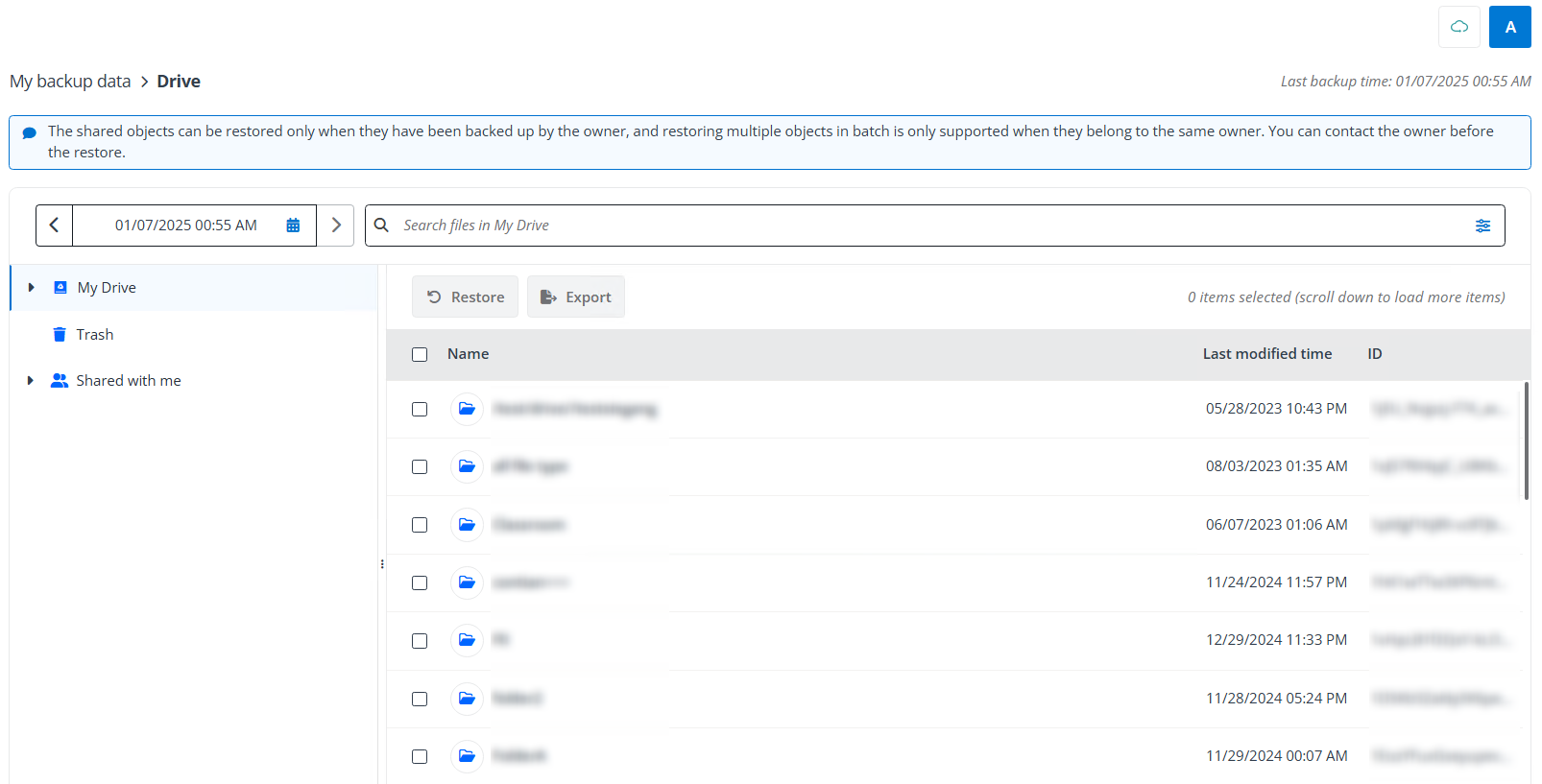
In the Restore Drive pane, follow the steps below.
-
Choose an option from the following to restore the data. You can click the information button to view additional option details.
-
Restore the data to a new folder
-
Overwrite existing content
-
Skip any data that already exists to avoid duplicates
-
-
If you choose Restore the data to a new folder, you can customize the folder name in the destination. To view more information on the folder name, click the information button.
-
Choose to Restore all content and security or Restore content only.
NOTEThe default option is Restore content only, which includes not restoring any labels on files.
-
In the Description field, you can enter comments for the restore job.
-
Click Next to view the restore summary.
-
Click Restore to start the restore job. If you want to go back to edit restore settings, click Back.
-
-
In the Export window, click Export to start exporting the backup data as ZIP file. After the export job is completed, to access the exported data, refer to Download Export Job Data.
-
Chat
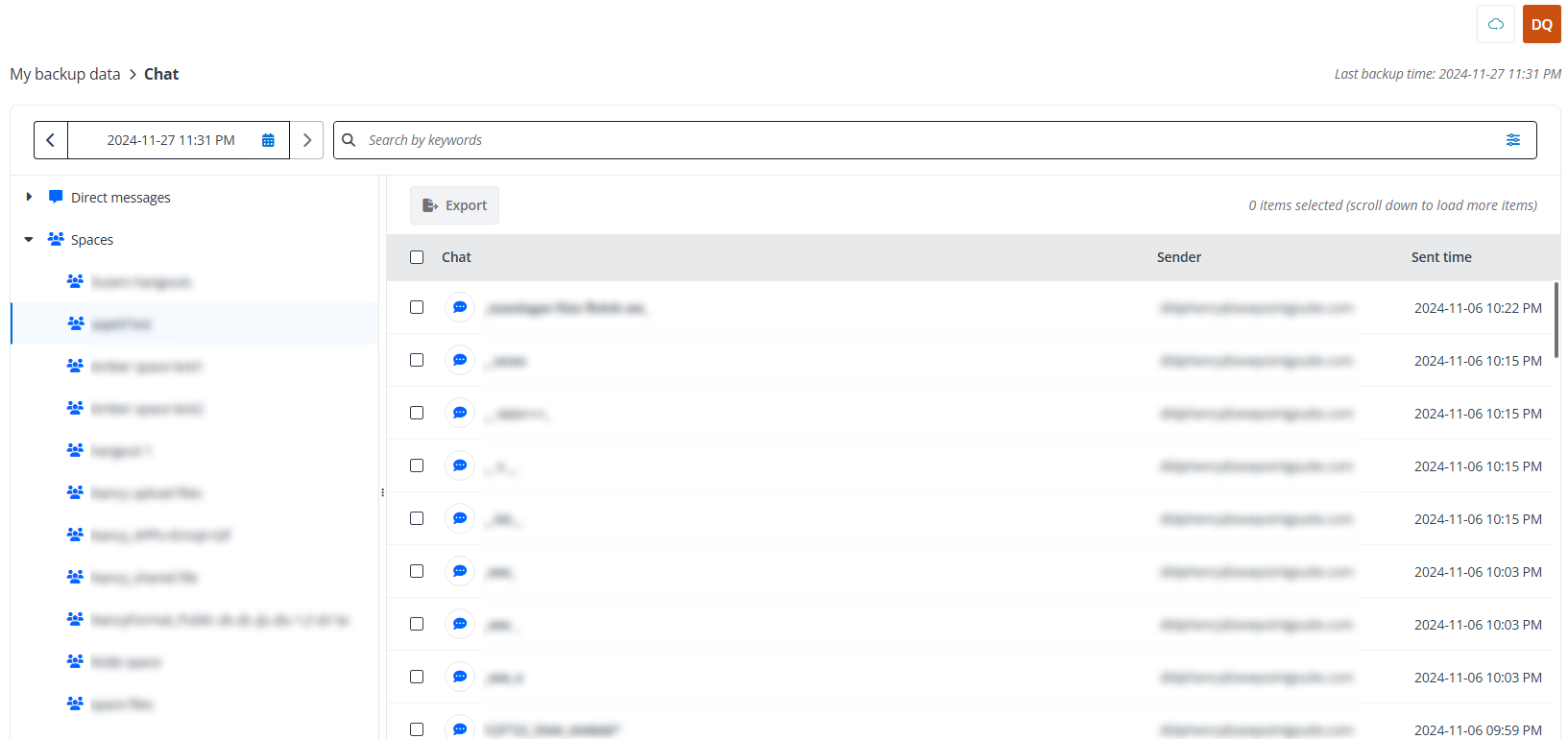
Click My backup data on the left navigation, and then click Chat from the drop-down menu. The Chat page appears.
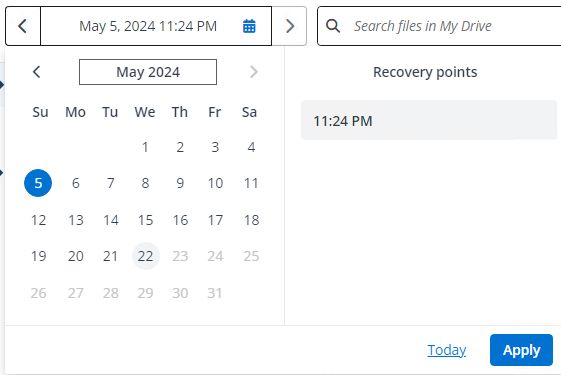
On the upper-right corner of the Drive page, the Last backup time is displayed. To select backup data of spaces / direct messages / chats that you want to recover, refer to the steps below.
-
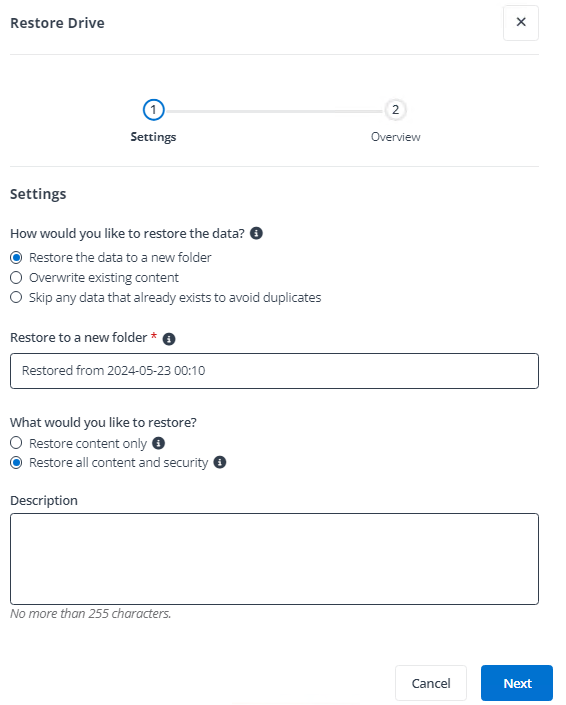
Select a recovery point which is the backup time of the items to be recovered. The default recovery point is the last backup time. If you want to select a recovery point, click the calendar button, select a date and select a recovery point, and then click Apply.
-
Find spaces, direct messages, or chats via the following methods:
-
Based on the selected recovery point, the direct messages and spaces in your Chat are listed on the left of the page. When you select a node from the list, the table on the right will list chats in the selected node.
-
In the search box, enter keywords of chat names and click the Search button to search chats. If you want to search spaces, direct messages, or chats with additional conditions, click the Filters button to expand the filter panel and refer to the steps below.
-
In the Level filter, select Space and direct message or Chat based on the level of the items you want to recover.
-
Configure search conditions based on the selected level.
-
Space and direct message – Enter keywords in the Space name and Member fields.
NOTEThe Space name condition only supports searching for space chats, and the Member condition does not support searching for external users.
-
Chat – Configure the following conditions: Space name, Sender, Keywords, and Date sent.
NOTEThe Sender condition does not support searching for external users, and the Keywords condition search is limited to the 500 characters of a message.
If you want to reset the search conditions, click Reset.
-
-
Click Search.
-
-
-
In the table which lists the search results or chats contained in the selected nodes, select checkboxes next to the items that you want to recover, and then click Export above the table.
-
The Export pop-up window appears. The selected backup data will be exported as an HTML file. Click Export to start the export job. After the export job is finished, to get the exported data, refer to Download Export Job Data.