
Home > Settings > Azure Databricks Integration (Private Preview)
Export to PDFAzure Databricks Integration (Private Preview)
To interact with your customers’ data to detect potential risks using natural language, complete the following settings to connect to the Azure Databricks service.
*Note: Azure Databricks integration is currently in private preview mode, and we are continuously working on enhancing this feature.
-
Click Settings on the left navigation, and click Azure Databricks integration under AI and data.
-
Complete the following settings on the Azure Databricks integration page.
-
Azure Databricks URL – Enter the URL of your Azure Databricks workspace.
-
Access token – Enter the personal access token for secure authentication to the Databricks API.
The access token can be generated by completing the following steps:
-
Sign in to Databricks.
-
Click your photo in the upper-right corner of any page, and click Settings from the drop-down list.
-
Navigate to Developer > Security, and click Generate new token in the Access tokens section.
-
-
Catalog name – Enter the name of the catalog where you want to sync the Elements data.
-
Schema name – Enter the name of a schema under the catalog specified above.
-
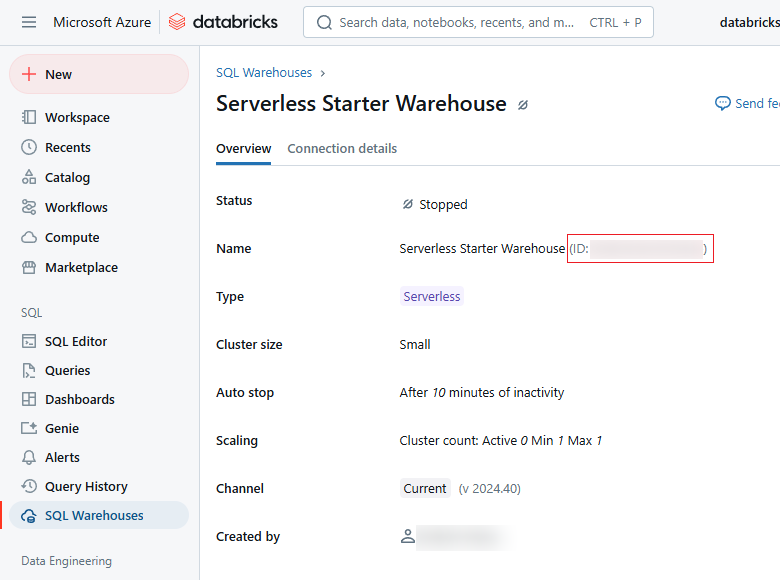
SQL warehouse ID – Enter the ID of the SQL Warehouse that you want to use for the Elements data.
The ID is displayed to the right of the SQL Warehouse name in the Overview tab.
-
Volume name – Enter the name of a volume under the schema specified above.
-
-
Click Save to save and apply the integration settings. The Elements data will then be synchronized with Azure Databricks according to these settings. Note that the synchronization may take some time to complete.
-
Sign in to Azure Databricks.
-
Click Genie under SQL on the left navigation.
-
Click New in the upper-right corner of the Genie page.
-
Complete the following settings and click Save to create the Genie space.
-
Enter a title and optional description for the space.
-
Select the warehouse from the drop-down list.
-
Click Add tables.
-
Navigate to the catalog and scheme you configured in Elements, and find the corresponding tables.
The following table below to the usage of each table.
-
| Table name | Service |
|---|---|
| TenantRiskInformation | Risk management |
| ObjectRuleViolatingDetail | Risk management |
| BackupInformation | Cloud Backup for Microsoft 365 |
| OneDriveBackupDetails | Cloud Backup for Microsoft 365 |
| ExchangeMailboxBackupDetails | Cloud Backup for Microsoft 365 |
| SharePointSiteBackupDetails | Cloud Backup for Microsoft 365 |
| TeamsBackupDetails | Cloud Backup for Microsoft 365 |
| TenantBaselineInformation | Baseline management |
| OneDriveInformation | Workspace management |
| ExchangeMailboxInformation | Workspace management |
| SharePointSiteInformation | Workspace management |
| TeamsInformation | Workspace management |
| GroupInformation | Workspace management |
8. Find the Genie space you created, and click its name to access the details page.
-
Click the Instructions (
 ) button on the left navigation of the space, and enter the following content in the General Instructions section, and click Save.
in table BackupInformation:
Column BackupTime: 1 day earlier than today means not under protection.
in table TenantBaselineInformation:
BaselineId = NULL means no baseline deployed.
in table OneDriveInformation:
RenewProcessCompleted = 1 means renew process completed.
HaveGuestUserAccess = 1 means have guest user access.
in table ExchangeMailboxInformation:
RenewProcessCompleted = 1 means renew process completed.
in table SharePointSiteInformation:
RenewProcessCompleted = 1 means renew process completed.
HaveGuestUserAccess = 1 means have guest user access.
in table TeamsInformation:
RenewProcessCompleted = 1 means renew process completed.
HaveGuestUserAccess = 1 means have guest user access.
in table GroupInformation:
RenewProcessCompleted = 1 means renew process completed.
HaveGuestUserAccess = 1 means have guest user access.
-
Click the Chats (
 ) button on the left navigation of the space, and you can start asking questions.
 -
The following topics are available for quick questions. You can slightly adjust your questions using the keywords provided in the topics. However, if you make significant adjustments, the answer may be inaccurate. We are continuously working on enhancing the interactivity.
| Service | Question topic |
|---|---|
| Cloud Backup for Microsoft 365 | Which (How many) customers are not under protection? |
| Cloud Backup for Microsoft 365 | When is the latest backup for user/site/OneDrive/Team/Group/mailbox {Name} for customer {CustomerName}? |
| Risk management | Which (How many) customers are having high risks? |
| Risk management | Which (How many) customers are having risk under the {RuleName} rule? |
| Risk management | Show me all objects violating the rule {RuleName} for all customers / customer {CustomerName}. |
| Baseline management | Which tenants are not using any baseline for deployment? |
| Workspace management | Show me the workspaces that have guest users across all tenants / for customer {CustomerName}. |
| Workspace management | Show me the workspaces that have not been active in the past {Number} days for all tenants / customer {CustomerName}. |
| Workspace management | Show me the workspaces that have access risks for all tenants / customer {CustomerName}. |
| Workspace management | Show me the workspaces that have not completed the renew process for all tenants / customer {CustomerName}. |