
Home > Reporting and Integrations > Integration with ConnectWise > Configure Settings in ConnectWise Manage
Export to PDFConfigure Settings in ConnectWise Manage
Before you configure Elements connection with ConnectWise, complete the instructions below to make some preparations in ConnectWise Manage.
Create a Security Role
Security roles enable you to define permissions and access for your Manage members. Refer to the following steps to create a security role:
-
In ConnectWise Manage, navigate to System > Security roles.
-
Click the New Item (
 ) button. The New role page appears.
 -
In the Role ID field, enter an ID to identify the new role. For example, ElementsAPI.
-
Click the Save (
 ) button to create the security role.
 -
Assign the permissions listed below.
| Module | Category | Permission |
|---|---|---|
| Companies | Company Maintenance | Inquiry Level: All |
| Companies | Contacts | Inquiry Level: All |
| Finance | Agreements | Add Level: AllEdit Level: AllInquiry Level: All |
| Finance | Invoicing | Inquiry Level: All |
| Procurement | Products | Inquiry Level: All |
| Procurement | Product Catalog | Inquiry Level: All |
| Service Desk | Close Service Tickets | Add Level: AllEdit Level: AllInquiry Level: All |
| Service Desk | Service Tickets | Add Level: AllEdit Level: AllInquiry Level: All |
-
Click the Save (
 ) button to save the permissions.
Create an API Member
Refer to the following steps to create an API member for Elements in ConnectWise Manage:
-
In ConnectWise Manage, navigate to System > Members > API members.
-
Click the New item (
 ) button. The New member page appears.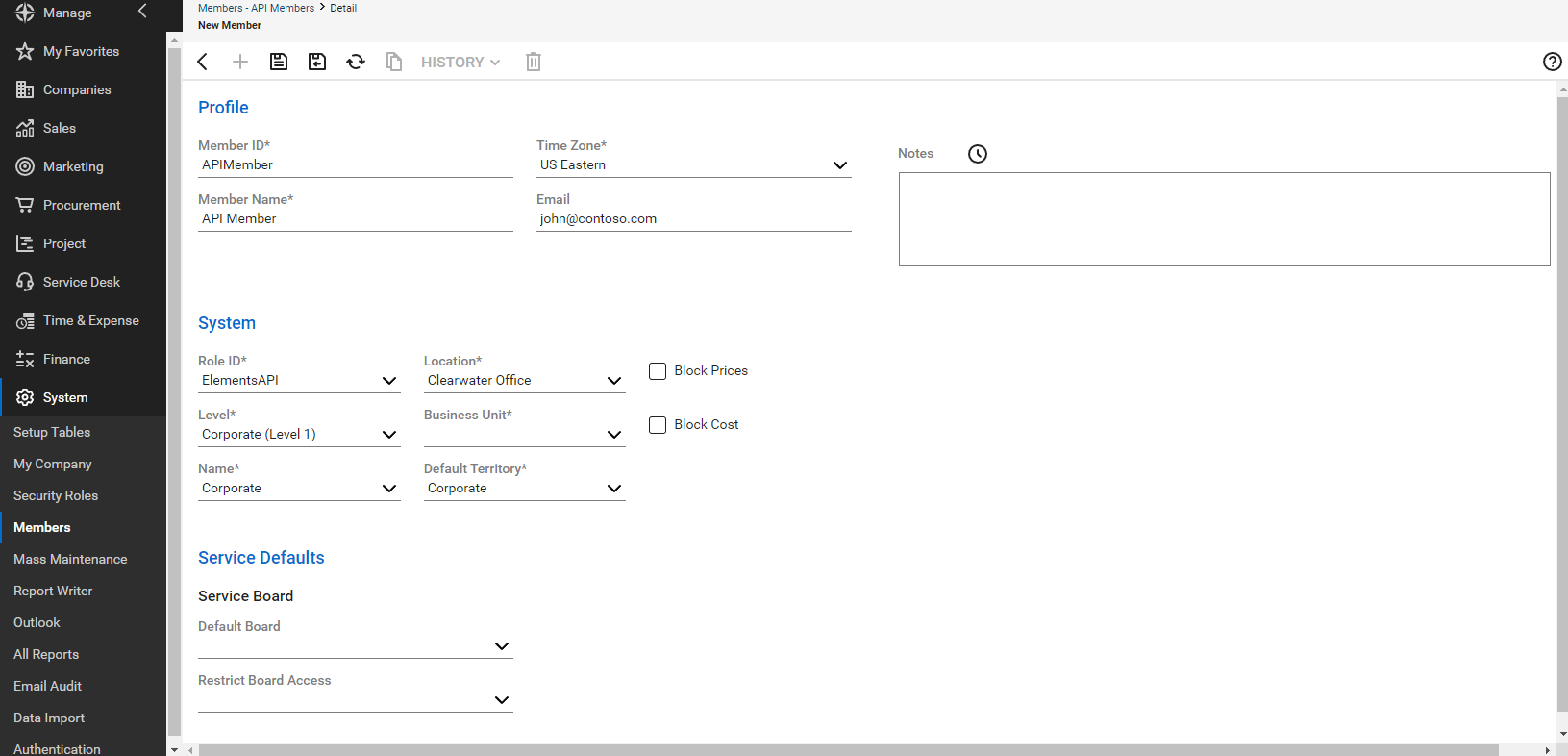
-
In the Profile section, complete the following steps:
-
In the Member ID field, enter an ID for the API member. For example, APIMember.
-
In the Member name field, enter a name for the API member. For example, API member.
-
In the Email field, enter an email address for the API member.
-
-
In the System section, complete the following steps:
-
From the Role ID drop-down list, select the security role you created. Based on the example provided above, select ElementsAPI.
-
From the Level drop-down list, select Corporate (level 1).
-
From the Name drop-down list, select Corporate.
-
From the Location drop-down list, select the appropriate location.
-
From the Business unit drop-down list, select Admin.
-
From the Default territory drop-down list, select the appropriate territory for the API member.
-
-
Click the Save (
 ) button to create the API member.
Create an API Key
Refer to the following steps to create an API key that will be used by Elements in ConnectWise Manage:
-
In ConnectWise Manage, navigate to System > Members > API members.
-
Select the API member you created for Elements.
-
Under the API keys tab, click the New Item (
 ) button.
 -
In the Description field, enter a description for the API key. For example, Elements.
-
Click the Save (
 ) button to create the API key.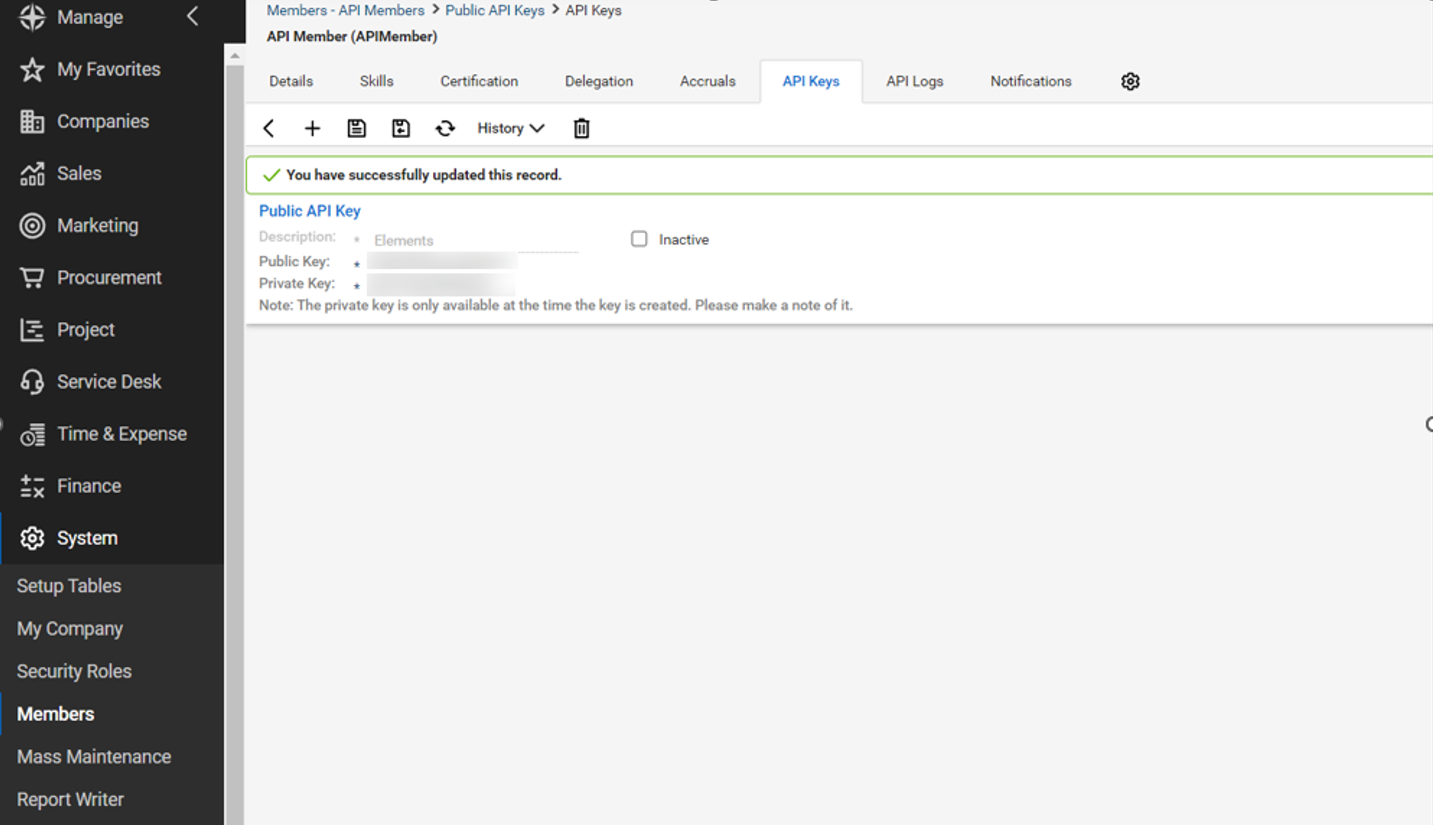
-
Remember the public key and private key. They will be used when you configure the ConnectWise connection in Elements.