Workspace Management
The workspace management module empowers you to maintain control and oversight of workspace environments through real-time monitoring and policy enforcement. It enables swift detection and response to potential cyber threats, providing comprehensive protection that minimizes potential risks.
At the top of the Workspace management page, there are five tiles: Provisioning templates, Compliance policies, Lifecycle policies, Discovery profiles, and Process center.
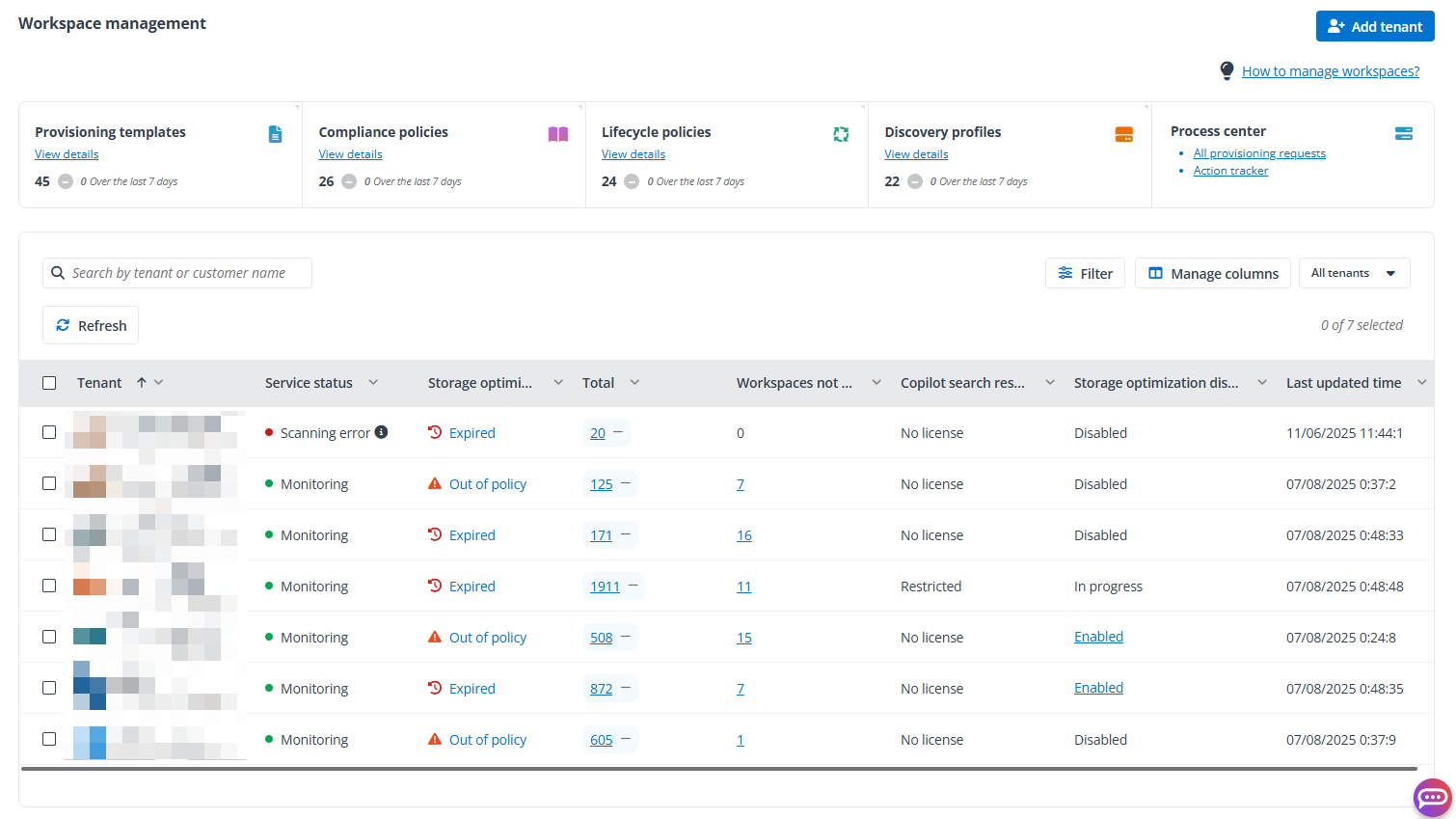
- **Provisioning templates** – You can view the total number of provisioning templates, and the trend of provisioning templates over the last 7 days in this tile. Click **View** **details** to access the **Provisioning templates** page where all provisioning templates are listed. For details, refer to [Provisioning Template Management](#missing-link).

- **Compliance policies** – You can view the total number of compliance policies, and the trend of compliance policies over the last 7 days in this tile. Click **View** **details** to access the **Compliance policies** page where all compliance policies are listed. For details, refer to [Compliance Policy Management](#missing-link).

- **Lifecycle policies** – You can view the total number of lifecycle policies, and the trend of lifecycle policies over the last 7 days in this tile. Click **View** **details** to access the **Lifecycle policies** page where all lifecycle policies are listed. For details, refer to [Lifecycle Policy Management](#missing-link).

- **Discovery profiles** – You can view the total number of discovery profiles, and the trend of discovery profiles over the last 7 days in this tile. Click **View** **details** to access the **Discovery profiles** page where all discovery profiles are listed. For details, refer to [Discovery Profile Management](#missing-link).

- **Process center** – This tile displays the entry to **All provisioning requests** and **Action tracker**.

- By default, all tenants added to the workspace management service are listed in the table. In the upper-right corner of the table, there are recommended views that you can use directly to view the tenants with inactive workspaces, tenants with orphaned workspaces, tenants with workspaces that are pending approval, or tenants with storage optimization discovery enabled.

- You can manage the columns to be displayed in the table, and apply filters to filter specific tenants as required. Then, you click **Save as** from the view drop-down list, enter a view name, and click **Save** to save a custom view. You can also make changes to a built-in view and save it as a custom view.

- In the table at the bottom of the page, you can view the following information of each tenant.

- **Tenant** – The tenant name. The customer’s organization name is displayed below the tenant name. Click the tenant name to access the **Tenant details** page where you can view detailed information of the tenant. For more information, refer to [View Overview Statistics of a Tenant](#missing-link).

- **Service status** – The status of the tenant in this module.

	- **Analyzing** – After a tenant has been added to the workspace management service, the tenant data is being analyzed.

	- **Scanning error** – There are some errors when scanning the tenant data.

	- **Monitoring** – The tenant data is scanned, and the data is under monitoring.

	- **Expired** – The service subscription of the customer has expired. If you have the **Manage subscription** permission, click it and the **Edit subscription** window appears which allows you to edit the subscription for the customer’s tenant directly.

	- **Out of policy** – The service subscription of the customer is longer compliant with policy. Service jobs will be suspended after 15 days, and service reports will no longer be updated. After this grace period, service jobs will be paused, and service reports will no longer be updated.

	- **No license** – The customer has no subscription for the workspace management service.

- **Storage optimization status** – The storage optimization status of the tenant.

	- **Monitoring** – The tenant data is under monitoring for storage optimization.

	- **Expired** – The subscription for the workspace management – storage optimization service of the customer has expired.

	- **Out of policy** – The subscription for the workspace management – storage optimization service of the customer is longer compliant with policy. Scheduled storage optimization jobs will be suspended after 15 days, and reports will no longer be updated. After this grace period, storage optimization jobs will be paused, and reports will be no longer updated.

	- **No license** – The customer has no subscription for the workspace management – storage optimization service.

- **Total** – The total number of workspaces in this tenant. The number trend over the last 7 days is displayed to the right. Click the number link to access the **Workspaces** page where all workspaces of the tenant are listed. For more information, refer to [View Workspaces of a Tenant](#missing-link).

- **Pending-approval** – The number of workspaces of which the provisioning requests are pending approval on the manager of requesters or the workspace owners within the tenant. Click the number link to access the **All provisioning requests** tab of the **Process center** page where the corresponding provisioning requests are listed. If needed, you can approve or reject provisioning requests on behalf of the approvers in that tab. For more information, refer to [View Provisioning Requests](#missing-link).

- **Inactive** – The number of inactive workspaces in the tenant. Click the number link to access the **Workspaces** page where all inactive workspaces are listed. For more information, refer to [View Workspaces of a Tenant](#missing-link).

- **Orphaned** – The number of orphaned workspaces in the tenant. Click the number link to access the **Workspaces** page where all orphaned workspaces are listed. For more information, refer to [View Workspaces of a Tenant](#missing-link).

- **Workspaces ready for Copilot** – The number of workspaces that are ready for Copilot in the tenant. Click the number link to access the **Workspaces** page where the corresponding workspaces are listed. For more information, refer to [View Workspaces of a Tenant](#missing-link).

- **Workspaces not ready for Copilot** – The number of workspaces that are not ready for Copilot in the tenant. Click the number link to access the **Workspaces** page where the corresponding workspaces are listed. For more information, refer to [View Workspaces of a Tenant](#missing-link).

- **Copilot search restriction** – The status whether a tenant has restricted both organization-wide search and Copilot experiences to a curated set of workspaces.

- > ***Note**: This is only available when Microsoft 365 Copilot license is added to the Microsoft 365 subscription of the tenant. For more information, refer to .

	- **Restricted** – Under restricted, you can define a set of workspaces by including specific workspaces in the allowed list or excluding specific workspaces. The available workspaces include Team sites, SharePoint sites, OneDrives, and Microsoft 365 Group team sites. For more information, refer to [Include or Exclude Teams for Copilot Search](#missing-link), [Include or Exclude Sites for Copilot Search](#missing-link), [OneDrive Management](#missing-link), and [Include or Exclude Groups for Copilot Search](#missing-link).

		For restricted tenants, you can select them and click **Disable Copilot search restriction** to disable the restriction for the tenants.

	- **No restriction** – Without any restriction, all workspaces in the tenant are allowed to participate in organization-wide search and Copilot experiences.

		For tenants with no restrictions, you can select them and click **Restrict** **Copilot search** to restrict both organization-wide search and Copilot experiences to a curated set of workspaces for the tenants.

	- **No license** – The tenant does not have the required license for Copilot.

- **Copilot adoption rate** – The Copilot adoption rate of tenant users. If the tenant does not have the required license for Copilot, this column will be empty.

- **Last updated time** – The last updated time of the tenant.
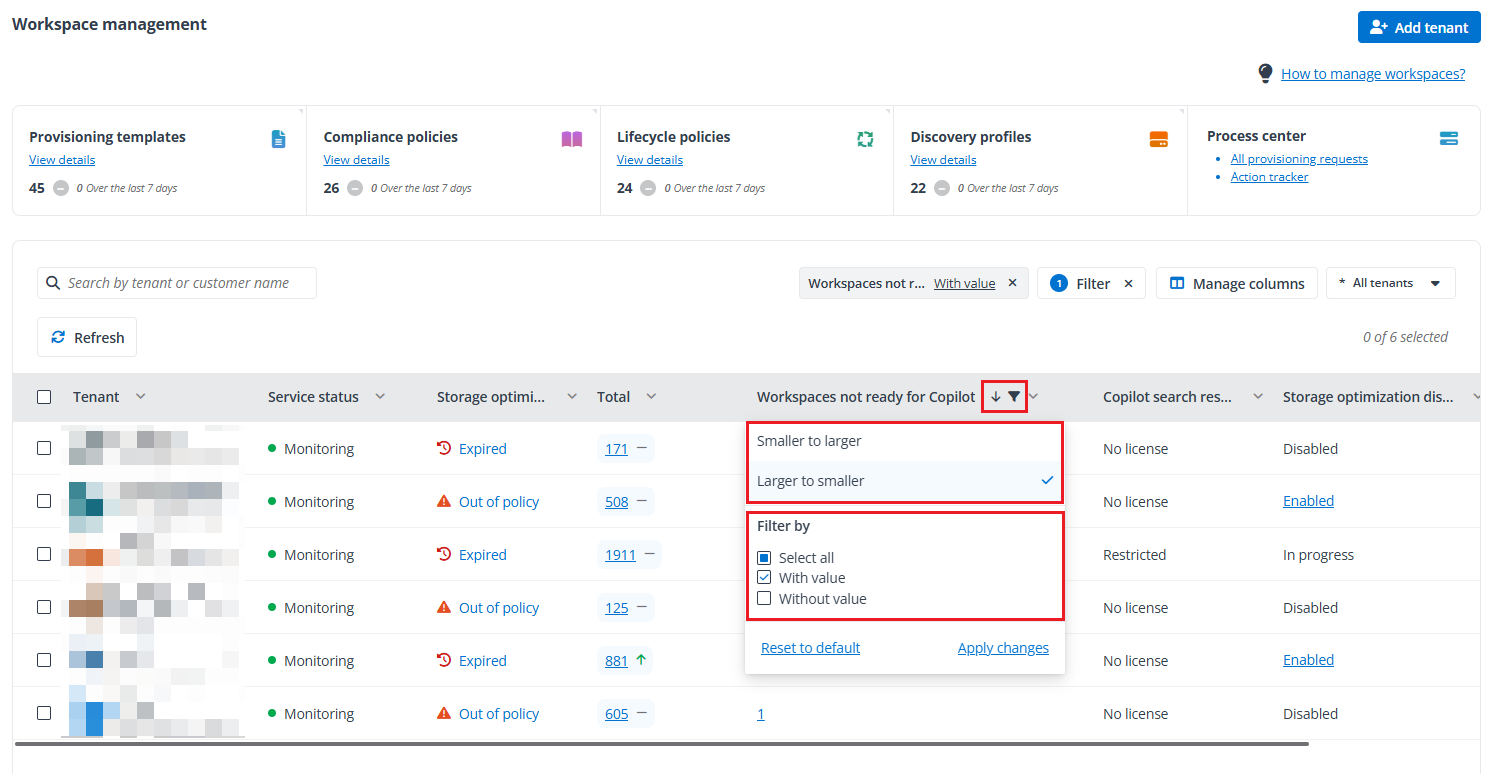
For columns with the down arrow ( ) icon displayed to the right, you can click it to filter the items displayed in the table based on column values. When filters are applied, the filter (
 ) icon will appear next to the column name. For certain columns, you can sort the values by clicking the down arrow (
 ) icon and selecting a sort order. If the column values are sorted, the sort order (
 or
or  ) icon will be displayed next to the column name.
Storage optimization discovery
When the tenant has the Workspace management – Discovery subscription, you can enable storage optimization discovery for the tenant and then view the corresponding statistics.
- **Storage optimization discovery** – The status whether the tenant has storage optimization discovery enabled, disabled, or failed.
- **Disabled** – Storage optimization discovery has not been enabled for the tenant.
- **In progress** – Storage optimization discovery is currently being enabled. The discovery and analysis data is not ready yet.
- **Enabled** – Click **Enabled** to view the storage optimization discovery settings in the prompted window. You can edit the settings and click **Save** to update the settings. You can also click **Run now** to start a new discovery directly. Please note that clicking **Run now** will consume the remaining discoveries for the tenant.
For the tenant for which storage optimization discovery is disabled, select the tenant and click **Enable storage optimization discovery** above the tenant list to open the **Enable storage optimization discovery** window.

	Each tenant is allocated 12 storage optimization discoveries per year. You can view the consumed discoveries in the upper-right corner of the window.

	- Select a discovery profile from the drop-down list.

	- Configure the discovery scope by selecting **SharePoint** **site and Team site** and/or **OneDrive**.

	- Select a storage profile to store archived objects for this tenant. Default storage profile and custom storage profiles in the following types are selectable here: **FTP**, **SFTP**, **Amazon S3**, **Amazon S3-Compatible Storage**, **Google Cloud Storage**, and **Microsoft Azure Storage**. For more information on creating a storage profile, refer to [Create a Storage Profile](#missing-link).

		> ***Note**: Storage locations of a customer’s tenants must use either the default storage profile or custom storage profiles. The storage profile can be edited before archiving, but once objects are archived, the profile becomes permanent and cannot be changed.

	- Configure the storage price:

		- **Total SharePoint licensed storage** – Enter how much SharePoint storage you get in your subscription.

		- **Price for SharePoint additional storage** – Enter the price for your purchased SharePoint storage.

		- **Total** **OneDrive** **licensed storage** – Enter how much OneDrive storage you get in your subscription.

		- **Price for** **OneDrive** **additional storage** – Enter the price for your purchased OneDrive storage.

		- **Price for archival** **additional** **storage** – Enter the price for your archival storage.

	Click **Save** to save the storage optimization discovery settings, or click **Run now** to start the discovery for the tenant directly.

- **Inactive data size (GB)** – The total inactive data size of the tenant.

- **ROT data size (GB)** – The total ROT data size of the tenant.
Data security posture management
*Note: Manage data security posture feature is currently in private preview mode and is available as an on-demand feature. You can contact AvePoint Technical Support or your sales representative for more information.
- **Workspace** **issues** – The total number of pending issues for all workspaces within the tenant.
This statistic will be displayed when you have configured data security posture for the tenant. Select a tenant and click **Manage data security posture** to access the **Manage data security posture** window.

	1. In the **Data governance profile** step, select the **Industry**, **Region**, and **Security level** for your customer separately. You can then review the security level and risk definition settings of each classification, which are tailored based on the selected data security posture.

	2. Click **Next** to go to the next step.

	3. In the **Classification & labels** step, choose whether to enable the sync between classifications and sensitivity labels for workspaces within the tenant. Click the toggle to enable the two-way sync, and then configure the corresponding sensitivity label for each classification. All published sensitivity labels with the **Groups & sites** scope can be selected.

		> ***Note**: This can be enabled only when sensitivity labels have been configured in Microsoft Purview Information Protection for the organization.

		- If a workspace has the **Default** classification, applying a sensitivity label to it will automatically update its classification to match the label.

		- > ***Note**: These classification updates are processed daily.

		- If a workspace’s classification is changed manually by the administrator or data owner, the corresponding sensitivity label will be automatically applied to the workspace. If **None** is set for the classification, the sensitivity label applied to the workspace before will be removed automatically.

		- If a workspace’s sensitivity label is changed manually by the administrator or data owner, the corresponding classification will be automatically applied to the workspace.

	4. Click **Next** to go to the next step.

	5. In the **Rollout scope** step, choose whether to enable the pilot mode. Click the toggle to enable the pilot mode. You can then configure the pilot users for whom the MyData interface is available in Teams and SharePoint. If pilot mode is not enabled, the MyData interface is available for all tenant users.

	6. Click **Finish** to save the data security posture settings for the tenant.

- **Industry** – The industry selected in the data security posture for the tenant.

- **Region** – The region selected in the data security posture for the tenant.

- **Security level** – The security level selected in the data security posture for the tenant.
Add a Tenant
When you assign the Workspace management or Workspace management – Storage optimizationservice to a customer and consent to the app during the process of onboarding the customer or adding services for the customer, the customer’s tenant will be automatically displayed in this module.
If an existing customer has tenants that want to use the functionalities of this module, you can add those tenants to the module.
Refer to the following steps to add a new tenant of an existing customer to the module:
-
On the Workspace management page, click Add tenant in the upper-right corner.
-
Select a customer from the drop-down list.
-
Select the subscriptions you want to add to the customer.
-
Complete the subscription information for this service:
-
Subscription type – Select the subscription type for this service: Trial or Subscription.
*Note: For Trial, you can assign up to 5 customers, and the subscription expiration date is fixed. This number is calculated among all premium services.
-
Source – Select a value to indicate the source of your subscription.
-
Payment type – Select the payment type.
-
User seats – Select the number of users you want to assign the Workspace management subscription.
-
Capacity – Configure the capacity for the Workspace management - Storage optimization subscription
-
Subscription expiration date – By default, Same as pooled subscription is selected to keep the same expiration date as the pooled subscription. You can select Expire now or select Specify a time to set an expiration date for the customer’s subscription.
-
Contract end date – Click the calendar button and select the contract end date.
-
Click Continue.
-
Select a tenant of the customer.
If there are no available tenants for the customer, you can click Add new tenant. For detailed instructions on how to add a tenant, refer to Add a Microsoft 365 Tenant.
-
If the APElements Security and Analysis app for the tenant has already been consented, an app consented ( ) icon will appear. Click Save to add the tenant.
This typically occurs during the process of assigning the Workspace management, Riskmanagement, or Change management communicationservice to a customer and consenting to the app during the process of onboarding customer or adding services.
-
If the APElements Security and Analysis app for the tenant needs to be consented, complete the following steps:
-
Click Authenticate.
-
The permissions required for this app are displayed. Review the permissions and click Accept.
-
A page appears indicating that the app was authorized. Close this page, and you will be redirected back to the Add tenant window.
-
Click Save to add the tenant.
*Note: Elements will automatically create scan profiles in AvePoint Online Services to retrieve data from Microsoft 365 tenants. These scan profiles are crucial for the system’s functionality and should not be manually deleted. To ensure continuous data retrieval, a daily backend job runs at 00:00 UTC to update tenant information. If any scan profiles have been deleted, this job will recreate them to maintain continuous data retrieval capabilities.
Disconnect a Tenant
You can disconnect tenants from this module. Upon disconnection, the tenants will no longer appear in the module pages, and all workspace management data of these tenants will be permanently deleted.
When a customer’s subscription for this module expires, the functionalities provided by the module will be unavailable for all tenants of the customer. Click the Expired link in the Service status column, and the Services window appears, allowing you to update the subscription for the customer directly.
You can also disconnect the expired tenants from the module. To disconnect a tenant, select the tenant, click Disconnect tenant, then enter Yes in the text box and click Disconnect in the confirmation window.
