
Home > Reporting and Integrations > Integration with ConnectWise > Configure Company Mappings
Export to PDFConfigure Company Mappings
In Elements, navigate to Integrations > ConnectWise. On the ConnectWise page, click Company mapping.
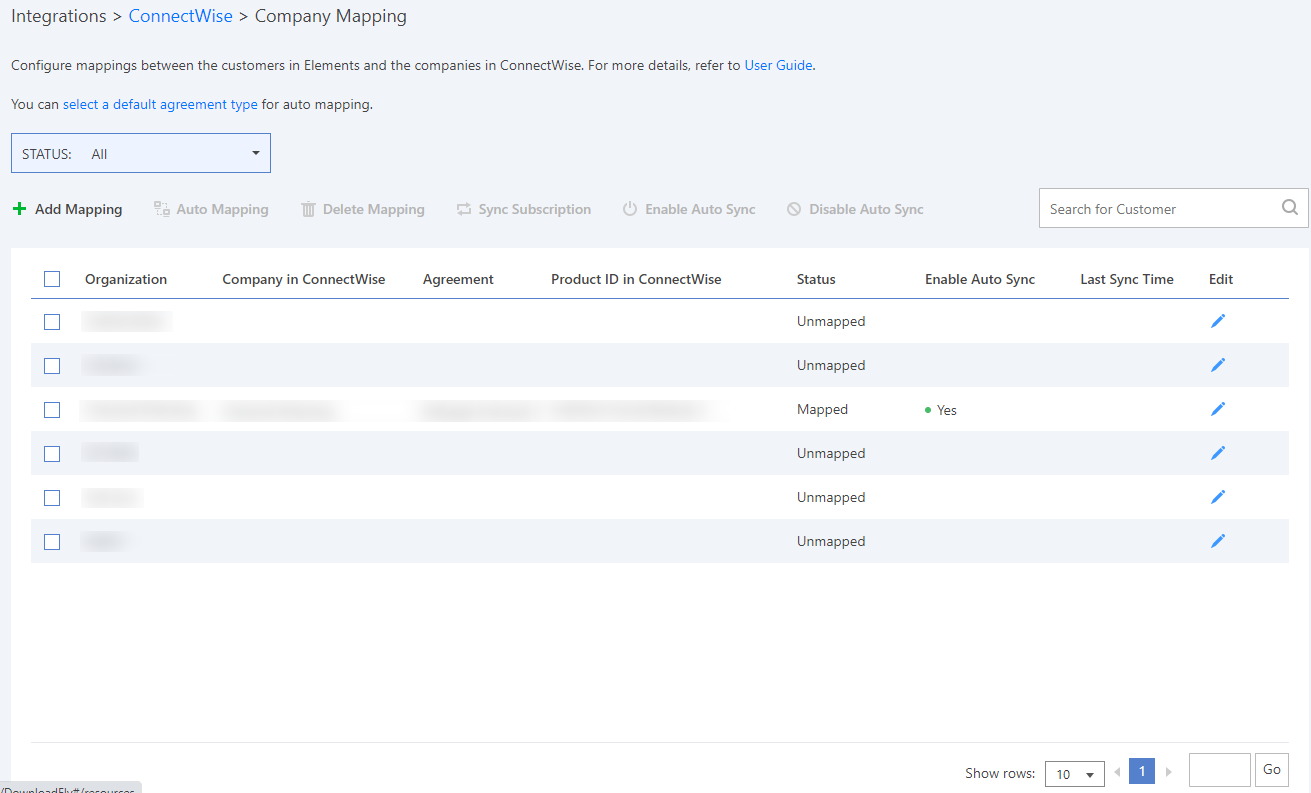
Complete the steps below to configure the company mappings and the synchronization jobs.
-
For mappings between the organizations in Elements and the companies in ConnectWise, you can take the following actions:
-
Add mapping – To manually add a mapping, refer to Add Mapping.
-
Auto mapping – To automatically map the organizations which are in the Unmapped status, refer to Auto Mapping.
-
Edit mapping – To edit the mapping for an organization, click the edit (
 ) button in the Edit column of a mapping. Edit the mapping settings, and then click the save (
 ) button to update a mapping.
 -
Delete mapping – To delete one or multiple mappings, select the checkboxes of organizations, and click Delete mapping. The confirmation window appears. Click OK to confirm the deletion.
-
-
For the organizations which are in the Mapped status, you can take the following actions:
-
Enable auto sync – To automatically synchronize the subscription information between the organization in Elements and the companies in ConnectWise, select the checkboxes next to the organizations where the auto sync is disabled, and click Enable auto sync.
-
Sync subscription – To manually synchronize the subscription information between the organization in Elements and the companies in ConnectWise, select the checkboxes next to the organizations, and click Sync subscription.
-
Disable auto sync – To not automatically synchronize the subscription information between the organization in Elements and the companies in ConnectWise, select the checkboxes next to the organizations where the auto sync is enabled, and click Disable auto sync.
-
Add Mapping
To add a company mapping, click Add mapping on the Company mapping page. In the Add mapping panel, configure the following settings:
Click Save to add a mapping.
Auto Mapping
Before auto mapping, you can also click the select a default agreement type link to search and select an agreement type for mapping all organizations.
To auto map organizations, select the checkboxes next to them and click Auto mapping on the Company mapping page. Search and select a default agreement type for mapping the organizations if you have not selected the default agreement type and click OK. Then, the Auto mapping page will show a table that lists the mapping results. You can manually edit the mappings.
The Auto mapping page only shows organizations that have been successfully mapped to companies in ConnectWise.
You can also delete one or multiple mappings on the Auto mapping page, select the checkboxes of organizations, and click Delete mapping. The confirmation window appears. Click OK to confirm the deletion.
Auto Mapping Rules:
Elements will auto map an organization to a company based on the following properties in order:
-
Organization name in Elements and company name in ConnectWise.
-
Domain of organization registered email in Elements and domain of the company’s contact.
When any of the above properties can be matched, Elements will check the agreements of the company in ConnectWise: