
Home > Workspace Management > View Workspaces of a Tenant > Exchange Management
Export to PDFExchange Management
When you click the Exchange tile, you can view and manage all mailboxes in the tenant. You can also create new shared mailboxes as required.
Create a Shared Mailbox
To create a shared mailbox, complete the following steps:
-
Click Create, select Shared mailbox as the resource mailbox type, and click Continue.
-
In the Set up the basics for shared mailbox window, enter the basic information for the shared mailbox:
-
Display name – Enter the name of the shared mailbox.
-
Email address – Enter the email address for the shared mailbox.
-
Alias – Enter the optional alias for the shared mailbox. Alias is a pseudonym under the specified email. If an alias is not provided, then it will be the same as the specified username in the Email address field.
-
Users – Select optional users who have the permissions to view and send email messages with this shared mailbox. Enter the email addresses or usernames to search for and select users.
-
-
Configure the Automapping setting – It is enabled by default. It automatically maps and loads any mailbox for which a user has full access permissions when Outlook starts and may cause performance issues.
-
Click Save.
Create a Room Mailbox
To create a room mailbox, complete the following steps:
-
Click Create, select Room mailbox as the resource mailbox type, and click Continue.
-
In the Set up the basics for room mailbox window, enter the basic information for the room mailbox:
-
Display name – Enter the name of the room mailbox.
-
Email address – Enter the email address for the room mailbox.
-
Alias – Enter the optional alias for the room mailbox. Alias is a pseudonym under the specified email. If an alias is not provided, then it will be the same as the specified username in the Email address field.
-
-
Click Continue to enter the Set properties window.
-
Set properties for the room mailbox as required, and click Continue.
-
In the Booking delegate settings window, complete the following settings:
-
Allow repeating meetings – Allows or prevents recurring meetings for the room.
-
Allow scheduling only during work hours – Accepts or declines meeting requests that are not during the working hours defined for the room mailbox. By default, working hours are 8:00 AM to 5:00 PM Monday through Friday.
-
Automatically decline meetings outside of limits below – Meeting requests are automatically declined if they violate the following limits.
-
Booking window (days) – The maximum number of days in advance that the room can be booked.
-
Maximum duration (hours) – The maximum duration that the room can be reserved in a meeting request.
-
-
Message reply to the meeting organizer – The text is used in a reply message sent to users who send meeting requests to reserve the room.
-
Booking requests – Select one of the following options.
-
Automatically accept or decline booking requests – Meeting requests are automatically accepted. Meeting requests are automatically declined in the following scenarios:
-
A scheduling conflict with an existing reservation.
-
The meeting request violates the scheduling limits of the room (for example, the meeting is too long).
-
-
Specify users who can accept or decline booking requests – Configure users in the text box. One of the users is responsible for accepting or declining meeting requests that are sent to the room mailbox. If you assign multiple delegates, only one needs to act on a meeting request.
-
-
-
Click Save.
Create an Equipment Mailbox
To create an equipment mailbox, complete the following steps:
-
Click Create, select Equipment mailbox as the resource mailbox type, and click Continue.
-
In the Set up the basics for equipment mailbox window, enter the basic information for the equipment mailbox:
-
Display name – Enter the name of the equipment mailbox.
-
Email address – Enter the email address for the equipment mailbox.
-
Alias – Enter the optional alias for the equipment mailbox. Alias is a pseudonym under the specified email. If an alias is not provided, then it will be the same as the specified username in the Email address field.
-
-
Click Continue to enter the Set properties window.
-
Set properties for the equipment mailbox as required, and click Continue.
-
In the Booking delegate settings window, complete the following settings:
-
Allow repeating meetings – Allows or prevents recurring meetings for the equipment.
-
Allow scheduling only during work hours – Accepts or declines meeting requests that are not during the working hours defined for the equipment mailbox. By default, working hours are 8:00 A.M. to 5:00 P.M. Monday through Friday.
-
Automatically decline meetings outside of limits below – Meeting requests are automatically declined if they violate the following limits.
-
Booking window (days) – The maximum number of days in advance that the equipment can be booked.
-
Maximum duration (hours) – The maximum duration that the equipment can be reserved in a meeting request.
-
-
Message reply to the meeting organizer – The text is used in a reply message sent to users who send meeting requests to reserve the equipment.
-
Booking requests – Select one of the following options.
-
Automatically accept or decline booking requests – Meeting requests are automatically accepted. Meeting requests are automatically declined in the following scenarios:
-
A scheduling conflict with an existing reservation.
-
The meeting request violates the scheduling limits of the equipment (for example, the meeting is too long).
-
-
Specify users who can accept or decline booking requests – Configure users in the text box. One of the users is responsible for accepting or declining meeting requests that are sent to the equipment mailbox. If you assign multiple delegates, only one needs to act on a meeting request.
-
-
-
Click Save.
Search for Mailbox Forwarding
With the Search for mailbox forwarding functionality, mailboxes that are automatically forwarding emails to a specific internal recipient can be found and listed.
Refer to the following instructions on searching:
-
Click Search for mailbox forwarding on the ribbon.
-
In the Search for mailbox forwarding panel, specify the following:
-
Recipient mailbox – Enter the internal recipient to which the mailboxes are forwarding email to.
-
Searching scope
-
Do not show results when the specified mailbox is contained in a recipient group mailbox – Results will not be listed when mailboxes are forwarding to a group mailbox and the specified recipient is a member of the group.
-
Show all results – The process will start to search for mailboxes forwarding to the recipient. To view the process status, you can go to the Process center. When the process is completed, you can download the report to view all results. For details, refer to Action Tracker.
-
-
-
Click Search to start the search. If Do not show results when the specified mailbox is contained in a recipient group mailbox is selected, the Search results panel will appear with results displayed in the table.
View and Manage Mailboxes
On the Mailbox details page, information and manageable settings are displayed in the following tabs:
Refer to the following sections on the available management operation and detailed steps.
Update mailbox basic information
-
Click the mailbox name to enter the Mailbox details page.
-
To edit the basics for the mailbox, stay at the Basic information tab and click the Edit (
 ) button to the right of each editable field after hovering over it. The editable fields are dynamic based on the recipient type of the mailbox.
 -
Click Apply changes in the upper-right corner of the page after you make changes to save and apply the changes.
View mailbox activities
To view the activities of a specific user/shared mailbox, including the mailboxes action and meeting action, click the mailbox name and you will be directed to the Mailbox details page. In the Activities tab, you can view the following mailbox activities.
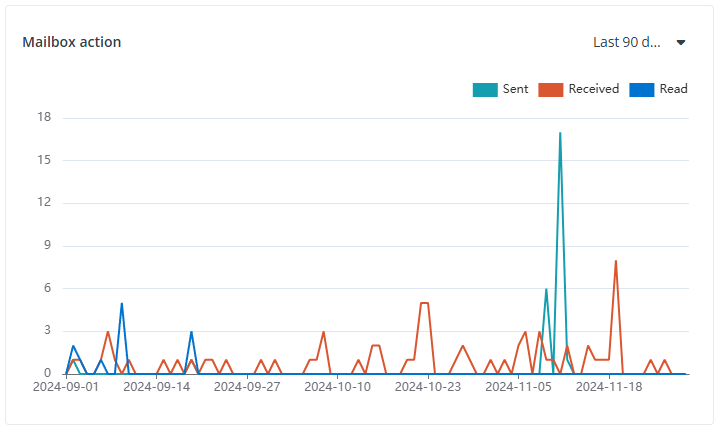
The Mailbox action chart shows the number of three mailbox actions operated in this mailbox in the specified time range. The actions include Sent, Received, and Read. On the chart, the X-axis depicts the date in the selected time range, and the Y-axis depicts the number of each action.
You can specify the time range of the chart on the top right of the chart from:
To hide a specific line in the chart, click the Sent, Received, or Read data category, the corresponding line in the chart will be hidden. You can hover your mouse over the line to view the detailed number of actions each day.
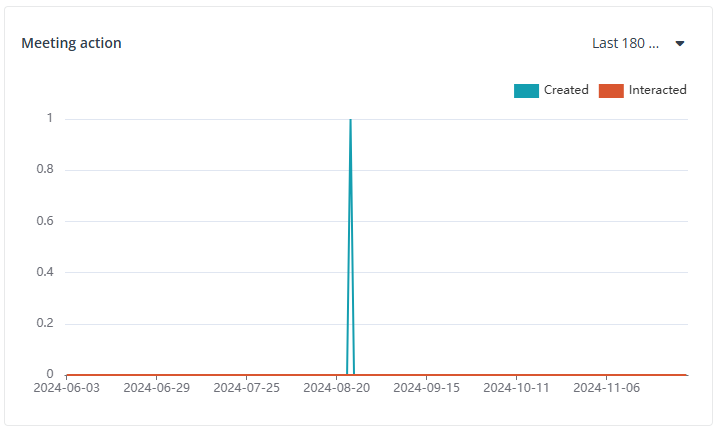
The Meeting action chart shows the number of meeting actions operated in this mailbox in the specified time range. The actions include Created and Interacted. On the chart, the X-axis depicts the date in the selected time range, and the Y-axis depicts the number of each action.
You can specify the time range of the chart on the top right of the chart from:
To hide a specific line in the chart, click the Created or Interacted data category, the corresponding line in the chart will be hidden. You can hover your mouse over the line to view the detailed number of actions each day.
Update mailbox settings
To update settings of a mailbox, complete the following steps:
-
Click the mailbox name to navigate to the Mailbox details page.
-
Switch to the Settings tab.
-
Click the Edit (
 ) button to the right of an editable field to edit the corresponding setting.
-
Litigation hold – Litigation hold preserves deleted mailbox items and records changes made to mailbox items. Deleted items and all instances of changed items are returned in a discovery search. Mailboxes on litigation hold cannot be deleted. To delete the mailbox, you must first remove the litigation hold.
-
Recipient limit – The maximum number of allowed recipients on the To, Cc, and Bcc lines of an email message sent from the mailbox. The default value is 500, and the available range is from 1 to 1000. For more information, refer to .
-
-
Click Apply changes in the upper-right corner of the page after you make changes to save and apply the changes.
-
Click Refresh in the upper-right corner to refresh the mailbox settings.
Convert Mailbox Recipient Type
You can convert user mailboxes to shared mailboxes or convert shared mailboxes to user mailboxes. To convert the mailbox recipient type, complete the following steps:
-
Select the user or shared mailboxes you want to convert in the mailboxes table.
-
Click the More actions (
 ) button and select Convert to user mailbox / Convert to shared mailbox.
 -
On the confirmation window, click Confirm to convert the mailbox recipient type.
*Note: Only mailboxes with the same recipient type can be converted in bulk. You can filter the recipient type by selecting the corresponding recipient type in the table filter.
Archive Mailboxes
Archiving mailboxes offer archiving capabilities with an archive mailbox feature. If you enable archive mailboxes, users will have specialized mailboxes that appear alongside the users’ primary mailbox folders and can access the archive as they access their primary mailboxes.
To enable or disable archive mailboxes, complete the following steps:
-
Select the user and/or shared mailboxes you want to update the archiving settings.
-
Click Archive above the table.
-
In the Archive panel, enable or disable mailbox archive. If you enable the mailbox archive, the Archive name setting appears.
-
Enter the Archive name or leave as default.
-
Click Save.
Hide Mailboxes from Address List
In an address list, mail-enabled recipient objects are grouped. If a mailbox is hidden from address lists, the mailbox can still receive emails. However, the mailbox cannot be found in address lists by users.
To hide or show mailboxes from the address list, complete the following steps:
-
Select the mailboxes you want to hide or show from the address list.
-
Click Hide from address list.
-
In the Hide from address list panel, enable or disable hide from the address list.
-
Click Save.
Copy Permissions
You can copy mailbox delegation permissions from one selected mailbox to another mailbox. To copy permissions, complete the following steps:
-
Select the mailbox you want to copy the permissions from.
-
Click Copy permissions.
-
In the Copy permissions panel, enter the display name or email address to search for mailboxes you want to copy the permissions to.
-
Select mailboxes to copy permissions to. You can select multiple mailboxes.
-
Click Save.
*Note: You can only select one mailbox to copy permissions from.
Delete Mailboxes
Select one or multiple mailboxes that you want to delete and click Delete above the table. The process will start to delete the mailboxes. To view the process status, you can go to the Process center. For details, refer to Action Tracker.