
Home > Microsoft CSP Integration > Create a Custom Azure App
Export to PDFCreate a Custom Azure App
To create a custom Azure app, follow the steps below:
-
Go to (or ).
-
Navigate to Identity > Applications > App registrations > New registration (or Microsoft Entra ID > App registrations > New registration).
-
On the Register an application page, enter your application’s registration information:
-
Name – Enter a name for the custom application.
-
Supported account types – Select Accounts in any organizational directory (Any Microsoft Entra directory - Multitenant).
-
Redirect URI – This field is required when you create a custom Azure app. Enter the URL of the Elements environment based on your scenario:
-
Commercial production environment: https://partner.avepointonlineservices.com/app/MicrosoftCspAuthenticationCallback
U.S. Government Production environment: https://govpartner.avepointonlineservices.com/app/MicrosoftCspAuthenticationCallback
-
Click Register to create the custom application.
-
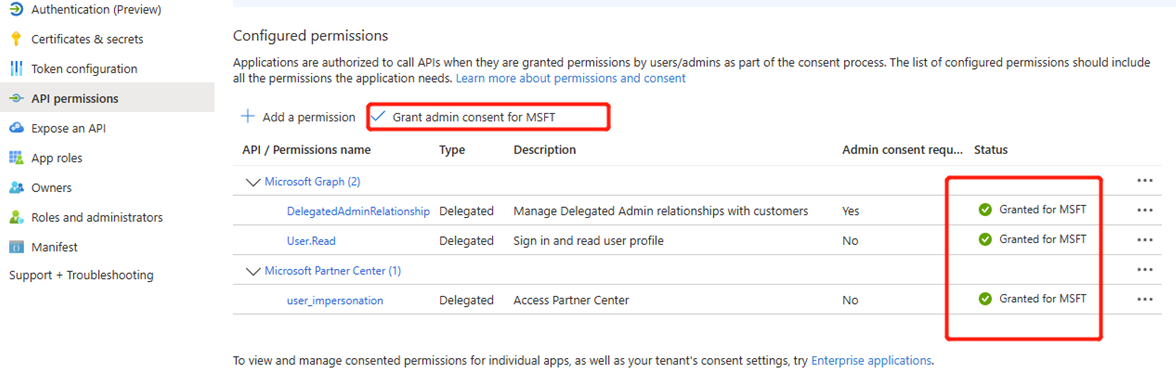
Click the created custom application and click API permissions. Refer to the table below to view the required permissions for this app.
-
Click Grant admin consent for [Tenant name] to grant admin consent. After you have successfully granted admin consent for the requested permissions, the Status will be Granted for [Tenant name].
-
The application uses secret authentication. Complete the following steps:
-
Go to Microsoft Entra admin center (or Microsoft Azure portal), select the application, and click Certificate & secrets.
-
Under the Client secrets tab, click New client secret.
-
In the Add a new client secret panel, enter a description, select the expiration period from the drop-down list, and click Add.
-
Upon creation, the client secret value will be displayed once. Copy and store it immediately.
-
-
After app registration, you need to find and record the following values for future use when adding CSP partners.
-
Application ID – Located on Overview page of the custom Azure app.
-
Application Secret – Found under the Certificates & secretes page of the custom Azure app.
-
Domain – Available in the Properties page of your Microsoft Entra ID.
-
The table below lists the permissions required by the custom Azure app.
| API | Permission | Type | Purpose |
|---|---|---|---|
| Microsoft Graph | DelegatedAdminRelationsip(Manage Delegated Admin relationships with customers) | Delegated | Push app to customer’s tenant. |
| Microsoft Graph | User.Read(Sign in and read user profile) | Delegated | Retrieve users from customer’s tenant. |
| Microsoft Partner Center*Note: Make sure you select the permission under the newer Partner Center application (Application ID: fa3d9a0c-3fb0-42cc-9193-47c7ecd2edbd). This is the current, supported standard that Microsoft is actively developing and improving. | user_impersonation(Access Partner Center) | Delegated | Retrieve customer list from Partner Center. |