
Home > Device Management > Overview
Export to PDFDevice Management
The Device management module helps you keep your managed devices secure and up to date while helping you protect the data of your customer organizations from compromised devices.
Add a Tenant
When you assign the User and device management service to a customer and consent to the app during the process of onboarding the customer or adding services for the customer, the customer’s tenant will be automatically displayed in this module.
If an existing customer has tenants that want to use the functionalities of this module, you can add those tenants to the module.
*Note: If you add a tenant to the Device management module, the tenant will also be available in the User management module.
Refer to the following steps to add a new tenant of an existing customer to the module:
-
On the Device management page, click Add tenant in the upper-right corner.
-
Select a customer from the drop-down list.
-
Complete the subscription information for this service:
-
Subscription type – Select the subscription type for this service: Trial or Subscription.
*Note: For Trial, you can assign up to 5 customers, and the subscription expiration date is fixed. This number is calculated among all premium services.
-
Source – Select a value to indicate the source of your subscription.
-
Payment type – Select the payment type.
-
User seats – Select the number of users you want to assign the subscription.
-
Subscription expiration date – By default, Same as pooled subscription is selected to keep the same expiration date as the pooled subscription. You can select Expire now or select Specify a time to set an expiration date for the customer’s subscription.
-
Contract end date – Click the calendar button and select the contract end date.
-
-
Click Continue.
-
Select a tenant of the customer.
If there are no available tenants for the customer, you can click Add new tenant. For detailed instructions on how to add a tenant, refer to Add a Microsoft 365 Tenant.
-
If the APElements Security and Analysis app for the tenant has already been consented, an app consented (
 ) icon will appear. Click Save to add the tenant.
This typically occurs during the process of assigning the User and device management service to a customer and consenting to the app during the process of onboarding customer or adding services.
-
If the APElements Security and Analysis app for the tenant needs to be consented, complete the following steps:
-
Click Authenticate.
-
The permissions required for this app are displayed. Review the permissions and click Accept.
-
A page appears indicating that the app was authorized. Close this page, and you will be redirected back to the Add tenant window.
-
Click Save to add the tenant.
-
*Note: Elements will automatically create scan profiles in AvePoint Online Services to retrieve data from Microsoft 365 tenants. These scan profiles are crucial for the system’s functionality and should not be manually deleted. To ensure continuous data retrieval, a daily backend job runs at 00:00 UTC to update tenant information. If any scan profiles have been deleted, this job will recreate them to maintain continuous data retrieval capabilities.
Disconnect a Tenant
You can disconnect tenants from this module. Upon disconnection, the tenants will no longer appear in the module pages, and all user management data and Device management data of these tenants will be permanently deleted.
When a customer’s subscription for the User and device management expires, the functionalities provided by the service will be unavailable for all tenants of the customer. Click the Expired link, and the Edit subscription window appears, allowing you to update the subscription for the customer directly.
You can also disconnect the expired tenants from the module. To disconnect a tenant, select the tenant, click Disconnect tenant, then enter Yes in the text box and click Disconnect in the confirmation window.
*Note: The Disconnect tenant button will be unavailable if the selected tenant is currently in the In progress status. Please wait until the process is complete before you attempt to disconnect. If you disconnect a tenant from the Device management module, the tenant will also be removed from the Device management module.
View Overview Statistics of a Tenant
When you click a tenant name on the Device management page, you switch to the tenant level.
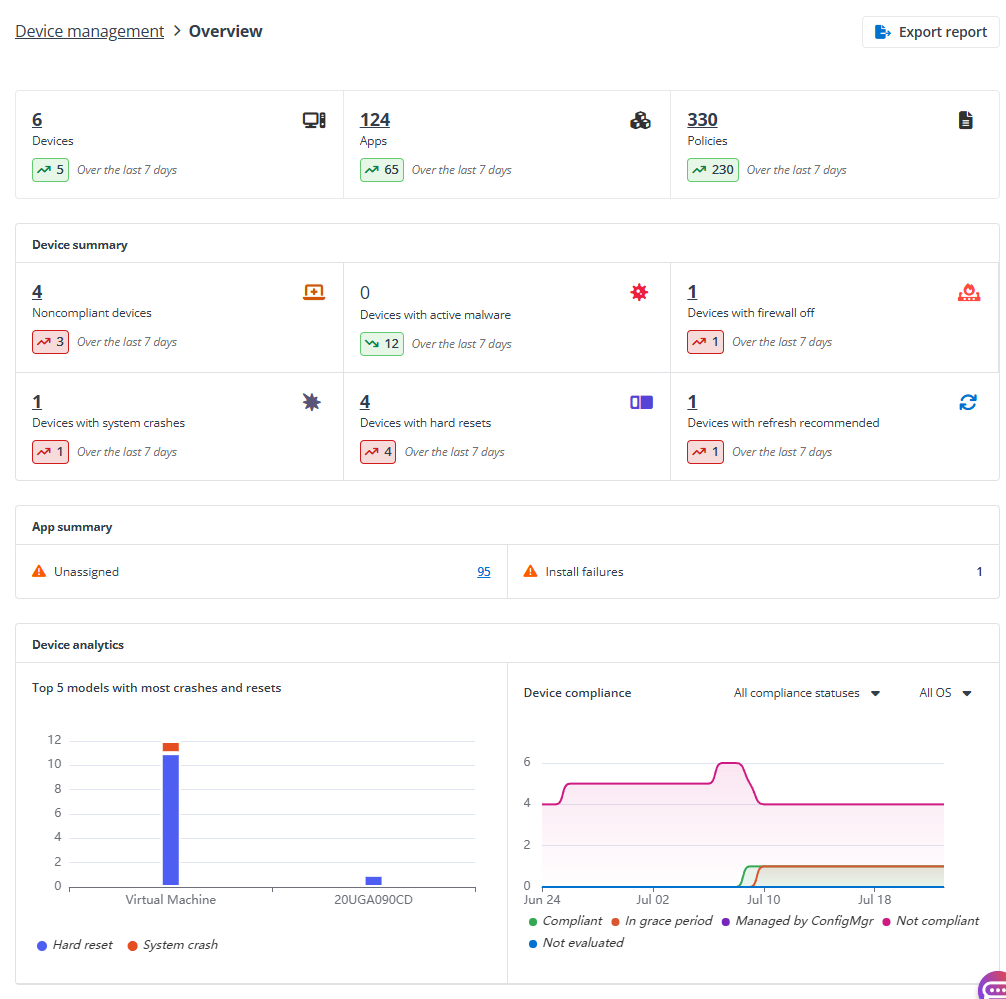
You’ll be brought to the Overview page where you can view the tenant overview statistics. Click Export report allows you to export the statistics to a PDF file.
Windows Autopilot Devices
On the Windows Autopilot devices page, the devices that are registered with the Windows Autopilot service are listed in the table.
*Note: Windows Autopilot related features are currently not available for GCC High tenants.
Click the serial number of a device to access the Device details page where you can view the general information of the device in the Basics tab. Click Assign user in the upper-right corner, find ad select a user for the device, and click Add to assign the Autopilot device to the user. If an Autopilot device is assigned to a user, then any user policies and application installs assigned to that user is applied to the device during the Autopilot process.
Click Refresh to refresh the device list.
Click Export to export the Windows Autopilot devices to an Excel file.
Windows Autopilot Import History
On the Windows Autopilot import history page, all import actions are listed in the table with the status. You can click Export to export the import history into an Excel file.
To add Windows Autopilot devices by importing a CSV file, complete the following steps:
-
Click Import CSV in the upper-right corner and the Add Autopilot devices window appears.
-
Click Browse and select the CSV file where devices are configured with hardware hashes, and click Import to start importing the device information.
-
Click Refresh until the new devices appear.
For more details, refer to .
General Settings
On the General settings page, the device settings, members allowed to join devices, and local administrator settings can be viewed.
You can edit the device settings as required, and click Apply changes on the top to save and apply the changes.