
Home > Workspace Management > View Workspaces of a Tenant > Manage Teams
Export to PDFManage Teams
When you click the Teams tile, you can view and manage Teams in the table. You can also create new Teams as required.
Create a Team
To create a Team, complete the following steps:
-
Click Create with template above the table and click Create from the drop-down list.
-
In the Create Team panel, enter the basic information and configure the settings for the Team:
-
Name – Enter the name of the Team.
-
Description – Enter the optional description for the Team.
-
Owner – Select the owners for the Team. Enter the display name or email address of the user and select the user. You can add multiple owners for a Team.
-
Members – Select the members for the Team. Enter the display name or email address of the user and select the user. You can add multiple members to a Team.
-
Sensitivity – Select the sensitivity label you would like to apply to the Team.
-
Privacy – Configure the privacy setting for the Team. Select from Private and Public.
-
Private Teams aren’t open for everyone to join them and Team owners are the only ones that can add members to them. These Teams won’t show up in search results or in the Teams gallery.
-
Public Teams can be seen by everyone from the Teams gallery, and people can join them without getting approval from a Team owner.
-
-
-
Click Create to create the Team.
Create a Team with Template
To create a Team with an existing provisioning template, complete the following steps:
-
Click Create with template above the table and click Create with template from the drop-down list.
-
In the Create with template window, select a template and enter the requester for which you create the Team.
*Note: Only the provisioning templates with the corresponding type that are published to the tenant can be selected here.
-
Click Continue to continue the settings for the Team.
-
Enter a name and optional description for the Team.
-
Complete the configurable settings for the Team based on the template.
-
Click Create to create the Team with the template.
-
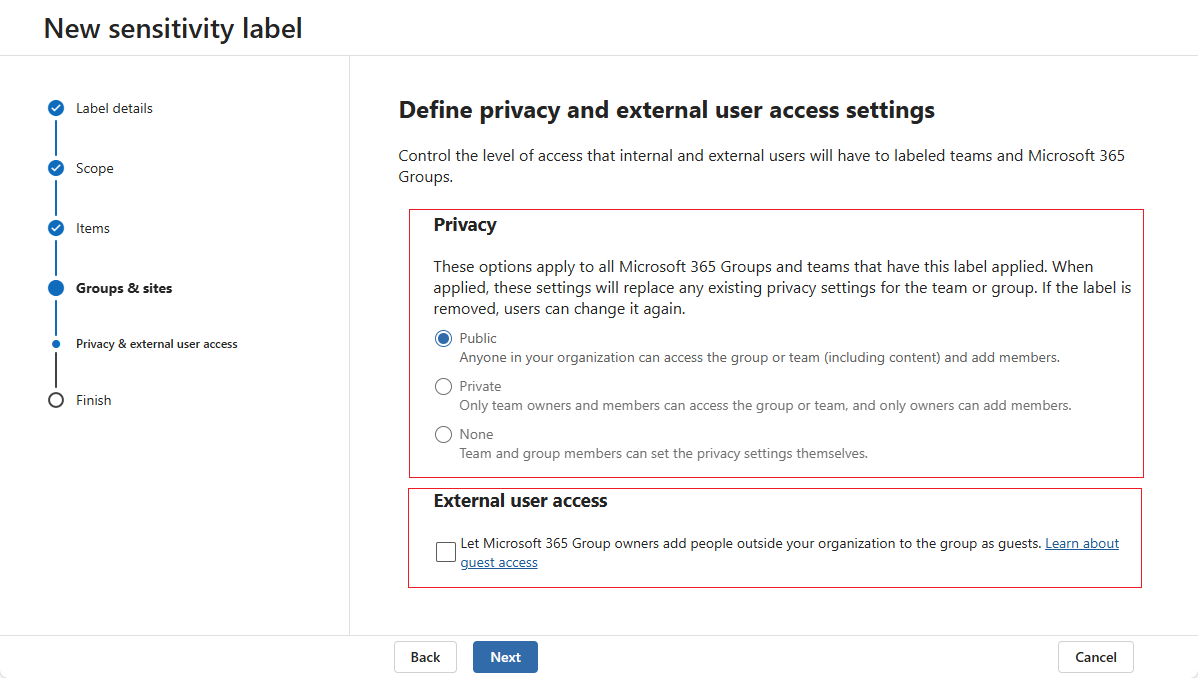
*Note: The privacy and external user access settings of the sensitivity label selected for the Team will affect the Team settings above.
-
-
The Team privacy will be adjusted automatically based on the privacy setting of the sensitivity label. If the sensitivity label is configured to not let Microsoft 365 Group owners add people outside your organization to the group as guests, guest users cannot be added as members for the Team.
-
View and Manage Teams
You can view the detailed information of Teams in the tenant as well as manage Teams’ settings.
To view the details of a Team, click the Team’s display name to go the Teams details page. Information and manageable settings are displayed in tabs:
Refer to the following sections for the available management operations and the steps to manage them.
Update Team basic information
-
Click the Team display name to enter the Team details page.
-
To edit the basics for the Team, stay at the Basic information tab and click the Edit (
 ) button to the right of each editable field after hovering over it. The editable fields will show:
-
Workspace name
-
Description
-
Privacy
-
Sensitivity label
-
Copilot search included
-
-
Click Apply changes on the top of the tab after you make changes to save and apply the changes.
Update Team members
You can add Team members, assign Team owners, or remove Team members from the Team.
To add Team members, complete the following steps in the Members tab:
-
Click Add.
-
In the Add users panel, search members by display name or email address and select members to add. You can only add a maximum of 20 members at a time. The selected users appear below the Users.
-
Select from Member and Owner for the users to add them as members or owners of the Team.
-
Click Save.
-
To remove Team members, complete the following steps:
-
Select the members you want to remove and click Remove.
-
In the Remove users confirmation window, click Remove.
-
To promote a member as an owner or demote an owner as a member, select Owner or Member from the drop-down list in the Role column. The role of the user in this Team will be updated.
Manage Team channels
For Team management, in the Channels tab, you can create channels, delete channels, and update channel information and settings.
To create a channel, complete the following steps.
-
Click Create.
-
In the Create channel panel, complete the channel information and setting, including:
-
Channel name – Enter the name for the channel.
-
Description – Enter an optional description for the channel.
-
Type – Select a type for the channel.
-
Standard channel is accessible to everyone on the Team.
-
Private channel is accessible only to a group of people within the Team.
-
Shared channel is a collaboration space where people who aren’t in the Team can be invited.
If you select Private or Shared, the Channel owner setting appears for you to select the channel owner.
-
-
-
Click Save.
-
To delete channels, complete the following steps:
-
Select the channels you want to delete and click Delete.
-
In the Delete channel confirmation window, click Delete to delete the channels.
*Note: You cannot delete channels in archived Teams, or delete the General channel in a Team.
-
To edit a channel’s basic information, complete the following steps:
-
Select the channel you want to edit, then click Edit.
-
In the Edit channel panel, update the Channel name or Description for the channel.
-
Click Save.
*Note: You cannot edit the General channel in a Team.
To manage permissions of a private or shared channel, complete the following steps:
-
Click the channel name to access the Channel details page.
-
Click Add to add members to the channel.
-
Search for and select the users you want to add to the channel.
-
Select Member or Owner from the drop-down list for each user.
-
Click Save.
-
To remove members from a private or shared channel, complete the following steps:
-
Click the channel name to access the Channel details page.
-
Select the members you want to delete and click Remove. The Remove users confirmation window appears.
-
Click Remove.
-
*Note: You cannot remove the last channel owner.
Update Team settings
-
Click the Team display name to enter the Team details page.
-
To edit settings for the Team, switch to the Settings tab.
-
Click Apply changes in the upper-right corner of the page after you make changes to save and apply the changes.
Handle workspace issues (Preview)
You can handle workspace issues that are flagged by tenant users for administrator’s assistance or missing owner issues under the Workspace issues tab.
Select a Flag for help issue and click Review issue, and the Review flagged issue window appears. After reviewing the general information of the object and the issue type, the following actions can be performed:
Delete Teams
Select one or multiple Teams that you want to delete and click Delete above the table. The process will start to delete the Teams. To view the process status, you can go to the Process center. For details, refer to Action Tracker.
Archive or Unarchive Teams
After the end of a project, you can archive the related Team. When you archive a Team, the activity for that Team ceases, and private channels in the Teams and the associated site collections will also be archived. However, you can still add or remove members and update roles for the Team, and you can still view the Team activity, private channels, and chats.
To archive or unarchive a Team, complete the following steps:
-
Select the Teams you want to update in the table.
-
Click Archive or Unarchive.
-
If you are archiving the Teams, select Make the SharePoint site read-only for Team members on the confirmation window if it is needed, and then click Archive to save the updates.
-
If you are unarchiving the Teams, the Teams will be unarchived upon clicking Unarchive.
Edit Membership
To perform bulk operation to edit membership for Teams, complete the following steps:
-
Select the Teams to which you want to edit membership.
-
Click Edit membership.
-
In the Edit membership window, select the role for which you want to edit the membership, Owners, Members, or Guest.
-
Select the bulk operation you want to perform:
-
Add users – Specify the users you want to add as owners or members.
-
Replace user – Configure the original user and new user to replace the original user with the new user as owner or member.
-
Remove users – Specify the users you want to remove from the Owners or Members group.
-
Remove all users – This option is only available when the Members role is selected. Select it to remove all members from the Members group for the workspaces.
-
Remove all guests – This option is only available when the Guest role is selected. Select it to remove all guests from the workspaces.
-
-
Click Save to save the membership changes.
Apply a Sensitivity Label
To apply a sensitivity label to Teams, complete the following steps:
-
Select the Teams to which you want to apply a sensitivity label.
-
Click Apply sensitivity label.
-
In the Apply sensitivity label panel, select the sensitivity label you would like to apply to the selected Teams.
*Note: You can only apply labels whose scope is site/group to Teams.
-
Click Apply. The process will start to apply the sensitivity label. To view the process status, you can go to the Process center. For details, refer to Action Tracker.
Apply a Lifecycle Policy
To apply a lifecycle policy to Teams, complete the following steps:
-
Select the Teams to which you would like to apply the lifecycle policy.
-
Click Apply lifecycle policy on the ribbon.
-
In the Apply lifecycle policy panel, select the lifecycle policy you would like to apply.
-
Click Apply to update the changes.
Alternatively, you can follow the steps below to apply a lifecycle policy to a Team:
-
Click the Team display name to enter the Team details page.
-
Switch to the Governance details tab, and click the edit (
 ) button in the Applied lifecycle policy field.
 -
In the Apply lifecycle policy panel, select the lifecycle policy you would like to apply.
-
Click Apply to save and apply the lifecycle policy.
-
*Note: If the Team has ongoing renewal task, you can select how to handle it before applying the new lifecycle policy.
-
Do not apply the new policy.
-
Cancel the ongoing renewal task and apply the new policy.
-
Restart Renewal Process
To restart the renewal process of Teams, complete the following steps:
-
Select the Teams you would like to restart the renewal process.
-
Click Restart renewal process on the ribbon.
-
If the Team has a renewal task generated, you can choose whether to inform the task assignee about the task cancellation by selecting or deselecting the Send a cancellation email to the task assignees option.
-
In the confirmation window, click Restart. The process will start to restart the renewal process for the selected Teams.
-
*Note: You can only restart the renewal process for the workspaces of which the tenant has a lifecycle policy applied.
Auto-complete Renewal Process
To auto-complete the renewal process of Teams, complete the following steps:
-
Select the Teams you would like to auto-complete the renewal process.
-
Click Auto-complete on the ribbon.
-
In the Auto-complete window, select In compliance or Renewal canceled to indicate the phase status of the auto-completed renewal.
-
You can choose whether to inform the task assignee about the auto-completed renewal by selecting or deselecting the Send a cancellation email to the task assignees option.
-
Click Auto-complete. The process will start to auto-complete the renewal process for the selected Teams.
Apply a Compliance Policy
To apply a compliance policy to Teams, complete the following steps:
-
Select the Teams to which you would like to apply the compliance policy.
-
Click Apply compliance policy on the ribbon.
-
In the Apply compliance policy panel, select the compliance policy you would like to apply.
-
Click Apply to update the changes.
Alternatively, you can follow the steps below to apply a compliance policy to a Team:
-
Click the Team display name to enter the Team details page.
-
Switch to the Compliance details tab, and click the edit (
 ) button in the Compliance policy field.
 -
In the Apply compliance policy panel, select the compliance policy you would like to apply.
-
Click Apply to save and apply the compliance policy.
Include or Exclude Teams for Copilot Search
For the tenant that restricts both organization-wide search and Copilot experiences to a curated set of workspaces, you can define the allowed list.
-
Select the Teams you want to add to the allowed list.
-
Click Include in Copilot search.
-
In the confirmation message, you can view the number of workspaces that are already in the allowed list. Click Include in Copilot search to add the selected Teams to the allowed list.
-
To exclude Teams from the allowed list, select them and click Exclude from Copilot search.
-
Click Exclude from Copilot search in the confirmation message to exclude the Teams from the allowed list.