
SharePoint

tyGraph for SharePoint provides detailed analytics for intranet sites, pages, and files, enabling tracking of collaboration and evaluation of SharePoint investment performance.

In Reports > SharePoint, you can view the following reports in separate pages:

- **Sites that I own** - **Site inventory** - **Site engagement**

All visuals in the SharePoint report pages support exporting data to CSV or XLSX formats, allowing report users to download and analyze insights for deeper reporting or sharing.
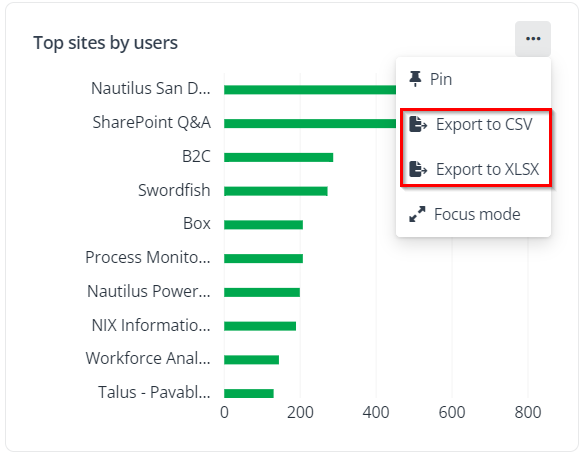
Export report to CSV or XLSX.

Sites that I Own

On the Sites that I own page of SharePoint, a list of sites is displayed for business users who have been granted full control permissions to the sites. They can view the number of unique users who have accessed and visited each site in the specific date range, and by clicking the site title, they can redirect to the Site details page for more reporting data.

You can view the statistics of each site collection and click the site title to access the details page. The following statistics on the site collection are available for analysis.

- **Active users** – The total unique users with any activity in the report period. This includes file views, accessed, downloaded, synced, previewed, and more. If you filter the activity types, it will reduce the number of ways someone could be considered active. - **Unique file viewers** – The total unique users who viewed a file in the report period. - **Unique page viewers** – The total unique users who viewed a page in the report period. - **Total shares** – The total unique users who shared a file in the report period. - **File activity by type over time** – This chart shows the total activities or unique users for different file types over a period of time. - **Page activity** – Page activities on a site showing the number of views and unique viewers. Click the Flame icon or the External link icon beside the page name to open a new tab, and you will be redirected to the corresponding tyGraph Pages reports or tyGraph Pages Site Analytics web part if deployed. ![Icons.](/en/tygraph/report-center/images/image26.png "Icons.") - **Site activity by folders and files** – This chart shows the site activities by folders and files across different site objects. Click the External link icon beside the document name to download the document. - **Total activities over time** – This chart displays total activities of various types (such as downloads and shares) across different user properties over a period of time. Hover the mouse over a data point to display the detailed information based on your selected filter condition. - **Total consumers** – This chart displays total activities or unique users categorized by user property to analyze the most active users in all interactions. - **External usage** – Total activities of external users on your site. External users are people who have been captured activity for but are not listed in your Active Directory.

Site Inventory

On the Site inventory page of SharePoint, you can access an inventory list that provides detailed information about the various sites and properties owned and operated by your organization. Users who have been granted view permission to the site collections can access the Site details page by clicking the site collection title.

You can click each report title on the top of this page to filter different site collection lists on sites of that type.

The following statistics on the site collection are available for analysis.

- **Classic sites** – The number of classic sites in a site collection. - **Modern sites** – The number of modern sites in a site collection. - **Unassociated** – The number of sites that are not associated with Microsoft Teams or Viva Engage in a site collection. - **Teams connected** – The number of sites that are connected to Microsoft Teams in a site collection. - **Viva Engage connected** – The number of sites that are connected to Viva Engage in a site collection. - **Engaged site collection activity** – The user engagement and activities related to site collections during the specified report period. If you click the link of a site collection, you will be redirected to the details page in SharePoint Online.

Site Engagement

On the Site inventory page of SharePoint, the report displays your user engagement, the types of activity that are happening on your sites, and which sites have the highest level of engagement.

The following statistics on the site collection are available for analysis.

- **Engaged sites** – The total unique sites with activity during the specified report period. - **Unique page viewers** – The number of individual users who viewed a page on your site during the specified report period. It provides insights into the popularity and engagement level of your web pages. - **Pages views** – The number of times a specific page on your site is loaded during the specified report period. - **Peak views (UTC)** – The time with the peak number of unique page viewers. The time zone is always UTC for this model. - **Top sites by users** – Top sites ranked by the total unique viewers during the specified report period. - **Top pages by unique viewers** – Top pages ranked by the unique page viewers. A user who views the same page repeatedly within a certain period will be counted as a single view. - **Engaged users by department** – Engaged users and total users by department. - **Unique page viewers over time** – The number of unique page viewers and the percentage change in unique page viewers over time.

Stream Video Analytics

The SharePoint Stream video analytics page provides insights into top-performing videos, focusing on unique viewers rather than total views. This approach helps content owners understand audience engagement and the effectiveness of their content.

You can view the statistics of each video and click the link to access the details page. The following metrics are available for analysis.

- **Top videos** – Displays the 50 most watched videos based on unique viewers. Click the video title to view the detailed analytics including unique/total viewers over time and video viewer list. - **Top creators** – Displays the creators of top 50 Stream videos. - **Top video viewers** – The top 50 video ranked by the number of users that viewed. - **Videos watched over time** – Total number of unique videos watched by unique viewers per day. - **My videos** – View my videos sorted by popularity. Click the links for detailed information on each video. - **My** **video viewers over time** – Track my video viewers by analyzing unique viewers over time.