
Home > Scan Job Status
Download this articleScan Job Status
Navigate to Settings > Scan, administrators can validate permissions, roles, and configurations for data collection. The scan job runs every 24 hours to retrieve activity data from Microsoft Graph, and the collected data will be displayed in tyGraph reports. Click the Refresh button to retrieve the latest status of the data collection jobs.
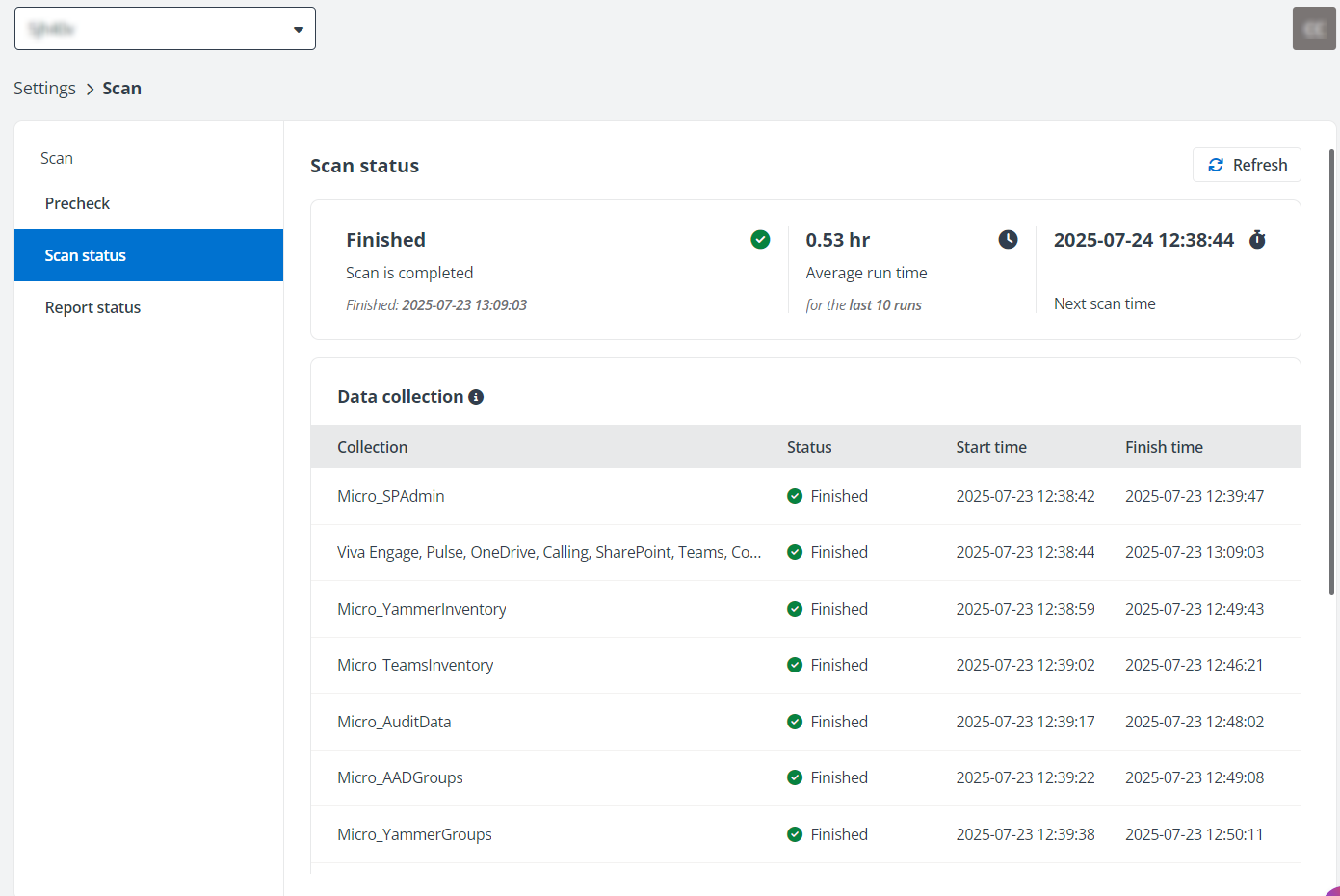
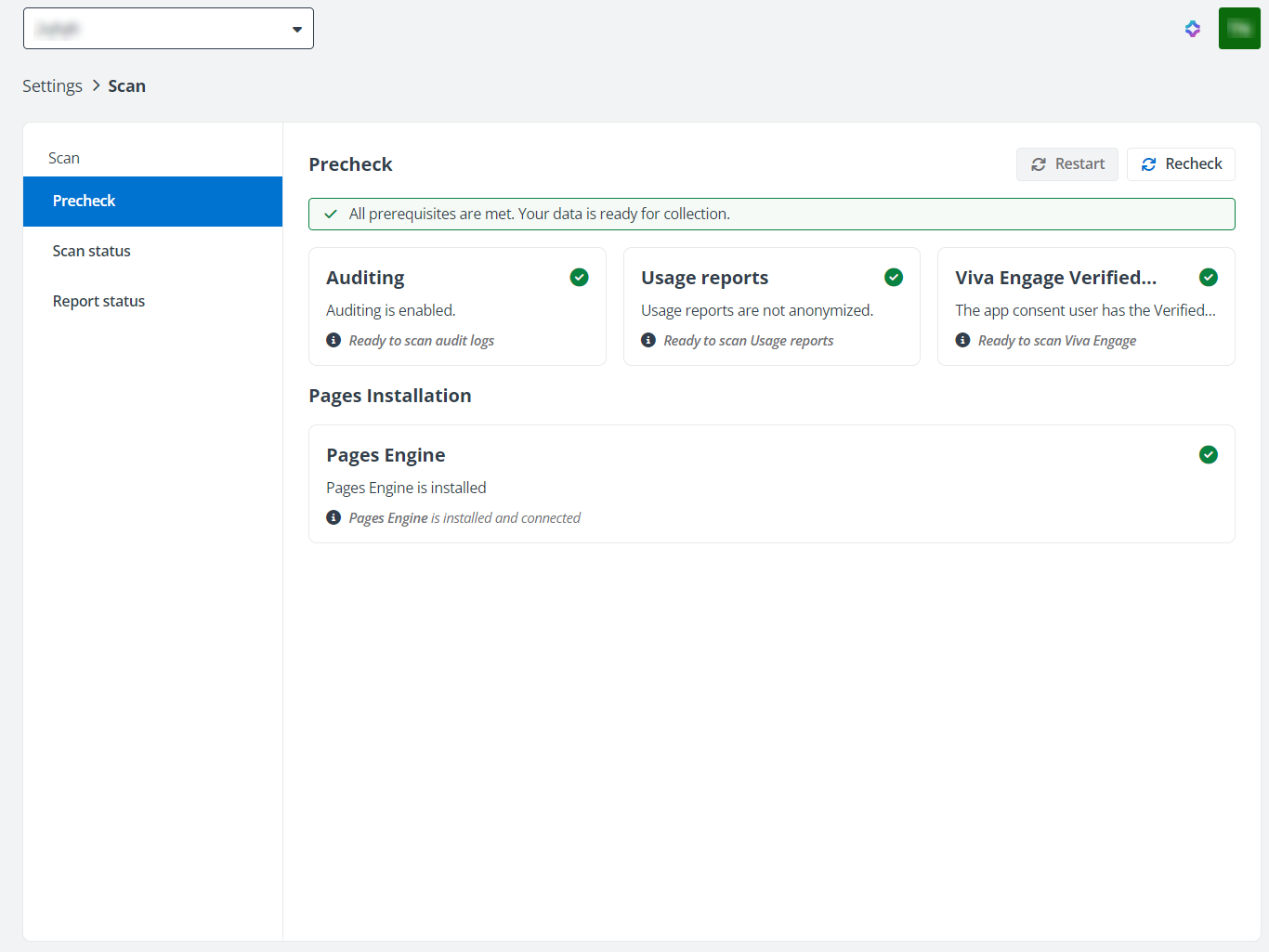
If your scan failed, administrators can go to the Settings > Scan page to check the scan status, schedule, and alerts through the Scan status tab, and go to the Precheck tab to check whether the prerequisites for data collection are met. After you complete all the configurations, click Restart to verify and run the scan job again. Click Recheck to validate whether all prerequisites for data collection continue to meet the required standards.
-
Auditing – Make sure auditing has been turned on in Microsoft 365, so that you can access auditing data or logs for your organization. Refer to Turn auditing on or off for more information.
-
Usage reports – Microsoft 365 usage analytics now pseudonymizes user-level information by default, and the scan job will be affected due to this change. Global administrators need to revert the changes for their tenants and show identifiable user information by the instructions below:
-
In the Microsoft 365 admin center, go to Settings > Org Settings > Services and select Reports.
-
Deselect the Display concealed user, group, and site names in all reports option.
Refer to Privacy changes to Microsoft 365 Usage Analytics for more information.
-
-
Viva Engage Verified Administrator – For Viva Engage reports, ensure the user who consent app permissions have at least the Viva Engage Verified Administrator role for a successful data retrieval. If your subscription does not contain Viva Engage, this tile won’t be displayed.
-
Page Engine – To enable data collection on SharePoint pages, you must install the Page Engine app in your SharePoint environment. For details, refer to Install the tyGraph Pages Engine App.
On the Report status page, Administrators can view the date of the latest data available in reports for each module and check the refresh status of Power BI embedded reports. If a report refresh fails, administrators can restart the refresh process.
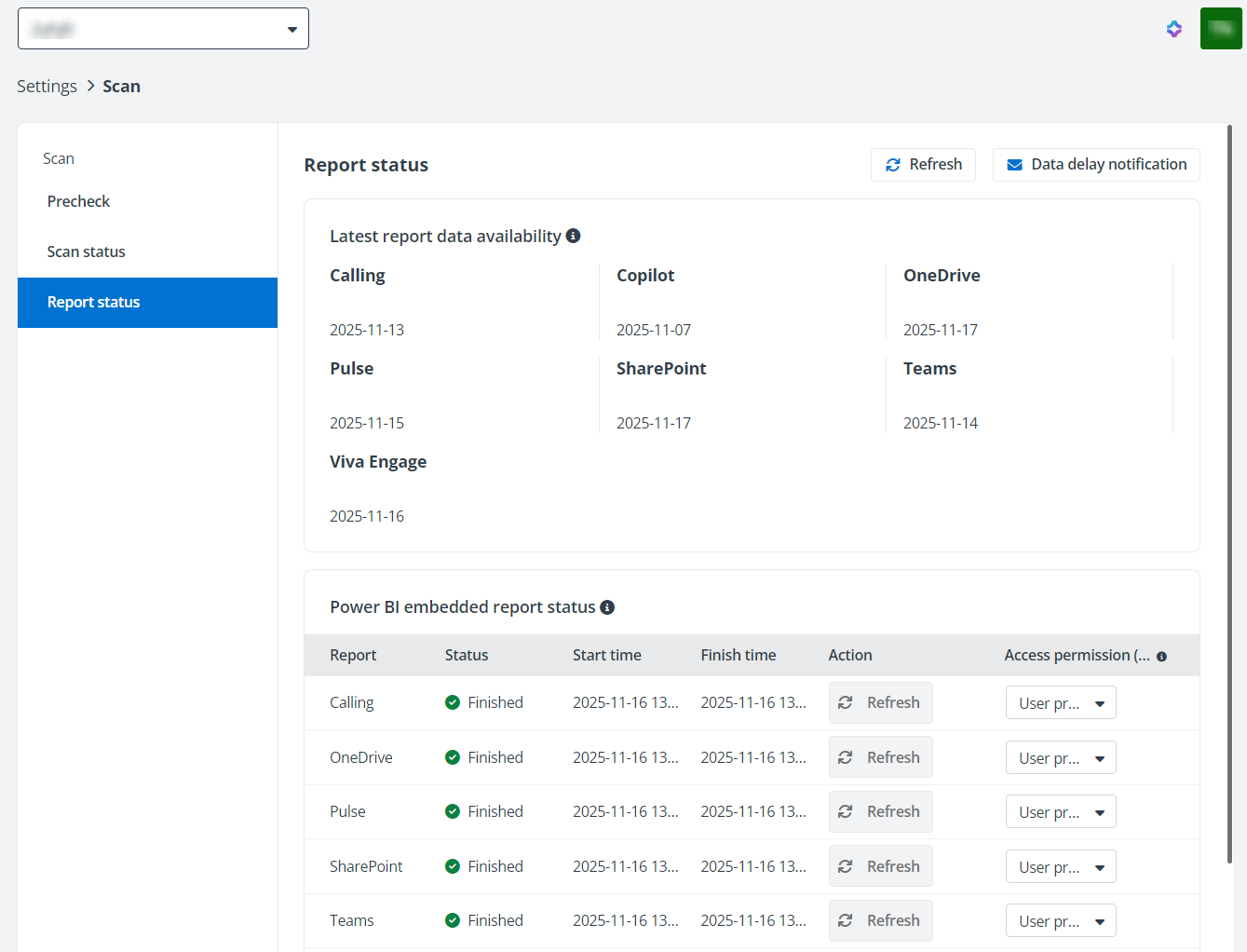
Apart from viewing detailed information about report status, administrators can perform the following actions:
-
Configure RLS access permission for each Power BI embedded report module
In the Power BI embedded report status table, select a user property configured in the Power BI Row-Level Security (RLS) settings to restrict users from viewing only the data associated with that property, or choose to grant them full access to the reports. Then click Refresh to initiate the refresh process. RLS access permission will be applied once the refresh is successfully completed.
-
Configure automatic email alerts for data scanning delays
Complete the following settings to configure notification settings to automatically send data delay emails for specified modules:
-
Click Data delay notification.
-
Specify modules and configure settings to automatically send emails when data scanning delays occur.
-
Set the number of days that trigger a notification if scanning is delayed beyond this period.
-
Choose whether to Send notifications to service administrators and application administrators or specify Additional contacts to notify.
-
Click Save to apply the configurations.
-
Configure Precheck Alerts
Configure pre-check alerts to receive email notifications when configuration issues may impact data collection. To configure precheck notifications, follow the steps below:
-
Navigate to Settings > Scan > Precheck.
-
Click more actions button on the upper-right corner, click Precheck & Data collection failure notification.
-
In the panel, configure the following settings:
-
Enable or disable notification to send notifications when precheck conditions are not met or data collection fails.
-
Use the Notification threshold to set the alert will be triggered after the failure persists for specific days.
-
Choose whether to Send notifications to service administrators and application administrators.
-
Add Additional contacts as you need.
-
-
click Save to save your configurations.