
Home > Report Analytics > Connect Power BI Reports to Your Data
Download this articleConnect Power BI Reports to Your Data
The Analytics page provides you with the reporting tools for the supported modules for you to install in Microsoft Power BI without a licensed Power BI embedded module in your organization. By clicking Get it now for each module on the Analytics page, you can install the following Power BI apps in Microsoft AppSource:
-
tyGraph Calling
-
tyGraph for OneDrive
-
tyGraph Pulse
-
tyGraph SharePoint Analytics
-
tyGraph Teams
-
tyGraph Viva Engage
-
Microsoft Copilot
Additionally, the Report Management page empowers administrators to seamlessly integrate custom Power BI reports into the tyGraph interface using Power BI embed URLs. This feature ensures centralized, controlled access to analytics, enabling stakeholders across the organization to leverage insights efficiently.
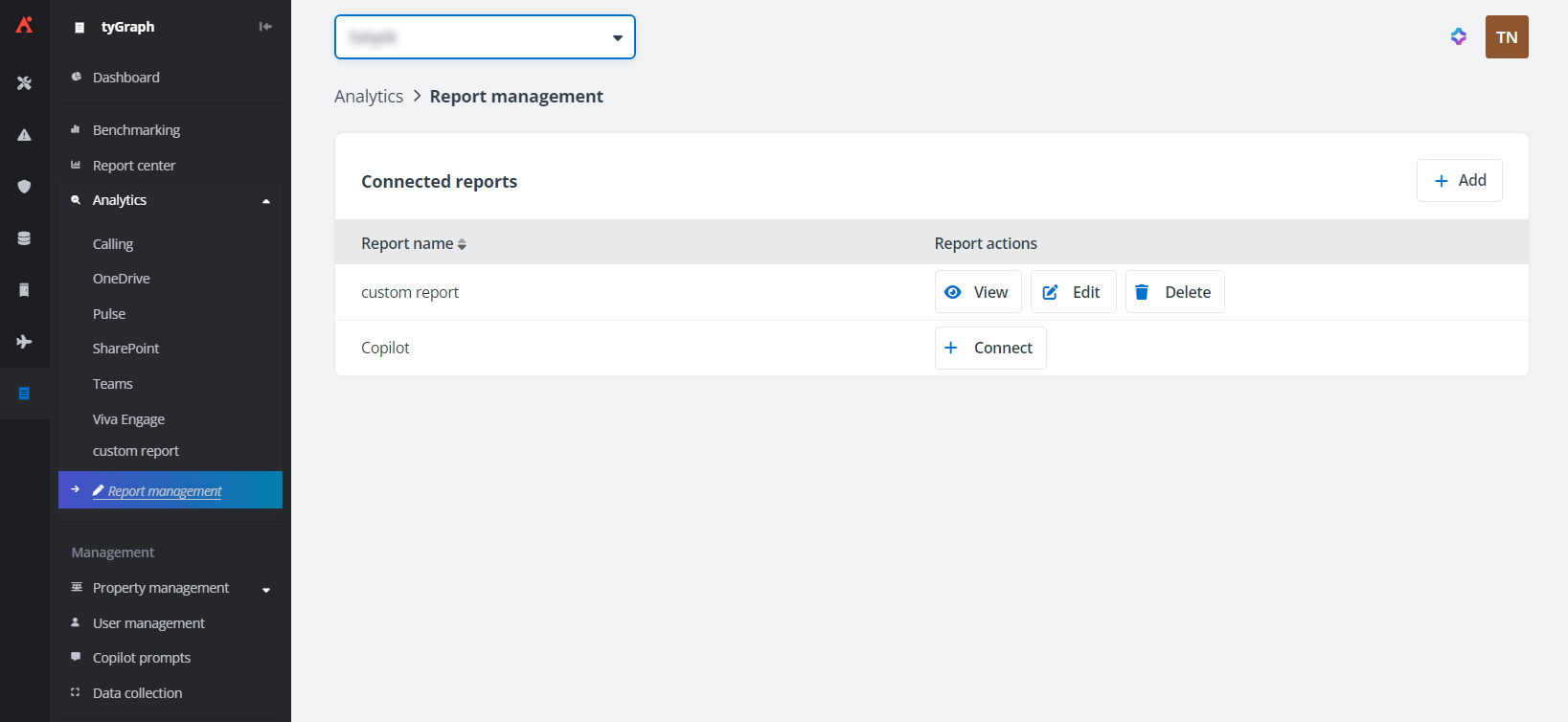
Subscription with Power BI Embedded Module.
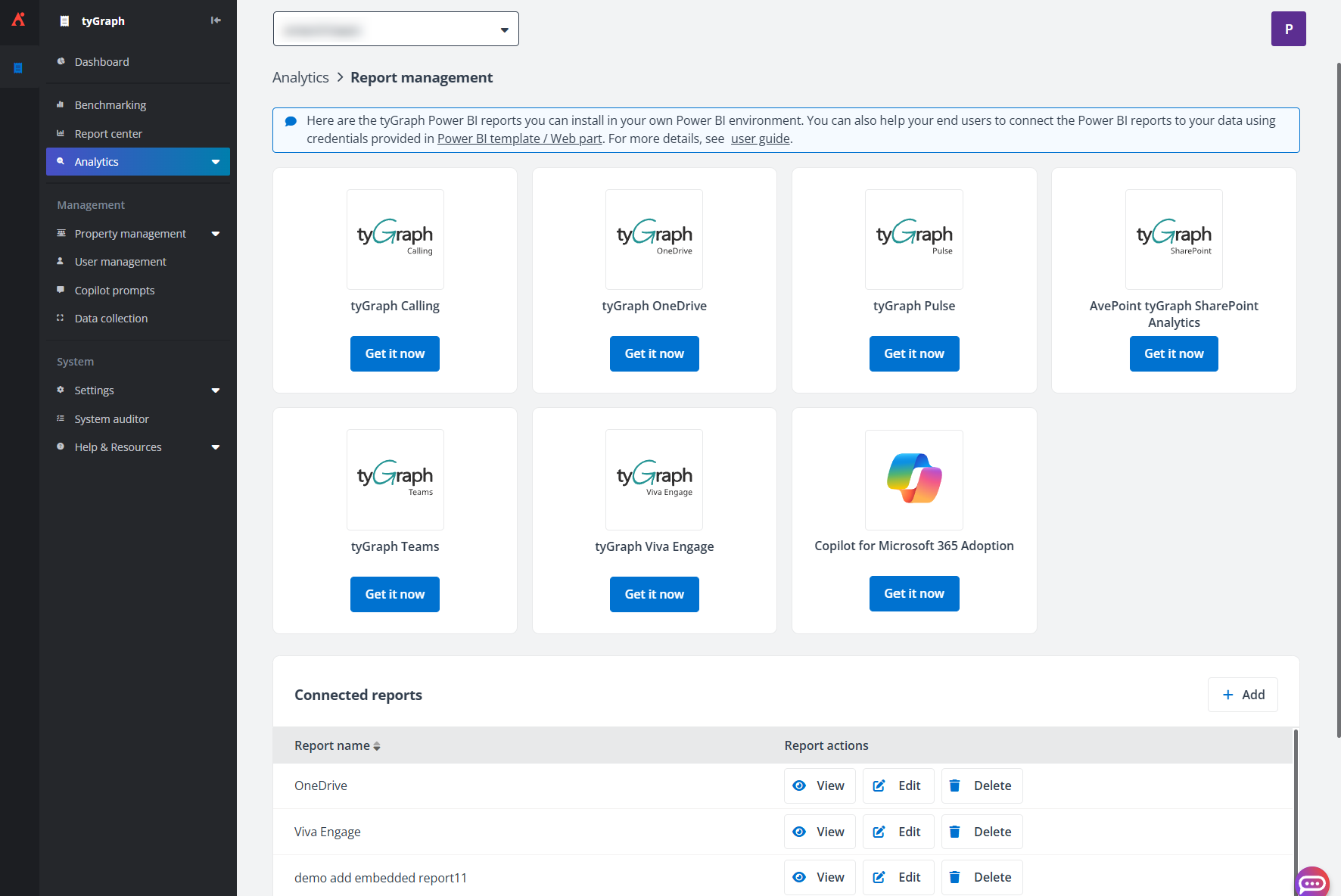
Subscription without Power BI Embedded Module.
Install Report from Microsoft AppSource
If you have not purchased the Power BI Embedded Module, complete the following steps to install the Power BI app via Microsoft AppSource to view reports:
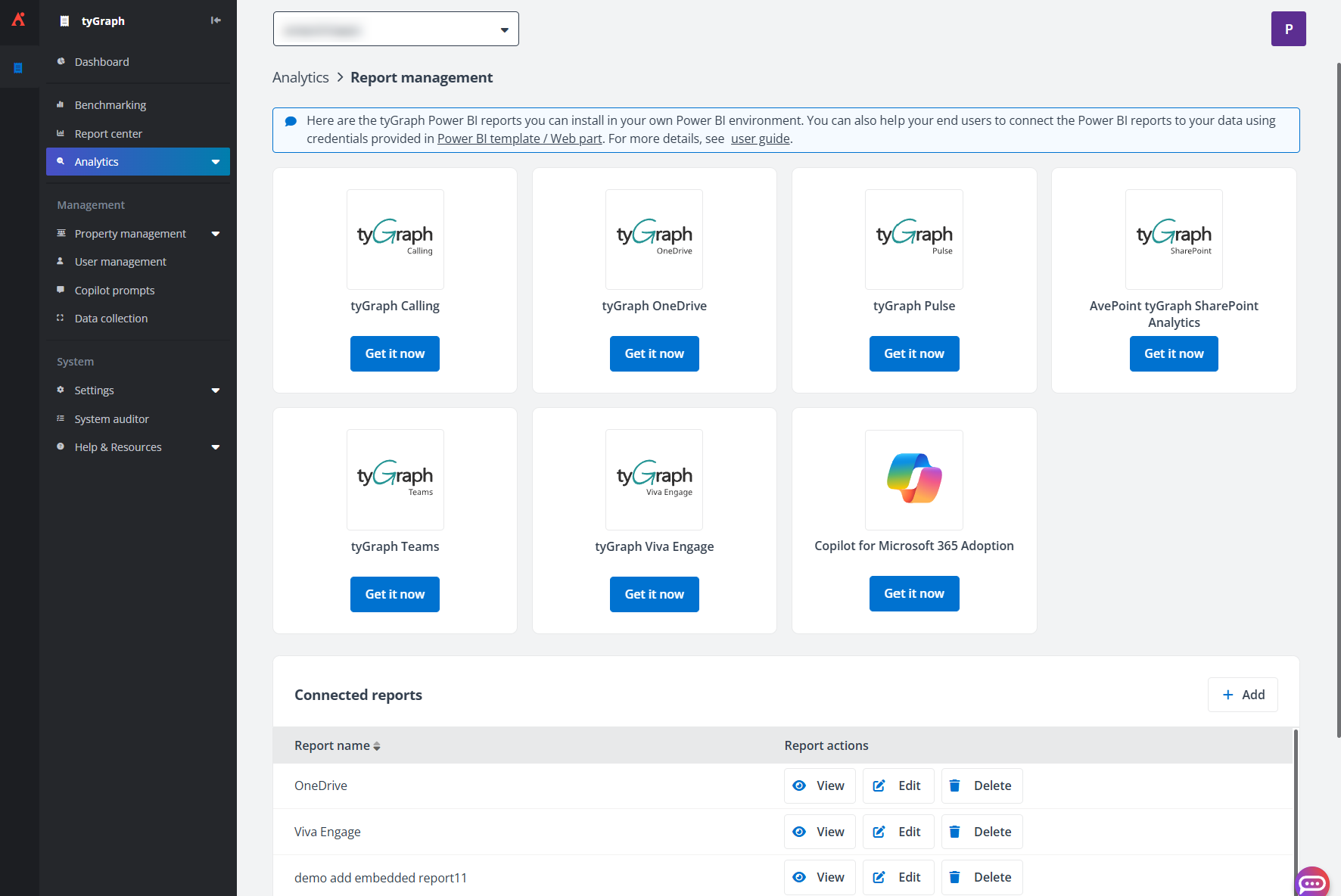
-
Locate the report card for a supported module, and then click Get it now.
-
You will be redirected to the app page in Microsoft AppSource.
-
Click Get it now.
-
In the Install this Power BI app? window, click Install.
-
After the installation is complete, click the app name to open the app. You will view the app with sample data.
-
Click Connect your data to get started to set up the app. Fill in the parameters in the window for connecting to the app.
-
Navigate to tyGraph > Settings > Power BI template / Web part, select the tenant for which you want to connect the reporting data. Copy the provided credentials in the module card, and then paste them into the corresponding parameter fields for your installed app.
Refer to the following instructions for more about connecting reporting data using different data sources:
-
For data connection to reports using the following Power BI report apps: tyGraph Teams, tyGraph OneDrive, tyGraph Pulse, tyGraph Viva Engage, Microsoft Copilot, and legacy tyGraph SharePoint reports
-
In Power BI template / Web part, copy the Database server, Database name, Username, and Password in the sections for Azure SQL Database, and then paste them into your desired location (such as Notepad).
-
Go back to the window for connecting to the app, copy the database server and database name from the location where they are saved, and then paste them into the Server and Database fields. When you complete filling in all required parameters, click Next.
-
Select Basic for authentication method.
-
Copy the username and password from the location where they are saved, and then paste them into the User name and Password fields.
-
Select the privacy level setting for this data source.
-
Click Sign in and connect.
-
-
For data connection to reports using the AvePoint tyGraph SharePoint Analytics app (Pages data included) / tyGraph Calling app
NOTEEnsure that users are assigned the Kusto database reader role to access tyGraph SharePoint, Pages, and Calling reports. For more information on granting report access to a user, refer to Grant Report Access to Users.
-
In Power BI template / Web part, copy the Kusto cluster and Database name in the tyGraph SharePoint Analytics / tyGraph Calling - Kusto section, and then paste them into your desired location (such as Notepad).
-
Go back to the window for connecting to the app, copy the Kusto cluster and database name from the location where they are saved, and then paste them into the ADX Cluster and ADX Database fields. When you complete filling in all required parameters, click Next.
-
Select OAuth2 for authentication method.
-
Select the privacy level setting for this data source.
-
Click Sign in and connect.
-
Add Custom Power BI Reports Using Embed URLs
Follow the steps below to add a custom Power BI report:
-
Navigate to Analytics > Report management.
-
Click Add in the Connected reports section.
-
In the Connect a report window, enter a report name and then provide the Power BI embed URL to validate and connect. To get the embed URL, follow the steps below:
-
Open the report in Power BI.
-
On the File menu, select Embed report > Website or portal.
-
In the Secure embed this report in a website or portal window, copy the value under the Link to embed this content field.
-
After the URL is copied, click Validate to verify the URL.
-
Click Add to add the report. This report will be displayed under the Analytics pane.
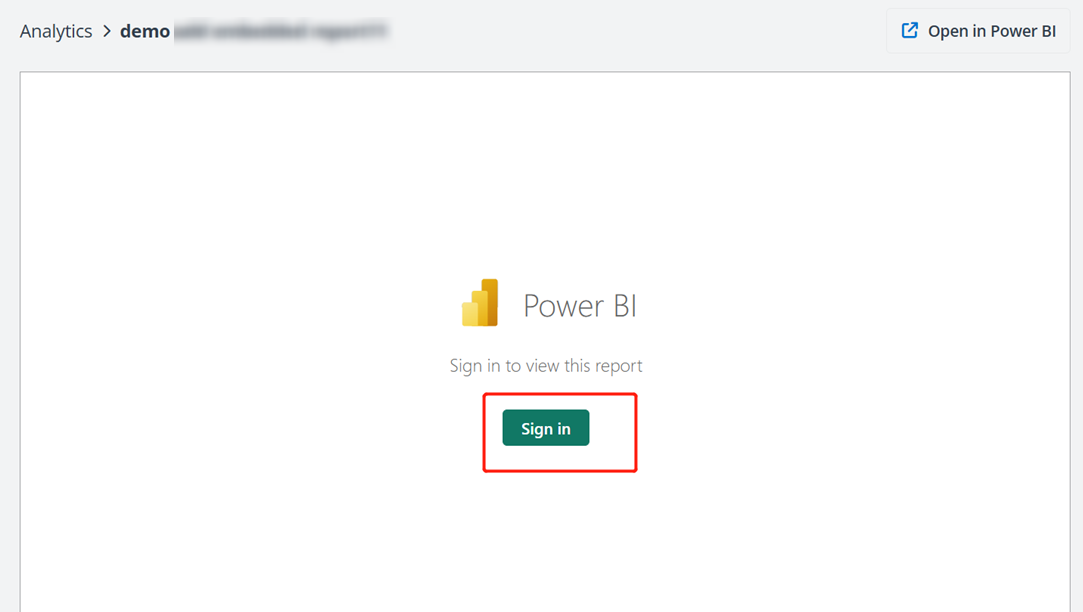
Whether a user opens a report URL directly, or one that’s embedded in tyGraph, report access requires authentication. The following screen appears if a user hasn’t signed in to Power BI in their browser session. When they select Sign in, a new browser window or tab should open. After the user has signed in, the report opens, showing the data and allowing page navigation and filter settings.
-
Only users with at least view permission to the report can see the embedded report in tyGraph interface.
-
Users need to be correctly licensed. They need a Power BI Pro or Premium Per User (PPU) license, or the content needs to be in a workspace that’s in a Power BI premium capacity.