
Home > Power BI Report Guides > tyGraph for Microsoft 365 Copilot
Download this articletyGraph for Microsoft 365 Copilot
The tyGraph for Microsoft 365 Copilot report provides a comprehensive view of your organization’s Microsoft 365 Copilot adoption journey, highlighting how licenses are allocated, how actively users are engaging, and where Copilot is driving the most value across the Microsoft 365 ecosystem.
Assigned Licenses
-
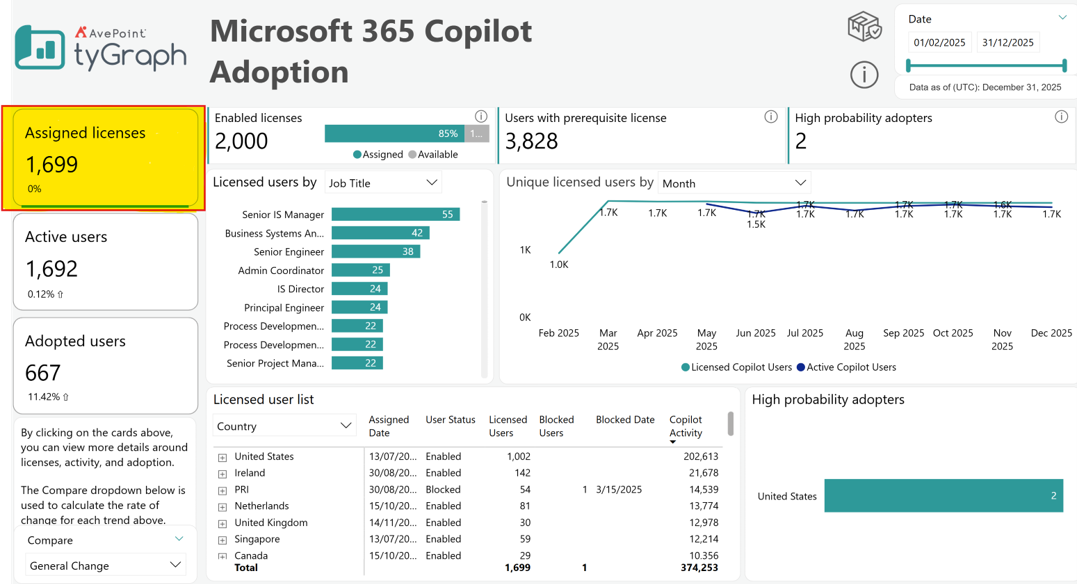
Enabled Licenses – This metric reflects the total number of enabled Microsoft 365 Copilot prepaid licenses purchased by your organization. The progress bar indicates the percentage of licenses currently assigned to users versus those still available and yet to be assigned. To maximize your Copilot investment, ensure all available licenses are fully allocated.
-
Users with Prerequisite Licenses – This figure includes users who either already have an assigned Copilot license or meet the eligibility criteria to receive one. Eligibility also depends on being part of a supported Office 365 update channel, such as the Current Channel or Monthly Enterprise Channel. See: Understand licensing requirements for Microsoft 365 Copilot | Microsoft Learn.
-
High Probability Adopters card – These users are not currently licensed for Copilot but fall within the top 5% of Microsoft 365 usage across apps like Excel, Word, PowerPoint, OneNote, Whiteboard, and Loop during the reporting period. Click this card to view a detailed list below and explore potential candidates with ranking for license assignments.
-
Licensed Users by User Property – This visual illustrates how Copilot licenses are distributed across the organization. Use the slicer to switch between different properties such as country or department to analyze license allocation and ensure equitable and strategic distribution.
-
Unique licensed users by different date hierarchy – Track license assignment and user activity trends over time to assess adoption progress and inform future license optimization strategies. Use different values from the slicer to navigate between various time periods.
-
Licensed User List – This table lists all users with Copilot licenses, grouped by user property. Expand any row using the double-down arrows/ clicking the (+) sign to access detailed user-level data. This view also highlights users whose accounts are blocked with corresponding dates, helping you reassign licenses to active users and maintain operational efficiency.
-
High Probability Adopters chart – This bar chart visualizes the distribution of high probability adopters by Country and email. Click to drill down into individual user emails where data visibility permits.
Active Users
-
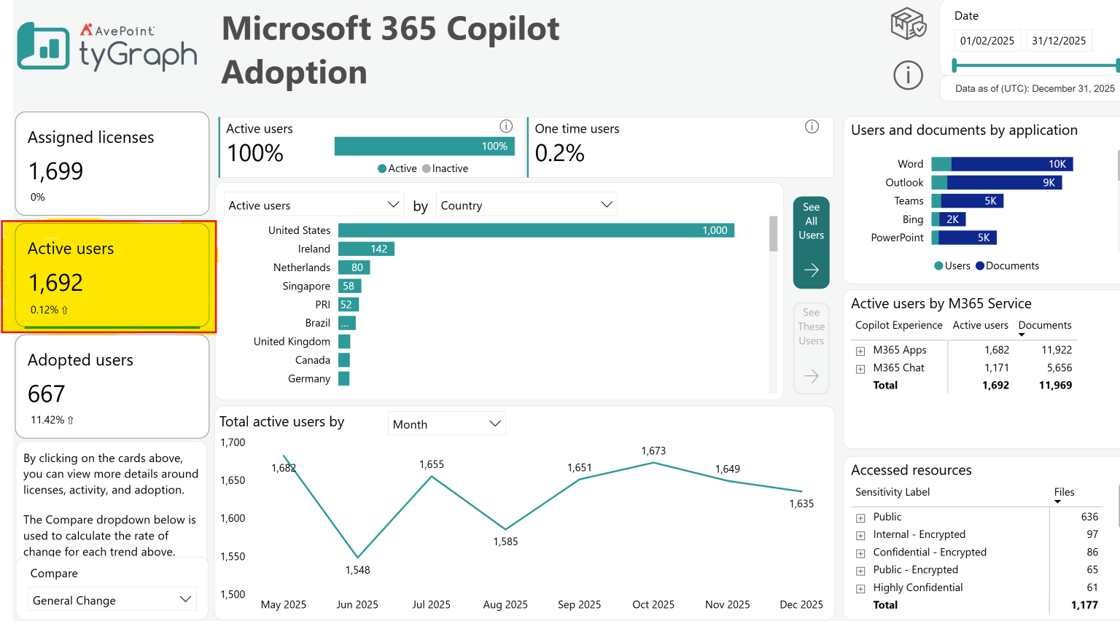
Active Users – This metric shows the percentage of licensed Copilot users who have engaged with Copilot at least once during the reporting period. It also highlights the remaining percentage of users who are licensed but inactive, offering insight into adoption gaps.
-
One Time Users – Displays the percentage of licensed users who have used Copilot only once since receiving a license regardless of the reporting period. The lower the percentage, the better you are at inspiring users during the early stages of their adoption journey. Click on the card to view a detailed list of these users, including their usage date, number of days since their only activity. This can help you decide whether to encourage further engagement or reallocate licenses.
-
Active Users/ interactions etc. by user property – This visual shows how active Copilot users/ interactions/ prompts are distributed by user properties such as country or department. Analyzing usage across properties helps identify high- and low-engagement segments within your organization.
-
See All Users / See These Users – Use “See All Users” to drill through to the full Microsoft 365 & Copilot Activity report. To filter a specific group, select a property value (e.g., region or department) and then use “See These Users” to access detailed usage data for that subset.
-
Total Active Users/ interactions etc. by different date hierarchy – This line chart tracks trends in unique active Copilot users/ interactions/ prompts over time. Use the dropdown to adjust the time and assess how user engagement has evolved for different time hierarchy.
-
Users and Documents by Application – Provides a breakdown of Copilot usage and users by Microsoft 365 app. It shows both the number of unique users and the number of documents interacted with in each application (e.g., Word, Teams, Outlook).
-
Active Users/ interactions etc. by M365 Service – Shows how Copilot is used across Microsoft 365 services. It separates users of M365 Apps (like Word and Excel) from those using Copilot Chat (e.g., in Teams or Bing). Expand the nodes to view specific services, such as SharePoint editing or Teams activity.
-
Accessed Resources by Sensitivity – Highlights the number of files accessed via Copilot that have sensitivity labels. Expand each label to see the source locations (e.g., SharePoint sites). Tip – Select a specific label to cross-highlight the report and identify which users are accessing sensitive files.
Adopted Users
-
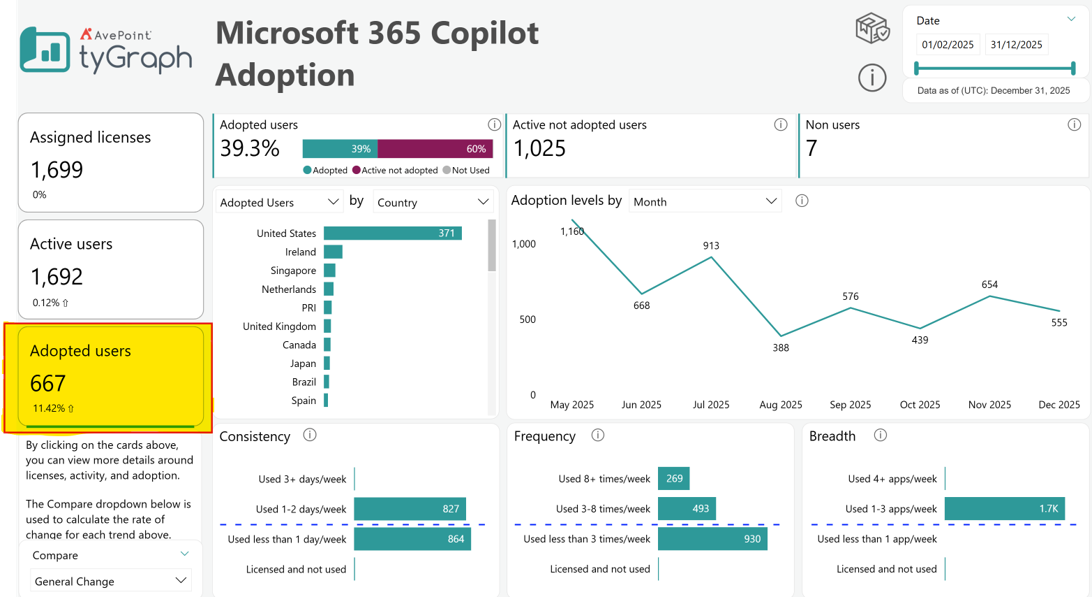
Adopted Users – These are highly engaged individuals who consistently, frequently, and broadly use Microsoft 365 Copilot. A user is considered adopted if they use Copilot more than one day per week, at least three times per week, and in at least one Microsoft 365 app per week. The status bar reflects the proportion of adopted users, active but not adopted users, and users who have not used Copilot during the selected period.
-
Active Not Adopted Users – This figure represents users who have interacted with Copilot but fall short of the adoption thresholds. While they show some level of engagement, they are not yet considered fully adopted based on consistency, frequency, and breadth of use. Click here for a list of people who you can help to make the most of what they have to gain from Copilot.
-
Non-Users – Indicates the number of licensed users who have not used Copilot at all during the selected reporting period. Monitoring this number helps identify missed opportunities for enablement or license reassignment. Click here for a list of people to identify who have not utilized their copilot licenses at all.
-
Adoption Levels by User Property – This visual breaks down adoption levels across user properties such as country or department. Use this to assess how adoption varies across different segments of the organization.
-
Adoption Levels by Date hierarchy – This trend chart visualizes how the number of adopted users has changed over time. Use the timeline to assess adoption momentum, plateaus, or drops and correlate them with awareness campaigns, training, or feature rollouts.
-
Consistency – This visual shows how often users interact with Copilot on different days of the week. Users engaging 3 or more days per week are considered consistent. This measure helps assess habitual usage and long-term adoption potential.
-
Frequency – Captures how many times per week users interact with Copilot. Users with 8 or more interactions per week fall into the highest frequency tier. This metric helps identify intensive users who are likely deriving high value from the tool.
-
Breadth – Measures how many Microsoft 365 applications a user interacts with via Copilot in each week. Users engaging with 4 or more apps show broad usage, indicating that Copilot is being utilized across a wide range of scenarios and workloads.
Microsoft 365 & Copilot Activity (drill-through report)
-
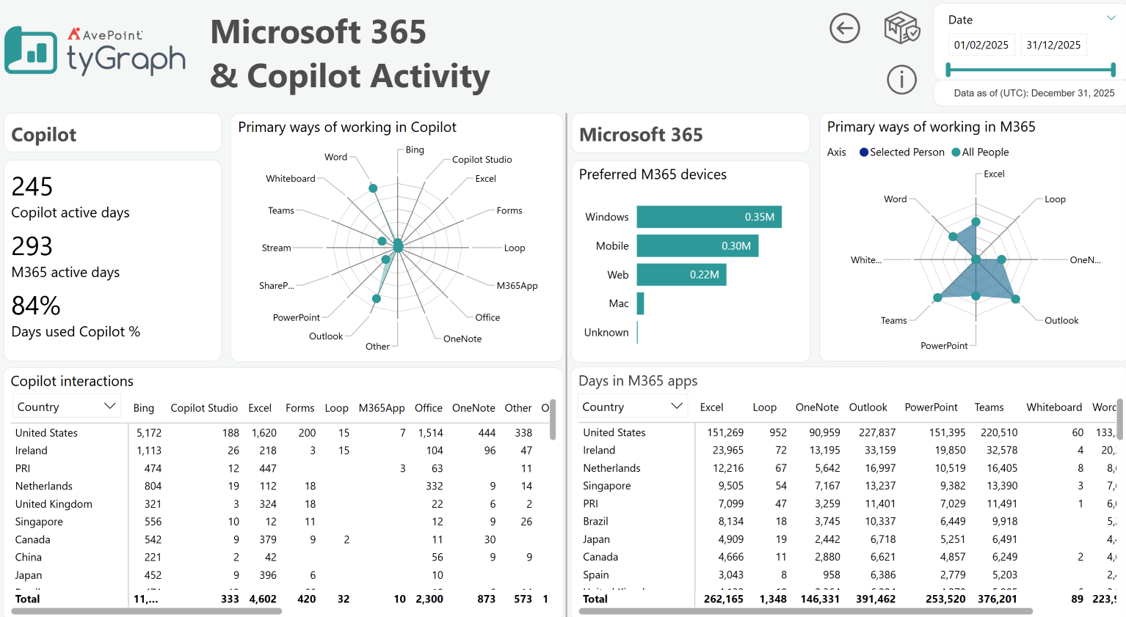
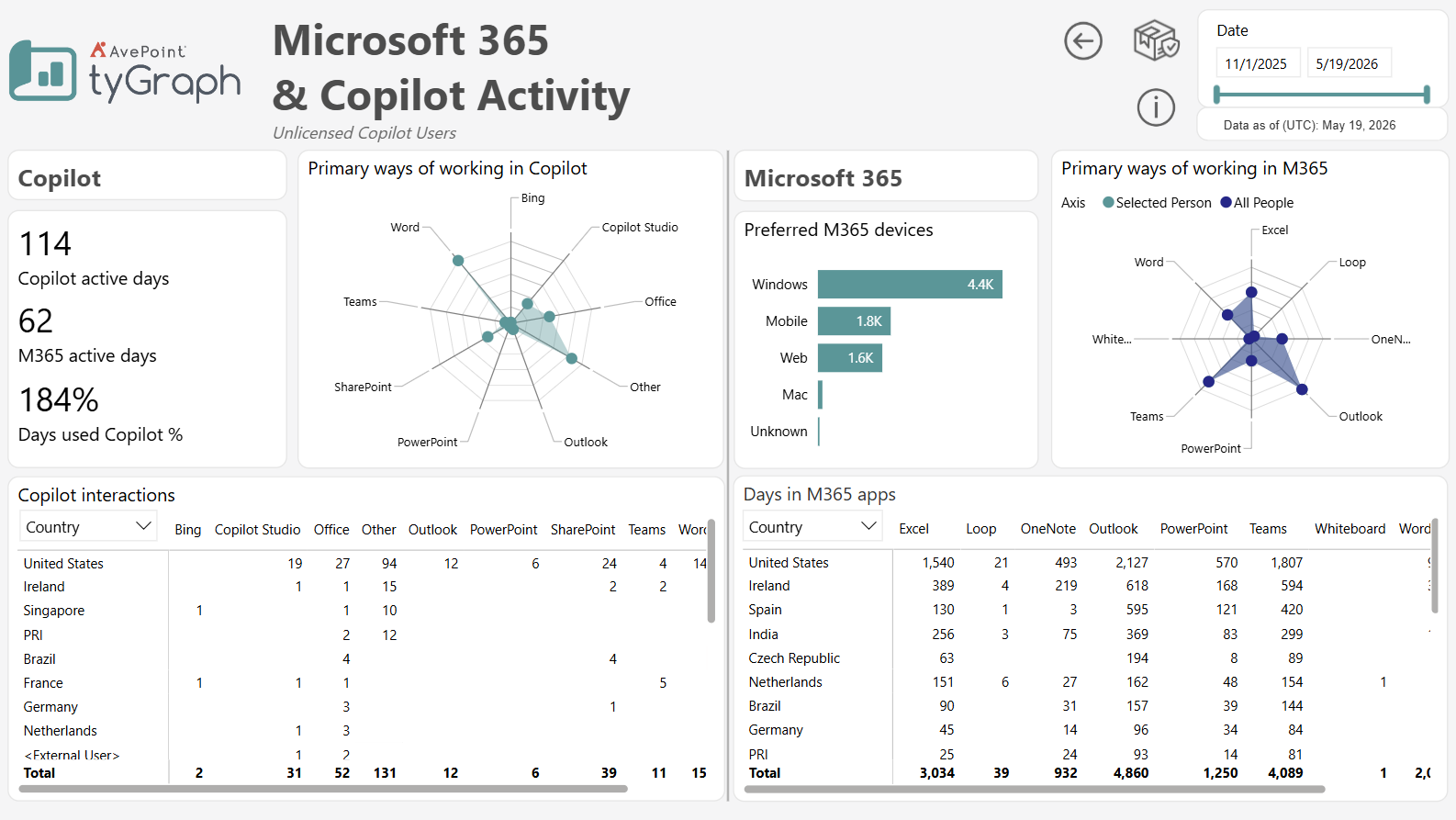
Copilot Active Days – Displays the total number of days Copilot was used during the selected period. This helps determine how regularly Copilot is being integrated into users' daily workflows.
-
M365 Active Days – Indicates the number of days users were active in any Microsoft 365 productivity application, such as Outlook, Word, Excel, or Teams.
-
Days Used Copilot % – Calculates the percentage of Microsoft 365 active days on which Copilot was also used. This provides a clear measure of how often Copilot is used when users are working in Microsoft 365.
-
Primary Ways of Working in Copilot – This radar chart highlights the Microsoft 365 applications where Copilot is most frequently used. Applications include Excel, Word, Outlook, Loop, Teams, and others, giving insight into the most common use cases.
-
Preferred M365 Devices – Shows the number of usage days per device type, including Windows, Mobile, Web, and Mac. This helps identify which platforms are most frequently used to access Microsoft 365 services.
-
Primary Ways of Working in M365 – A radar chart that compares the app usage profile of an individual user against the broader organization. This visual helps assess how aligned a user's work patterns are with organizational norms across tools like Teams, OneNote, PowerPoint, and Outlook.
-
Copilot Interactions – A detailed table showing the number of Copilot interactions across various Microsoft 365 apps, segmented by user property such as country, department, etc. Use the user property slicer above to filter results by a specific property value. Tip – Selecting any row will cross-highlight their full activity in both Copilot and Microsoft 365 across the report.
-
Days in M365 Apps – This table lists how many days each user spent working in Microsoft 365 applications, with columns for tools like Excel, Outlook, Word, PowerPoint, OneNote, and Teams. It provides a granular view of individual work patterns across the Microsoft 365 suite.
Microsoft 365 Copilot Documents (Only available page in AOS & RLS Copilot report)
-
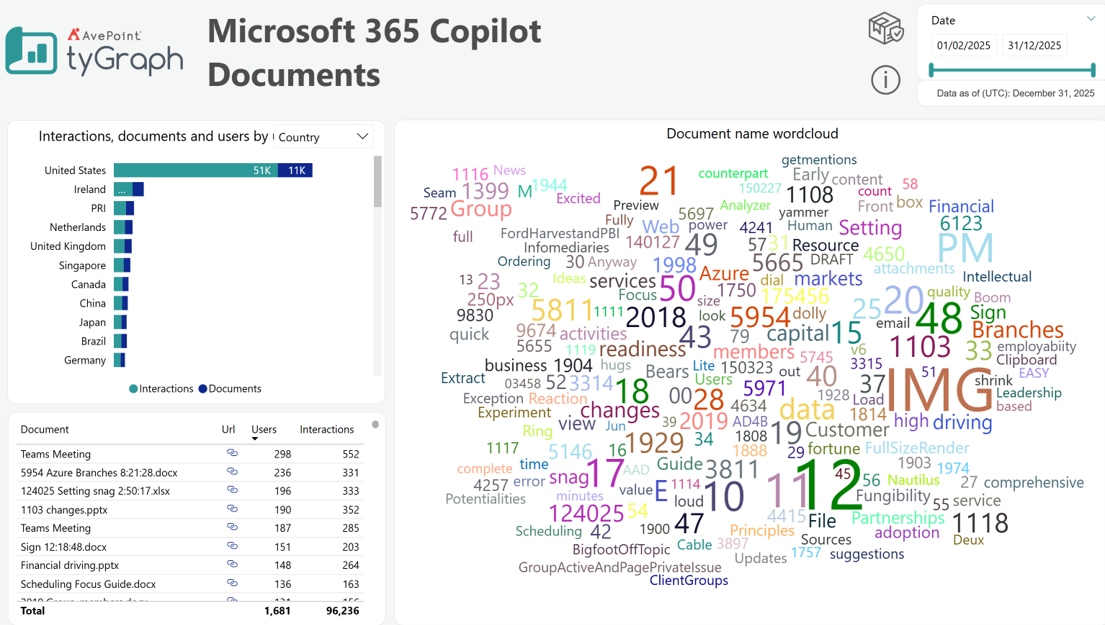
Interactions, documents and users by user property – This bar chart shows engagement by selected user property, comparing interactions and document counts. This chart helps identify where most activities are coming from.
-
Document name wordcloud – This visual displays frequently used words with the number of interactions from document names, where larger words appear more often. This helps quickly identify common themes and topics across documents and is useful for spotting trends in content usage.
-
Document Table (Bottom Left) - This table lists individual document names with URLs, user counts, and interaction counts. This helps identify top-performing or most accessed documents and is useful for detailed, document-level analysis.
Agent Activity
-
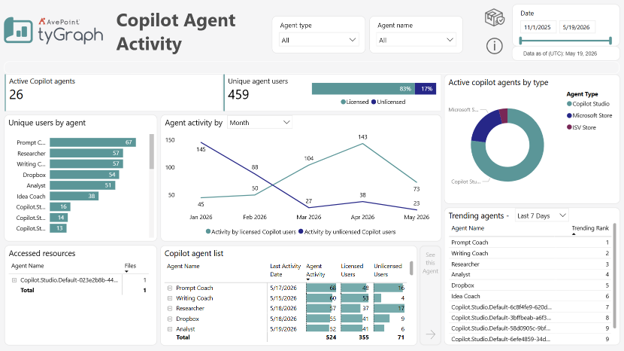
Active Copilot Agents – Displays the number of unique Copilot Agents engaged during the selected date range.
-
Unique Agent Users – Shows the number of unique users who have engaged with any Copilot Agent. The breakdown between licensed and unlicensed Copilot users helps identify licensing gaps or opportunities for increased adoption.
-
Unique Users by Agent Name – Lists Copilot Agents by unique user count, helping identify which agents are driving the most engagement. Hover over an agent to view the breakdown of licensed vs. unlicensed users.
-
Agent Activity by Date – Tracks usage trends for licensed and unlicensed Copilot users over time. The dropdown allows you to adjust the granularity (e.g., by day, week, or month) to analyze activity patterns.
-
Active Agents by Copilot Type – Provides a breakdown of active agents based on their type (e.g., Copilot Customer Agents vs. Copilot Store Agents), helping you understand usage sources. Drill down to view the breakdown by subtype.
-
Trending Agents – Ranks the top agents by recent activity over the selected period, offering quick insight into emerging tools or shifting user preferences. Use the dropdown to switch between trend periods (last 7 days, 30 days, 90 days).
-
Accessed Resources by table – Shows the Copilot Agents that have accessed sensitive files. Expanding this section reveals the sensitivity labels applied to the files and their source locations.
-
Copilot Agent List – Lists active agents along with their last activity date, total activity count, and a breakdown of licensed vs. unlicensed Copilot users.
Agent Details (drill-through report)
-
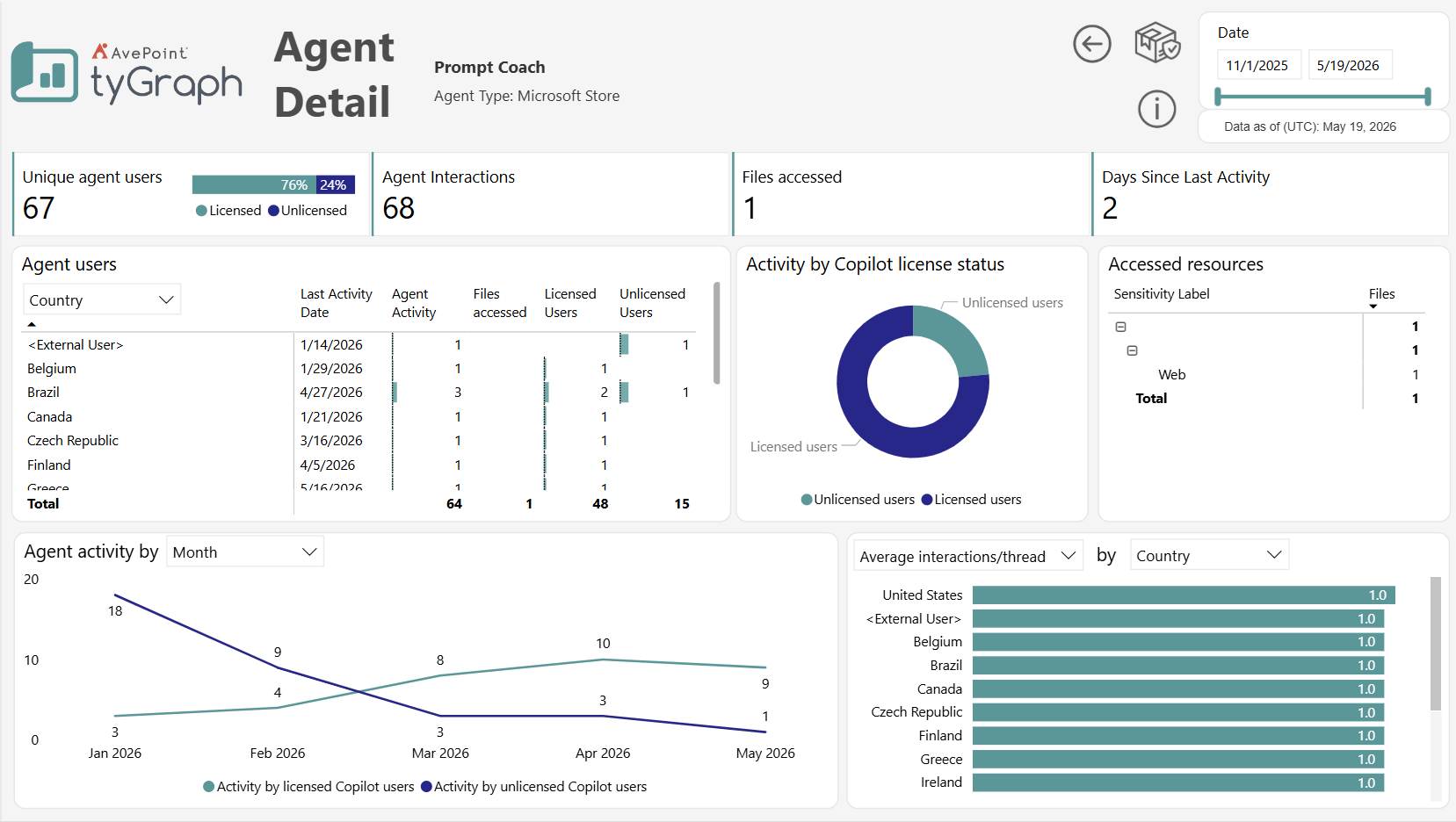
Unique Agent Users – Shows the number of unique users who have engaged with the selected Copilot Agent during the selected date range. The licensed vs. unlicensed breakdown helps identify licensing gaps and opportunities for increased Copilot adoption.
-
Agent Interactions – Shows the total number of interactions users had with the selected agent. This helps measure overall engagement and agent usage volume.
-
Files Accessed – Shows the number of files accessed by the selected agent during user interactions. This helps track resource usage and content dependency.
-
Days Since Last Activity – Shows the number of days since the agent was last used. This helps identify inactive or underutilized agents.
-
Agent Users – Displays the users interacting with the selected agent grouped by a selected User Property. Use the User Property dropdown to group activity by attributes such as Country, Department, Email, Job Title, or Region. The table includes:
-
Last activity date for the selected user property.
-
Number of agent interactions.
-
Number of files accessed.
-
Count of unique licensed users.
-
Count of unique unlicensed users.
-
-
Activity by Copilot License Status – Shows the distribution of agent interactions by Copilot license status. This helps identify licensed versus unlicensed activity and potential pay-as-you-go usage.
-
Accessed Resources Table – Shows the files accessed by the selected agent grouped by sensitivity label. Expanding the hierarchy reveals the associated Site and resource type for the accessed files. This supports governance and compliance monitoring.
-
Agent Activity by Date – Tracks agent usage trends over time for licensed and unlicensed Copilot users. Use the dropdown to adjust the reporting granularity by day, week, or month to analyze activity patterns and adoption trends.
-
Agent Usage by User Property – Breaks down usage patterns for the selected agent by user property. Use the dropdowns to select both the metric and grouping attribute. Available metrics include:
-
Average interactions / thread – Average number of interactions per conversation session.
-
Average interactions / person – Average number of interactions per unique user.
-
Average interactions / week – Average weekly interactions per user.
-
Average days / week – Average number of days per week users interact with the agent.
-
Unlicensed User Activity
-
Activity Level Slicer – Controls the metric displayed across the visuals on the page. Available activity level options include:
-
Active Users – Number of unique unlicensed users engaging with Copilot experiences.
-
Active Days – Number of days unlicensed users were active.
-
Interactions – Total number of interactions performed by unlicensed users.
-
Interactions per Person – Average number of interactions per unique user.
-
Interactions per Thread – Average number of interactions per conversation session.
-
The selected activity level affects all visuals on the page except for the KPI cards on the left side.
-
User Property Slicer – Controls how usage metrics are grouped across the report visuals. Common grouping options include Country, Department, Email, Job Title, or other available user attributes.
-
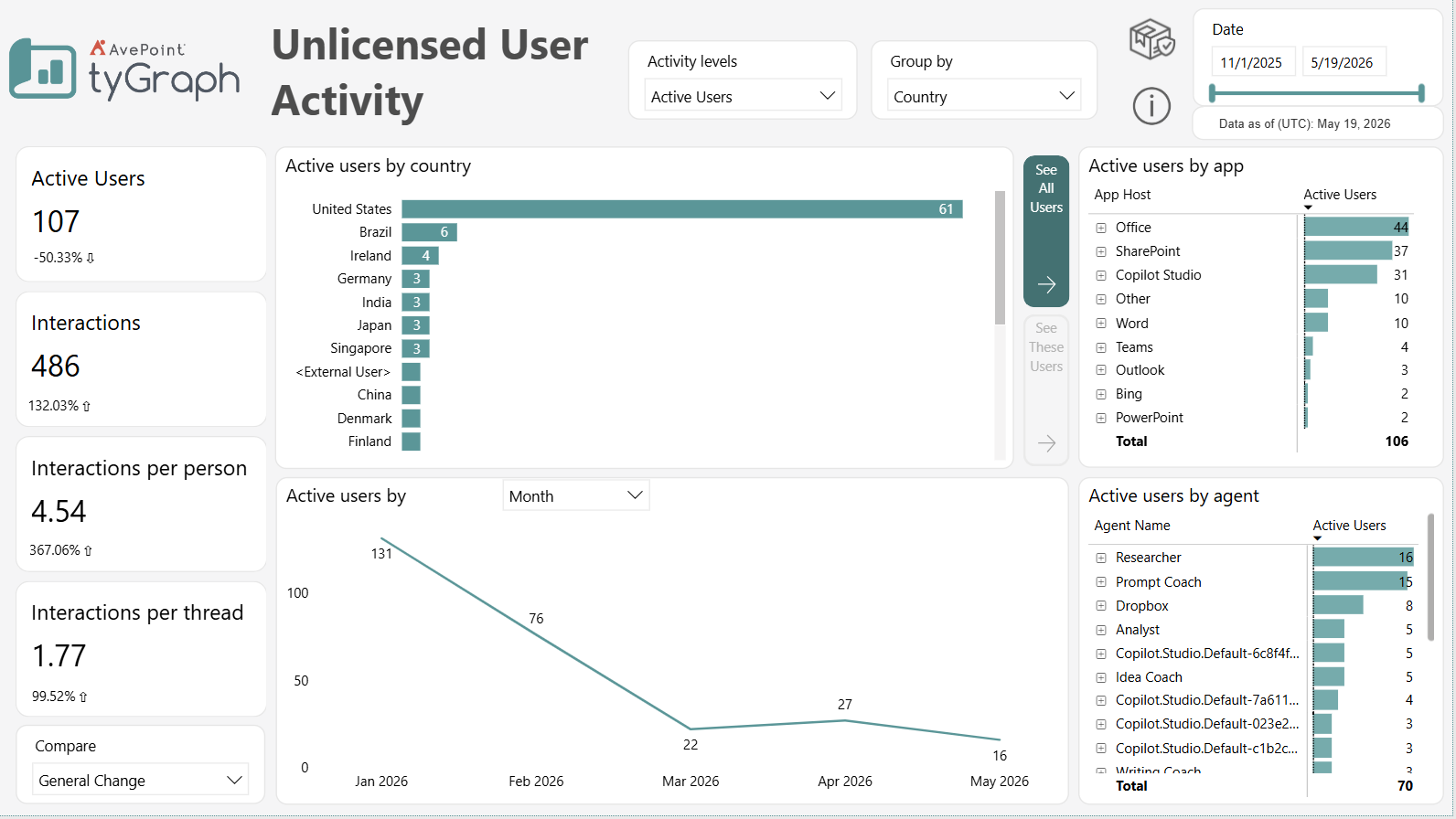
Active Users Card – Shows the total number of unique unlicensed users who interacted with Copilot experiences during the selected reporting period. The percentage beneath the metric shows the change compared to the previous period based on the selected comparison option.
-
Interactions Card – Shows the total number of interactions performed by unlicensed users. The percentage beneath the metric shows the change compared to the previous period based on the selected comparison option.
-
Interactions per Person Card – Displays the average number of interactions per unique unlicensed user. This helps measure user engagement intensity. The percentage beneath the metric shows the change compared to the previous period based on the selected comparison option.
-
Interactions per Thread Card – Displays the average number of interactions per conversation thread or session. This helps evaluate conversation depth and engagement quality. The percentage beneath the metric shows the change compared to the previous period based on the selected comparison option.
-
Compare Selector – Controls how KPI card percentage changes are calculated. The options include:
-
General change (% change).
-
Period over Period (PoP%).
-
Month over Month.
-
First vs Last Full Month.
-
Year over Year.
-
-
[Selected Activity Level] by User Property – Displays the selected activity metric grouped by the selected user property. This visual helps identify where unlicensed usage is most concentrated.
-
See All Users / See These Users – Allows navigation between the unlicensed user detail page for all users or the selected user property.
-
[Selected Activity Level] by App – Shows unlicensed user activity by application or app host, such as Office, SharePoint, Word, Outlook, Teams, or Copilot Studio. This helps identify where unlicensed Copilot activity is occurring across Microsoft applications.
-
[Selected Activity Level] by Date – Displays trends over time for the selected activity metric. Use the granularity dropdown to analyze activity by day, week, or month. This visual helps monitor adoption and engagement trends over time.
-
[Selected Activity Level] by Agent – Shows the number of unlicensed users interacting with individual agents. This helps identify which agents are driving the most unlicensed activity and may indicate licensing expansion opportunities.
Microsoft 365 & Copilot Activity - Unlicensed Copilot Users (drill-through report)
-
M365 Active Days – Displays the total number of days unlicensed users were active in Microsoft 365 applications during the selected period. This helps identify overall engagement levels among users who do not currently have a Copilot license.
-
Primary Ways of Working in M365 – This radar chart highlights the Microsoft 365 applications most frequently used by unlicensed users, such as Outlook, Teams, Word, Excel, PowerPoint, and OneNote. It provides insight into common work patterns and potential opportunities for Copilot adoption.
-
Preferred M365 Devices – Shows the number of usage days by device type, including Windows, Mobile, Web, and Mac. This helps identify which platforms unlicensed users most commonly rely on to access Microsoft 365 services.
-
Primary Ways of Working Compared to the Organization – A radar chart comparing the app usage profile of unlicensed users against overall organizational trends. This helps assess how closely user work habits align with broader company collaboration and productivity patterns.
-
M365 App Activity by User Property – A detailed table showing Microsoft 365 activity across apps, segmented by user properties such as country, department, or business unit. Use the user property slicer above to filter and analyze specific groups of unlicensed users. Tip – Selecting any row will cross-highlight that user’s activity across the report.
-
Days in M365 Apps – This table provides a breakdown of how many days each unlicensed user was active in Microsoft 365 applications, including Excel, Outlook, Word, PowerPoint, OneNote, and Teams. It offers a granular view of work patterns and application usage across the M365 suite.