
Pulse

tyGraph Pulse is an analytics tool that provides in-depth reporting and insights on your organization's use of Microsoft 365.

In Reports > Pulse, you can view the following reports in separate pages:

- **Adoption overview** - **License enablement** - **OneDrive** **collaboration** - **Working out loud**

All visuals in the Pulse report pages support exporting data to CSV or XLSX formats, allowing report users to download and analyze insights for deeper reporting or sharing.
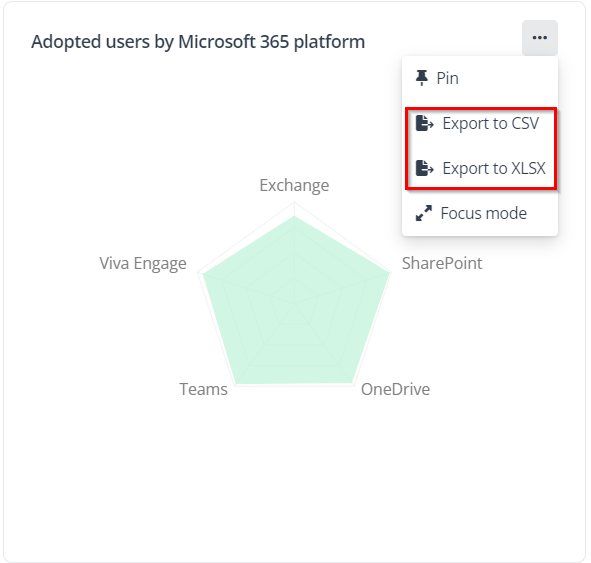
Export report to CSV or XLSX.

Adoption Overview

The Adoption overview report provides a comprehensive view of how Microsoft 365 tools are being adopted within their organizations. Using this overview report, you can track the usage patterns of your end users to increase the adoption and effective use of Microsoft 365 tools and services.

The following statistics are available for analysis:

- **Exchange** **users** – The total unique active users in Exchange during the specified report period. You can view the time period comparison which will show the percentage change along with a trend indicator depending on which time intelligence comparison has been selected. - **SharePoint users** – The total unique active users in SharePoint during the specified report period. You can view the time period comparison which will show the percentage change along with a trend indicator depending on which time intelligence comparison has been selected. - **OneDrive users** – The total unique active users in OneDrive during the specified report period. You can view the time period comparison which will show the percentage change along with a trend indicator depending on which time intelligence comparison has been selected. - **Teams users** – The total unique active users in Teams during the specified report period. You can view the time period comparison which will show the percentage change along with a trend indicator depending on which time intelligence comparison has been selected. - **Viva Engage users** – The total unique active users in Viva Engage during the specified report period. You can view the time period comparison which will show the percentage change along with a trend indicator depending on which time intelligence comparison has been selected. - **Adopted users by Microsoft 365 platform** – This chart allows you to easily spot which platforms are most popular. You can also select the dots of products to focus on their trend over time. - **Adopted overview** – The total unique users with activity in the given product over time displayed in line graph form. You can use the embedded x-axis date slicer to change the aggregation of the x-axis. The hierarchy order is Year, Quarter Year, Month Year short, Week of, Date, Day of Week. - **Adopted users by segment** – This chart provides a dynamic hierarchy to navigate within your Active Directory Org Structure. The order is User type, User domain, User organization, User business unit, User division, User department, User building, User job title, User manager email, User email, User name, User continent, User country, and other user attributes.

License Enablement

The License enablement report will help organizations to understand and optimize their Microsoft 365 licensing. Using this report, you can gain insights into how licenses are being used across your organization.

The following statistics are available for analysis:

- **Unique licensed users** – The unique number of users who are currently licensed for your selected products. You can view the change of unique licensed users in percentage form depending on the selected time period comparison. - **Non** **adopted** **users** – The total unique licensed not deleted users with no activity in 180 days. You can view the percentage change of non-adopted users depending on which period comparison is selected. - **Licensed used on blocked users** – The total licenses that are still active on users with blocked credentials. A blocked account in Microsoft Entra ID cannot be used. You can view the percentage change in total licenses still active on users with blocked credentials. - **Unique licensed users by attribute** – This plot shows the total unique users assigned a license and users with activity in all of your selected Microsoft 365 platforms of interest. You can filter the data by Microsoft 365 platforms attribute. - **Current license distribution** – This chart shows the organizational license assignments and consumption by each license. - **Non adopted users** – This chart shows the non-adopted user distribution. You can filter the data by user attribute. - **Licensed blocked users** – This chart shows the total licenses still active on users with blocked credentials. You can filter the data by user attribute.

OneDrive Collaboration

Collaborative sharing involves strategically placing your content where it is easily accessible to your colleagues, rather than just convenient for you. Many organizations promote the use of SharePoint and Teams for collaborative tasks and file sharing. However, excessive sharing from OneDrive can limit access to the content to only those with whom it has been shared.

The OneDrive collaboration report identifies five key target audiences (% or nominal) that you can engage with to improve their understanding of sharing options and enhance their collaboration practices within OneDrive:

- **Healthy sharers** – Users who frequently share their collaborative content from SharePoint, within the OneDrive storage quota. - **Heavy OneDrive sharers** – Users who share a significant amount of content from OneDrive, potentially approaching their storage limit. - **People sharing in OneDrive only** – Users who exclusively share content from OneDrive. - **People with high OneDrive storage** – Users with high usage of OneDrive storage. - **People with no sharing** – Users who do not engage in file sharing from OneDrive.

To obtain reporting data for file sharing and collaboration, select a target audience and adjust the scroll bars to set the desired thresholds for data comparison:

- **Proportion of people sharing in OneDrive** – Set a threshold for the number of people who share collaboration content in OneDrive. - **Used storage quota of total storage quota in OneDrive** – Set a threshold for the used storage quota of OneDrive.

*Note: The thresholds are configured to compare with your organization’s data. Refer to the following instructions for data comparison:

Calculation rule:

- **Proportion of people sharing in OneDrive**: OneDrive sharers / OneDrive and SharePoint sharers - **Used storage quota of total storage quota in OneDrive**: Used OneDrive storage quota / total OneDrive storage quota

The table below lists the comparison method for collaborative sharing data:

Target audience (% or nominal)Comparison method
Healthy sharersOneDrive sharers < configured threshold, used OneDrive storage quota < configured threshold
Heavy OneDrive sharersOneDrive sharers > configured threshold
People with high OneDrive storageUsed OneDrive storage quota > configured threshold

By selecting specific target audiences and setting thresholds, you can obtain tailored reporting visuals that provide valuable insights into your organization's collaboration trends and storage usage. Refer to the table below for more information.

Target audience (% or nominal)Reporting visual
Healthy sharersHealthy sharers
Healthy sharersPeople with balanced sharing in OneDrive trend
Heavy OneDrive sharersHeavy OneDrive sharers
Heavy OneDrive sharersPeople with heavy OneDrive sharing or maximum storage quota trend
People sharing in OneDrive onlyPeople sharing in OneDrive only
People sharing in OneDrive onlyPeople sharing in OneDrive only trend
People with high OneDrive storagePeople with high OneDrive storage
People with high OneDrive storagePeople with maximum storage quota trend
People with no sharingPeople with no sharing
People with no sharingPeople with no sharing trend

Working Out Loud

Working out loud is a practice aimed at enhancing collaboration, knowledge sharing, and transparency within organizations. It encourages open communication and collaboration through channels rather than private chats.

The Working out loud report identifies four key target audiences (% or nominal) that you can engage with to enhance collaboration habits among your business users.

- **People with heavy private messages** – Users who send or receive a large volume of private or direct messages in Teams. - **People with no messages** – Users who have no messages in Teams. - **People messaging privately** **only** – Users who exclusively send or receive private or direct messages in Teams. - **People working out loud** – Users who share their work with others in channels, fostering a culture of open communication and collaboration.

Set a threshold for several private messages in Teams to compare with your organization’s data by the instructions below:

Calculation rule: Private message count / total message count

Target audience (% or nominal)Comparison method
Working out loudPercentage of private messages < configured threshold
People with heavy private messagesPercentage of private messages > configured threshold

By selecting a target audience and adjusting the Private messages of total messages threshold, you can obtain tailored reporting visuals that provide valuable insights into messaging usage patterns and help build a collaborative and transparent organizational culture. Refer to the table below for more information.

Target audience (% or nominal)Reporting visual
People with heavy private messagesPeople with heavy private messages
People with heavy private messagesPeople with balanced sharing in OneDrive trend
People with no messagesPeople with no messages
People with no messagesPeople with licenses but having no messages trend
People messaging privately onlyPeople messaging privately only
People messaging privately onlyPeople using private messaging only trend
People working out loudPeople working out loud
People working out loudPeople working out loud trend