
Home > Report Center > Copilot Adoption

Export to PDF

Copilot Adoption

Copilot experiences integrated across Microsoft 365 applications streamline the digital workplace for enhanced task management and collaboration. This report will help you to understand the ROI of the Copilot license purchase and measure adoption levels of your organization.

Administrators can assess their companies’ maturity and identify productivity opportunities by benchmarking against others. These benchmarks will be included in Copilot web-based reports for companies that have opted-in to Copilot benchmarking. For details on opting-in to Copilot benchmarking, refer to Benchmarking.

Under Reports > Copilot adoption, you can view the following reports on separate pages:

- **Active users** - **Adopted users** - **Assigned licenses** - **Prompts**

All visuals in the Copilot report pages support exporting data to CSV or XLSX formats, allowing report users to download and analyze insights for deeper reporting or sharing.
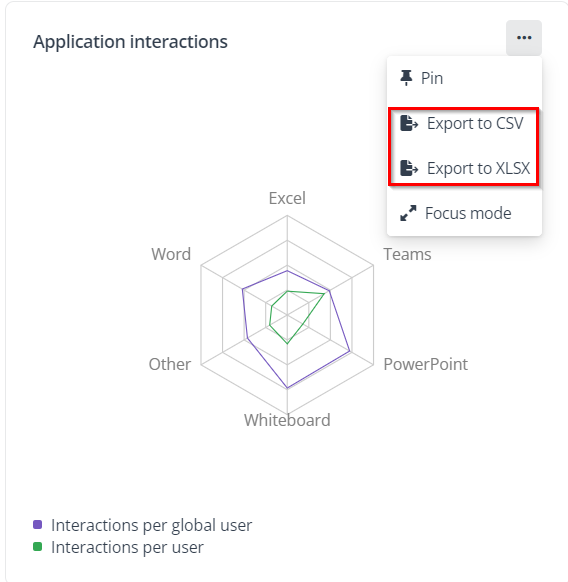
Export to CSV or XLSX.

If your company has opted in to Copilot benchmarking, you can view the visuals with the benchmarking data by turning on the Benchmarking toggle on the report pages.
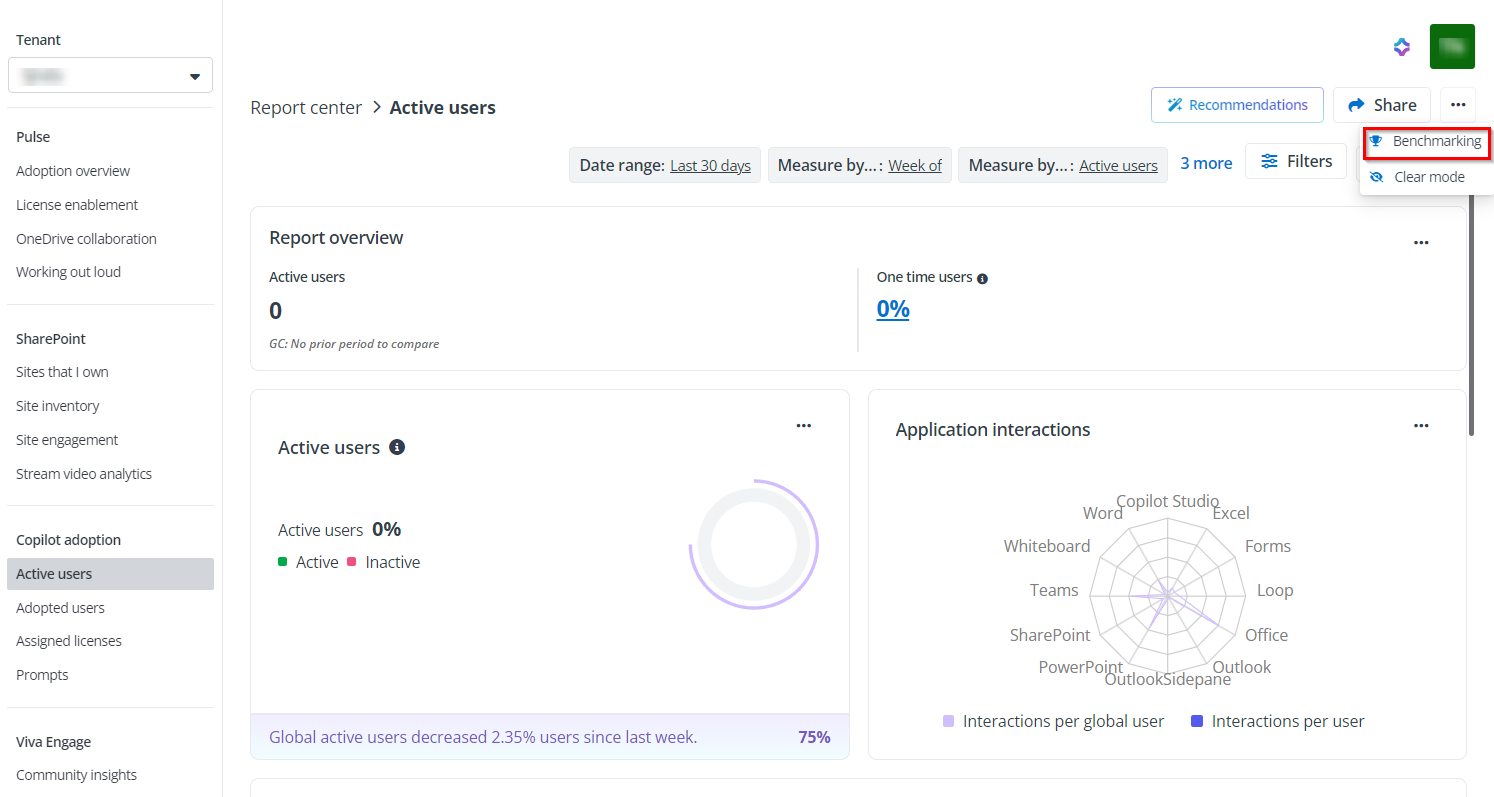
Enable benchmarking.

Active Users

The Active users report provides insights into how users engage with various Microsoft 365 applications. This report helps organizations understand user activity levels and the extent of Copilot adoption within their environment.

The following statistics are available for analysis.

- **Report overview** – Displays the total number of active users and the selected time intelligent comparison option. - **One time users** – Licensed Copilot users who have used Copilot only once since receiving a license. Click the percentage to access a list of these users and view how long they have been using Copilot. - **Active users** card– Users who have engaged with Copilot at least once during the reporting period. This visual illustrates the percentage of all licensed Copilot users who have had at least one interaction with Copilot during the report period, as well as the percentage of users who have not interacted with Copilot during the same period. Most companies aim for 80% for a monthly period. Note that active people may or may not be considered “Adopted”. - **Application interactions** – The radar chart displays the average number of Copilot interactions per user across Microsoft applications. The table displays Copilot interactions with Microsoft 365 applications across different user properties you selected. - **Active users** chart – The bar chart displays various metrics based on different user attributes. Each attribute offers a unique perspective on Copilot usage across the organization. You can use the **User property** slicer on the action bar to explore the report. - **Users by application** – This bar chart breaks down usage by specific Microsoft 365 applications to monitor the adoption and usage trends over time. - **Users and documents by** **application** – This visual displays the number of unique users and documents by application, indicating which productivity app users spend the most time in while using Copilot. - **Active users by Microsoft** **365 service** – This report details user engagement with Copilot in M365 Apps (such as Word and Excel) compared to Graph-grounded Chat in Bing and Teams. It also expands to show usage across M365 Services like OneDrive, SharePoint, and Teams meetings and conversations. - **Interacted files by sensitivity** – This visual displays the number of files with sensitivity labels, expandable to show access sites. You can select a label to view the access sites and identify users accessing sensitive data. - **Total active users** – This visual shows the number of active users broken down by their Copilot license status over time.

Adopted Users

The Adopted users report provides insights into how users engage with Copilot. It tracks adoption metrics, usage patterns, and the integration of Copilot features across various M365 applications. This helps organizations understand user engagement levels and the effectiveness of Copilot in enhancing productivity within their digital environment.

The following statistics are available for analysis:

- **Report overview** – Displays the total number of adopted users and the selected time intelligent comparison option. The **Active not adopted users** card shows the number of users that infrequently use Copilot. These users engage with Copilot to some extent but do not meet the criteria for being considered fully adopted, as defined. - **Adopted users** – Adopted users are influential users who are accessing Copilot for Microsoft 365 consistently, frequently, and on a broad level across Microsoft 365 applications. **Any person** **who uses Copilot more than one day per week, three times per week, and in at least one application per week is considered adopted.** The doughnut chart indicates the percentage of adopted users, active not adopted users, and users who haven't used Copilot in the selected period. - **Adopted users by** – The plots illustrate the number of adopted users based on the selected user property over a specified time period, enabling you to observe trends and changes in user engagement with Copilot across different periods. You can use the **User property** or **Measure by** slicer on the action bar to explore the report. ![The charts with varied filter conditions.](/en/tygraph/report-center/images/image29.png "The charts with varied filter conditions.")

Assigned Licenses

The Assigned licenses report tracks the allocation of Copilot licenses across users. It provides insights into how licenses are distributed, helping organizations understand adoption levels and ensure optimal usage. This report is crucial for managing resources and maximizing the benefits of Copilot features.

The following statistics are available for analysis:

- Report overview – The report overview consists of four cards: **Assigned licenses**, **High probability adopters**, **Users that only summarized meetings**, and **Non-users**. - **Assigned licenses** – Number of users who have been assigned a Copilot license in your organization. - **High probability adopters** – High probability adopters are users who don't have a Copilot license but show the highest activity levels in Microsoft 365 applications like Excel, Word, OneNote, PowerPoint, Whiteboard, and Loop within the specific report period. - **Users that only summarized meetings** – The number of unique licensed users who have obtained their license over 30 days ago and within the last 30 days, the only interaction they have initiated with Microsoft 365 Copilot are meeting summarization prompts. - **Non-users** – Number of users in the selected period that have not used Copilot at all. - **Unlicensed users** – Number of users who have not been assigned a Copilot license but are actively using the features. - **Enabled licenses** –This visual displays the percentage of the assignment status of enabled (prepaid) licenses. To optimize your Copilot investment, ensure that all available licenses are assigned. - **User activity by** **license status** – This chart provides a detailed breakdown of user activity across various Microsoft services, categorized by license status. - **Licensed users by** – This visual helps you understand how licenses are distributed throughout the organization, enabling you to analyze license allocation based on user attributes like region and department. You can use the **User property** slicer on the action bar to explore the report. - **Unique licensed** **users** **by** – Monitors license allocation and activity trends over time enables you to promptly gauge Copilot adoption. Utilize the dropdown menu in the header to navigate through the time hierarchy. - **Meeting summary only by** – This visual helps you understand the distribution of users who have only been engaged in meeting summary. - **High probability adopters** – High probability adopters are users who don't have a Copilot license but rank within the top 5 percentile for Microsoft 365 activity levels across Excel, Word, OneNote, PowerPoint, Whiteboard, and/or Loop within the given report period.

Prompts

The Prompts report helps you understand user interactions with Copilot by identifying popular prompts. It highlights where users find value and where they may not be fully utilizing available prompts, guiding efforts to improve engagement and ROI.

The following statistics are available for analysis:

- **Report overview** – The report overview consists of the following four cards: Total prompts, Unique users, Key phrases, and Average number of prompts per user. Refer to the descriptions below. - **Total prompts** – The total number of prompts in your organization. - **Unique** **users** – The number of unique users who have interacted with Copilot. Click the number to see detailed user information. - **Key** **phrases** – The number of unique key phrases used in prompts. Click the number to see key phrases. - **Average number of prompts per user** – Average number of prompts submitted by each user, calculated by dividing the total number of prompts by the total number of unique users. Includes all interactions across sessions to reflect user engagement levels. - **Total prompts** **by category** – This chart displays the total number of prompts based on the typical categories used by Copilot. - **Unique people prompting by category** – This chart displays the number of unique users using common categories of prompts. - **Unique people prompting by** – This chart displays the distribution of unique user prompts across the user properties you selected. - **Popular key phrases in prompts** – This visual displays the frequency of key phrases used in prompts. Hover over a specific phrase to see the total number of uses in prompts. - **Total prompts by language** – This chart displays the number of prompts in different languages.

Agents

The Agents report provides a comprehensive overview of AI agent usage, covering agent activity, detailed agent metrics (usage, trends, top users, file access by sensitivity label), user engagement, pay-as-you-go activity, and file access rankings by agent.

The following statistics are available for analysis:

- **Total number of active agents by type** – This area categorizes agents by their type and shows the count of active agents in each category (e.g., Copilot Studio, Copilot Studio lite, SharePoint agents, Microsoft 365 Agents Toolkit), helping you understand usage sources. - **Active agents** – This bar chart illustrates the number of active agents among the top 50 most active agents. Click the name of an agent to view detailed agent information. - **Agent details** – The detailed information of an agent including the core identifying information, overview, and some metrics. - Overview – This section displays key usage and activity metrics with general changes. - Users: The number of users who have interacted with this agent. - Activities: The number of agent activities. - Users with pay-as-you-go activity: The number of users with potential pay-as-you-go activity may indicate they did not have a Copilot license during the activity period. - Files accessed: The number of files were accessed by the agent. - Date last used: The most recent date the agent was active. - Activities over time – Using this metric to explore how user interactions with AI agents change over time. - Top users – The top users who have interacted with this AI agent the most. Click a user's name to view the detailed information. - Files accessed by sensitivity label - A breakdown of files accessed by this agent, categorized by their sensitivity labels. - **Inactive agents** – Agents with fewer than 600 activities during the selected period. - **Active users** – The number of users who have interacted with AI agents during the selected period. - **Users actively using agents** – The top 50 users actively engaging with AI agents. Click the username to view the specific agents each user has utilized. - **Agents** **with pay-as-you-go activity** - The card shows the number of agents with pay-as-you-go activity. - The bar chart illustrates which Copilot agents have generated user activity without Copilot licenses, potentially leading to pay-as-you-go charges. Click the name of an agent to view detailed agent information. - **Users with pay-as-you-go activity** – The card shows the number of users with potential pay-as-you-go activity may indicate they did not have a Copilot license during the activity period. Click the username to view the specific agents each user has utilized. - **Agents with highest file access** – This table shows the ranks of agents by the number of files they’ve accessed, helping identify which agents are most active in accessing files.