Home > Installation > How to Deploy a Row Level Security Report > Provision a Premium Capacity Workspace
Download this articleProvision a Premium Capacity Workspace
If your organization does not have a premium capacity, you will need to provision one in your Entra ID tenant. For a detailed explanation, please see the Microsoft documentation here.
-
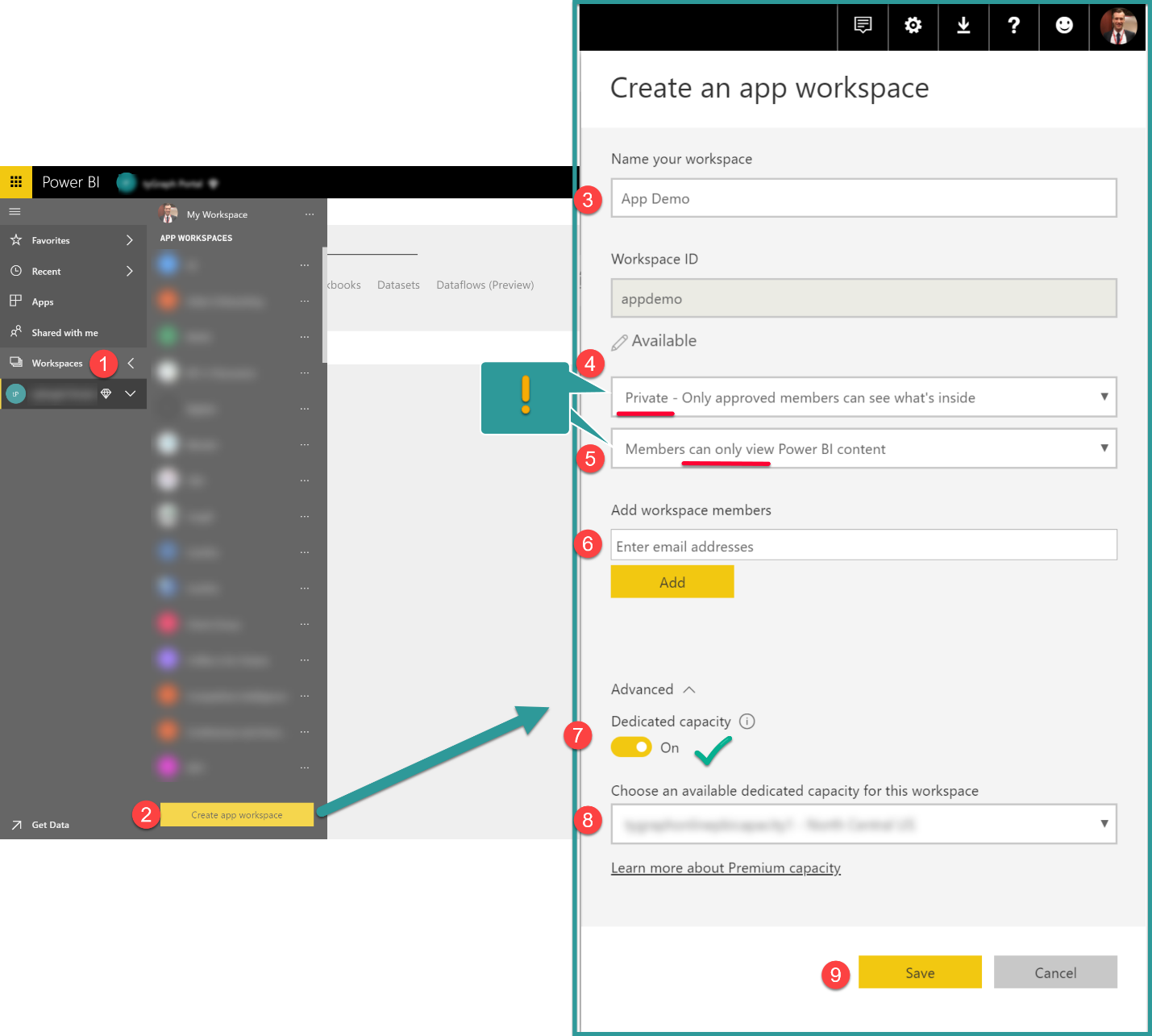
Once you have your premium capacity provisioned, open your Workspace tile in Power BI.
-
Create a new workspace
-
Name the new workspace
-
Set the workspace to Private.
If you set the workspace to public, then any users with a Pro license will be able to view the report loaded into this group regardless of any security roles that you have employed.
-
Set the workspace so that members can only view the Power BI content.
-
Enter the email addresses to add any other admins that will be managing the workspace. It should be noted as in step 4 that any users added to the workspace will be exempt from RLS roles.
-
Toggle to enable Dedicated capacity.
-
Select the dedicated capacity workspace of your choice
-
Click Save when done.
Maintain Access
Part of maintaining a Power BI app requires that a user or team or application manage users. This is done by adding and removing users (or a distribution group) to both the role and permissions. If you are adding Group Admins for example, you must add them to the security role first and then add the user in the app permissions section.
You can use distribution groups to control both security groups and RLS role access. For details, refer to this Microsoft article.
Set up Security Group
We recommend creating using an existing security group or creating a new one to manage access to your Power BI reports.
Add a User
-
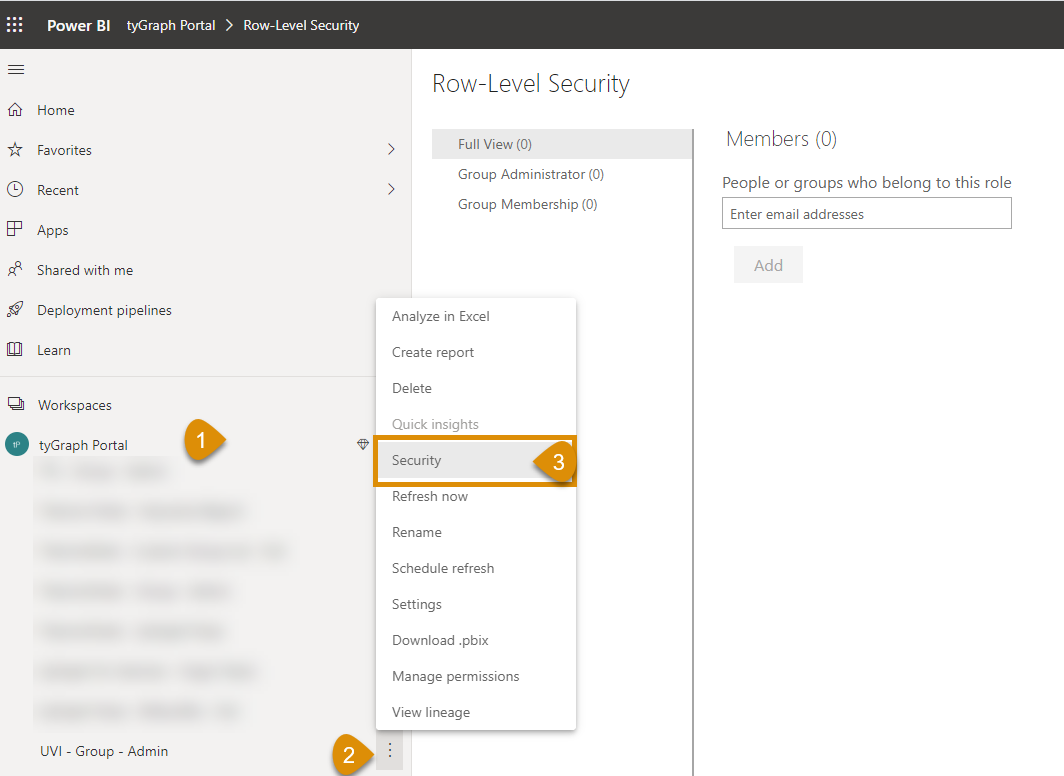
Scroll down the premium workspace to the datasets section.
-
Open the dataset options panel by clicking the ellipsis next to the dataset.
-
Select the Security option.
-
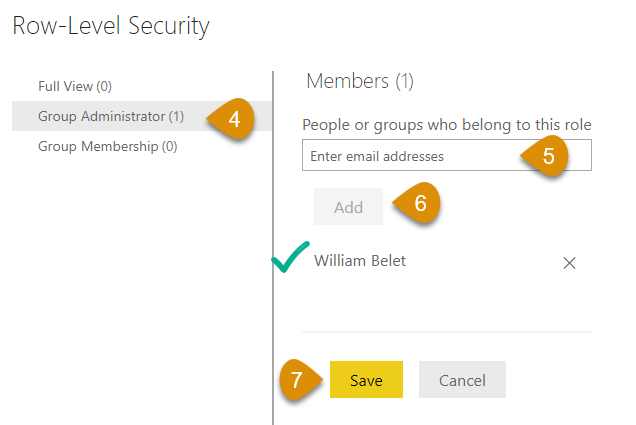
Select the security role. Typically, only one role is displayed here.
-
Enter the email address of the new user.
-
Click Add.
-
Click Save.
-
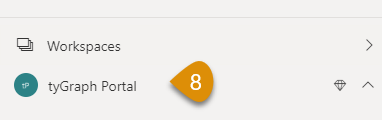
Navigate back to the workspace.
-
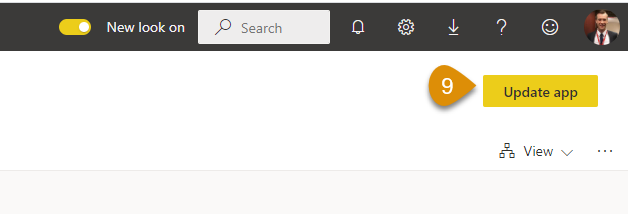
Click Update app.
-
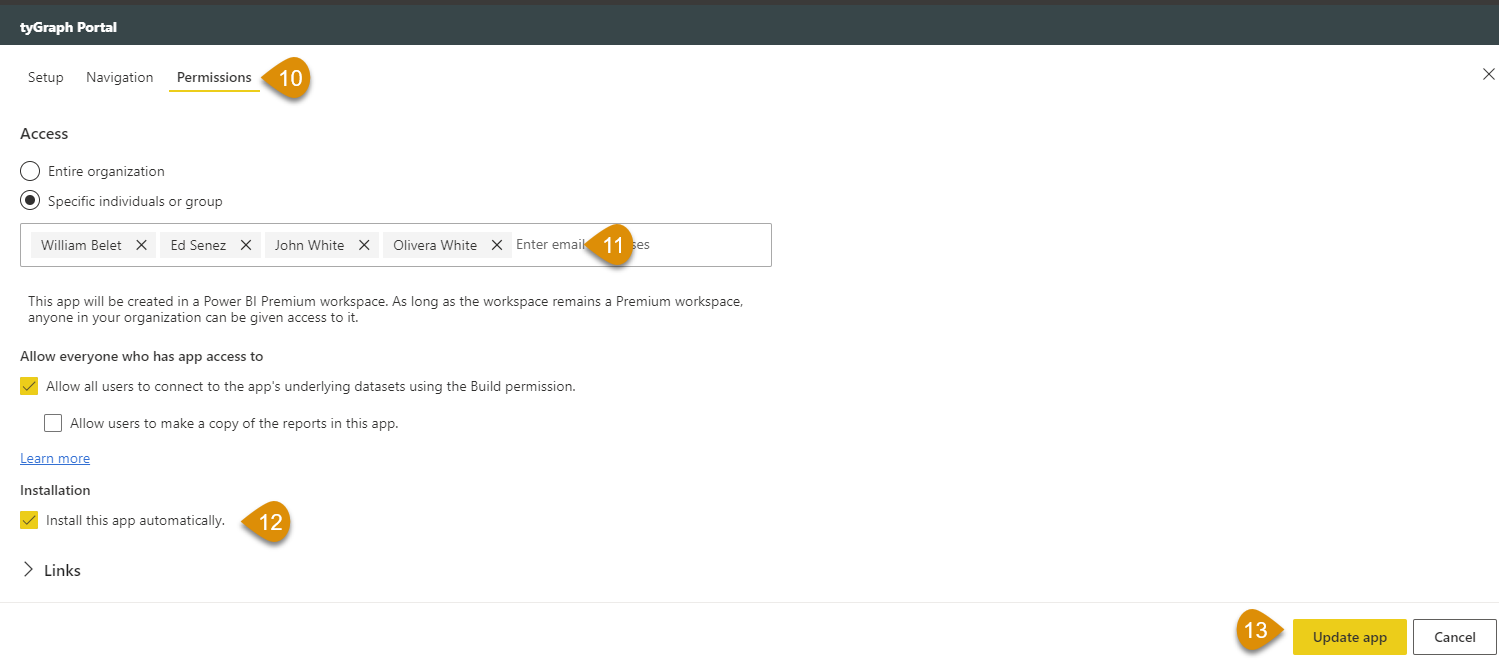
Go to the permissions tab.
-
Add your users to the app.
-
A popular option is to ensure Install App Automatically is enabled. If it is greyed out then this option has been disabled by your Power BI administrator.
-
Click Update app when done.
Remove a User
-
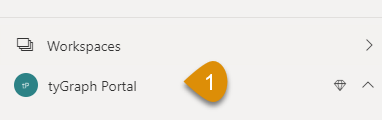
Go to your workspace.
-
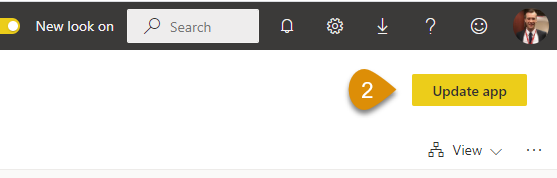
Click Update App.
-
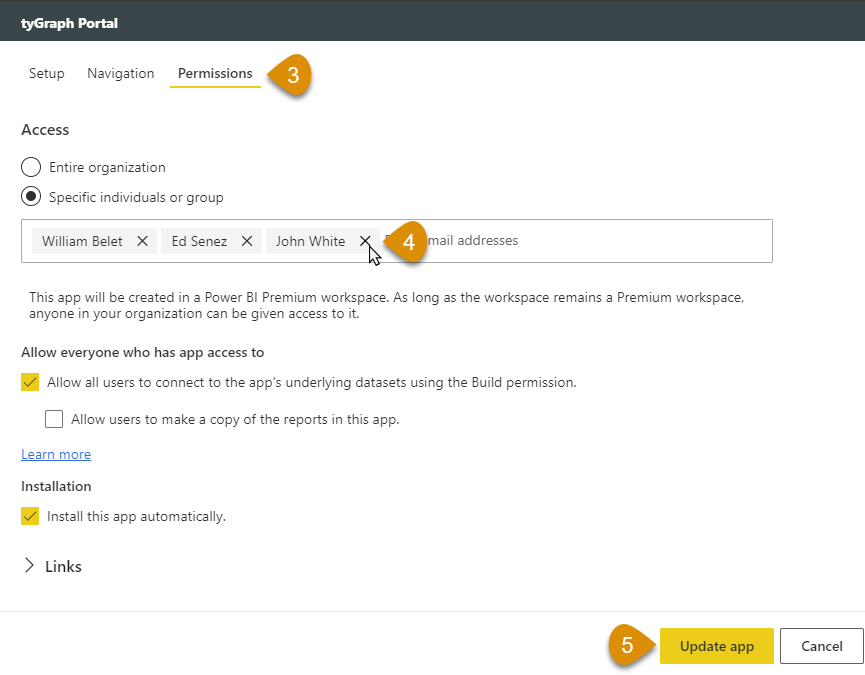
Navigate to the permissions header.
-
Remove users
-
Click Update app when done.
End User Experience
-
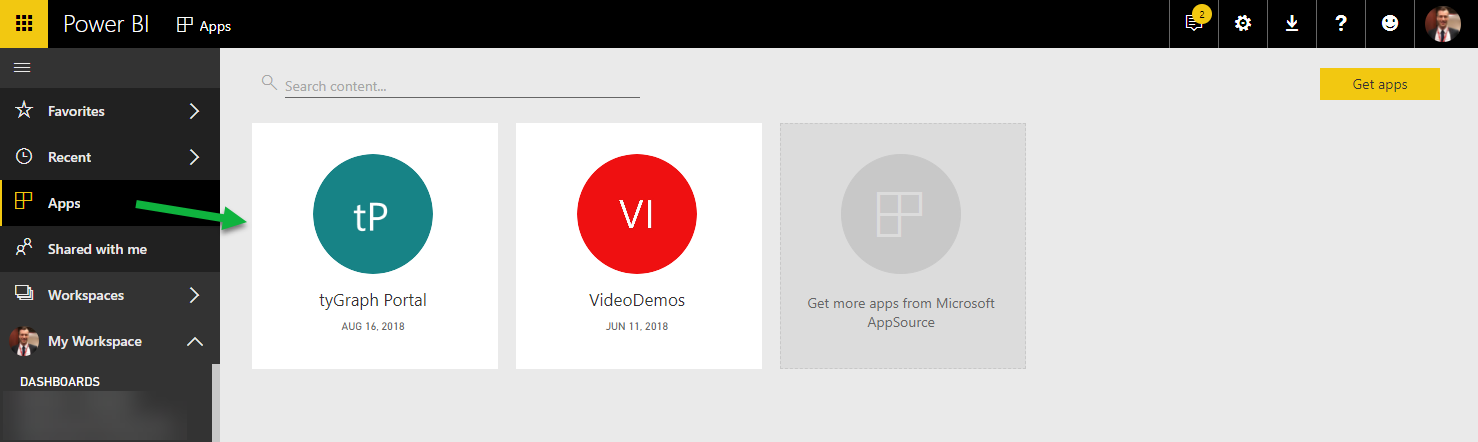
If you enabled automatic install in the app creation then users will be able to see the application by simply opening the Apps pane in Power BI.
-
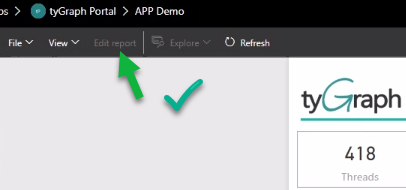
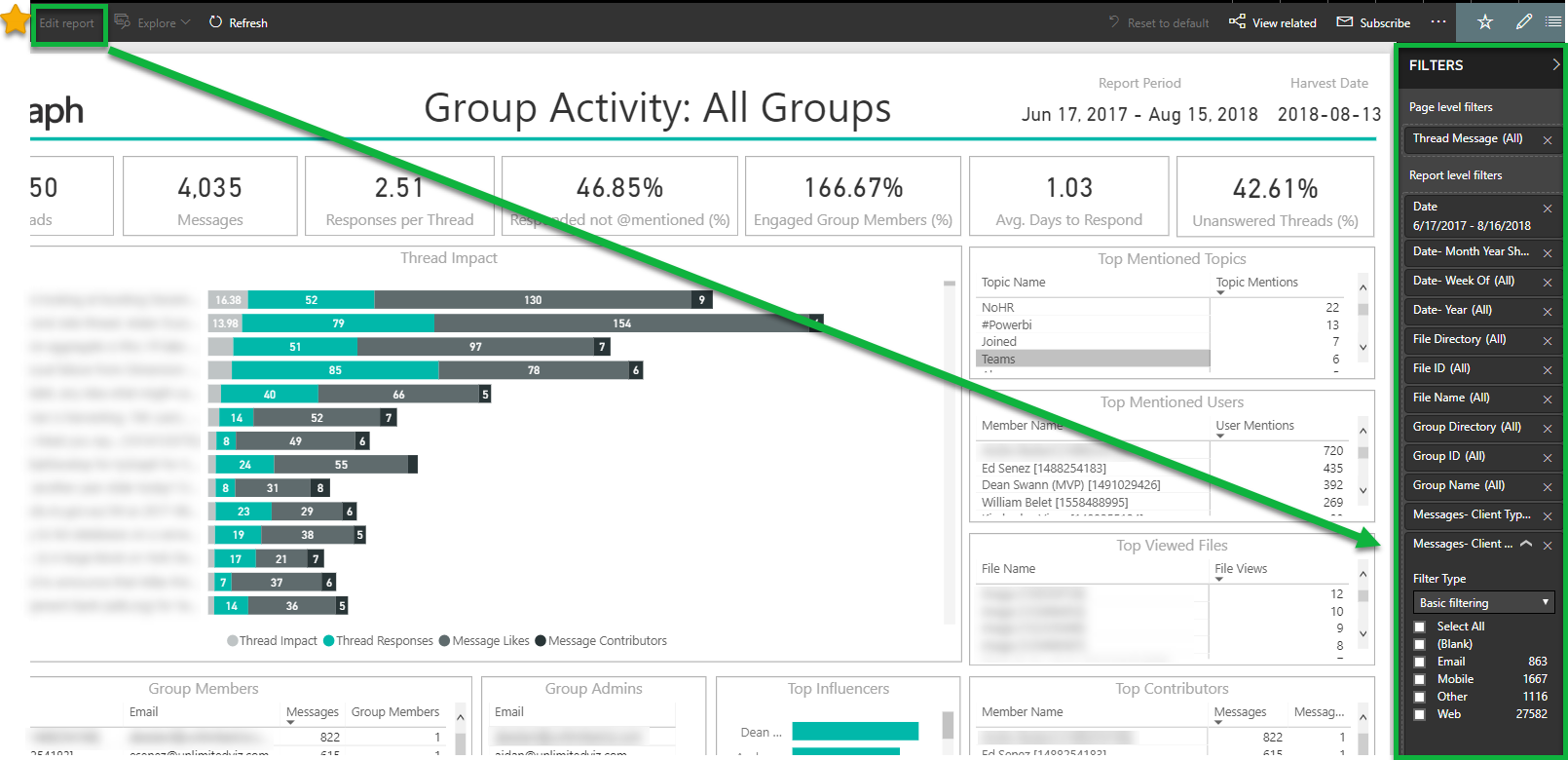
If read only has been enabled for the user. They will be able to view the report and use all items in the filters pane. The user will not be able to edit the report layout or save any filter changes.