
Home > Installation > How to Deploy a Row Level Security Report > Workspace Setup
Download this articleWorkspace Setup
Creating this Power BI App will include three major steps:
-
Establish a workspace. For details, refer to Create Workspace.
-
Load RLS PBIX File. For details, refer to Load Model File.
-
Publish Organizational App. For details, refer to Create Your App.
Create Workspace
Please refer to this Microsoft article on how to create a workspace if you don't have one created already. We also don't recommend that you add the model to a Template App Workspace that came with the store.
Load Model File
Follow the steps below to load the model file:
-
Download the RLS model file you would like to install in your Power BI environment. For download links, refer to the Power BI Downloads section.
-
Select your workspace.
-
While still in the workspace, select Upload > Browse.
-
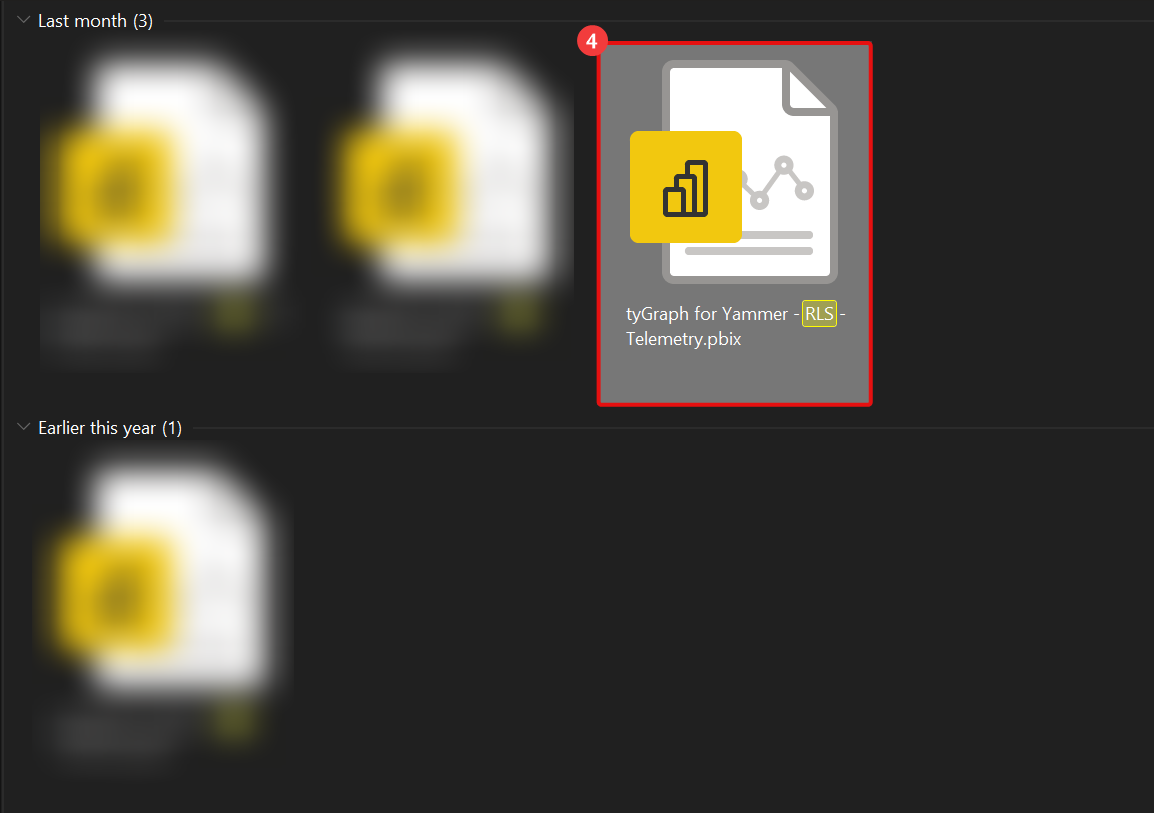
Select the designated file and click open.
Create Your App
The following steps detail how to install an app to get up and running quickly. For a detailed explanation please see the Microsoft documentation here.
-
Select the workspace.
-
Open the report pane.
-
Enable the uploaded report in the Included in App toggle. By default, all of your reports will be included in your app. This is why it is good to keep the report for the app in their own workspace for simplicity.
-
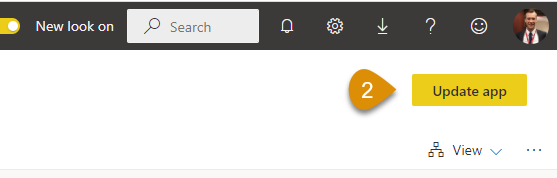
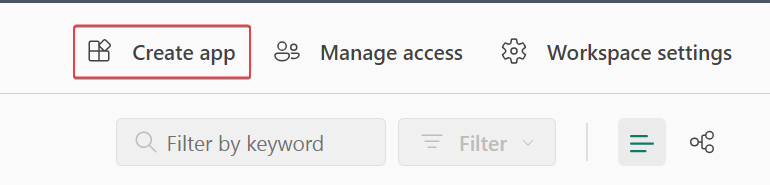
Click Create app.
-
In the Details pane, enter a description for the app and configure any of the App themes and contact information as desired.
-
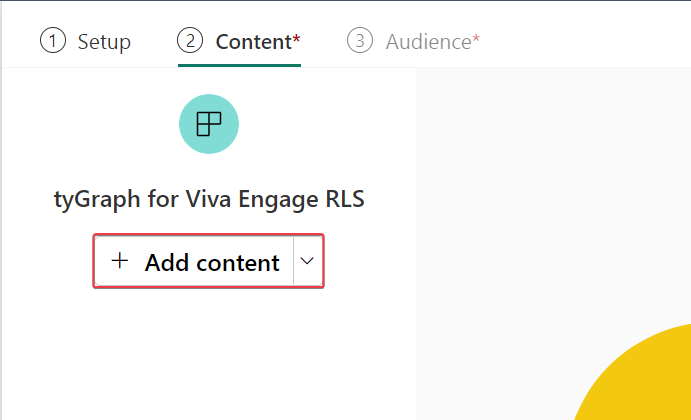
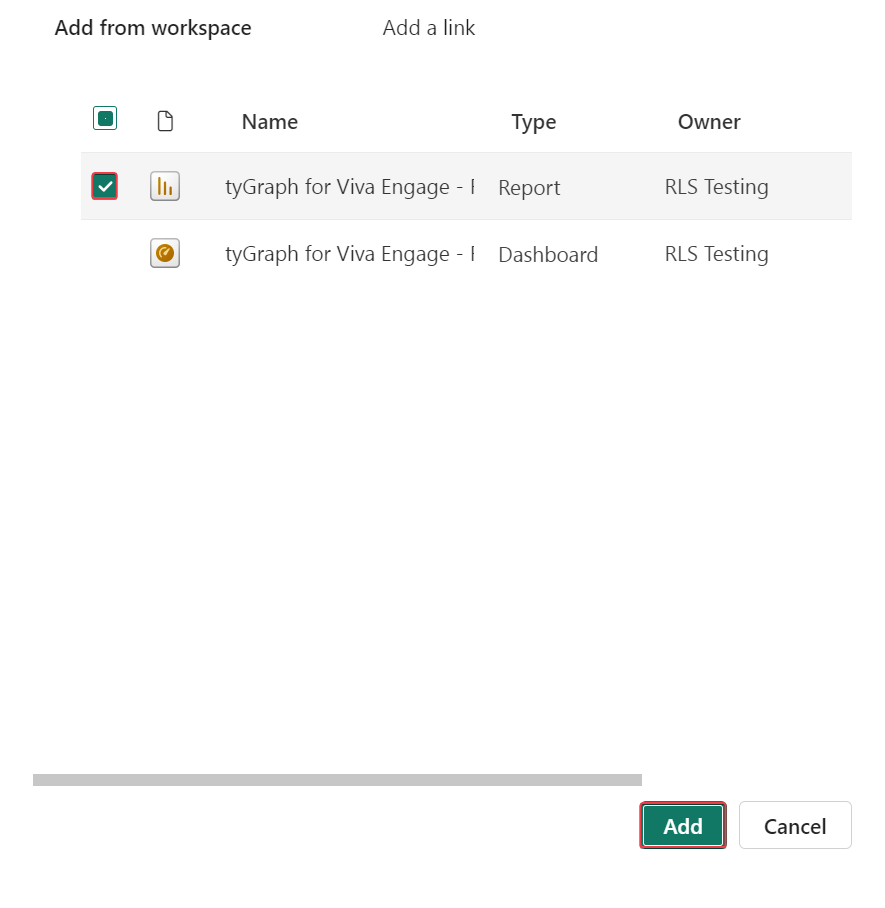
Open the content tab, click Add content, and then select the RLS report from the workspace.
-
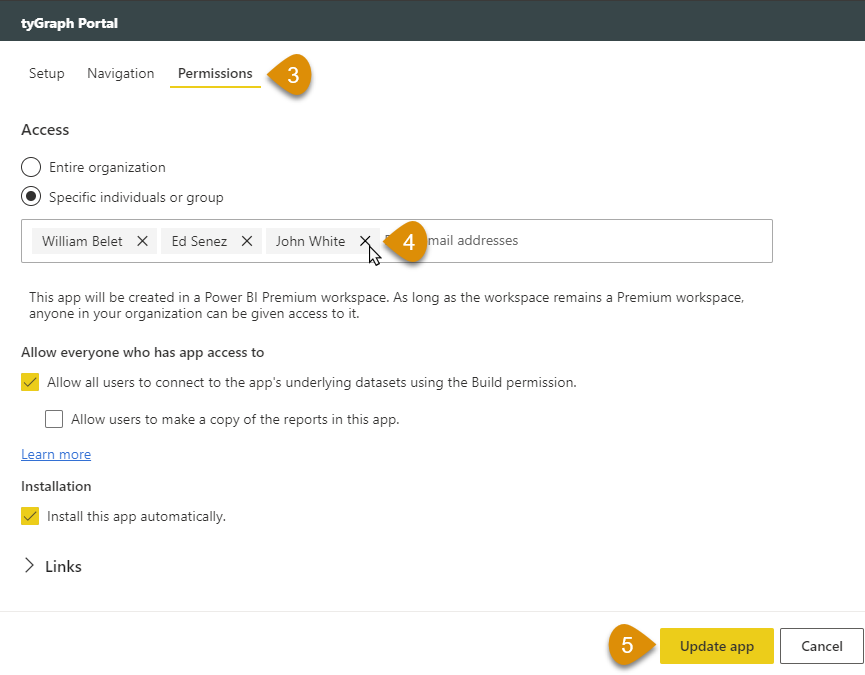
Select the Audience tab and check the box to install the app automatically for users who have given permission.
-
In the permissions section, be sure to only allow permission to Specific individuals or group.
-
You can verify the dashboards’ reports, workbooks, and datasets that will be included in the app by viewing the totals next to each icon.
-
Click Finish when done.
-