
Home > Report Center > Overview
Download this articleReport Center
Click Report center on the left navigation pane, and you can choose to view the Pulse reports, SharePoint reports, Copilot adoption reports, or Viva Engage reports.
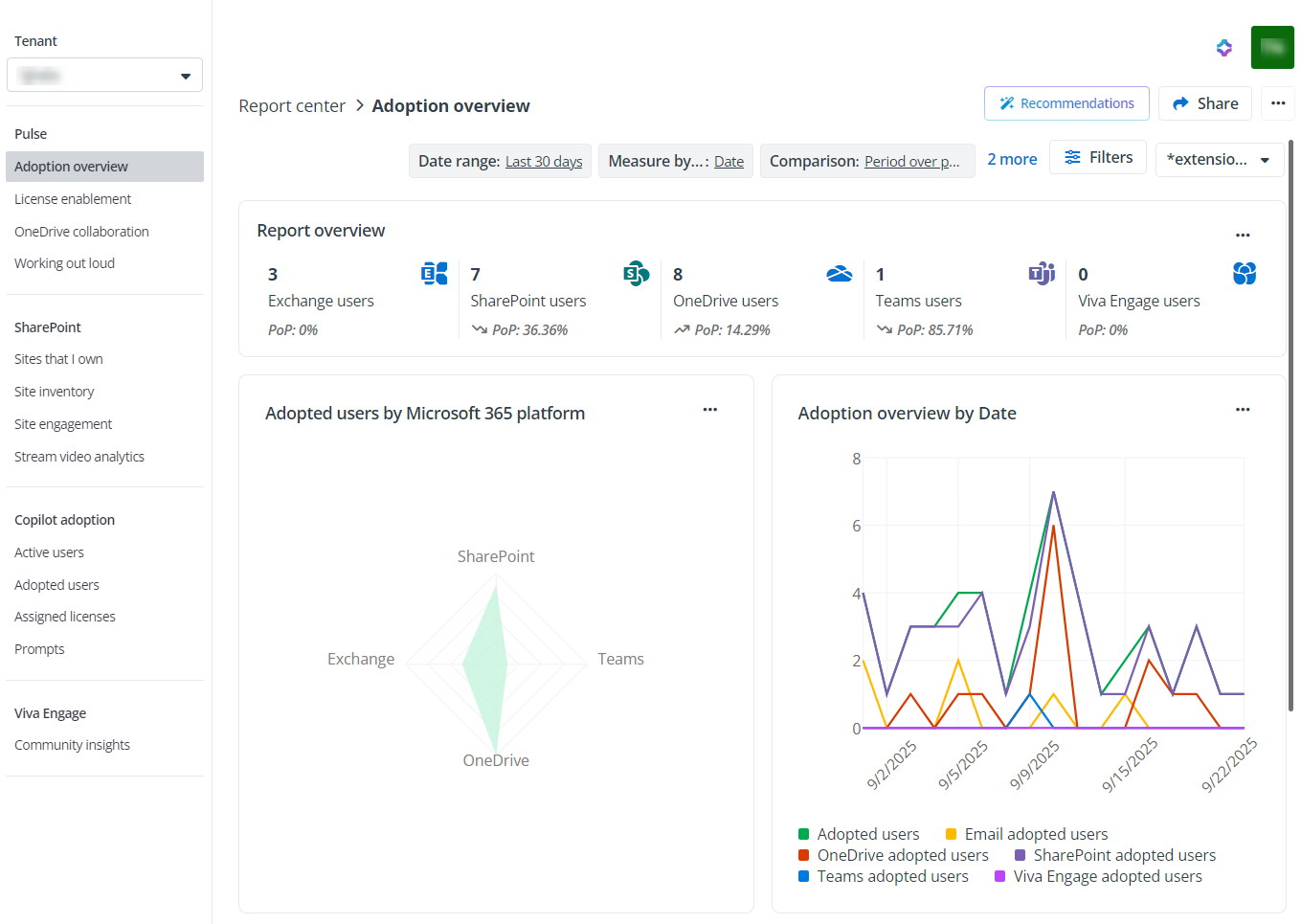
Filters
You can use the built-in filter view or custom filter views to define the data scope for the reports.
Refer to the instructions below to manage a custom filter or filter view:
-
If your organization has multiple tenants, select a tenant from the tenant drop-down list in the upper-left corner of the page to view the report of the selected tenant.
-
Date range – Click Filters and click Date range to specify a date range from the following options to view reports.
-
Last 7 days
-
Last 30 days
-
Last 90 days
-
Last 180 days
-
Custom – Specify the date range by selecting a start date and end date in the calendar to filter data in this period.
Click Apply changes to save configurations for date range.
-
-
Display – Click Filters and click Display to define the line graphs and matrix by the preferred time measurement and time period comparisons. Choose one of the options below to view the data and trends of your digital transformation scores:
-
Measure by time
-
Year
-
Quarter year
-
Month year short
-
Week of
-
Date
-
Day of week
-
-
Comparison
-
General change
-
Month over month
-
Period over period
-
First v last full month
-
Parallel period last year
-
Year over year
-
-
User property
-
Measure by active user (Available only in the Active users report)
-
Active users
-
% Active users
-
Interactions
-
Interactions per person
-
-
Measure by adopted user (Available only in the Adopted users report)
-
% Adopted users
-
Adopted users
-
Click Apply changes to save your display configurations.
-
-
User property – Click Filters and click User property to filter data based on property values from the predefined user properties. This will display various metrics based on the user property values you selected
Click Apply changes to save configurations for user property.
-
Object – Click Filters and click Object to filter data based on predefined site type or communities. This will display various metrics based on the object you selected. Choose one of the options below to view the data and trends of your digital transformation scores:
-
License (Not available in the SharePoint reports) – Click Object and select licenses to filter data based on specific licenses.
-
File/Page name (Available only in the Sites that I own report) – Click Object and select file or page names to filter data based on specific files or pages.
-
Site type (Available only in the Site inventory report) – Click Site type and select a site type to filter data based on specific types of sites.
-
Categorization (Available only in the Prompts report) – Click Object and select categorizations to filter data based on specific prompt categories.
-
Language (Available only in the Prompts report) – Click Object and select languages to filter data based on specific prompt languages.
-
Community (Available only in the Community insights report) – Click Object and select communities to filter data based on specific communities.
-
Topic (Available only in the Community insights report) – Click Object and select topics to filter data based on specific topics.
Click Apply changes to save configurations for object.
-
-
To save the view as a new one, click the filter view being edited to expand the view list and click Save as. Then enter the view name and click Save.
-
For a customized filter view, locate the view and you can perform the following actions by clicking the More actions button:
-
Set as default
-
Rename
-
Delete
-
For details, refer to the sections below: