
Home > Power BI Report Guides > Power BI report shows no data - What do I do?
Download this articlePower BI report shows no data - What do I do?
There's nothing worse than applying a filter to your report and not seeing any data. It happened to all of us, but here's what we recommend figuring out why your report is showing less than you expect.
Check Filters
-
Hover over any visuals not showing what you expect.
-
You will see a filter icon appear at the top
-
Hover over this filter icon and it will show you all the filters currently affecting the visual.
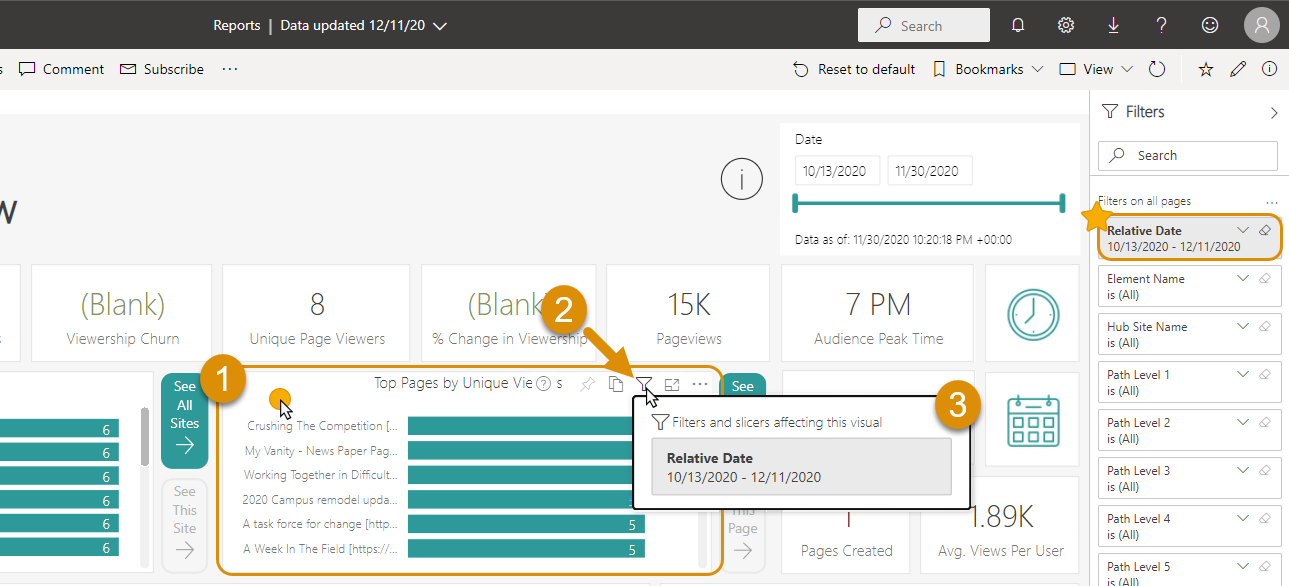
From here we can see that there is a rolling filter in the filter pane that is affecting this and all other visuals on all pages.
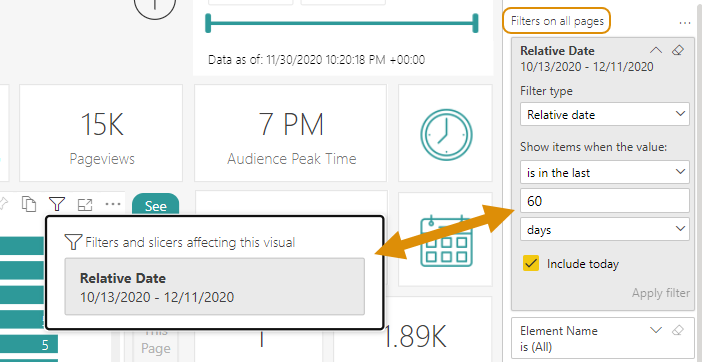
It is important to remember that what you see on the canvas is the combination of all filters applied in the filter pane plus slicers or selections you've made on the canvas.
This is particularly important for date filtering. For detailed date filtering examples, see our full article: Appendix B: Date Filtering in tyGraph Enterprise.
Check Dataset
If you have cleared all filters and still see no data, check the dataset refresh status.
If you don't have control over your dataset and have no data please contact your dataset administrator or start a ticket with us and provide the name of your dataset owner.
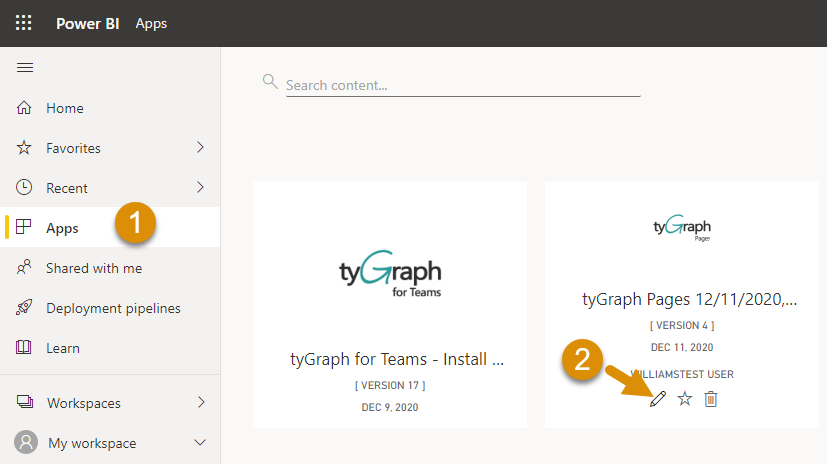
Go to the workspace for your report and observe the last time the dataset pulled-in new data.
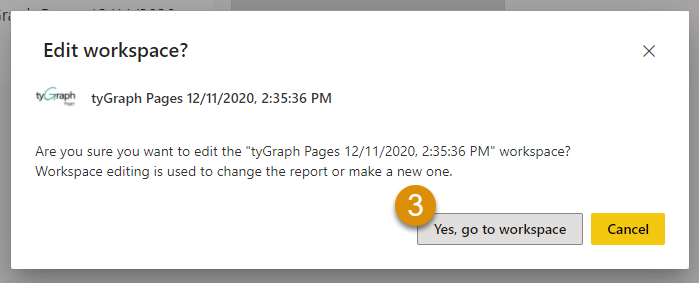
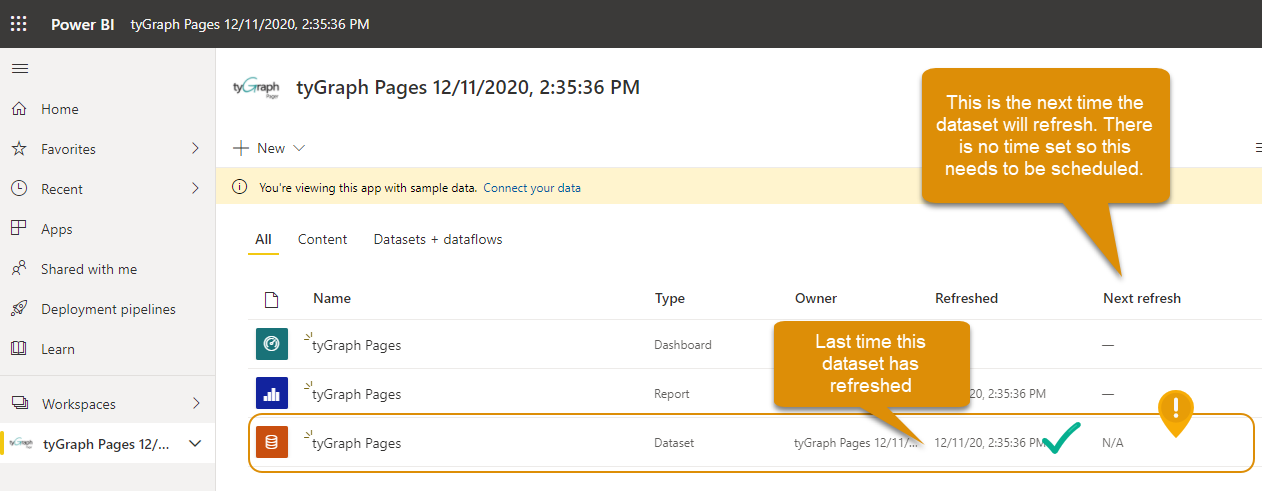
Sometimes the dataset can be disabled by Power BI for inactivity or was never scheduled to begin with. See this article for details: How to Refresh a Power BI Dataset.
Contact Us
If you are the dataset owner and have no recent data, please contact us by starting a ticket or emailing support@avepoint.com.