
Home > Installation > How to Deploy Live Connected Reports
Download this articleHow to Deploy Live Connected Reports
tyGraph Live Connected reports allow you to edit report layouts, filters, and create new metrics on tyGraph products in a modularized manner.
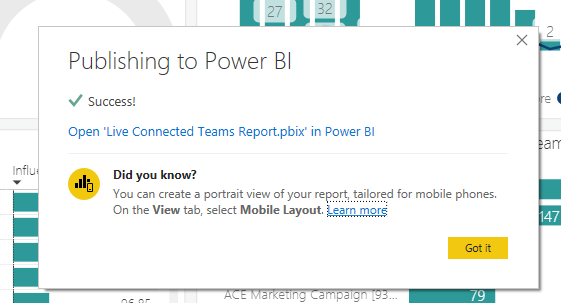
Live connected reports are standalone artifacts that plug into their corresponding tyGraph dataset. The benefit is that you can maintain one common dataset but have multiple customized reports all drawing data from the same place.
You can also live connect these reports to datasets from other workspaces. For full details, see Connect to semantic models in the Power BI service from Power BI Desktop.
Follow the instructions below to deploy live connected reports:
Requirements
You will need these items to follow this guide:
-
Power BI Desktop
-
Access to an existing dataset in the Power BI service.
Download Reports
-
Click the product you'd like or use the file link we've shared with you (in custom situations). For download links, refer to the Power BI Downloads section.
-
Open the file in Power BI desktop.
Connect to Dataset
-
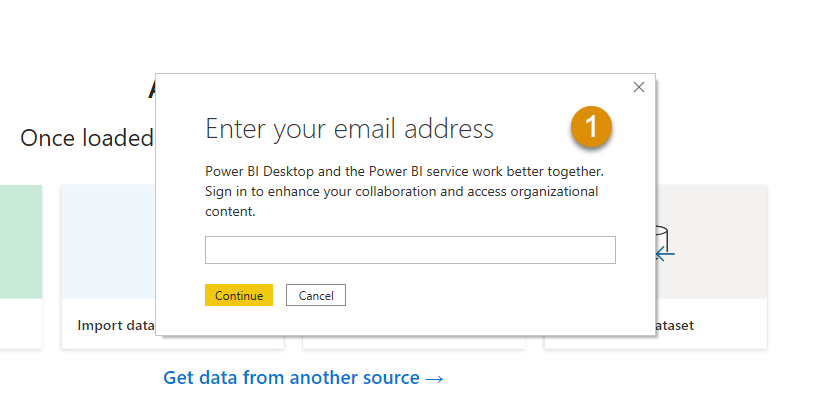
Sign in to Power BI. If you are not already, Power BI may prompt you with the following Enter your email address.
-
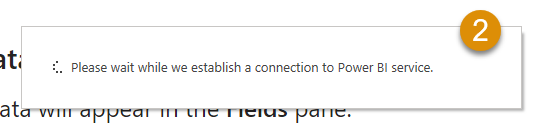
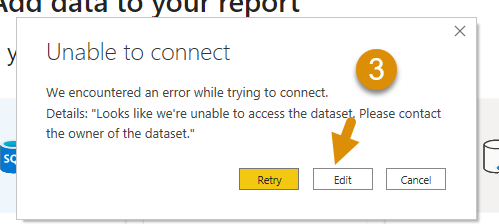
You will see unable to connect. Click Edit.
-
Search and select your dataset.
-
Select dataset and allow the report to refresh.
Edit and Publish
From here, you can edit the report as much as you desire.
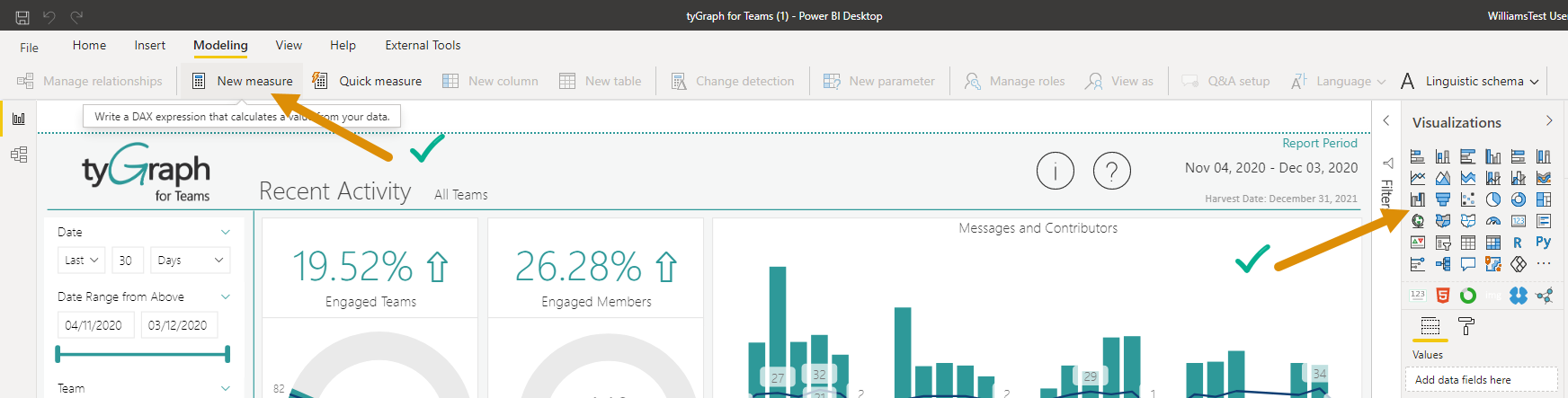
-
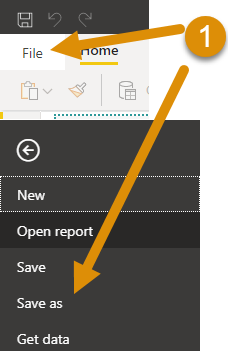
Once finished clicking Save as with the report to have the name you'd like in the Power BI Service.
-
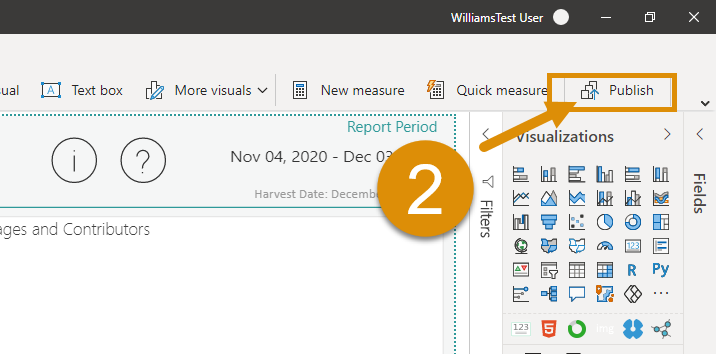
Click Publish.
-
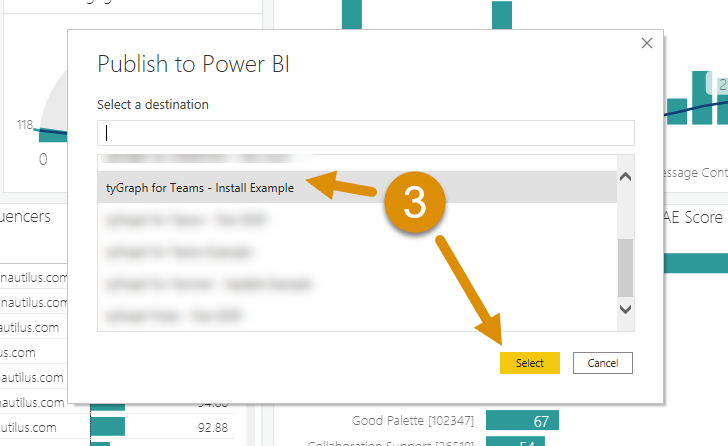
Select whichever workspace you'd like.
-
You will now see that.
Conclusion
This offers a very clean, dynamic, and repeatable way to deploy customized work around the Power BI Service. Among other benefits this method allows you to control and save your custom reports outside of the workspace or Power BI service all together. If someone deletes a workspace, dataset, or other asset in the Power BI service, you will always have a backup available.
Additionally, you can modify one file and deploy it in multiple workspaces without needing to manage the data, refresh or authentication. The reports are just templates that are "live connecting" to the data source for which you point them.