
Benchmarking
tyGraph Benchmarking allows you to compare your organization with others on metrics such as adoption and usage. All data is anonymized, and no personal or sensitive information is shared with others. Your anonymized data will be used to calculate average rates of adoption and usage. In return, you will gain insights into how your organization compares with others in your industry or of similar size. By opting-in to benchmarking, tyGraph will share your anonymized data across an array of adoption measures to help you understand your organization's performance in adoption, collaboration, and modern work.
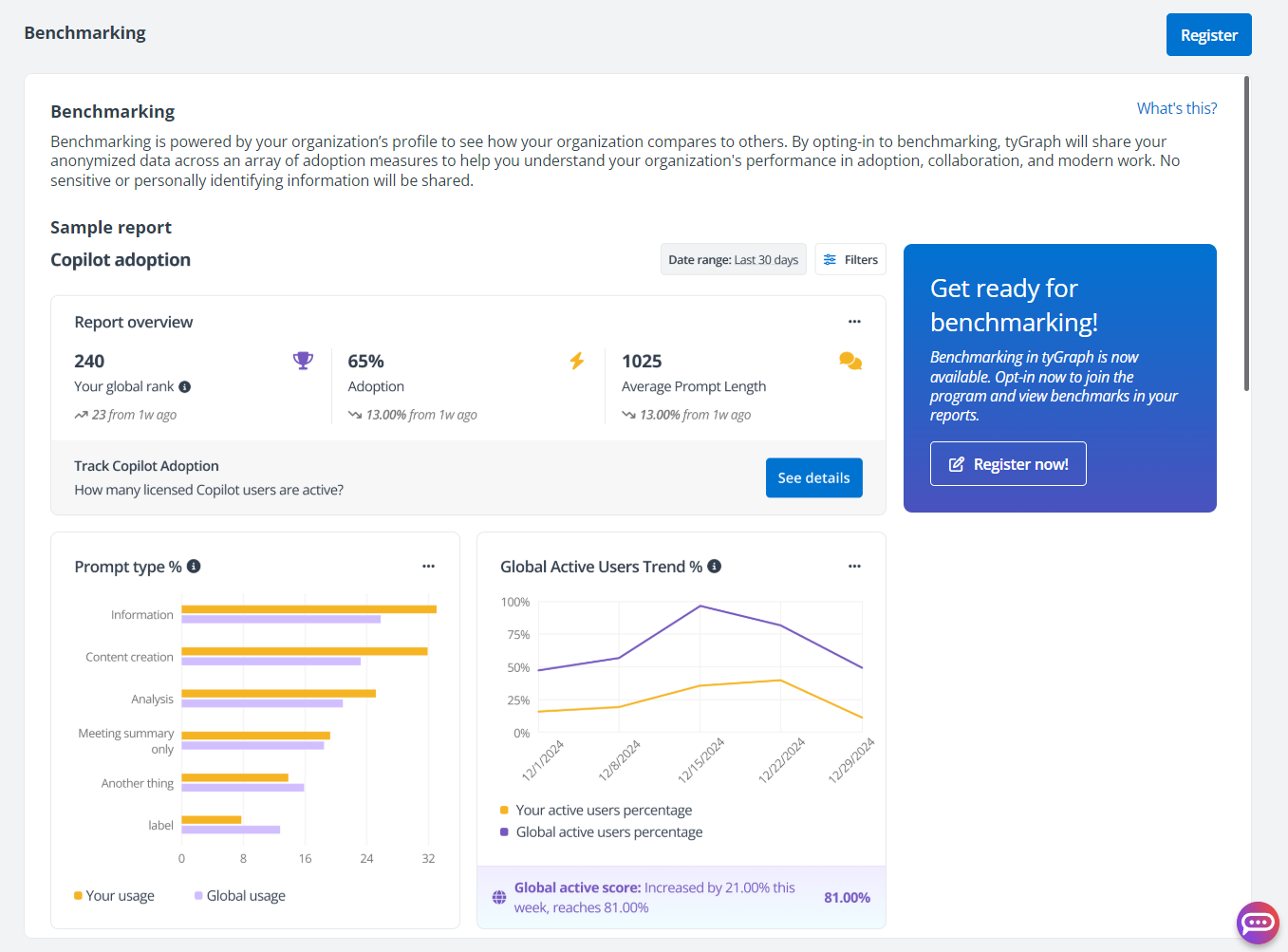
All visuals in the Benchmarking report pages support exporting data to CSV or XLSX formats, allowing report users to download and analyze insights for deeper reporting or sharing.
For details, refer to the sections below:
Register for Benchmarking
To access the benchmarking data of related reports, you need to register your organization. Follow the instructions below to register for benchmarking.
-
Click Benchmarking on the left navigation pane, and then click Register to start the registration from step 1. Opt-in.
-
Choose how would you like to opt-in to tyGraph Benchmarking from the following options:
-
For all tenants
-
For specified tenants
If you choose to opt-in to benchmarking for specified tenants, turn on the toggle to choose which tenants you would like to enable benchmarking for.
-
Click Next to proceed to step 2. Organization profile.
-
Select the industry code and size of your organization.
-
Click Next to proceed to step 3. Benchmarking programs.
-
Turn on the toggle to choose which programs you would like to enable benchmarking for. To opt-in to all benchmarking programs, turn on the All programs toggle.
-
Click Next to proceed to step 4. Review.
-
Review the information configured in previous steps including Opt-in preferences, Organization profile, and Programs.
-
After your confirmation of the information, click Register.
*Note: To opt-in to benchmarking, you must have the AvePoint Service Administrator role.
For tenants that have registered in benchmarking, you can go to Preferences to manage your Benchmarking configurations for any of the tenants to align with your data and reporting needs.

Copilot Benchmarking Report
To evaluate and compare the implementation and usage of Microsoft's Copilot across different organizations, you can view the benchmarking data in the Copilot adoption report. Note that only organizations who contribute to the program can view this report. In the Copilot adoption report, you can view the following:
- **Report overview** – The report overview consists of the following three cards: Your global rank, Adoption, and Average prompt length. Refer to the following instructions.
- **Your global rank** – Track your organization’s Copilot adoption ranking against others.
- **Adoption** – Percentage change of users who have engaged with Copilot.
- **Average prompt length** – The average length of Copilot prompts. Longer prompt length shows higher prompt maturity.
- **Track Copilot** **adoption** – To view details about licensed Copilot users in your organization, click **See** **details** to be redirected to the **Assigned licenses** report.
You can validate your Copilot adoption by comparing your data against your peers by industry or global benchmarks using the Industry filter selection for industry-specific or global benchmarks.
- **Active users trend** – Evaluates your organization’s Copilot active user percentage in comparison to the benchmark.
Active users indicate the changes of global or industry active users.
- **Licensed users trend** – Calculates the percentage of Copilot licensed users to your total purchased Copilot licenses in comparison to the benchmark.
License reflects any global or industry license updates from the previous week.
- **Adopted users** **trend** – Comparison between your adoption percentage and global/industry adoption percentage during the specific date range.
Adoption refers to the average benchmarking data of Copilot adoption among all organizations or the selected industry that have opted into the benchmarking program over a week. You can view the change in benchmarks for all the participating organizations using Copilot compared to the previous week’s data.
- **Active unlicensed users trend** – Calculates the percentage of active Copilot unlicensed users to your total active users in comparison to the benchmark.
- **Prompt type** – Calculates the percentage of prompts in the given category in relation to the total number of prompts during the reporting period.
Intranet Benchmarking report
The Intranet benchmarking report provides a comprehensive analysis that evaluates how users in your organization interact with and access the intranet and provide insights into your organization's content publishing performance compared to benchmarks. To view your organization’s Intranet benchmarking data, click Engagement on the left navigation pane, and you can view the reports below based on your benchmarking opt-in programs:
- The **Engagement** report
- The **Publishing** report
Engagement
The Engagement report provides a detailed analysis of user interaction with your organization’s intranet, comparing key metrics against industry benchmarks. It tracks reach, active users, time spent on content, and trends over time to help you assess engagement levels and identify areas for improvement.
- The statistics bar displays the engagement and adoption of the Intranet among users in your organization, along with a comparison to the previous week's data.
- **Intranet active users** – The number of unique users who have signed into and interacted with the Intranet for the week.
- **Intranet** **reach** – The percentage of total users who have accessed the Intranet for the week.
- **Home page reach** trend – The percentage of total users who have accessed the Intranet home page for the week.
- **Average time on news pages** – The average time spent on all news pages for the week.
- Each chart shows intranet engagement data for the specified period, comparing it to the average benchmarking data from all participating organizations over a week. You can validate your Intranet effectiveness by comparing your data against your peers by industry or global benchmark using the **Industry** filter selection for industry-specific or global benchmarks.
- **Intranet** **reach** **trend** – The ratio of users who accessed the intranet over a week to the total users who interacted with it in the last 12 months, compared to the benchmark.
- **Home page reach** **trend** – The ratio of users who accessed the intranet home page over a week to the total users who interacted with it in the last 12 months, compared to the benchmark.
- **Average time on news pages** – The average time spent on all news pages over a week, compared to the benchmark.
Publishing
The Publishing report provides insights into your organization's content publishing performance compared to industry benchmarks. It tracks key metrics such as news posts, page publications, and user engagement trends to help you understand how your organization's activity stacks up against broader industry standards.
- **Publishing benchmark** – The overall publishing effectiveness is calculated by analyzing the metrics in news posting and page publication activities.
- **Saturation level** – The content saturation is calculated by measuring the deviation of each day's post count from the mean.
- **Most popular day** – The most popular day of the week to post news and pages.
- **News posts per user** – The number of news articles posted per user during the selected period.
- **News post per** **period** – The number of news articles posted during the selected period.
- **Understand your engagement trends** – Click **See details** and you will be redirected to the Site engagement report page to view detailed user engagement metrics.
- **Weekly statistics** – Presents a set of weekly statistics cards that detail the volume of news articles and pages published.
- **News posts** **per user** – The average number of news articles posted by each user in your organization. It provides a comparison to the data and shows the percentage change from one week ago.
- **News posts** **per period** – The average number of articles posted per time period within your organization. It compares this metric to the data and shows the percentage change from one week ago.
- **Page publications per user** – The average number of pages published by each user in your organization. It compares this metric to the data and shows the percentage change from one week ago.
- **Page publications per period** – The average number of page publications that occur within a time frame for your organization. It provides a comparison to data and the percentage change from one week ago.
- **Page publications per user** – This chart compares the average number of page publications made by users within your organization against the global/industry average over the period.
- **Page publications per period** – This chart tracks the total number of page publications made within specific time periods for both your organization and the global/industry average.