
Home > Installation > tyGraph Pages Web Part Installation
Download this articletyGraph Pages Web Part Installation
tyGraph Pages offers a powerful web part that democratizes insights without requiring Power BI licensing or analytical training. Once installed, you can deploy the tyGraph Pages Web Part to any page, allowing your audience to view tenant, hub, site, or page statistics in a self-serve format. This web part uses the same data model as your analyst team views in Power BI, ensuring the reliability of a common data model.
To add the tyGraph Pages Site Analytics web part to a SharePoint page, you will need to download and install the app packages for tyGraph Pages Engine and tyGraph Pages Web Parts into your SharePoint. The tyGraph Pages Engine package enables data collection on your SharePoint pages, while the tyGraph Pages Web Parts package activates the web parts and report bar. Download tyGraph Pages Engine and Web Parts
Click the corresponding downloading links to install the tyGraph Pages Site Analytics web part to a SharePoint page:
| Environment | Downloading link | Downloading link |
|---|---|---|
| Commercial production environment | tyGraph Pages Web PartstyGraph Pages Engine | tyGraph Pages Web PartstyGraph Pages Engine |
| U.S. Government production environment | GCC | tyGraph Pages Web Parts GCCtyGraph Pages Engine GCC |
| U.S. Government production environment | GCCH | tyGraph Pages Web Parts GCCHtyGraph Pages Engine GCCH |
| Project Hosts production environment | GCC | tyGraph Pages Web Parts GCCtyGraph Pages Engine GCC |
| Project Hosts production environment | GCCH | tyGraph Pages Web Parts GCCHtyGraph Pages Engine GCCH |
Install tyGraph Pages Engine and Web Parts
Complete the following steps to install the app packages for tyGraph Pages Engine and tyGraph Pages Web Parts into your SharePoint:
-
In the SharePoint admin center interface, navigate to More features > Apps and click Open.
-
In Apps > Manage Apps, click Upload.
-
Select the downloaded app packages and click Open. The app packages are successfully uploaded.
-
Enable all uploaded apps and approve the access for each app in the following instructions:
To manage APl access, you need to be assigned the Global administrator role in Microsoft 365.
-
Approve access for tyGraph Pages Engine
-
Select the tyGraph Pages Engine app package and click Enable to configure the settings for data access.
In the panel, select the Enable this app and add it to all sites option, and then click Confirm.
-
After the app has been enabled, click Go to API access page.
-
In API access > Pending requests, select the tyGraph Pages Engine package and click Approve to approve the access. You will be asked to approve User.Read and tygraph_users_impersonation permissions.
The tygraph_users_impersonation permission is provided by the AvePoint Online Services application. When approved, the permission is granted to the SharePoint Online Web Client Extensibility enterprise application, which is the Microsoft-managed application used by SharePoint Framework (SPFx) solutions. This permission enables tyGraph Pages Engine and Web Parts to securely authenticate and access tyGraph APIs on behalf of signed-in users.
-
In the Approval access panel, click Approve.
-
-
Approve access for tyGraph Pages Web Parts
-
Go back to Manage apps, select the tyGraph Pages Web Parts app package, and click Enable to configure the settings for data access.
-
In the panel, select the Enable this app and add it to all sites option, choose whether to Add to Teams, and then click Confirm. If you select the Add to Teams checkbox, the app will be added to Teams.
NOTEAfter the web part is installed, you will need to add it to the desired pages and sites.
After the app has been enabled, click Go to API access page.
-
In API access > Pending requests, select the tyGraph Pages Web Parts package and click Approve to approve the access.
-
In the Approval access panel, click Approve.
-
- When you finish installing the two app packages, navigate to your desired page in SharePoint, and then click Edit.
Starting later in 2025, the trusted script sources settings in the SharePoint admin center decide if the scripts from external sources can be loaded. To ensure the functionality of the tyGraph Pages Engine and tyGraph Pages Web Parts, the following CDN links must be allowed to load in the environment based on your scenario:
-
Commercial production environment:
https://config.tygraph.cdn.avepointonlineservices.com/pagesengine/https://config.tygraph.cdn.avepointonlineservices.com/pageswebpart/ -
U.S. Government production environment
-
Government Community Cloud (GCC) users
https://configgov.tygraph.cdn.avepointonlineservices.com/pagesengine/https://configgov.tygraph.cdn.avepointonlineservices.com/pageswebpart/ -
GCC High users
https://config-gcc.tygraph.cdn.sharepointguild.com/pagesengine/gcch/`https://config-gcc.tygraph.cdn.sharepointguild.com/pageswebpart/gcch/ -
Legacy tyGraph users
https://tygraphpagescdn.azureedge.net/logger/https://config.tygraph.cdn.avepointonlineservices.com/pageswebpart/Installing the SharePoint packages should add the required URLs to your trusted script sources. However, you should validate that the above entries were added. Existing customers will need to add these URLs manually or uninstall and reinstall the SharePoint packages to add them.
-
Add the Site Analytics Web Part to a Page
The tyGraph Pages Site Analytics web part provides reporting capabilities for any site, hub site, or tenant. You should decide on which sites or pages you would like to add it into. The web part is not added to pages automatically because we can't alter content on your SharePoint sites.
Complete the following steps to add the Site Analytics web part to a page:
-
After you have finished installing the app packages for tyGraph Pages Engine and tyGraph Pages Web Parts, navigate to your desired page in SharePoint, and then click Edit.
-
Click the Add button where you would like to add the web part.
-
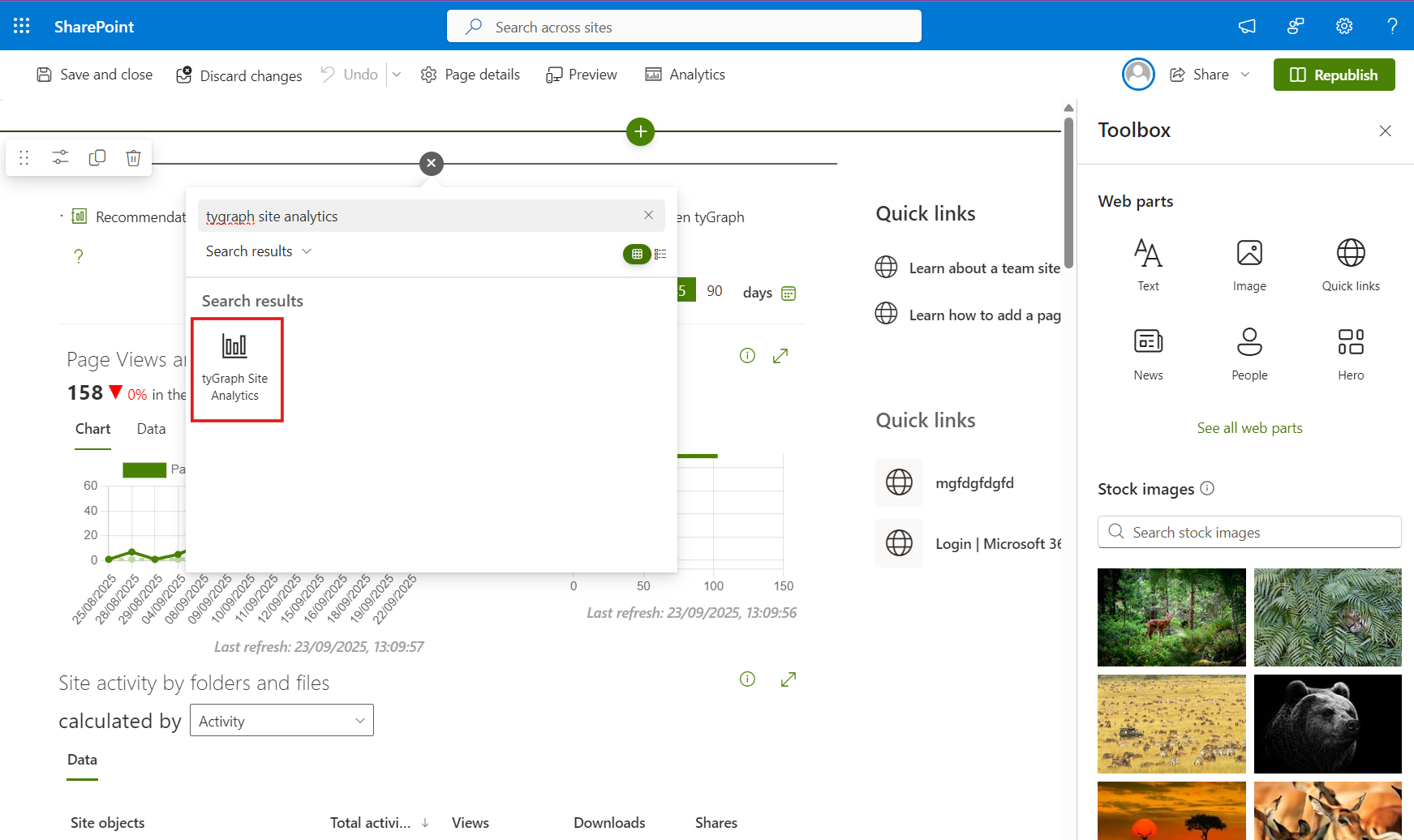
Search for "tyGraph" and click tyGraph Site Analytics web part.
To control who can use the web parts throughout your SharePoint environment, you first need to grant users permission role to use tyGraph Pages web part before they can add the web part to any page! Refer to Add/Edit Users for more information on grant permission role for the web part.
Resolving Intermittent Authentication Issues (Browser Cookie Restrictions)
Modern browsers such as Safari and Chrome may block third-party cookies by default. This can interrupt the app’s background authentication and prevent data from loading correctly.
To resolve this, you can enable a fallback sign-in method that prompts users with a secure popup when silent authentication is blocked.
To execute the configuration commands, you need to be assigned the Global Administrator and SharePoint Administrator role in Microsoft 365 tenant.
Follow the steps below to use the SharePoint Online Management Shell to enable the fallback authentication popup flow:
-
Open PowerShell and ensure the SharePoint Online Management Shell is installed.
-
Connect to your SharePoint Admin Center by running the following command (make sure to replace your tenant with your actual Microsoft 365 tenant prefix):
-
Enable the application authentication popup flow by executing the official Microsoft tenant-level command:
Note the following:
-
The change is applied at the tenant level.
-
It may take 5–15 minutes for the setting to take effect across your environment.
-
The popup will only appear when silent authentication is blocked by the browser.