
Home > Report Center > Viva Engage
Download this articleViva Engage
In Report center > Viva Engage, you can view the Community overview report.
tyGraph for Viva Engage is a comprehensive solution designed to optimize employee communications and harness the full potential of your Viva Engage network. The Community Insights report provides analytics on user engagement within communities. It tracks metrics such as participation rates, interaction levels, and content contributions.
All visuals in the Viva Engage report pages can be exported to CSV or XLSX formats, allowing users to download and conduct further analysis or share insights as needed.
Community Overview Report
The following statistics are available for analysis:
-
Report overview metrics – This section offers insights into community engagement with data measured weekly and compared via general change.
-
Total active people – The number of unique users who have engaged in any type of activity within your Viva Engage communities. This includes engaged members plus users who have only taken passive actions like reading, scrolling, or downloading.
-
Total community members – Total number of community members in the reporting period.
-
MAE score – MAE (Measure of Active Engagement) is a metric that calculates the total amount of user activity in a community, including posts, replies, and reactions, to measure their level of active contribution. MAE score – MAE (Measure of Active Engagement) is a metric that calculates the total amount of user activity in a community, including posts, replies, and reactions, to measure their level of active contribution.
-
Conversations – Total number of new conversations started in the selected report period.
-
Comments – Total number of comments in the selected report period.
-
Reactions – Total number of reactions in conversations during the selected report period. This includes reactions on the conversation starter and all comments.
-
Seen by – The cumulative number of times discussions in your communities have been viewed. Seen by – The cumulative number of times discussions in your communities have been viewed.
-
Peak time (UTC) – This metrics is only available on the Community details page of a community. Peak time (UTC) – This metrics is only available on the Community details page of a community. The time during the week when this community has the highest levels of activity, including posts, comments, and reactions, helping to identify the optimal moments for engaging with members.
-
-
Top communities – This table provides a standardized view of community engagement performance by ranking each community based on its activity per person (MAE score per active user). Communities are categorized from Excellent to Poor, allowing admins and community managers to quickly assess participation levels and identify highly engaged communities.
Click the name of a community to view detailed information on the Community details page.
-
Top communities by members – This chart identifies communities with the highest number of registered members. Click the name of a community to view detailed information on the Community details page.
-
Top communities by MAE per active user – This chart identifies communities with the highest MAE score per active user. Click the name of a community to view detailed information on the Community details page.
MAE (Measure of Active Engagement) score – The total actions that a person or community has taken in the report period. Measure of Active Engagement indicates a non-weighted total of your selected MAE Score metrics, including all conversations, comments, and reactions.
-
Conversations by topic – Number of conversations in the selected report period by topic.
-
Total members over time by – This line chart tracks the growth or change in the number of members within a community over a specified period.
-
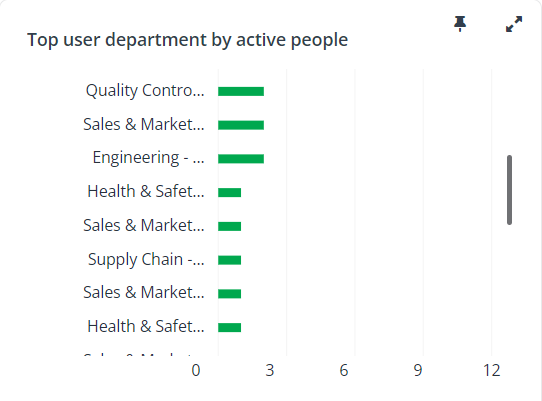
This bar chart displays the departments with the highest number of active users by default, which can help organizations understand which departments are most engaged with a platform or service. Similar analyses can be conducted using other user properties.
-
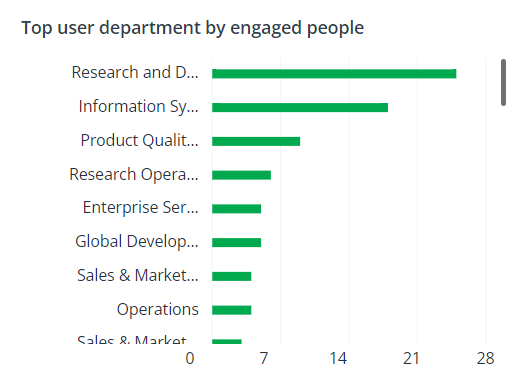
This bar chart highlights departments with the highest engagement levels by default, indicating active participation and interaction with a platform or service. Similar analyses can be conducted using other user properties.
-
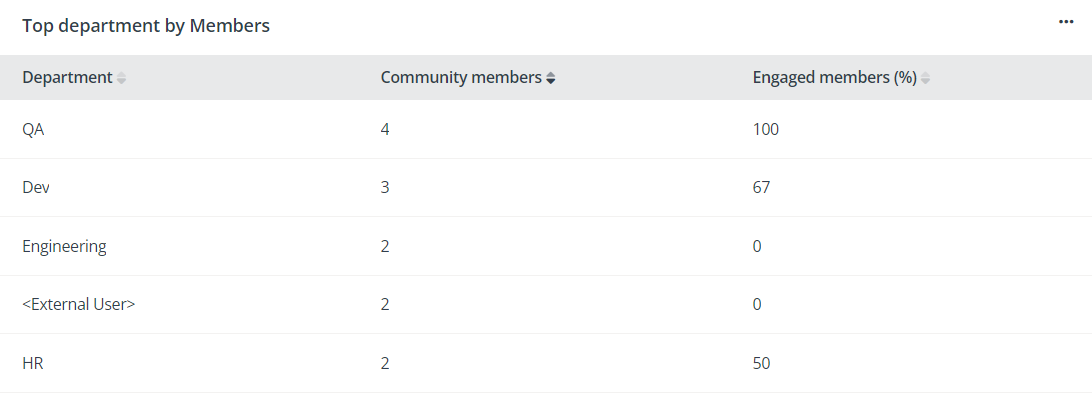
This chart identifies departments based on community members and engaged members, highlighting which departments have higher engagement and how member counts vary across departments. Similar analyses can be conducted using other user properties.
-
Most impactful conversations – This chart provides a detailed analysis of user engagement on Viva Engage, helping community owners and administrators understand how users interact and contribute to conversations. The engagement score is calculated using the formula: ((Thread Responses + Likes + Seen by) * Number of unique Message Contributors) / 100.
-
Top influencers by – The greatest reach and impact across Viva Engage based on participation breadth, contributions, others’ responses, and the number of unique people reached.
-
Top contributors by – The highest volume of contributions in both messages and reactions, to indicate the most influential and actively contributing to community discussions.
-
Top conversations for new members – This chart displays users with the highest activity levels, highlighting those who contribute and engage the most to emphasize contribution volume. Click the conversation name to go to the conversion page.
-
New members – This chart focuses on identifying key target audience segments based on user properties that show a strong tendency to join the community.
Engage Campaigns
The Engage campaigns report helps you measure how topics and hashtags perform across Viva Engage communities. By grouping related topics into a campaign, you can track engagement, compare performance over time, and understand which messages and audiences your campaign resonated with most.
Create a Campaign
Before viewing insights, you need to create a campaign.
-
Go to Report center > Engage campaigns, click Add new campaign.
-
Enter a campaign name.
-
Define the topics for this campaign using one or more of the following options:
-
Select topics – Choose from existing topics or hashtags to include in the campaign.
-
Contain topics – Include posts that contain specific keywords or hashtags to include in the campaign.
-
Enter topics – Manually enter specific topics or hashtags to include in the campaign.
-
-
Set the start date and end date for the campaign.
-
Click Save. Once created, the campaign becomes available for selection.
View Campaign Insights
Choose the campaign you want to analyze from the campaign selector at the top of the page. The report then displays multiple visuals to help you analyze campaign performance. If comparison is enabled, you can compare performance against another campaign.
-
Posts – Total number of posts related to the campaign.
-
Total impressions – Number of unique active users, calculated based on all activities including views.
-
Average sentiment – Overall sentiment of campaign conversations, including neutral, negative, and positive sentiment.
-
Top topics used – This chart shows the most frequently used topics in the campaign and their distribution.
-
Audience impact – This chart shows which audience groups your campaign had the most impact on. Each bubble represents a user group, positioned by the number of contributors (X) and thread impact (Y), with bubble size indicating message volume.
-
Campaign performance – This chart shows engagement trends over the campaign timeline.
-
Most impactful threads by topic – This table ranks the most impactful conversations related to the campaign.