
Home > Upgrading from Legacy tyGraph to AvePoint tyGraph > Post-Upgrade Phase > Update tyGraph Pages Web Parts
Download this articleUpdate tyGraph Pages Web Parts
After your upgrade has been completed, we will instruct you to install the new version of the tyGraph Pages Web Parts. This allows you to compare your legacy and new tyGraph environments during the Validation Period. The new tyGraph Pages web parts and report bar no longer require the configuration of an API key. Instead, they now use new Role Based Access Controls allowing you to specify which users or groups can use the web part.
Grant Permissions to tyGraph Pages Web Part
The tyGraph Pages Web Parts now support Role Based Access Controls to control who can use the web parts throughout your SharePoint environment. You must grant permission to use the web parts before you can add them to any pages. Complete the following steps to grant permission:
-
Go to AvePoint tyGraph and then click Users on the left navigation pane.
-
Click Add to add a new user or group. If you have an existing user or group, you may select it and click Edit.
-
In the Add user or group panel, you can specify one or multiple modules for users to access. Turn on the Web part toggle and select one or multiple permissions to tyGraph Pages Site Analytics web part.
-
Pages Viewer – Select this option to allow users to view tyGraph Pages including the Query endpoint.
-
Pages Hub Site Viewer – Select this option to allow users to view tyGraph Pages at the Hub Site level.
-
Pages Site Viewer – Select this option to allow users to view tyGraph Pages at the Site level.
-
-
Click Save to save the configurations.
Install tyGraph Pages Web Parts
To add the tyGraph Pages Web Parts and report bar, you will need to install the tyGraph Pages Web Parts package. You must install the tyGraph Pages Engine package first. Refer to tyGraph Pages Web Part Installation for more information.
Update Legacy tyGraph Pages Web Parts
Although not required, we recommend updating the legacy tyGraph Pages Web Parts package. This will make it easier to identify which version (legacy or updated) of the web part you are adding to a page. You can download the updated legacy web part package here. Follow the same steps in tyGraph Pages Web Part Installation to install. You do not need to remove the existing version first.
Identify tyGraph Pages Web Parts Versions
Once you have installed the new tyGraph Pages Web Parts into your App catalog, your installed apps will look like the screenshot below.
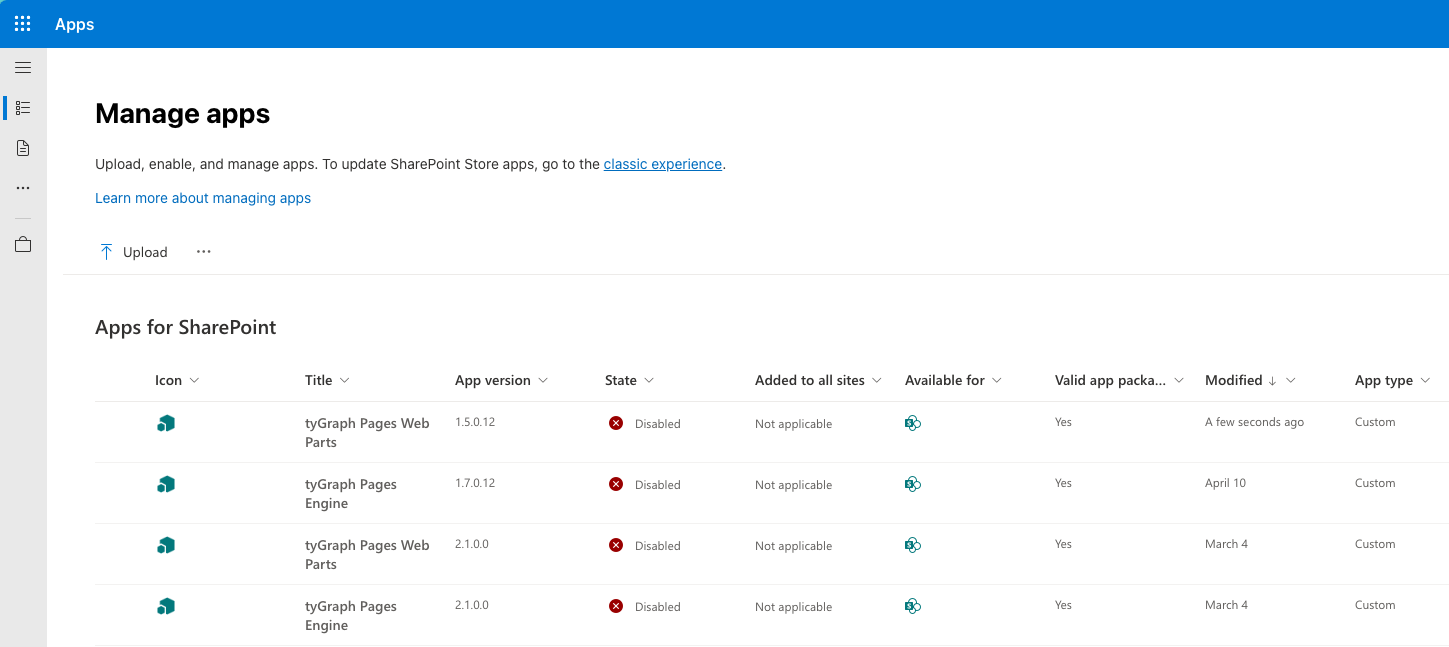
The legacy version of the tyGraph Pages Web Parts will show an app version number starting with 1.5.0.x. The new AvePoint tyGraph Pages Web Parts will show an app version number starting with 2.1.0.x.
Add the Web Part to a Page
After you have granted all permissions, you can add the tyGraph Site Analytics web part to any page you would like. Follow the steps below to add the web part:
-
When you finish installing the two app packages, navigate to your desired page in SharePoint, and then click Edit.
-
Click the Add button to add a new web part.
-
Click tyGraph Site Analytics.
-
Click Save and close.
During the Validation Period, you will see two Site Analytics web parts available for installation. If you updated the legacy web parts package, you would see a different icon for the legacy web parts package.
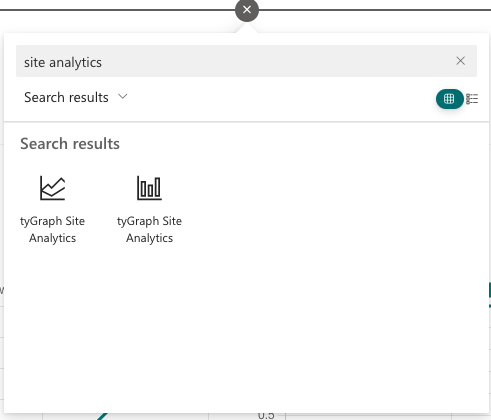
The icon with the line chart is the legacy tyGraph Pages Web Part, and the icon with the vertical bar chart is the new version of the tyGraph Pages Web Part.
Update Web Parts on Existing Pages
To switch to the new web part, identify each page that has the Site Analytics web part. On each page, remove the existing web part and replace it with the new web part.
Use the Report Bar
During the Validation Period, when you activate the report bar, you will see both the old report bar and the new report bar. You can close the old report bar and transit to the new report bar. Due to caching, it is normal to see slight variations in Page View counts and Unique users.

Remove the legacy tyGraph Pages Web Parts
When you have completed your Validation Period, you may remove the legacy tyGraph Pages Web Parts. Remove the package with a version number starting with 1.5.0.x. Keep the tyGraph Pages Web Parts with version 2.1.0.x. If you did not update pages with the new web part, they will show a blank space where the old web part was on the page.