
Home > Power BI Report Guides > tyGraph for SharePoint (Legacy)
Download this articletyGraph for SharePoint (Legacy)
tyGraph for SharePoint provides detailed analytics into the sites, pages, and files that make up your intranet. Value is added by providing HR and organizational information to the data with additional context provided through geography and time scale data points. This in turn helps transform simple data into information that can inform decision-making. SharePoint analytics are provided at the tenant level for a strategic view of the data that can be drilled into the site (tactical level) and finally to the file/page level for an operational view of the data within your intranets. tyGraph for SharePoint is where you understand collaboration and track the performance of your organization's investments in SharePoint.
This summarizes all visual help tips in the latest tyGraph for SharePoint report. All tooltip items are brief descriptions of the visual and calculation. You can see the visual help tip appear by hovering over the Help icon on any visual card in Power BI.
Setting Parameters in the Power BI Workspace
Custom filtering of URL names as a wildcard can be configured in the Power BI workspace settings.
Universal Report Header
-
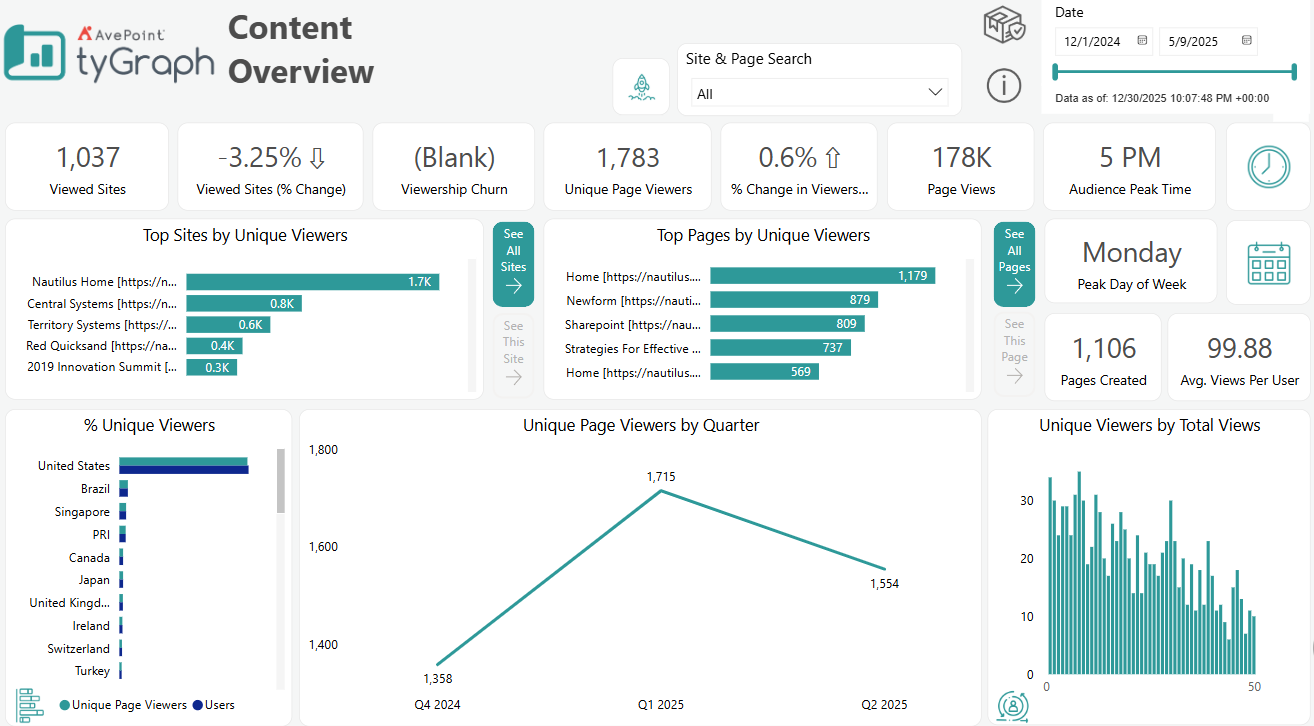
The rocket icon – A shortcut filter to show only pages created recently, also opens a hidden date slicer that allows for date adjustment to this specific filter. To return to the normal data view, click on the bold curly arrow.
-
Search field – Enter words that pertain to information in the below visuals and matrixes to filter by keyword.
-
Parameter settings – Shows the parameters that define the scope of the report.
-
Date slider – This is a rolling filter that is enabled by default. Use this to select a rolling range of recent dates. You can erase this slicer to select specific dates (below) outside the rolling range. You can glance at the "Report Period" element at any time to see the overall filter.
-
Harvest date – This is the most recent datapoint collected by tyGraph. If the date is behind what you expect, check if the dataset has refreshed. If you are on tyGraph Online, please contact support or your Admin immediately.
-
Filters – Set a variety of filters to narrow down the scope of the data.
Content Overview
-
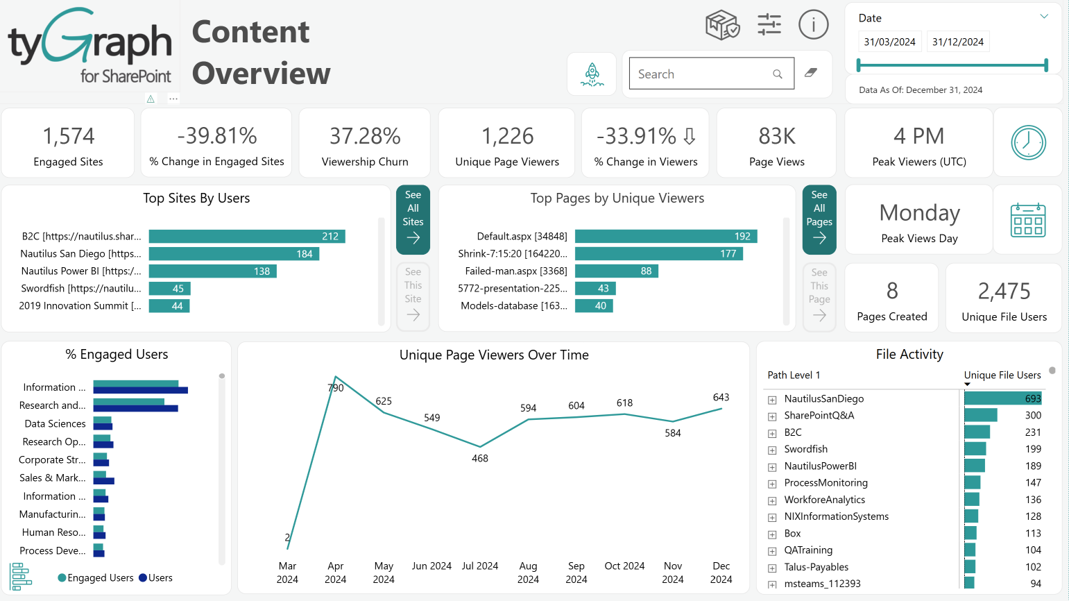
Engaged Sites – The total unique engaged sites with views in the report period.
-
% Changed in Engaged Sites – This is the percentage change in viewed sites from the previous period to the current one. The previous period is the range of dates behind the current period for the same number of days.
-
Viewership Churn – Churn % tells you the percentage of users who stopped viewing content during this period. This is calculated from the number of users that did not view this period but did in the prior period divided by the total previous and current viewers.
-
Unique Page Viewers – The total unique page viewers. You can click on the neighboring data bars to see this based on a specific context like page viewers for a top site or page.
-
% Change in Viewers – The percentage change in unique viewers from the previous period to the current one. The previous period is the range of dates behind the current period for the same number of days.
-
Page Views – This is the total number of page views for the report period. This will count each time someone loads a page. If you love a page and keep going back to it, then this is your kind of measure!
-
Peak Viewers time – The time with the peak number of unique page viewers. You can click here to see a detailed plot below. The time zone is always UTC for this model.
-
Top Sites By Users – Sites ranked by the total unique viewers in the report period.
-
See All Sites – This button toggles to see all sites on Top Sites by Users.
-
See This Site – To drill through to Site Detail, select a single data point from the visual.
-
Top Pages by Unique Viewers – Top pages ranked by the unique page viewers. If someone views the same page multiple times in the same period they are only counted once.
-
See All Pages – This button toggles to see all pages to see all Top Pages by Unique Viewers.
-
See This Page – To drill through to Page Audience, select a single data point from the visual.
-
Peak Views Day – The day with the peak number of unique page viewers. You can click here to see a detailed plot below.
-
Pages Created – Shows the total number of pages created. You can click here to see a detailed list of created pages below.
-
Unique File Users – The total unique users that interact with files in the report period.
-
% of Engaged Users – Engaged Users and total Users by organizational hierarchy.
-
Unique Page Viewers over time– This line chart shows unique page viewers over time with a dynamic date hierarchy.
-
File Activity Hierarchy by Unique File Users – A matrix style visualization that allows one to sort SharePoint sites by the most unique file users and using the plus symbols for each site to drill down into the underlying file and site hierarchies that exist.
Collaboration Scorecard
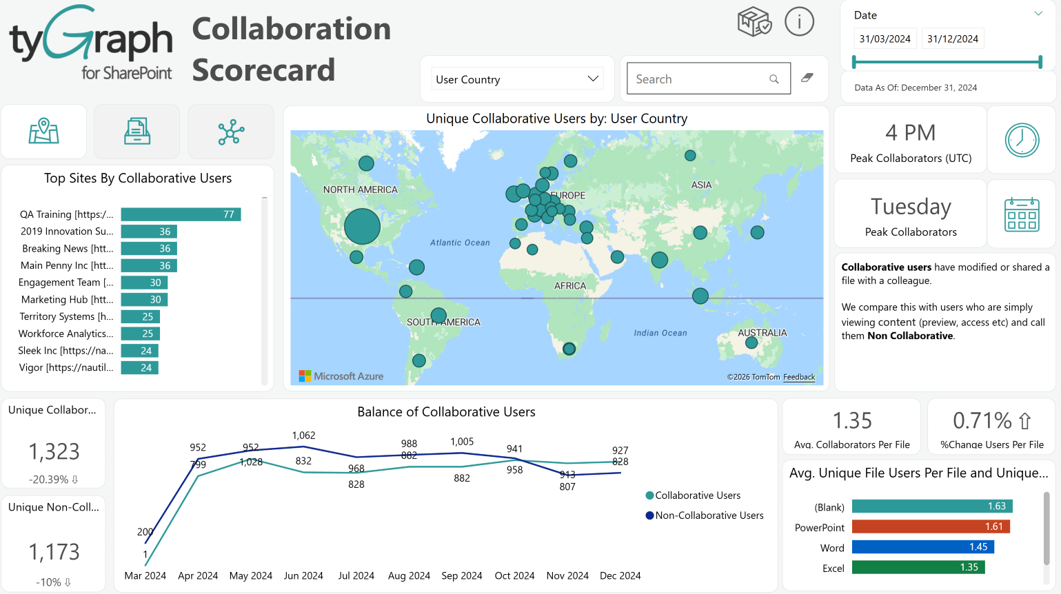
Collaborative Users: Have modified or shared a file with a colleague.
Non-Collaborative Users: We compare this with users who are simply viewing content (preview, access, etc.).
-
Map view – Shows map view of the Unique Collaborative Users
-
Table view – Shows table view of the Unique Collaborative Users
-
Network view – Shows the network view of the Unique Collaborative Users
-
Unique Collaborative Users by by user attributes – This window will show information based on the view you have selected and by the user property you have selected from the upper slicer.
-
Peak Collaborators time view – The time with the peak number of unique page viewers. You can click here to see a detailed plot below. The time zone is always UTC for this model.
-
Top Sites by Collaborative Users – Sites ranked by the total unique collaborators in the report period.
-
Peak Collaborators day – The day with the peak number of unique page viewers.
-
Collaborative Users and Non-Collaborative Users definition card – Defines the difference between collaborative and non-collaborative users.
-
Unique Collaboration card – Displays the number of Unique users who have downloaded, modified, or shared a file.
-
Balance of Collaborative Users – The number of unique page viewers over time. This visual contains a dynamic date hierarchy allowing you to change the bottom axis to fit your situation. Use the double down arrow to move down and the up arrow to move up.
-
Avg. Collaborators Per File – Card displaying the average number of collaborative users that have modified or shared a file with a colleague.
-
% Change Users Per File – This is the calculated percentage change in collaborative users per file, this is a dual field that shows the percentage along with a trend icon indicating either up or down.
-
Unique Non-Collaborative Users card – A card displaying the total unique non-collaborative users along with the percentage change calculated and a trend icon indicating up or down.
-
Avg. Unique File Users Per File and Unique Active files – Average unique file users per file & unique active files in the report period.
Page Audience
-
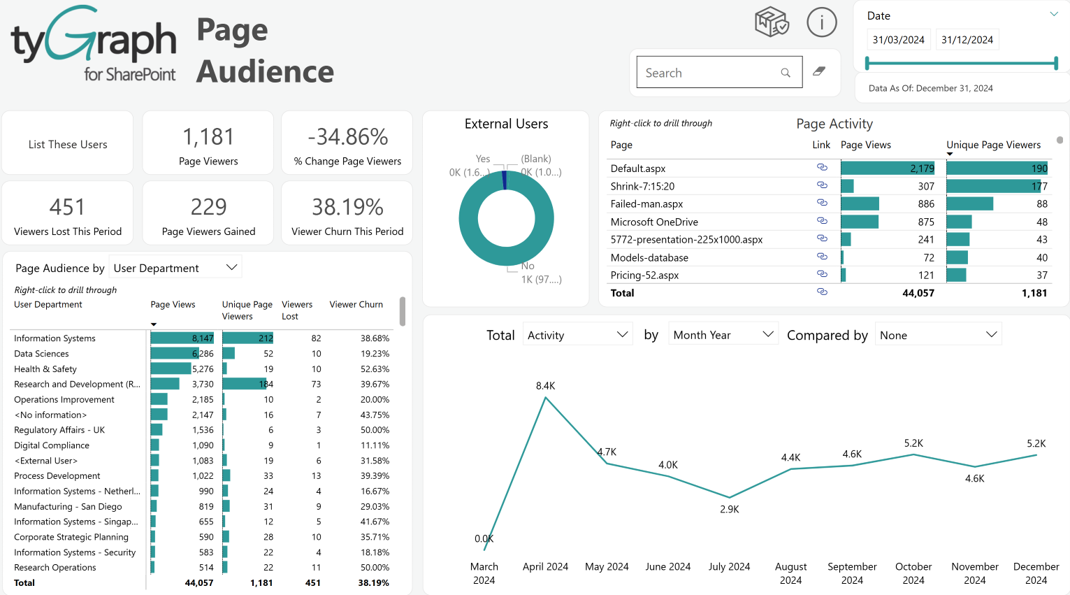
List These Users – Click here to see an exact list of past/current viewers, users lost/gained, and first-time viewers.
-
Page Viewers – The total unique users who viewed a page or pages for the report period.
-
% Change Page Viewers – The percentage change in unique page viewers (shown left) from the previous parallel period to the current report period.
-
Viewers Lost This Period – The number of unique users who stopped viewing the page or pages in this report period.
-
Page Views Gained – The number of unique users who did not view the page(s) in the previous parallel period but viewed in this report period.
-
Viewer Churn This Period – The percentage of unique viewers lost vs gained between the previous parallel period and the current report period. The lower your churn the better. Pages or sites with increased viewers, but high churns are gaining users inefficiently.
-
External Users – This donut chart shows among all engaged users what is the portion of external & internal users.
-
Page Activity per Page – This table shows total page views and unique page viewers by page.
-
User Attributes – This slicer is populated with user attributes from the user table, this table gets its information from the Microsoft Entra ID such as country, job title, department, etc. You can use this slicer to dynamically manipulate the matrix below it for exceptional data exploration. Dig in deep to find out who is viewing pages, and who has stopped viewing pages.
-
Page Audience by user attributes – A matrix that is controlled by the above "User attributes" slicer. Allowing you to analyze your total viewership, unique viewership, viewers lost and viewer churn percentage by different user contexts.
-
X-Axis – This is a slicer that allows you to dynamically configure dates for the bottom right line graph.
-
Compared by – This is a slicer that allows you to dynamically configure the legend to populate with user attributes for the bottom right line graph.
-
Total – This is a slicer that allows you to dynamically configure activity/ unique files/ unique sites/ unique users for the bottom right line graph.
-
Total line chart in bottom right – A dynamic line chart plotting total SharePoint page activity/ unique files/ unique sites/ unique users that can be configured in multiple ways from the above three data slicers. Gone are the days of hard-to-find drill through icons, dynamically changing the X-Axis using the drop-down fields from above.
Executive Summary
-
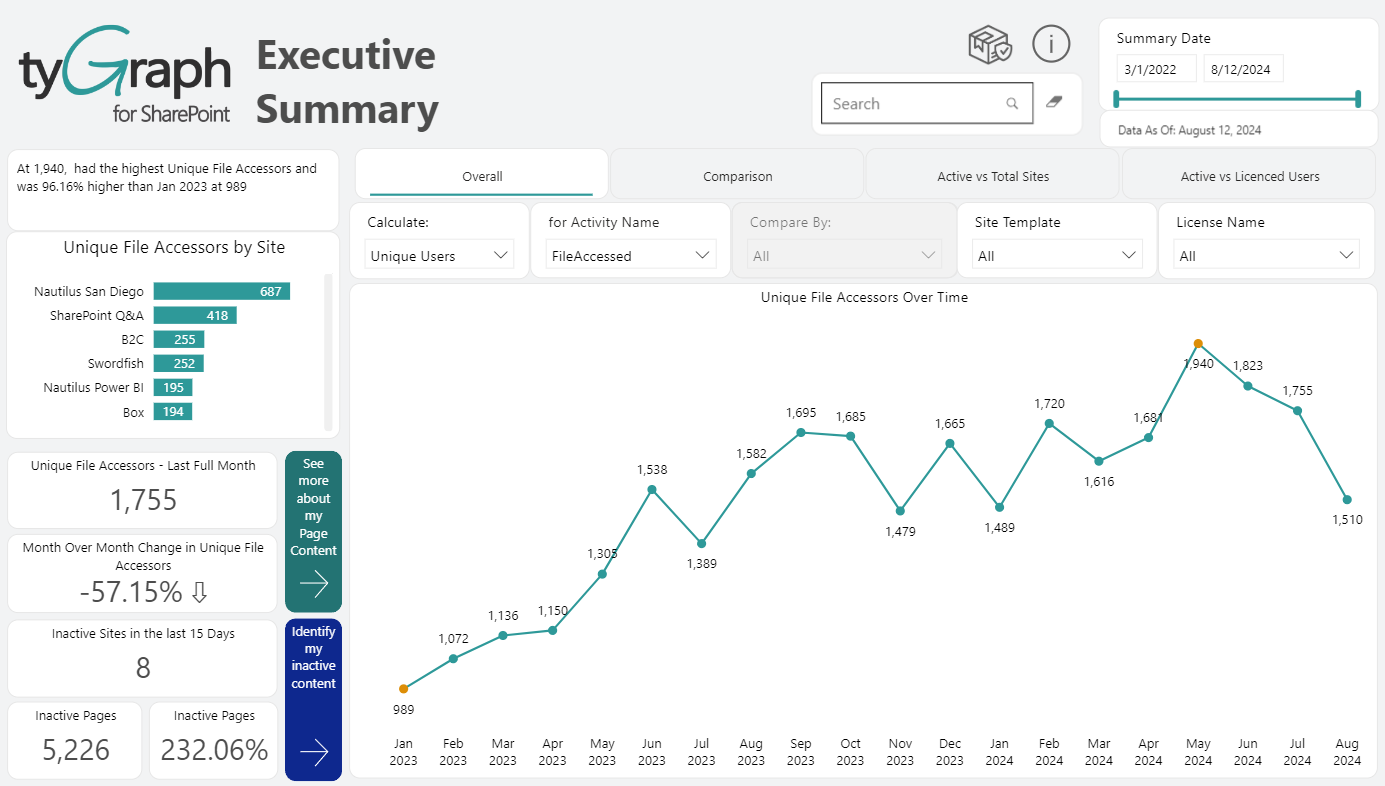
Overall card in the upper-left corner – Shows a brief overview of the sites with the most activity.
-
The window will display different information based on the tab you have selected.
-
Overall – View the overall trend of the activity you have selected.
-
Comparison – Compare activity across different sites by selected user attributes.
-
Active vs Total Sites – Compare the number of engaged sites against the total number of sites.
-
Active vs Licensed Users – Compare the number of licensed users against the number of active users.
-
-
Unique File Accessors/ downloaders/ page viewers Last full month – Shows the total file accessors/ downloaders/ page viewers for the last full month, based on the activity you have selected.
-
Month Over Month Change in Accessors – Shows the change in activity from month to month.
-
Inactive Sites in the 15 Days – Shows the number of inactive sites.
-
Inactive Pages – Shows the number of inactive pages.
-
Inactive Pages (%) – Shows the percentage of inactive pages.
Site Collection Summary
-
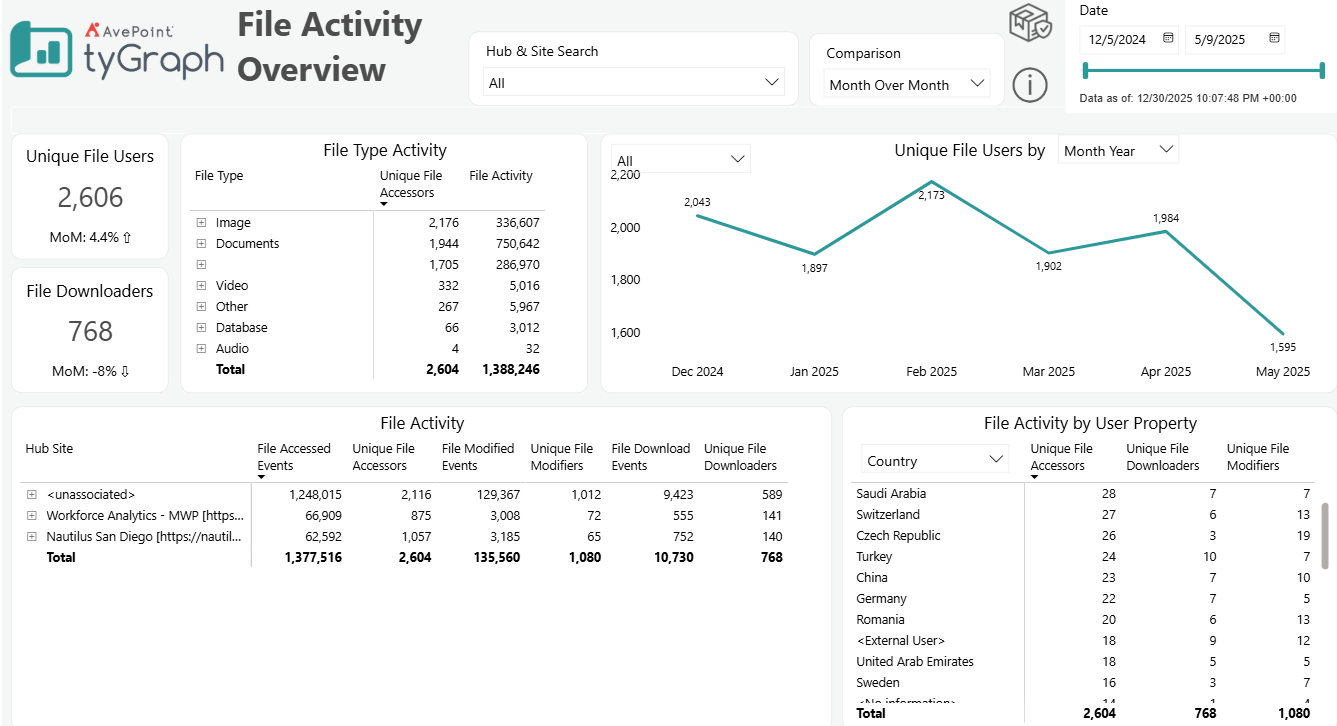
Sites by bar chart – A bar chart displaying a count of the number of sites containing certain sensitivity labels. This will change depending on which of the categorical buttons are selected from the above row.
-
Number of Sites – Site count based on site type, i.e. Teams, Yammer, Classic, or Modern over time.
-
Site Usage – Total storage usage in Gigabytes with overlayed sum of total sites. Plot your sites and usage as the tenant grows. A site is any site that is active and has not been deleted for the reporting period.
-
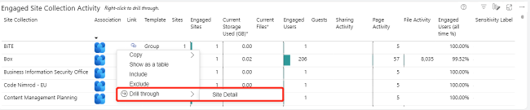
Engaged Site Collection Activity – Drill into your most active site collections. Teams and Yammer icons identify respective connected sites. If you right click on any row you can drill through to the site collection detail page.
Content Navigator
-
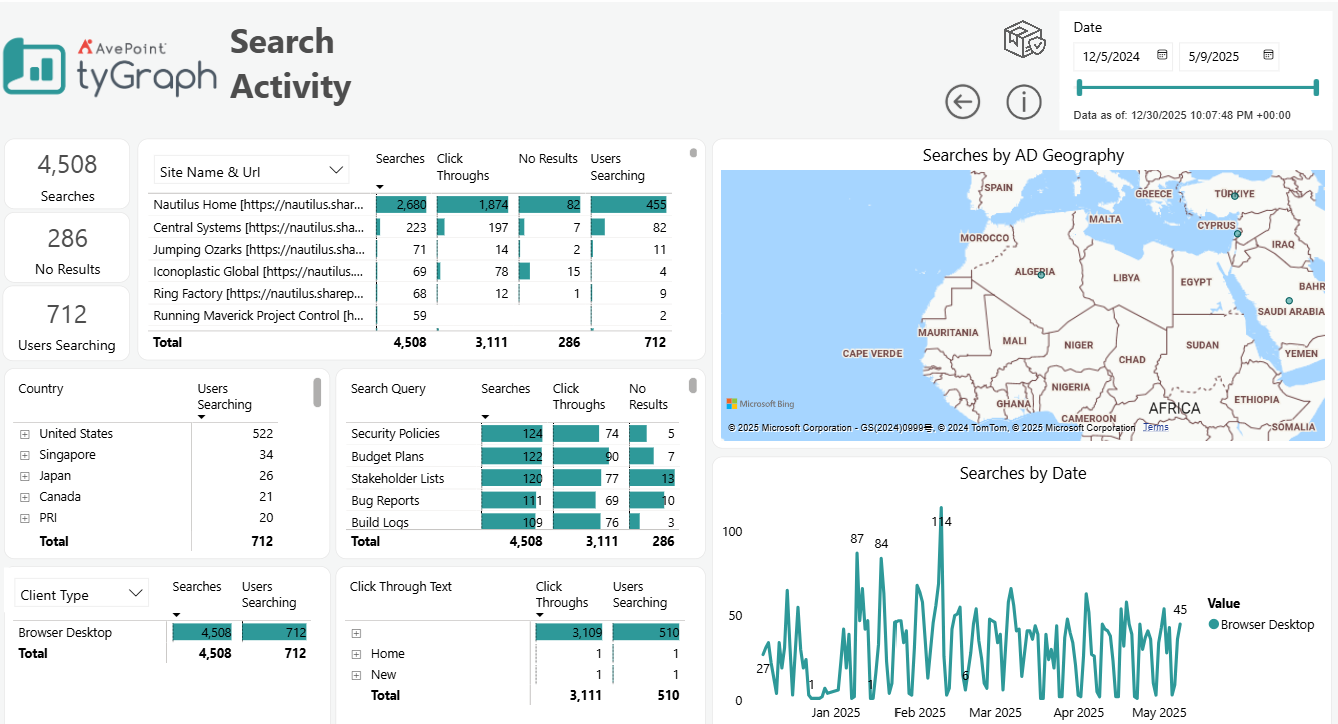
Engaged Site Collection – Shows the engagement of Site Collections compared to the total number of Site Collections that have not been deleted yet.
-
Engaged Sites – Shows the engagement of Sites compared to the total number of Sites.
-
Engaged Users – Shows the engagement of Users compared to the total number of Users.
-
Guest Access – Shows the engagement of Guest Users compared to the total number of Guests for the report period.
-
Hub Site statistics – Gives a list of sites with various statistics on the activity, including a total of activity across all sites.
-
Downloads by user attribute – Shows downloads for any selected user attribute.
-
Unique Modifiers by Attribute – Shows the number of unique modifiers for any selected user attribute.
Site Detail
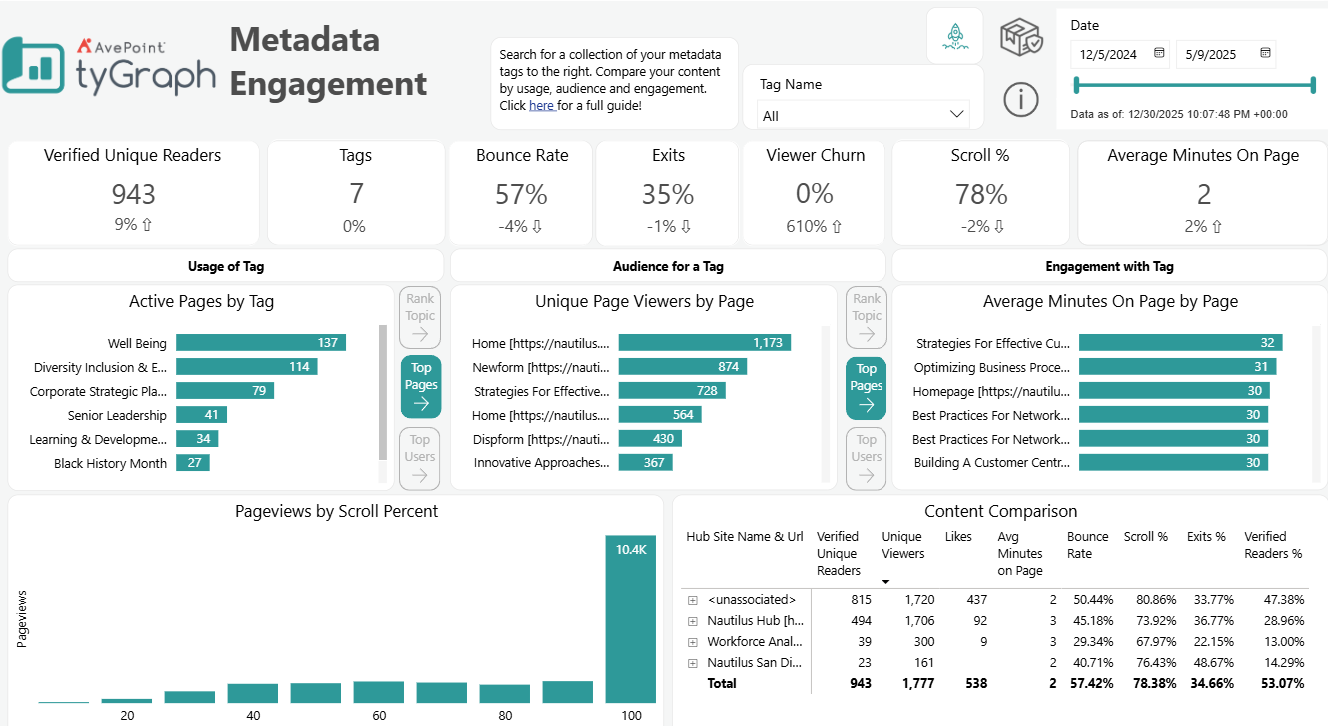
This is a page designed to allow you to survey activity with key sites. It is also a drill-through page designed to show details on a site collection. Users can land here when drilling through the site collection visual at the bottom of the Site Collection page.
-
Engaged Sites – The total unique sites with activity in the report period. You can control what activities are counted toward an engaged site in the bottom left “Activity Name” filter.
-
Engaged Users – The total unique users with activity in the report period. You can control what activities are counted toward an engaged user in the bottom left “Activity Name” filter.
-
Unique Page Viewers – The total unique users who viewed a page in the report period. Many users like to use unique page viewers as the gold standard for users reached by an article or page for a given period because it is not affected by repeat views.
-
Top Page button – Displays total of page views, all time views, and unique viewers by page.
-
Top File button – This provides details about total file activities and users with file names within your site or sites.
-
Sites – See your top sites and understand what they are used for at a glance. Some sites may be more popular for document usage where others may have high page views. By default, we rank sites by the unique users they attract for either reason.
-
Top Consumers by user attribute – Shows Total of all SharePoint captured activities, pageviews, engaged users for selected user attribute.
-
Total slicer – This is a data slicer that contains fields about SharePoint files and sites that can be compared in the line graph that it is embedded in.
-
X Axis slicer – X-Axis data slicer that enables a dynamic x-axis on the line chart embedded in eliminating the need to use the standard Power BI to drill down icons.
-
Bottom right line – Total of all tyGraph for SharePoint captured activities for files and site details over time. This visual contains a dynamic date axis which can be manipulated with X-Axis data slicer and can be configured for different files and sites with the Legend slicer.
-
Site Owners – This lists site owner’s names, and other details for your sites.
Inactive Content
-
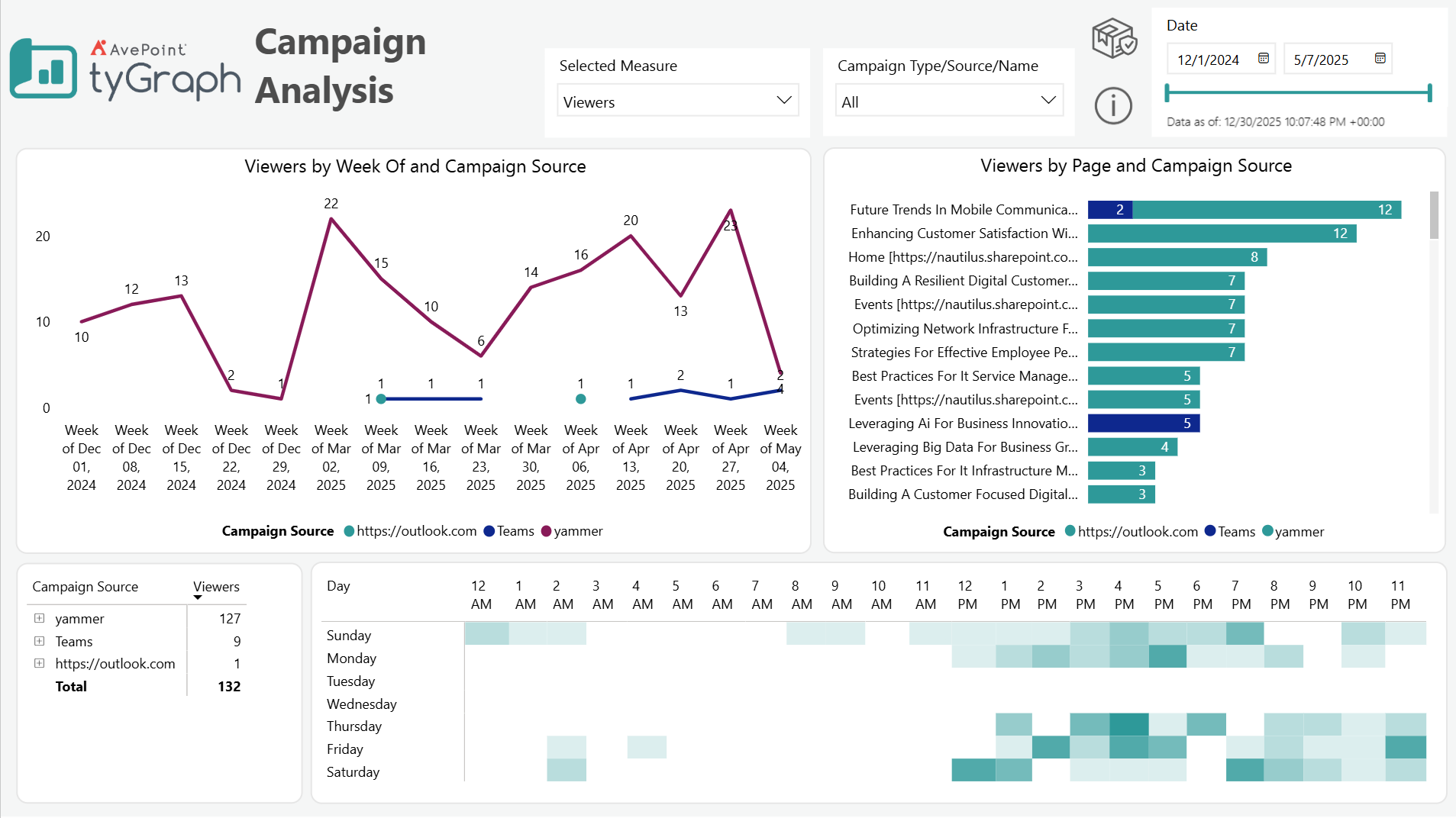
Inactive in the last (days) – Here you can filter inactive content based on the number of days it has been inactive.
-
Classic SharePoint Sites – Number of inactive Classic SharePoint Sites.
-
Unassociated Modern Sites – Number of inactive Unassociated Modern Sites.
-
Teams Connected Sites – Number of inactive Teams Sites.
-
Yammer Connected Sites – Number of inactive Yammer sites.
-
Inactive Sites statistics table – Gives an overview of various statistics on inactive sites. You can observe the “Most recent Activity date” to identify stale sites. This can provide insights on resources that could be freed, or reallocated to more active areas.
-
Sites with the Most Inactive Pages – Displays the sites with the number of inactive pages.
-
Inactive Pages by Last Date and Users – Shows inactive pages based on the last date they were viewed.
External Activity
-
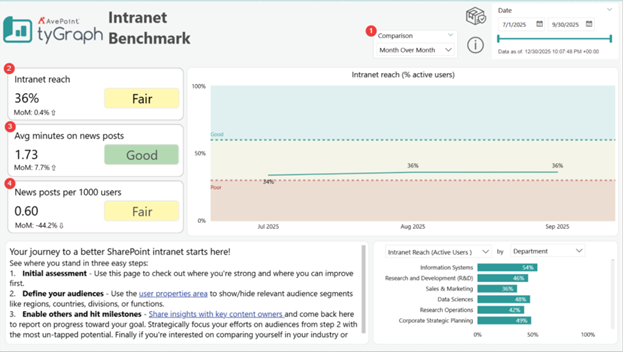
External Usage by Site – An external user is a user with activity who is not listed in your active directory. An engaged user means who has taken any activities in SharePoint. This table shows the number of engaged guest users for each site.
-
External Activity Total slicer – This slicer utilizes the new Power BI feature field parameters, which enables the dynamic comparison of multiple columns (fields) within the line chart it is embedded in. This slicer is loaded with fields that pertain to the sites, hubs, and activities that external users would use in SharePoint.
-
External Activity X Axis slicer – This is another field parameter enabled slicer that allows for dynamic manipulation of the x-axis on the line chart visualization for external activity.
-
External Activity line graph – All activities for external users by date and value from the total slicer.
-
Usage by External Users – External users are people we have captured activity for but are not listed in your Active Directory. This table shows external user details with the number of activities they have done.
If an internal user is listed on this page, please add them to your active directory and they will no longer be flagged as external. The domain of a user does not mean they are internal/external.
For example, a vendor could have an email address that belongs to the organization (@tygraph.com) but is not necessarily an internal user.
File Type Activity
-
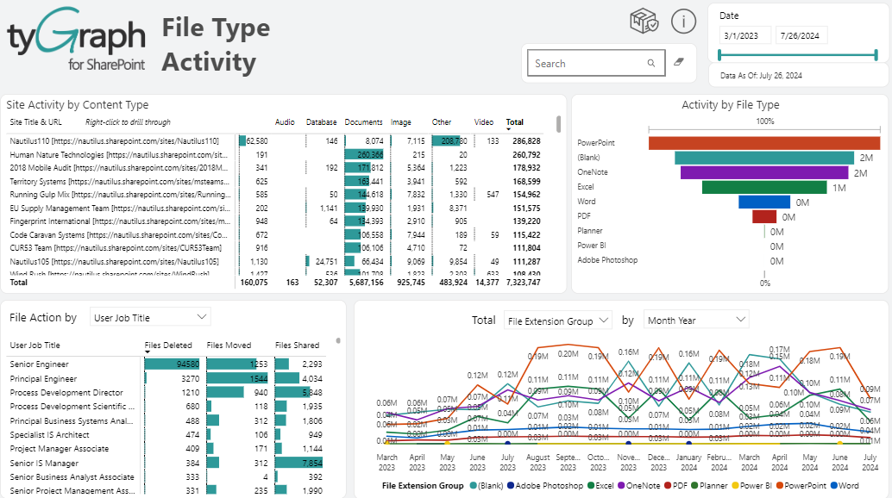
Site Activity by Content Type – A matrix displaying total activities by content type per site, with corresponding site title and URL.
-
Activity by File Type – This is a fun funnel graph that shows total activities by content type represented as a graph but contains a dynamic axis. This means you can drill down within the content type and see the file types.
-
Select User Attribute – This slicer utilizes the new Power BI feature 'Field Parameters', which enables powerful filtering abilities within the matrix below. This data slicer is loaded with fields about which types of users have file actions, some of the fields include User City, User Department, and User Job title, play around with it to explore its powerful functionality.
-
File Action by User Attribute matrix – This is a matrix displaying counts on different file activities per user. File activities are defined as files that have been deleted, moved or shared. This matrix can be filtered by the above data slicer and is a dynamic matrix that is configurable to whichever data view suits your purpose.
-
File Activity Total slicer – Another slicer utilizing Power BI's new feature, this is loaded with data about file types, objects, and hubs within SharePoint and is used to configure the line chart it's embedded into.
-
By X Axis slicer – An X-axis date slicer that allows for dynamic manipulation of the corresponding line chart, play around to see different views of file activity.
-
Bottom right file Activity line chart – This is a dynamic line chart displaying file activity counts and is configurable by the two slicers.
Specific Collaboration: (drill through page)
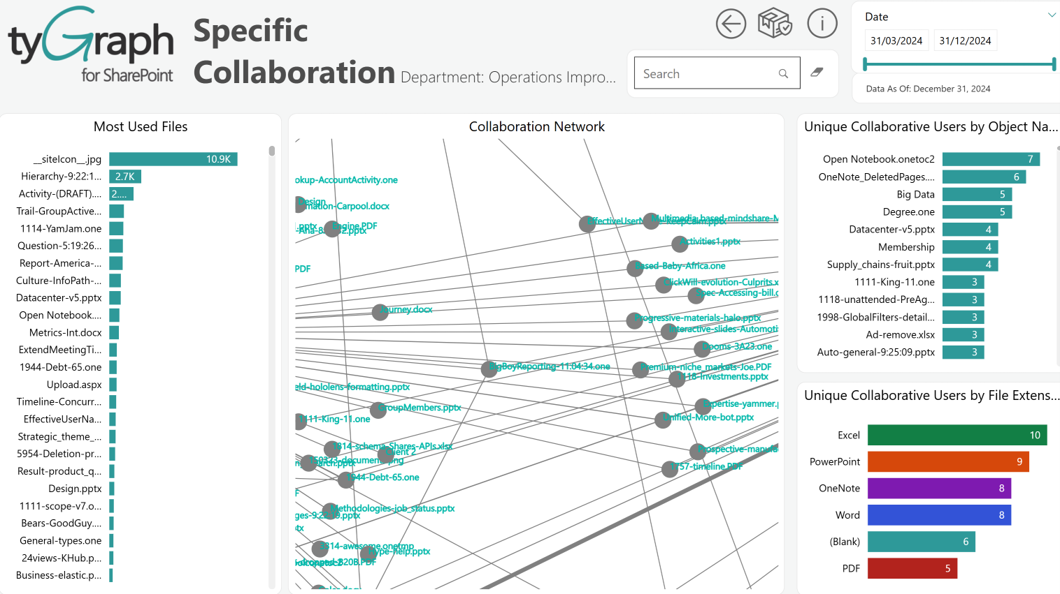
-
Most Used Files (Left Panel) - This visual ranks files based on how frequently they are accessed or interacted with. It helps identify highly popular or critical files within the selected department or scope. Users can quickly spot which documents drive the most engagement.
-
Collaboration Network (Center Graph) - This is a network visualization showing how users interact with a specific file (or set of files). The central node represents a file, and surrounding nodes represent users collaborating on it. Lines indicate interactions such as viewing, editing, or sharing.
-
Unique Collaborative Users by Object Name (Top Right) - This bar chart shows how many distinct users interacted with each file/object. It highlights which files have the widest collaboration footprint.
-
Unique Collaborative Users by File Extension (Bottom Right) - This visual groups collaboration activity by file type/ file extension/ file extension/ file extension group. It shows which types of content are most actively used across the organization.