
Home > FAQs > AvePoint tyGraph FAQs > Technical How-Tos
Download this articleTechnical How-Tos
Review the FAQs below for information on technical details and compatibility.
Does AvePoint tyGraph have a new App Registration?
Yes. AvePoint tyGraph has new Entra ID App Registrations with a similar permission set and some new additions for Site Owner reports and Microsoft Copilot adoption reporting. Please review these permissions with your organization's security team.
Do users need an Application ID and API Key with AvePoint tyGraph Pages web part?
No. Legacy tyGraph required users to connect the web part using an API key. Now the web part gets data through tyGraph API using OAuth authentication to secure the web part at the user level. No API key is required.
Does AvePoint tyGraph support custom Entra ID App Registrations?
Yes. You can bring your own app registration. We recommend you supply the same requested permissions to your app registration to ensure the full functionality of AvePoint tyGraph.
Are the tyGraph Pages web part and report bar available in AvePoint tyGraph?
Yes. We have updated these to support role-based access controls (RBAC) that you manage in AvePoint tyGraph. This allows you to control what users have access to the web part. This also means that an API key is not required to configure the web part or report bar. For onboarding, tyGraph Pages will require installing new SharePoint package files like the existing onboarding process. The legacy packages and new AvePoint tyGraph packages can be installed at the same time on a tenant during your migration.
Does AvePoint tyGraph Pages support Classic SharePoint sites?
No. This feature was not widely used and support for Classic SharePoint sites will not be available.
You can still view activity on your classic sites in the tyGraph Site Inventory Web report, there are just limited details as Pages data won’t be considered for those sites.
How to Update Azure Log Analytics Retention
By default, Application Insights and Log Analytics have a data retention of 90 days. You can opt to extend the retention up to 730 days. However, the tyGraph Pages Site Analytics web part only supports a maximum of 365 days filter. The procedure differs depending on whether you are self-hosted or SaaS-hosted.
Self-hosted customers
For self-hosted customers, you will edit the Log Analytics workspace associated with your tyGraph Application Insights instance.
-
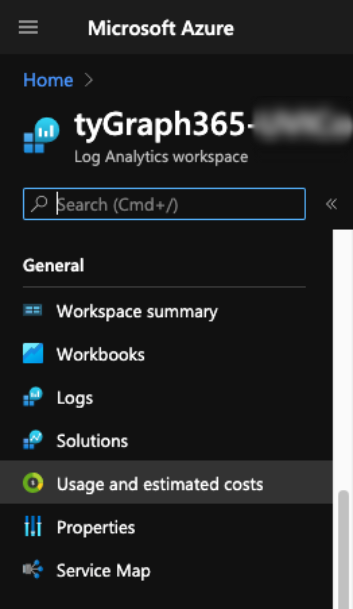
In the Azure portal, find your Log Analytics workspace.
-
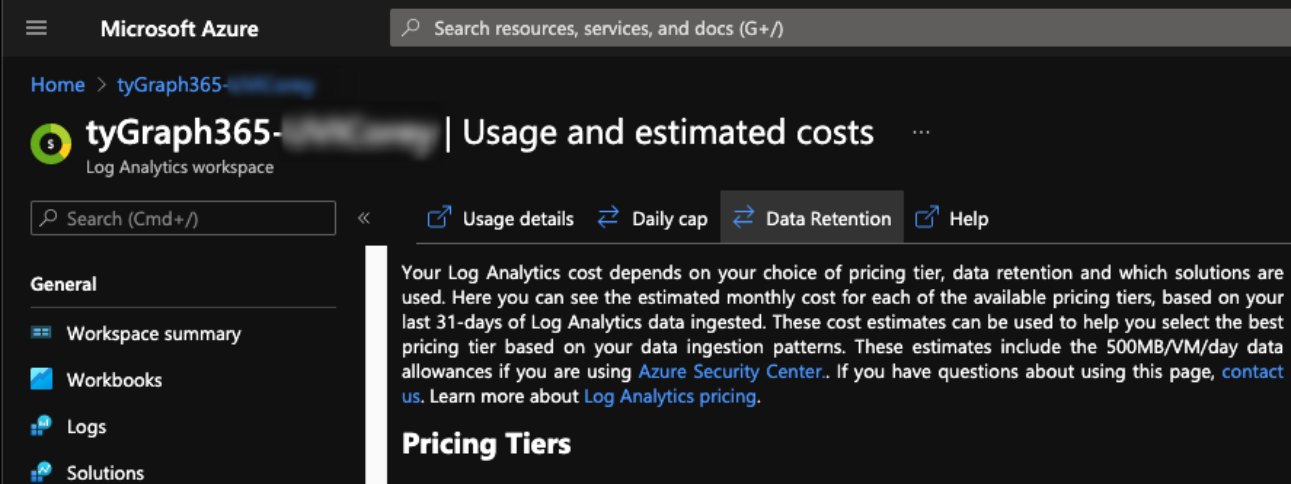
Click Usage and estimate costs under the General section.
-
Click Daily Retention.
-
Adjust the slider to the desired level of retention up to 730 days.
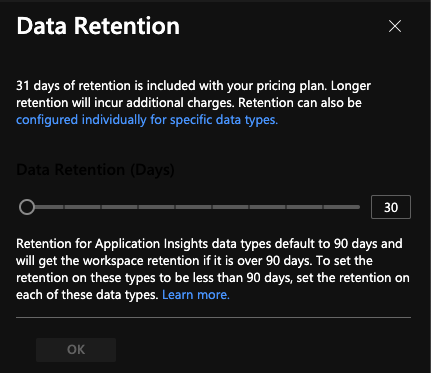
Extending data retention will incur additional Azure costs. By default, tyGraph Pages engine logging includes 90 days of retention for data stored in the Log Analytics workspace of Application Insights. Refer to the Azure pricing page for further details.
SaaS-hosted customers
For SaaS-hosted customers, please contact tyGraph Support to adjust your retention. By default, this is set to 730 days which is the maximum period available. Additional charges may apply depending on storage requirements and your license agreement. See the Understanding Data Collection and Retention with tyGraph Pages topic in the Data Collection, Retention, and Integration FAQs.
Configuring the Site Analytics Web Part
The Site Analytics Web Part has the option to include a 365-day slicer. Edit the Site Analytics web part as described in the tyGraph Pages Web Part Installation. Check the checkbox labeled Enable 365 days filter in the Settings section. You will now be able to report on the last 365 days in the Site Analytics web part.