
Home > Power BI Report Guides > How to Refresh a Power BI Dataset
Download this articleHow to Refresh a Power BI Dataset
This applies to any product deployed in the Power BI service. Please sign in with your Microsoft 365 login to https://app.powerbi.com/ to follow this guide. You will need to have access to the workspace to follow these steps.
Refresh Dataset
Once you are in the workspace:
-
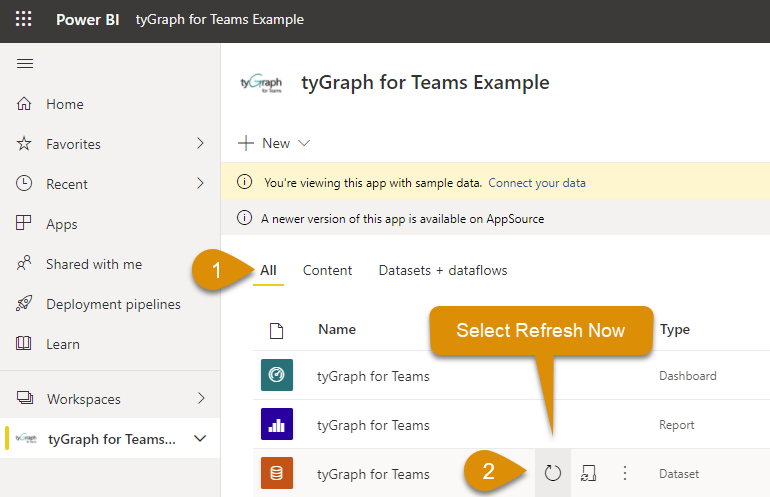
Select the All tab.
-
Select Refresh now – This will bring your data up to date immediately.
-
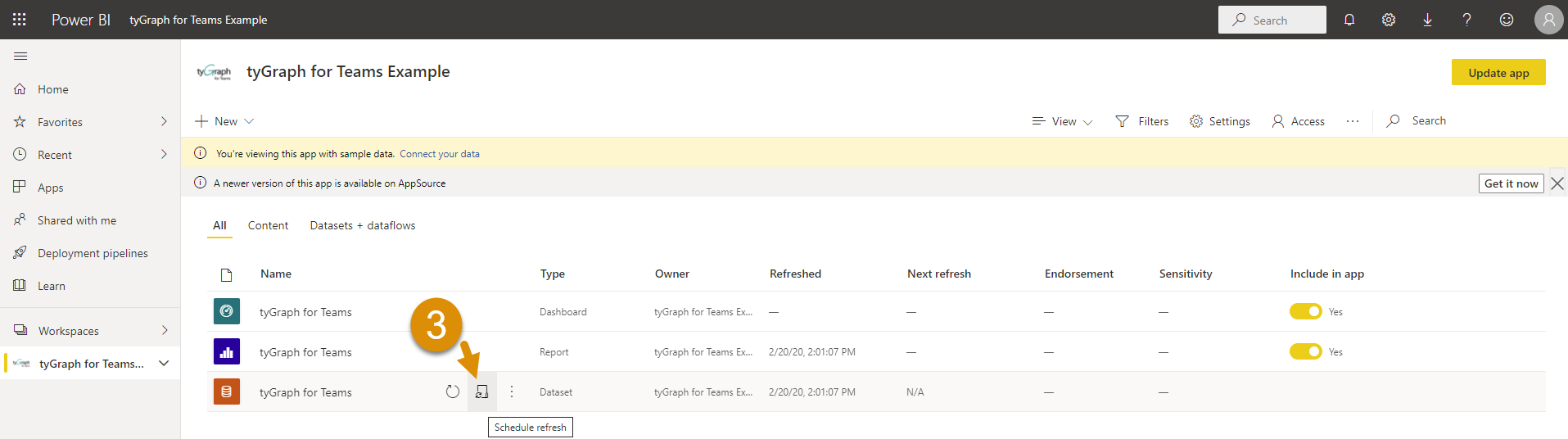
Next, we want to automate this to continue refreshing without our prompt. Click Schedule Refresh.
-
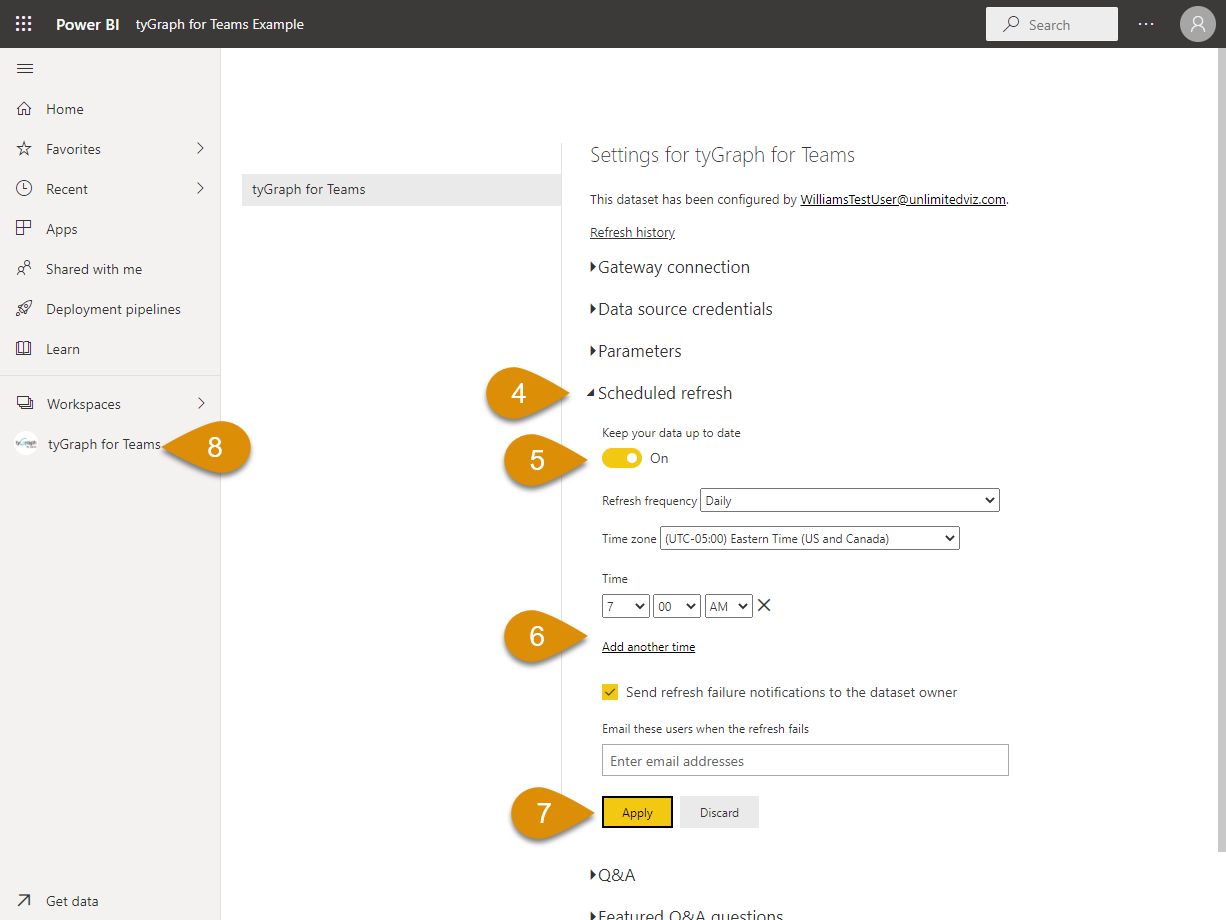
Open the Scheduled Refresh panel.
-
Turn Keep your data up to date to On.
-
Set scheduled times if you like.
-
Click Apply.
-
Click the workspace name on the left to go back to the original menu.
Need Help Finding Your Dataset?
The dataset will be in a workspace, which you can get to in one of two ways:
Navigate from an App
-
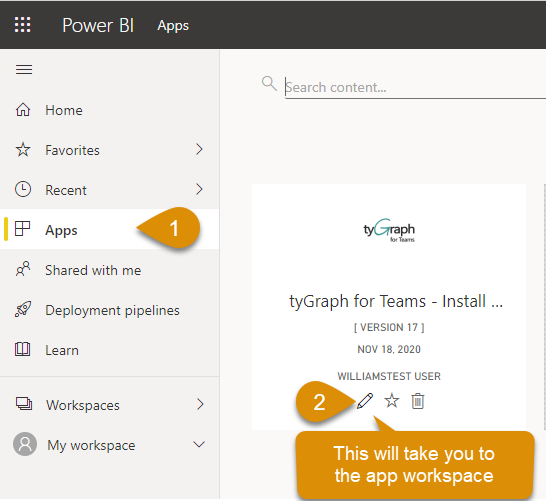
Go to the Apps page (located on the left menu).
-
Hover over the app and click the Pencil Icon.
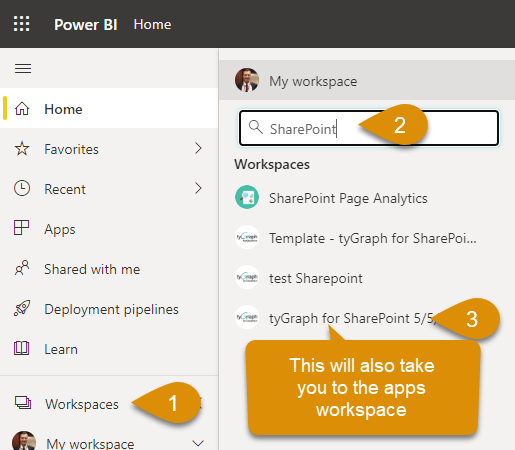
Search for Workspace
-
Click the Workspaces item on the left menu.
-
Search for Workspace name (it will be the same as the app).
-
Click the Workspace name.
Final Points
You can always go to the workspace overview and observe your last refresh time, the next scheduled run, and initiate a refresh manually. When in doubt, check here to see the status of your dataset refresh.
