Home > Upgrading from Legacy tyGraph to AvePoint tyGraph > Viva Engage API Retirement Affecting Legacy tyGraph
Download this articleViva Engage API Retirement Affecting Legacy tyGraph
Microsoft has announced the retirement of Yammer authentication for Viva Engage APIs effective June 30th, 2025 (Microsoft Message Center ID: MC1048615). The legacy tyGraph product uses this authentication method and will therefore be affected. We have worked with Microsoft to extend the date for SaaS customers until September 30th, 2025. Customers who have already upgraded to AvePoint tyGraph are not affected. Legacy customers using Viva Engage, they will need to take one of the following actions:
-
Upgrade to AvePoint tyGraph
-
Reconsent their app registration in the legacy tyGraph Signups portal
Upgrading to AvePoint tyGraph
We recommend customers upgrade to AvePoint tyGraph for the smoothest experience. This remediates the API retirement issue while also providing customers with new features and simplified management. Refer to Upgrading from Legacy tyGraph to AvePoint tyGraph to learn more about upgrading to AvePoint tyGraph. When you are ready to begin the upgrade process, reach out to your account team for the next steps.
Reconsent your Legacy App Registration
If you aren’t ready to upgrade yet, you will need to reconsent your app registration before September 30th, 2025. Follow these steps to start the process:
-
Go to this link and re-consent to the appropriate tyGraph product using a Global Admin account. This will add the new Yammer permissions to your existing set of tyGraph permissions.
-
To use a dedicated service account for Yammer data collection, instead of your Global Admin, first complete step 1 above. Then, create an account with permanent Yammer Administrator permissions. Go to this link and log in using that account.
If you have a custom app registration, follow these steps to reconsent:
-
Add the following Yammer API permissions to your Entra app registration:
-
access_as_user
-
user_impersonation
-
-
Add this redirect URL to your Entra app registration.
-
Add a certificate to your Entra app registration, uploading the .CER file provided by the tyGraph team.
-
Copy the Application (client) ID and Directory (tenant) ID of your Entra app registration.
-
Navigate to Custom app configuration.
-
Enter your Application (client) ID and Directory (tenant) ID and then upload the same .CER file.
-
Consent to the app.
-
If you need to use a dedicated Yammer Service account to complete the steps above, then navigate to here and select your service account after submitting your app details.
Self-hosted Customers
For self-hosted customers, please follow the steps below to update your Viva Engage App Registration. Please reach out to your AvePoint account team if you would like assistance with these steps.
-
Update your tyGraph harvester to the latest version.
-
Add the "access_as_user" and "user_impersonation" delegated permissions to your tyGraph App Registration and then grant Admin consent to them.
-
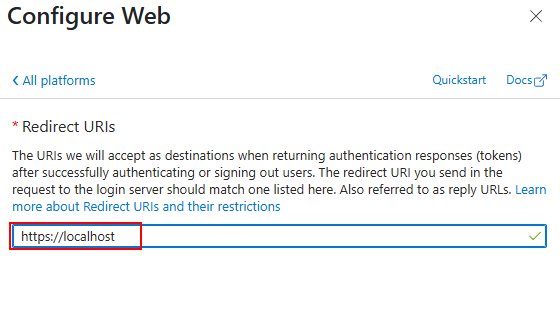
Add "https://localhost" as a Redirect URI in your App Registration.
-
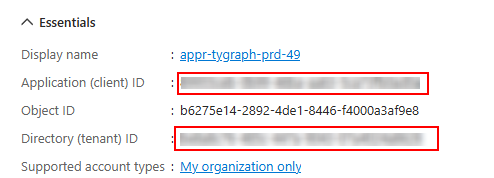
Copy your Directory (tenant) ID and Application (client) ID from the App Registration.
-
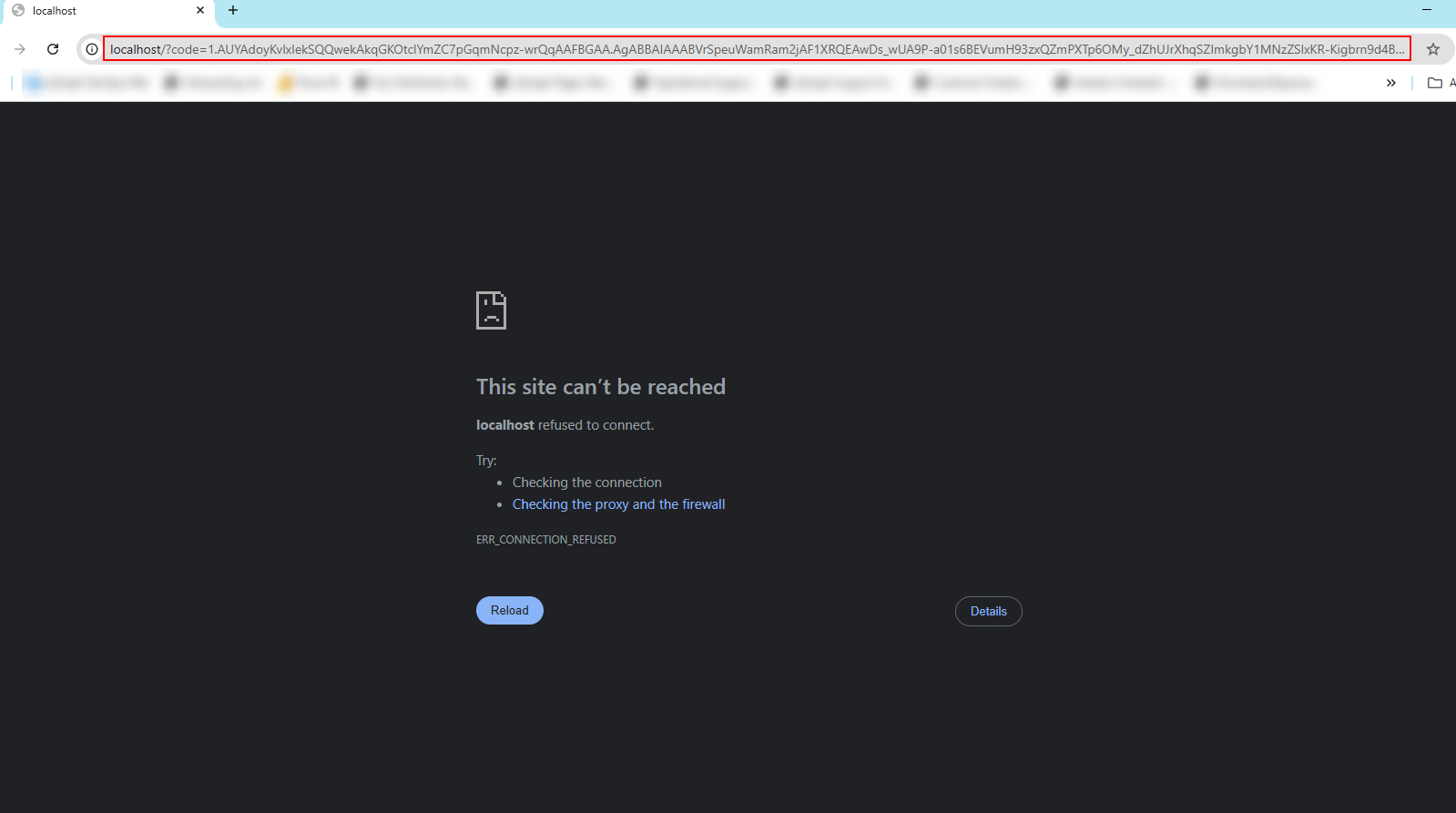
Enter your Directory (tenant) ID and Application (client) ID into the link here, then open it in your browser:
-
You will receive an error message from your browser, but the URL bar will change to include a code value. Copy the entire URL from your browser bar, including this code.
-
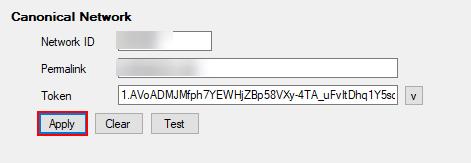
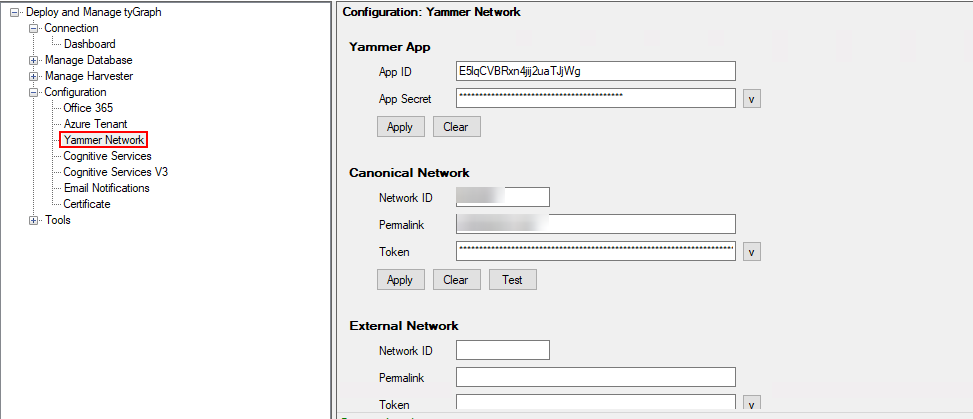
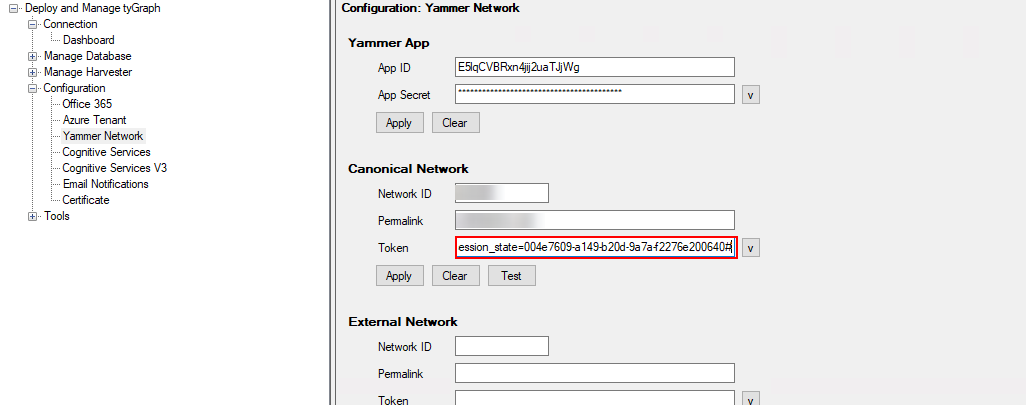
Open your tyGraph Admin Console and expand the Configuration section. Navigate to the Yammer Network panel.
-
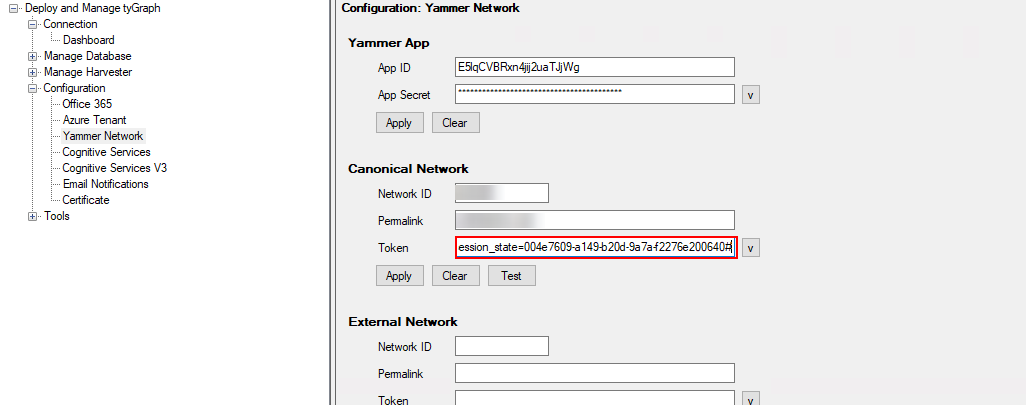
Paste the URL that you copied in Step 6 into the Token field under the Canonical Network section.
-
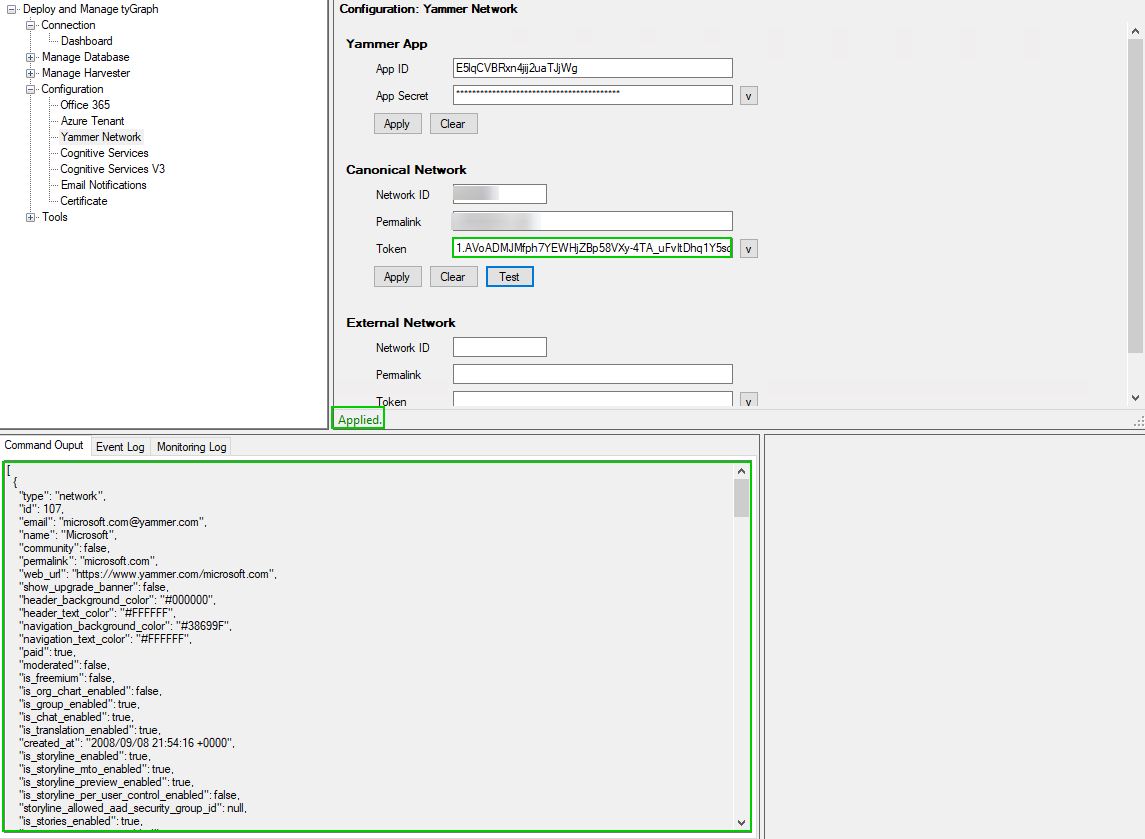
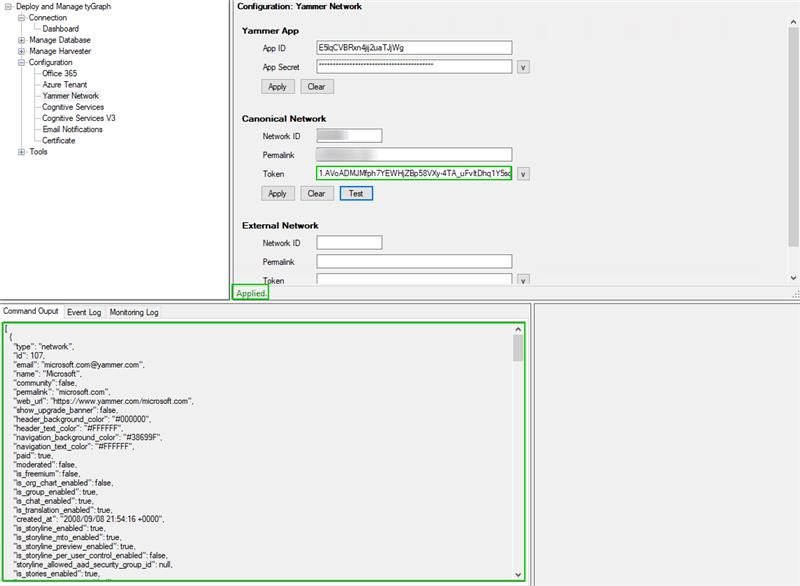
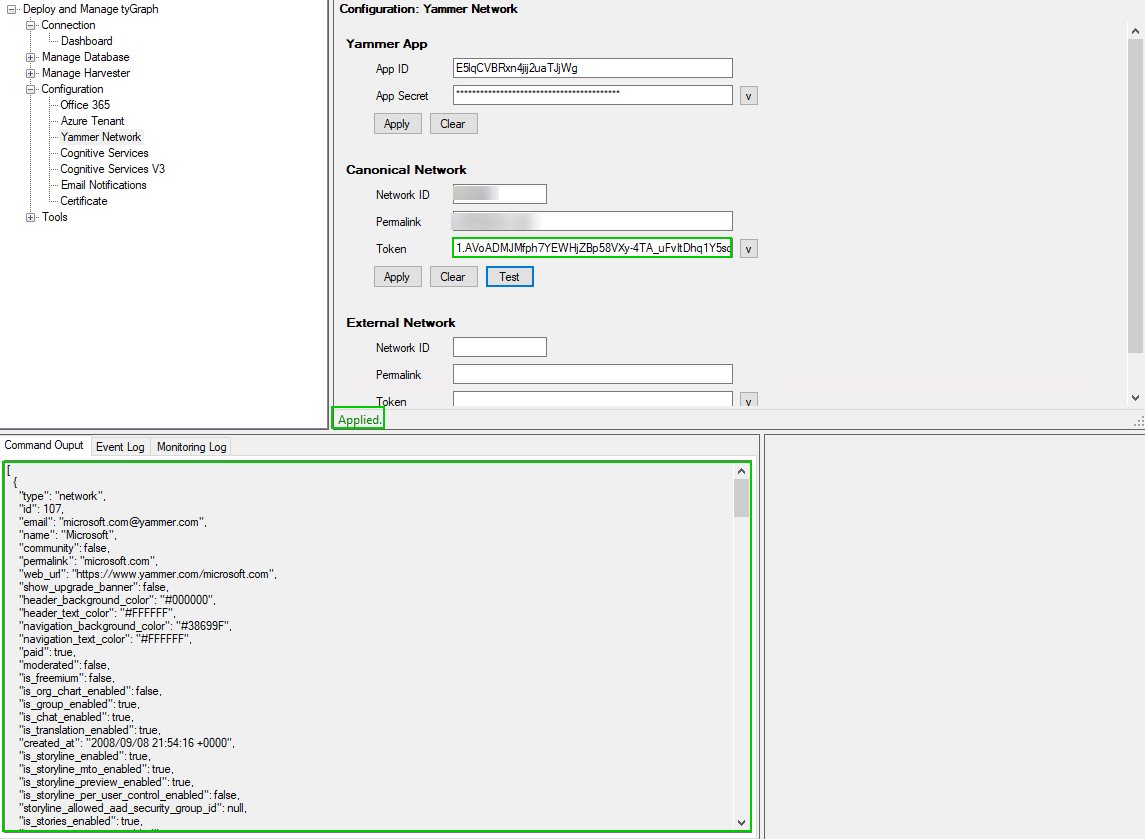
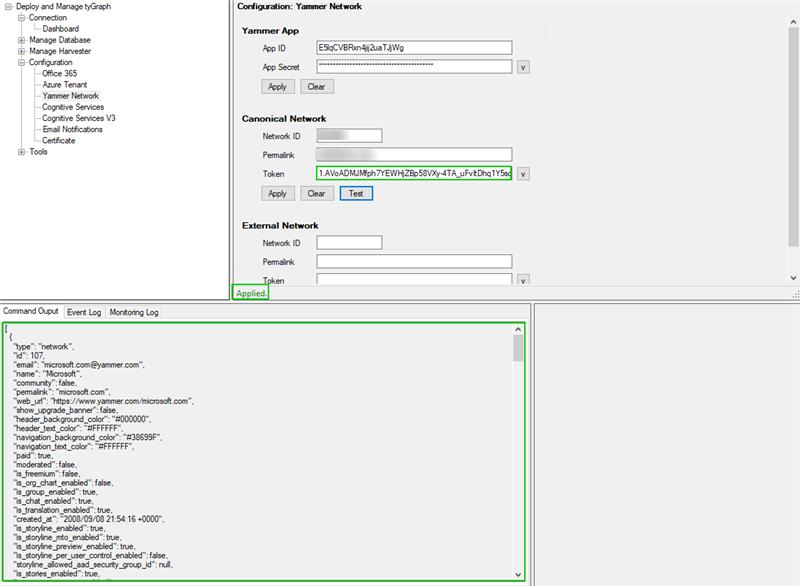
Click Test to ensure the code works. You should see a green “Applied” message, a new token value in the text box, and a data result in the Command Output section below.
-
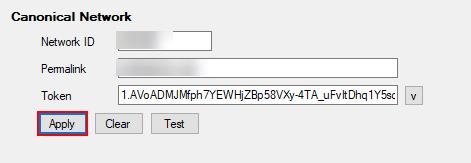
Click Apply to save the new token.