
Home > Appendices > Appendix B: Date Filtering in tyGraph Enterprise
Download this articleAppendix B: Date Filtering in tyGraph Enterprise
All tyGraph reports show data down to at least a day level. This means that you can select any date range within the time that we have been collecting data for your product.
These two slicers combine to create your Report Period.
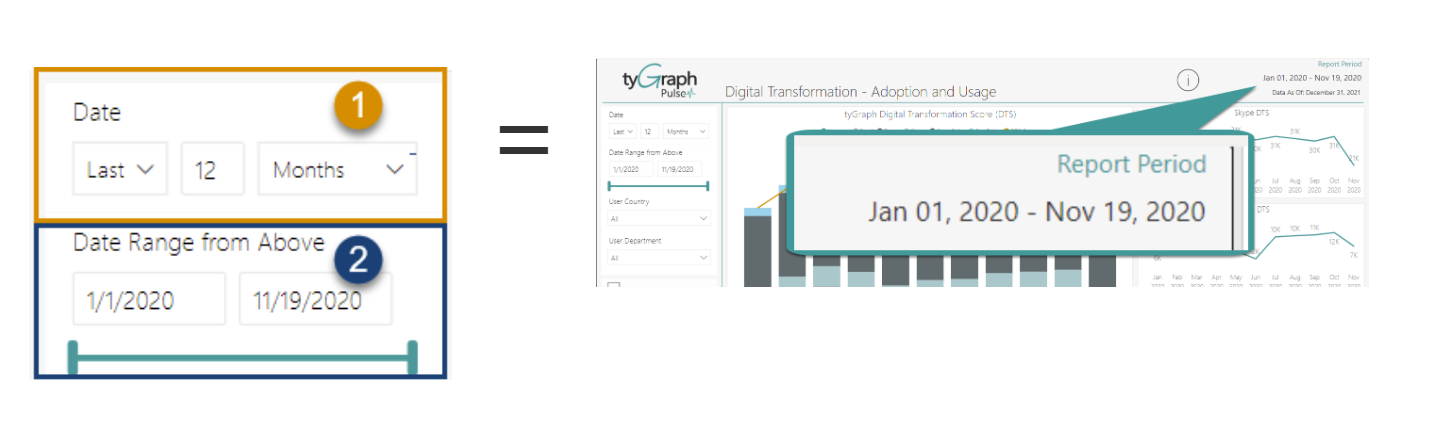
Relative Date
This is applied by default. You can choose any recent range of days, months etc.
For details, check out Microsoft Power BI's article here: Create a relative date slicer and filter in Power BI.
Date Range
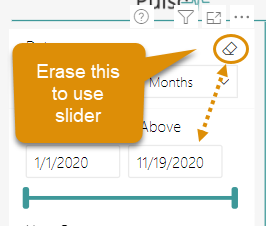
This allows you to specify specific date ranges. Always erase the relative filter if you want to make selections here otherwise the report will combine both limits.
Compounding Filters
One drawback of this flexibility is that you can compound your filters if you apply them in a way that overlaps.
Example 1
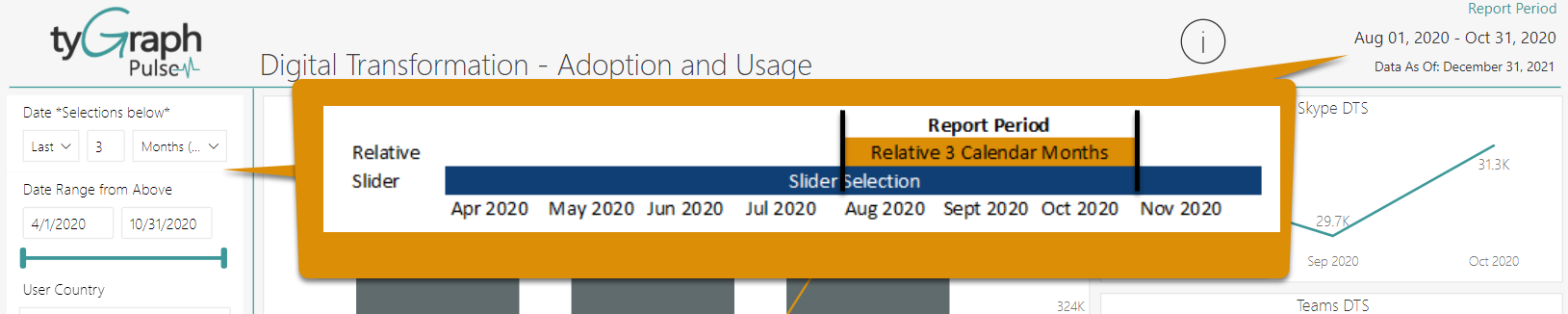
If you apply both filters the more conservative of the two will win out.
Example 2
The combination of the two filters in this case as reduced the lower limit from the relative filter and the top limit from the slider.

Power BI Filter Pane
You can also always use the Power BI filter pane on the right edge of the report. Be sure to erase these elements before you begin. Check out this Microsoft article for details: Format filters in Power BI reports.